
1. Inngangur
This manual provides detailed instructions for the installation, operation, and maintenance of your BizCardReader DuplexScan 1210 scanner. Please read this manual thoroughly before using the device to ensure proper functionality and to maximize its lifespan. This scanner is designed for efficient scanning of medical insurance cards, ID cards, and other similar documents.
2. Vöru lokiðview
The BizCardReader DuplexScan 1210 is a compact, USB-powered duplex card scanner. It is fully TWAIN compliant, allowing integration with various scanning applications, including electronic healthcare and medical practice management systems. The scanner features a robust card transport mechanism with four independently powered rollers, designed to handle various card thicknesses, including embossed plastic cards and laminated IDs.

Image 1: BizCardReader DuplexScan 1210 scanner and Scan-ID LITE software interface.
Helstu eiginleikar:
- Tvíhliða skönnun: Scans both sides of a card in a single pass.
- USB Powered: Enginn utanaðkomandi straumbreytir þarf.
- TWAIN Compliant: Compatible with a wide range of imaging applications.
- Quad-Powered Rollers: Ensures smooth feeding for various card types, including thick and laminated cards.
- Scan-ID LITE Software: Included for card image management and database creation (manual data entry required).
- ScanToFile Umsókn: Included for direct saving of scanned images to PDF, JPEG, or TIFF formats.
- Samhæfni stýrikerfis: Windows 11, 10, 8, 7, XP.
3. Innihald pakka
Gakktu úr skugga um að allir hlutir séu til staðar í pakkanum:
- BizCardReader DuplexScan 1210 Scanner
- USB tengi snúru
- Installation CD (or download instructions for software)
- Flýtileiðarvísir
4. Kerfiskröfur
- Stýrikerfi: Windows 11, Windows 10, Windows 8, Windows 7, Windows XP.
- Tengingar: Laus USB tengi.
- Lágmarksupplausn: 300 DPI (Optical).
- Athugið: This scanner is not compatible with Mac operating systems.
5. Uppsetning
5.1. Uppsetning rekla og hugbúnaðar
- Ekki tengja skannann við tölvuna þína strax.
- Insert the provided installation CD into your computer's optical drive, or navigate to the official BizCardReader support website to download the latest drivers and software (Scan-ID LITE and ScanToFile).
- Follow the on-screen instructions to install the scanner drivers and the included software applications. It is recommended to install both Scan-ID LITE and ScanToFile.
- Endurræstu tölvuna þína ef beðið er um það.
5.2. Tenging skannans
- After the software installation is complete and your computer has restarted, connect one end of the USB cable to the USB port on the scanner.
- Tengdu hinn endann á USB snúrunni við tiltækt USB tengi á tölvunni þinni.
- The operating system should automatically detect the scanner and complete the driver installation.
6. Rekstur
6.1. Scanning with Scan-ID LITE
Scan-ID LITE is designed for managing scanned card images in a searchable database.
- Open the Scan-ID LITE application from your desktop or Start Menu.
- Place the card you wish to scan into the scanner's input slot. Ensure the card is inserted correctly, typically face up with the leading edge first.
- Within the Scan-ID LITE interface, locate the 'Scan' or 'Scan Options' button. You may have options for 'Single Side' or 'Double Side' scanning. Select 'Double Side' for duplex scanning.
- The scanner will pull the card through and display the scanned images (front and back) within the application.
- Mikilvægt: Card information (e.g., name, ID number, address) must be manually keyed in to create a searchable record. Scan-ID LITE does not automatically read data from driver licenses or other cards.
- Save the record to the database.

Image 2: Scan-ID LITE interface, showing manual data entry fields and scanned card images.
6.2. Scanning with ScanToFile
ScanToFile allows you to quickly save scanned images directly to common file sniðum.
- Open the ScanToFile umsókn.
- Place the card into the scanner's input slot.
- Select your desired output format (PDF, JPEG, or TIFF) and the destination folder for the scanned images.
- Initiate the scan. The scanner will process the card, and the images will be saved automatically to the specified location.
6.3. TWAIN Compatibility
The DuplexScan 1210 is TWAIN compliant, meaning it can be used with any third-party software that supports TWAIN drivers. When using other applications, select the BizCardReader DuplexScan 1210 as your scanner source within that application's scanning interface.
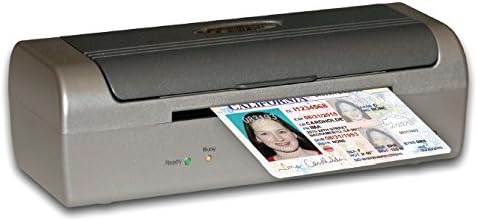
Image 3: Proper insertion of a card into the scanner.
7. Viðhald
7.1. Þrif á skannanum
Regular cleaning helps maintain scan quality and extends the life of your scanner.
- Slökkva á: Disconnect the scanner from the USB port before cleaning.
- Að utan: Þurrkið ytra byrðina með mjúkum, þurrum og lólausum klút. Notið ekki slípiefni eða leysiefni.
- Interior (Rollers and Glass): Refer to the detailed cleaning instructions in the full software manual or on the manufacturer's website. Typically, a soft cloth lightly dampened with isopropyl alcohol can be used for rollers and optical components. Ensure all components are dry before reconnecting power.
7.2. Skipti á rúllu
Over time, the scanner rollers may wear out, affecting card feeding. Replacement kits are available from the manufacturer. Consult the full manual for instructions on how to replace the rollers.
8. Bilanagreining
Algeng vandamál og lausnir:
- Skanni fannst ekki:
- Gakktu úr skugga um að USB-snúran sé vel tengd bæði við skannann og tölvuna.
- Prófaðu annað USB tengi á tölvunni þinni.
- Staðfestið að reklarnir séu rétt uppsettir. Endursetjið ef þörf krefur.
- Endurræstu tölvuna þína.
- Poor Scan Quality (Streaks, Blurs):
- Clean the scanner's optical components and rollers as described in the Maintenance section.
- Ensure the card is clean and free of debris.
- Check software settings for resolution and image enhancement options.
- Card Jamming or Not Feeding:
- Ensure the card is inserted straight and not at an angle.
- Clean the scanner rollers. Worn rollers may need replacement.
- Avoid scanning cards that are excessively bent, damaged, or thicker than recommended specifications.
- Scan-ID LITE Not Reading Data Automatically:
- This is expected behavior. Scan-ID LITE requires manual data entry for card information. It does not feature OCR for driver licenses or other documents.
9. Tæknilýsing
| Eiginleiki | Forskrift |
|---|---|
| Nafn líkans | DuplexScan 1210 |
| Tegundarnúmer vöru | SLB1 |
| Tegund skanni | Document, ID Card, Insurance Card, Photo |
| Tengitækni | USB |
| Optical Sensor Tækni | CIS |
| Upplausn | 300 DPI |
| Blaðstærð | Kreditkort |
| Vörumál | 7.7 x 2.4 x 3 tommur |
| Þyngd hlutar | 1.3 pund |
| Lágmarks kerfiskröfur | Windows 7 |
| UPC | 719990001323 |

Mynd 4: Framan view of the DuplexScan 1210 scanner.
10. Ábyrgð og stuðningur
10.1. Upplýsingar um ábyrgð
The BizCardReader DuplexScan 1210 scanner includes a 1 ára varahluti og vinnuábyrgð frá kaupdegi. Þessi ábyrgð nær til galla í efni og framleiðslu við eðlilega notkun. Hún nær ekki til tjóns sem orsakast af misnotkun, slysum, óheimilum breytingum eða utanaðkomandi orsökum.
10.2. Þjónustudeild
For technical assistance, troubleshooting, or warranty claims, please contact BizCardReader customer support through their official website or the contact information provided with your product documentation. Please have your product model number (DuplexScan 1210 or SLB1) and proof of purchase available when contacting support.