
PNY VCQP4000-BLK
PNY NVIDIA Quadro P4000 Professional Graphics Card User Manual
Model: VCQP4000-BLK
1. Inngangur
The PNY NVIDIA Quadro P4000 is a professional graphics card designed for demanding visual computing workflows. It features a Pascal GPU architecture with 1792 CUDA cores, 8GB of GDDR5 memory, and advanced display technologies. This manual provides essential information for the installation, operation, maintenance, and troubleshooting of your Quadro P4000 graphics card.
This card is engineered to deliver the performance and features required for professional applications, supporting up to four 5K displays and utilizing a single-slot form factor.
2. Hvað er í kassanum
Gakktu úr skugga um að allir íhlutir séu til staðar áður en uppsetningunni er haldið áfram:
- PNY NVIDIA Quadro P4000 Professional Graphics Card
- (Additional accessories such as documentation, adapter cables, or driver CDs may be included depending on the specific package. Refer to your product packaging for a complete list.)
3. Vöru lokiðview

Mynd 3.1: Hornað view of the PNY NVIDIA Quadro P4000 graphics card, showcasing hönnun með einni rauf og kæliviftu.

Mynd 3.2: Hlið view of the Quadro P4000, highlighting the PCI Express interface and auxiliary power connector.
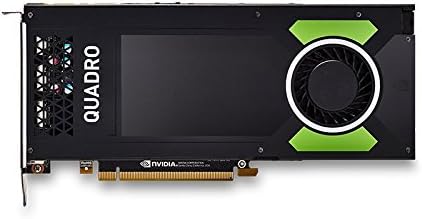
Mynd 3.3: Efst view of the Quadro P4000, showing the full length of the card and the fan shroud design.

Mynd 3.4: Nærmynd view of the four DisplayPort outputs on the Quadro P4000, enabling multi-monitor setups.
4. Uppsetning og uppsetning
4.1 Kerfiskröfur
- Available PCI Express 3.0 x16 slot
- Minimum 105W power supply with appropriate auxiliary power connector (if required by your system)
- Compatible operating system (Windows 10, 8.1, 7, Linux, macOS)
- Nettenging fyrir niðurhal og uppfærslur á bílstjórum
4.2 Uppsetning vélbúnaðar
- Slökkva á kerfinu: Gakktu úr skugga um að tölvan þín sé alveg slökkt og úr sambandi við innstunguna.
- Opið mál: Open your computer's case to access the motherboard and expansion slots.
- Finndu PCIe raufina: Finndu lausa PCI Express 3.0 x16 rauf á móðurborðinu þínu.
- Fjarlægðu raufarhlífina: Fjarlægðu málmlokið af bakhlið tölvukassans sem samsvarar völdu PCIe raufinni.
- Settu inn skjákort: Carefully align the Quadro P4000 with the PCIe slot and press down firmly until it is securely seated. Ensure the retention clip (if present) locks into place.
- Öruggt kort: Festið skjákortið við tölvukassann með skrúfunni eða lásbúnaðinum.
- Tengja rafmagn (ef við á): If your system or the card requires it, connect the appropriate auxiliary power cable from your power supply to the graphics card. The Quadro P4000 has a maximum power consumption of 105W.
- Loka málinu: Close your computer's case and reconnect all cables.
4.3 Bílstjóri uppsetning
- Kveikja á kerfi: Kveiktu á tölvunni þinni.
- Sækja bílstjóra: Farðu á opinberu NVIDIA webvefsvæði (www.nvidia.com/drivers) and download the latest Quadro drivers for your operating system and the P4000 model.
- Settu upp rekla: Run the downloaded driver installer and follow the on-screen prompts. It is recommended to perform a clean installation.
- Endurræsa kerfið: Endurræstu tölvuna eftir að uppsetningu bílstjórans er lokið.
5. Operating the Quadro P4000
5.1 Tenging skjáa
The Quadro P4000 features four DisplayPort outputs. Use DisplayPort cables to connect your monitors to the card. It supports up to four 5K displays simultaneously.
5.2 NVIDIA stjórnborð
After driver installation, the NVIDIA Control Panel will be accessible. This utility allows you to configure various display settings, manage 3D application profiles, set up multi-display configurations (NVIDIA Mosaic, Surround), and monitor GPU performance.
- Accessing: Right-click on your desktop and select "NVIDIA Control Panel" or find it in your operating system's control panel/settings.
- Helstu eiginleikar:
- Resolution and refresh rate adjustments
- Litastillingar
- Multi-display setup (Extend, Duplicate, Surround, Mosaic)
- 3D settings management for professional applications
- GPU utilization monitoring
5.3 Hugbúnaðarsamhæfi
The Quadro P4000 is optimized for professional design, engineering, and content creation applications. Ensure your software is updated to the latest versions to take full advantage of the card's capabilities, including Pascal GPU Architecture and Simultaneous Multi-Projection.
6. Viðhald
Rétt viðhald tryggir langlífi og bestu mögulegu afköst skjákortsins.
- Rykhreinsun: Hreinsið reglulega ryk af viftu og kæli með þrýstilofti. Gangið úr skugga um að kerfið sé slökkt og aftengt áður en það er hreinsað.
- Bílstjóri uppfærslur: Athugaðu reglulega NVIDIA website for the latest driver updates. Keeping drivers current can improve performance, stability, and add new features.
- Loftræsting kerfisins: Gakktu úr skugga um að nægilegt loftflæði sé í tölvukassanum til að koma í veg fyrir ofhitnun.
7. Bilanagreining
7.1 Engin skjáúttak
- Athugaðu tengingar: Ensure the graphics card is fully seated in the PCIe slot and any auxiliary power cables are securely connected.
- Skjár snúrur: Gakktu úr skugga um að skjásnúrurnar séu vel tengdar bæði við skjákortið og skjáinn.
- Inntaksheimild: Gakktu úr skugga um að skjárinn sé stilltur á réttan inntaksgjafa (DisplayPort).
- Ökumenn: If possible, try booting into safe mode or using integrated graphics to install/reinstall the latest drivers.
7.2 Vandamál með afköst
- Bílstjóri uppfærslur: Ensure you have the latest NVIDIA Quadro drivers installed.
- Hitastig: Monitor GPU temperatures using third-party software. Excessive heat can lead to throttling. Ensure proper case ventilation.
- Aflgjafi: Gakktu úr skugga um að aflgjafinn þinn uppfylli lágmarks wattkröfurtage requirement for your system, including the graphics card.
- Stillingar forrita: Check the settings within your professional applications; some settings may be too demanding for your current workload.
7.3 Driver Installation Failures
- Hrein uppsetning: During driver installation, select the "Perform a clean installation" option.
- Vírusvörn/Eldveggur: Temporarily disable antivirus software or firewalls that might interfere with the installation process.
- Corrupted Download: Re-download the driver package from the official NVIDIA websíðuna til að tryggja að hún sé ekki skemmd.
8. Tæknilýsing
| Eiginleiki | Smáatriði |
|---|---|
| Gerðarnúmer | VCQP4000-BLK |
| Grafískur hjálpargjörvi | 4000 Frame |
| Flís merkis | NVIDIA |
| Stærð vinnsluminni skjákorts | 8 GB GDDR5 |
| Minnishraði | 3802 MHz |
| Bandbreidd minni | 243 GB/s |
| CUDA kjarna | 1792 |
| Peak Single Precision Performance | 5.3 TFLOPS |
| Vídeóúttaksviðmót | 4 x DisplayPort |
| Hámarksfjöldi skjáa sem studdir eru | 4 (up to 5K resolution each) |
| Viðmót | PCI Express 3.0 x16 |
| Form Factor | Single-slot, 4.4" x 9.5" |
| Hámarks orkunotkun | 105W |
| Þyngd hlutar | 1 pund |
| Vörumál | 1 x 1 x 1 inches (Note: This appears to be a placeholder dimension, actual card dimensions are 4.4" x 9.5") |
| Fyrsti laus dagsetning | 22. desember 2017 |
9. Ábyrgð og stuðningur
9.1 Upplýsingar um ábyrgð
PNY products are covered by a limited warranty. For specific warranty terms and conditions, please refer to the warranty documentation included with your product or visit the official PNY webGeymið kaupkvittunina vegna ábyrgðarkröfu.
9.2 Tæknileg aðstoð
For technical assistance, driver issues, or troubleshooting beyond the scope of this manual, please contact PNY Technical Support. Support resources, including FAQs, knowledge bases, and contact information, can typically be found on the official PNY websíða:
PNY stuðningur Websíða: www.pny.com/support
When contacting support, please have your product model number (VCQP4000-BLK) and purchase information ready.