
Bmax X15
Bmax X15 Laptop User Manual
Gerð: X15
Inngangur
This manual provides comprehensive instructions for the setup, operation, and maintenance of your Bmax X15 laptop. Please read this manual carefully before using your device to ensure proper functionality and longevity.
Vara lokiðview
Framan View

The Bmax X15 features a vibrant 15.6-inch Full HD display, providing clear and crisp visuals for all your computing needs.
Lyklaborð og snertiborð

Equipped with a full-sized keyboard including a numeric keypad and a large 4.7-inch multi-touch touchpad for comfortable and efficient input.
Side Profile og hafnir

The slim design incorporates essential ports including two USB 3.0 ports, a Micro HDMI output, a DC power input, and a headphone jack for versatile connectivity.
Aftan View

The Bmax X15 features a durable metal back cover, enhancing both its aesthetic appeal and structural integrity.
Uppsetning
Upphafleg ræsing
- Hladdu rafhlöðuna: Before first use, connect the included power adapter to the laptop's DC port and a power outlet. Allow the battery to charge fully. The charging indicator light will typically change color or turn off when fully charged.
- Kveikt á: Open the laptop lid and press the power button, usually located on the top right of the keyboard area.
- Windows uppsetning: Follow the on-screen prompts to complete the Windows 10 Pro setup. This includes selecting your language, region, connecting to a Wi-Fi network, and creating a user account.
Að tengja jaðartæki
- USB tæki: Connect USB mice, keyboards, or external drives to the USB 3.0 ports on the sides of the laptop.
- Ytri skjár: Use a Micro HDMI cable to connect the laptop to an external monitor or TV. Ensure the external display is set to the correct input source.
- Hljóðtæki: Plug headphones or external speakers into the 3.5mm audio jack.
- Micro-SD kort: Insert a Micro-SD card into the designated slot for additional storage.
Notkunarleiðbeiningar
Notkun lyklaborðs og snertiflatar
The Bmax X15 features a responsive keyboard and a large touchpad. The touchpad supports multi-touch gestures for enhanced navigation. Refer to Windows settings for customizing touchpad gestures.
Skjárstillingar
The 15.6-inch Full HD IPS display offers excellent clarity. You can adjust display settings such as brightness, resolution, and scaling through Windows Display Settings.
Stækkun geymslu
Expandable M.2 SSD Slot
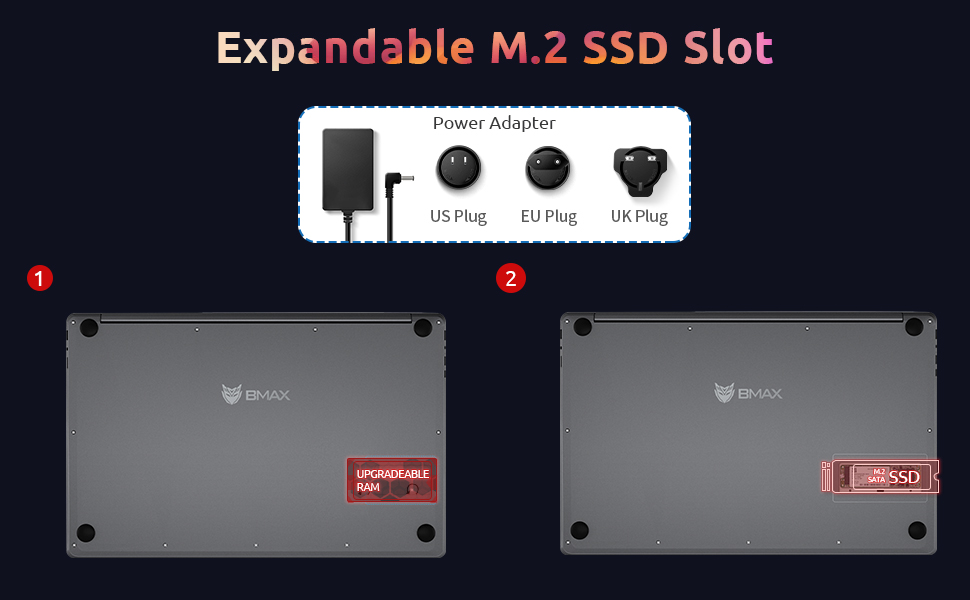
The Bmax X15 comes with a 256GB SSD and supports further storage expansion via an M.2 SATA SSD slot. This allows for significant upgrades to your storage capacity.
Viðhald
Þrif
- Skjár: Notaðu mjúkan, lólausan klút örlítið dampÞvoið með vatni eða skjáhreinsiefni. Ekki úða vökva beint á skjáinn.
- Lyklaborð og undirvagn: Notið mjúkan, þurran klút. Fyrir þrjósk óhreinindi, örlítið þurranamp Hægt er að nota klút og tryggja að vökvi komist ekki inn í op.
- Hafnir: Notið þrýstiloft til að hreinsa ryk varlega úr tengjum.
Umhirða rafhlöðu
- Forðastu að tæma rafhlöðuna alveg oft.
- Geymið fartölvuna á köldum, þurrum stað ef hún er ekki notuð í langan tíma, með rafhlöðuna hlaðna um 50%.
- Use only the original Bmax power adapter.
Hugbúnaðaruppfærslur
Regularly check for and install Windows updates to ensure system stability, security, and optimal performance. Go to Stillingar > Uppfærsla og öryggi > Windows Update.
Úrræðaleit
| Vandamál | Möguleg orsök | Lausn |
|---|---|---|
| Tölvan kviknar ekki á. | Low battery; Power adapter issue; Hardware fault. | Ensure power adapter is securely connected and outlet is working. Allow battery to charge for at least 30 minutes before attempting to power on again. |
| Skjárinn er tómur eða blikkar. | Incorrect display settings; Driver issue; Hardware fault. | Ýttu á Fn + F1 (or relevant display toggle key) to cycle through display modes. Update graphics drivers. Restart the laptop. |
| Vandamál með Wi-Fi tengingu. | Wi-Fi adapter off; Router issue; Driver issue. | Ensure Wi-Fi is enabled in Windows settings. Restart your router. Update network drivers. |
| Hæg frammistaða. | Too many programs running; Low storage space; Malware. | Close unnecessary applications. Free up disk space. Run a virus scan. Consider upgrading SSD or RAM if consistently slow. |
Tæknilýsing
| Eiginleiki | Smáatriði |
|---|---|
| Fyrirmynd | Bmax X15 |
| Örgjörvi | Intel Celeron N4120 Quad Core (up to 2.6 GHz) |
| vinnsluminni | 8 GB DDR4 |
| Geymsla | 256 GB SSD (Expandable via M.2 SATA SSD slot) |
| Skjár | 15.6-inch Full HD (1920x1080) IPS |
| Grafík | Intel UHD Graphics 600 (innbyggt) |
| Stýrikerfi | Windows 10 Pro (Supports Linux OS) |
| Þráðlaus tenging | 802.11ac Wi-Fi, Bluetooth |
| Hafnir | 2x USB 3.0, 1x Micro HDMI, 1x DC Power, 1x 3.5mm Headphone Jack, 1x Micro-SD Card Reader |
| Webkambur | 0.3 MP |
| Rafhlöðuending | Allt að 5 klukkustundir (venjuleg notkun) |
| Mál (LxBxH) | 14.8 x 9.6 x 0.8 tommur |
| Þyngd | 4.4 pund |
Ábyrgð og stuðningur
Bmax offers a worry-free 30-day return policy and a 12-month warranty for the X15 laptop. For technical support or warranty claims, please refer to the contact information provided with your product packaging or visit the official Bmax support websíða.
Customer service is available 7 days a week, 24 hours a day.
Fyrir frekari upplýsingar má finna á Bmax Store on Amazon.
Ask a question about this manual
Ask about setup, troubleshooting, compatibility, parts, safety, or missing instructions. Manuals+ will review the question and use this page’s manual context to help answer it.