
MERCUSYS MR50G
Mercusys MR50G AC1900 Dual-Band Wi-Fi 5 Router User Manual
Model: MR50G
Inngangur
This manual provides comprehensive instructions for setting up, operating, maintaining, and troubleshooting your Mercusys MR50G AC1900 Dual-Band Wi-Fi 5 Router. The MR50G is designed to deliver high-speed wireless connectivity with AC1900 speeds, Gigabit Ethernet ports, and advanced features like MU-MIMO and Beamforming.

Mynd: Framan view of the Mercusys MR50G router, illustrating its dual-band capabilities with 5GHz (1300 Mbps) and 2.4GHz (600 Mbps) speeds.
Uppsetningarleiðbeiningar
1. Innihald pakka
Staðfestu að pakkinn þinn inniheldur eftirfarandi hluti:
- Mercusys MR50G AC1900 Dual-Band Wi-Fi 5 Router
- Rafmagns millistykki
- Ethernet snúru
- Quick Installation Guide (User Guide)
2. Líkamleg tenging
Fylgdu þessum skrefum til að tengja beininn þinn:
- Slökkva á: Aftengdu rafmagnið frá mótaldinu þínu og leiðaranum (ef við á).
- Tengja mótald við leiðara: Connect one end of the provided Ethernet cable to the WAN port (usually blue) on your MR50G router and the other end to your modem's Ethernet port.
- Tengja tæki (valfrjálst): For wired connections, connect your computer or other devices to the LAN ports (yellow) on the MR50G router using Ethernet cables.
- Kveikt á: Connect the power adapter to the router's power port and plug it into a power outlet. Power on your modem, then power on the MR50G router.
- Bíddu eftir vísbendingum: Wait for the router's LED indicators to stabilize. The Power LED should be solid green.
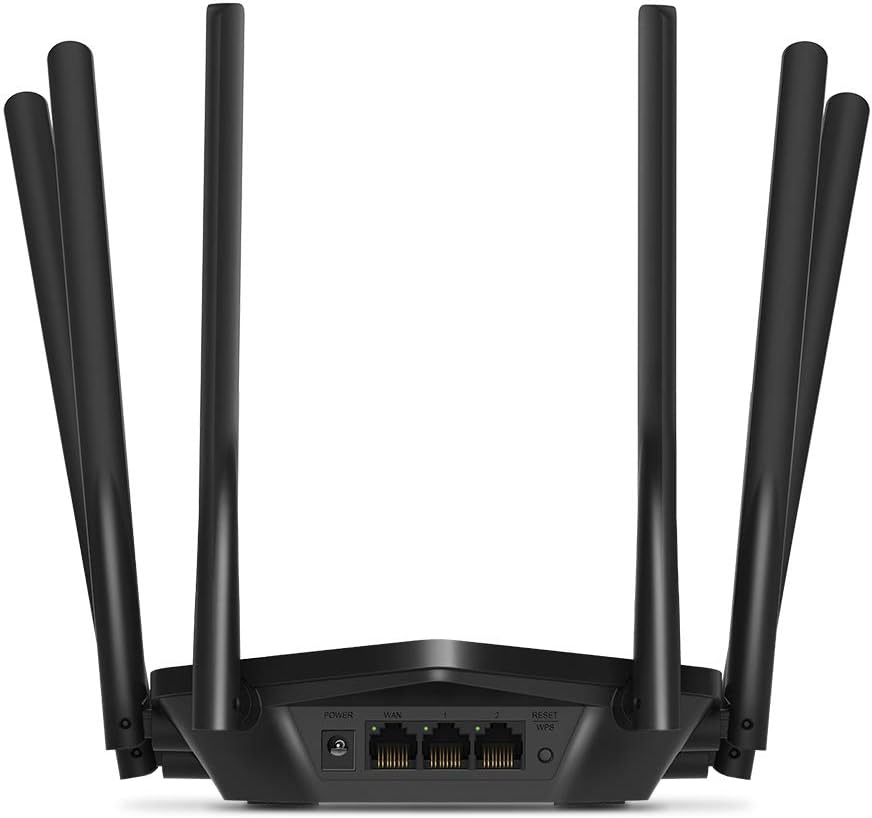
Mynd: Aftan view of the Mercusys MR50G router, illustrating the power input, WAN port (blue), and three LAN ports (yellow) for wired connections, along with the Reset/WPS button.
3. Upphafleg stilling
Til að stilla beininn þinn í fyrsta skipti:
- Tengjast Wi-Fi: Connect your computer or mobile device to the router's default Wi-Fi network (SSID and password are typically printed on a label on the bottom of the router).
- Aðgangur Web Tengi: Opna a web vafra og gerð
mwlogin.netor192.168.1.1inn á heimilisfangastikuna. - Búa til innskráningarlykilorð: Follow the on-screen instructions to create a login password for the router's management page.
- Fylgdu hraðuppsetningu: The Quick Setup wizard will guide you through basic internet and wireless settings.
Notkunarleiðbeiningar
1. Basic Wi-Fi Settings
Eftir að hafa skráð þig inn á web viðmót:
- Netheiti (SSID): Navigate to the Wireless settings to change your Wi-Fi network names (SSIDs) for both 2.4 GHz and 5 GHz bands.
- Lykilorð: Set a strong, unique password for your Wi-Fi networks. The MR50G supports WPA3 for enhanced security.
- Öryggistegund: It is recommended to use WPA2-PSK/WPA3-Personal for optimal security.
2. Tvíbandsaðgerð
MR50G starfar á tveimur tíðnisviðum:
- 2.4 GHz: Veitir breiðari þekju og betri snertingu í gegnum veggi, hentar fyrir almenna netnotkun og eldri tæki.
- 5 GHz: Offers faster speeds and less interference, ideal for bandwidth-intensive activities like 4K streaming and online gaming, but with a shorter range.
You can configure separate SSIDs for each band or use Smart Connect to combine them into a single SSID, allowing the router to automatically assign devices to the optimal band.
3. Aðgangspunktsstilling
To use the MR50G as an Access Point (AP) to extend an existing wired network:
- Tengjast: Connect an Ethernet cable from your existing router's LAN port to one of the MR50G's LAN ports (not the WAN port).
- Stilla: Log into the MR50G's web interface, navigate to the Operation Mode settings, and select "Access Point Mode". Follow the prompts to complete the setup.
4. Ítarlegir eiginleikar
- MU-MIMO: Multi-User, Multiple-Input, Multiple-Output technology allows the router to communicate with multiple devices simultaneously, improving network efficiency.
- Geislamyndun: Beinist Wi-Fi merkjum að tengdum tækjum, sem eykur merkisstyrk og drægni.
- VPN stuðningur: The router supports VPN functionality, allowing for secure remote access or connection to VPN services. Refer to the router's web interface for specific VPN client/server configurations.
- Foreldraeftirlit: Manage and restrict internet access for specific devices or users.
- Gestanet: Búðu til sérstakt Wi-Fi net fyrir gesti og tryggðu að aðalnetið þitt sé öruggt.
Viðhald
1. Fastbúnaðaruppfærslur
Regularly check for and install firmware updates to ensure optimal performance, security, and access to new features. Firmware updates can typically be found in the router's web interface under System Tools or Advanced settings.
2. Resetting the Router
If you encounter persistent issues or forget your login password, you may need to reset the router to its factory default settings:
- With the router powered on, press and hold the Reset/WPS button on the back panel for approximately 5-10 seconds until the LED indicators flash.
- Release the button and wait for the router to restart. All settings will be restored to factory defaults.
3. Besta staðsetningin
For the best Wi-Fi coverage and performance:
- Place the router in a central location in your home or office.
- Avoid placing it near obstructions like thick walls, metal objects, or large appliances (microwaves, refrigerators) that can interfere with Wi-Fi signals.
- Elevate the router if possible, as Wi-Fi signals tend to spread downwards.

Image: Mercusys MR50G router positioned on a table, demonstrating a typical placement for optimal signal distribution within a living space.
Úrræðaleit
1. Enginn aðgangur að internetinu
- Athugaðu tengingar: Gakktu úr skugga um að allar Ethernet-snúrur séu vel tengdar við réttar tengi (WAN við mótald, LAN við tæki).
- Endurræstu tæki: Slökkvið á mótaldinu, síðan á leiðinni og að lokum á tengdu tækjunum.
- Athugaðu WAN LED ljósið: Verify that the WAN LED on the router is lit, indicating a connection to the modem.
- Staða netþjónustuaðila: Hafðu samband við netþjónustuveituna þína til að staðfesta að engin þjónusta sé í boði.tages á þínu svæði.
2. Hægur hraði á Wi-Fi neti
- Staðsetning leiðara: Ensure the router is placed optimally (refer to "Optimal Placement" section).
- Truflun: Færðu beininn frá öðrum rafeindatækjum sem gætu valdið truflunum.
- Val á hljómsveit: For speed-critical applications, ensure your device is connected to the 5 GHz band.
- Rásarhagræðing: Í leiðaranum web viðmótið skaltu prófa að breyta Wi-Fi rásinni fyrir bæði 2.4 GHz og 5 GHz böndin í rás með minni álagi.
- Fastbúnaður: Gakktu úr skugga um að vélbúnaðarstillingar leiðarans þíns séu uppfærðar.
3. Ekki er hægt að nálgast stjórnunarsíðu leiðar
- IP tölu: Gakktu úr skugga um að þú notir rétt heimilisfang (
mwlogin.netor192.168.1.1). - Þráðlaus tenging: Try accessing the page from a computer connected directly to the router via an Ethernet cable.
- Hreinsa skyndiminni vafrans: Hreinsaðu þitt web skyndiminni og vafrakökur vafrans, eða prófaðu annan vafra.
- Eldveggur/Veirustefna: Slökktu tímabundið á öllum eldveggjum eða vírusvarnarforritum í tölvunni þinni sem gætu verið að loka fyrir aðgang.
- Endurstilla leið: If all else fails, perform a factory reset (refer to "Resetting the Router" section).
Tæknilýsing
| Fyrirmynd | MR50G (EU) |
| Þráðlausir staðlar | IEEE 802.11a/b/g/n/ac |
| Tíðni | 2.4 GHz og 5 GHz (tvíband) |
| Gagnahlutfall | AC1900 (600 Mbps á 2.4 GHz, 1300 Mbps á 5 GHz) |
| Ethernet tengi | 1x Gigabit WAN tengi, 3x Gigabit LAN tengi |
| Loftnet | 6x fastar alhliða loftnet |
| Öryggi | WPA-PSK / WPA2-PSK / WPA3-Personal |
| Mál (B x D x H) | 15.72 x 17.56 x 4.5 cm |
| Þyngd | 450 g |
| Sérstakir eiginleikar | MU-MIMO, Beamforming, Access Point Mode, VPN Support, Parental Controls, Guest Network |
| Power Input | 100-240V ~ 50/60Hz |
Ábyrgð og stuðningur
Mercusys products come with a limited warranty. For detailed warranty information, please refer to the warranty card included with your product or visit the official Mercusys websíða.
For technical support, firmware updates, and additional resources, please visit the Mercusys support website. You can typically find contact information and FAQs there.
Official Mercusys Websíða: www.mercusys.com
Tengd skjöl - MR50G
 |
Notendahandbók fyrir MERCUSYS MR50G AC1900 þráðlausa tvíbands Gigabit leiðara Ítarleg notendahandbók fyrir MERCUSYS MR50G AC1900 þráðlausa tvíbands Gigabit leiðarann, sem nær yfir vörur yfir...view, uppsetningu, stillingar og öryggisupplýsingar. |
 |
Notendahandbók fyrir MERCUSYS MR50G AC1900 þráðlausa tvíbands Gigabit leiðara Ítarleg notendahandbók fyrir MERCUSYS MR50G AC1900 þráðlausa tvíbands Gigabit-leiðina, sem fjallar um uppsetningu, stillingar og eiginleika. |
 |
Notendahandbók fyrir MERCUSYS MR50G AC1900 þráðlausa tvíbands Gigabit leiðara Notendahandbók fyrir MERCUSYS MR50G AC1900 þráðlausa tvíbands Gigabit leiðarann, sem nær yfir vöruna yfir...view, uppsetning, grunn- og ítarleg stilling og öryggisupplýsingar. |
 |
Notendahandbók fyrir þráðlausa tvíbandsleiðara MERCUSYS MR20 AC750 Ítarleg notendahandbók fyrir MERCUSYS MR20 AC750 þráðlausa tvíbandsleiðarann, sem fjallar um uppsetningu, stillingar og notkunarhami. |
 |
Leiðbeiningar um uppsetningu á þráðlausum leiðara frá MERCUSYS Hnitmiðuð leiðarvísir um uppsetningu þráðlauss MERCUSYS-leiðarans þíns, sem fjallar um tengingu við vélbúnað og grunnuppsetningarskref. Inniheldur ráð um úrræðaleit vegna algengra vandamála. |
 |
Notendahandbók MERCUSYS AC12G: AC1300 þráðlaus tvíbands Gigabit leið Ítarleg notendahandbók fyrir MERCUSYS AC12G AC1300 þráðlausa tvíbands Gigabit-leiðara. Kynntu þér vöruna áview, uppsetning, netstillingar, þráðlausar stillingar, öryggi og fleira. |
Ask a question about this manual
Ask about setup, troubleshooting, compatibility, parts, safety, or missing instructions. Manuals+ will review the question and use this page’s manual context to help answer it.