
1. Inngangur
This manual provides essential information for the installation, operation, maintenance, and troubleshooting of your MAXSUN GeForce RTX 2060 iCraft 6GB graphics card. Please read this manual thoroughly before installing and using the product to ensure proper functionality and safety.
2. Öryggisupplýsingar
- Aftengdu alltaf rafmagnið frá tölvunni áður en þú setur upp eða fjarlægir nokkra íhluti.
- Notið úlnliðsól með rafstöðuvef eða snertu oft jarðtengdan málmhlut til að koma í veg fyrir skemmdir á íhlutum vegna rafstöðuvefsúthleðslu (ESD).
- Haltu skjákortinu á brúnunum til að forðast að snerta viðkvæma íhluti.
- Tryggið næga loftræstingu í tölvukassanum til að koma í veg fyrir ofhitnun.
- Do not attempt to repair the graphics card yourself. Refer to qualified service personnel.
3. Innihald pakka
Staðfestu að pakkinn þinn inniheldur eftirfarandi hluti:
- 1 x MAXSUN GeForce RTX 2060 iCraft 6GB Graphics Card
Ef einhverjar vörur vantar eða eru skemmdar, vinsamlegast hafið samband við söluaðila.
4. Vöru lokiðview
The MAXSUN GeForce RTX 2060 iCraft 6GB graphics card is designed for gaming PCs, featuring NVIDIA's Turing GPU architecture, 6GB GDDR6 memory, and a 192-bit memory interface. It includes a triple-fan cooling system and RGB lighting.

Mynd 4.1: Framan view of the MAXSUN GeForce RTX 2060 iCraft 6GB graphics card, showing the three cooling fans and RGB lighting elements.

Mynd 4.2: Hornlaga view of the graphics card, highlighting its robust design and cooling solution.

Mynd 4.3: Aftan view af skjákortinu, sýningasing the alloy backplate designed for structural integrity and heat dissipation.

Figure 4.4: Display output ports on the graphics card, including DisplayPort (DP), HDMI, and DVI connectors.
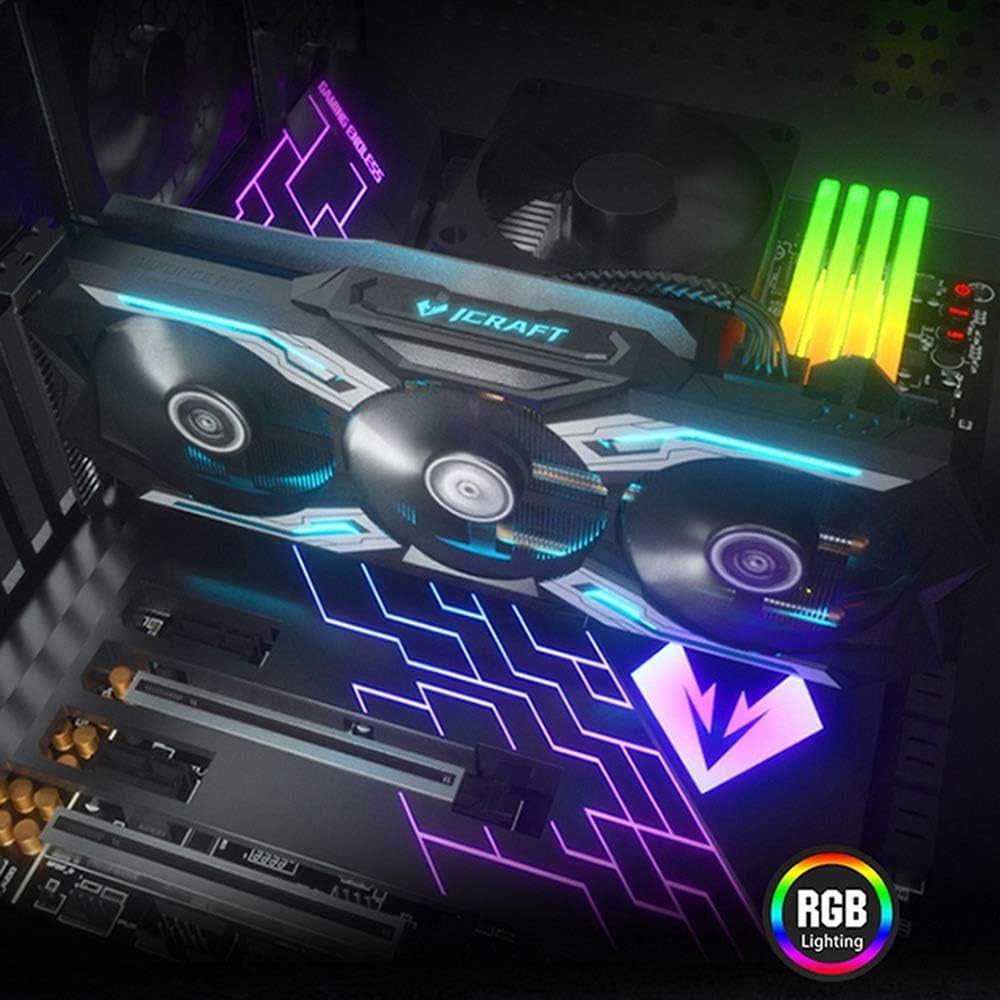
Figure 4.5: The graphics card installed in a PC case, demonstrating its integrated RGB lighting.
Helstu eiginleikar:
- Turing GPU Architecture: Provides enhanced performance for real-time ray tracing and AI capabilities.
- iCraft Series RGB Lighting: Features auto RGB lighting for aesthetic customization within your PC build.
- Triple Fan Cooling: Equipped with 3 MAXSUN Blade II hydro-mechanics low noise fans for efficient heat dissipation.
- Alloy Backplate & Radiator: Includes an alloy backplate and a high-end fin technology radiator with 5 heat pipes for improved thermal performance.
- Frammistaða: Boost Clock up to 1680 MHz, 6GB GDDR6 memory, 192-bit memory interface.
5. Uppsetning og uppsetning
5.1 Foruppsetning
- Slökkva á: Slökktu á tölvunni þinni og aftengdu rafmagnssnúruna úr vegginnstungunni.
- Opið mál: Open your computer case to access the motherboard and PCIe slots.
- Static vernd: Ground yourself by touching a metal part of the computer chassis or wearing an anti-static wrist strap to prevent ESD.
- Fjarlægja gamla kortið (ef við á): If replacing an existing graphics card, carefully remove it by unscrewing its bracket and releasing the PCIe retention clip.
5.2 Líkamleg uppsetning
- Finndu PCIe raufina: Identify an available PCIe x16 slot on your motherboard. This is typically the topmost long slot.
- Settu inn skjákort: Align the graphics card with the PCIe slot and press down firmly until it is securely seated. The PCIe retention clip should click into place.
- Öruggt kort: Festið skjákortið við tölvukassann með skrúfum.
- Tengdu rafmagn: Connect the required PCIe power cables from your power supply to the graphics card. This model typically requires one 8-pin PCIe power connector. Ensure all connections are firm.
- Loka málinu: Lokaðu tölvukassanum og tengdu rafmagnssnúruna aftur.
5.3 Bílstjóri uppsetning
- Kveikt á: Connect your monitor to one of the graphics card's output ports (HDMI, DisplayPort, or DVI) and power on your computer.
- Sækja bílstjóra: Farðu á opinberu NVIDIA webvefsvæði (www.nvidia.com/drivers) to download the latest drivers for the GeForce RTX 2060.
- Settu upp rekla: Run the downloaded driver installer and follow the on-screen instructions. A restart may be required after installation.
Video 5.1: An official video demonstrating the MAXSUN Nvidia Geforce RTX 2060 iCraft 6GB graphics card, showcasing its design and features. This video provides a visual overview af vörunni.
6. Notkunarleiðbeiningar
6.1 Tenging skjáa
Connect your monitor(s) to the available display output ports on the graphics card (HDMI, DisplayPort, DVI). The card supports multiple displays simultaneously. Ensure your display cables are securely connected.
6.2 RGB lýsing
The MAXSUN iCraft series graphics card features automatic RGB lighting. The lighting effects are pre-programmed and activate upon system power-on. Please note that dedicated software for controlling the RGB lighting is not typically provided for this model, and it may not be compatible with third-party motherboard RGB software.
7. Viðhald
7.1 Þrif
- Tíðni: Clean your graphics card periodically, especially if you notice dust accumulation on the fans or heatsink.
- Málsmeðferð: Disconnect power from your PC. Use compressed air to gently blow dust out of the heatsink fins and fan blades. Hold the fan blades in place while blowing to prevent over-spinning and potential damage.
- Forðastu: Do not use liquid cleaners or abrasive materials on the graphics card.
7.2 Viftuviðhald
The Blade II hydro-mechanics fans are designed for durability. If you notice unusual fan noise or reduced cooling performance, ensure there are no obstructions to the fan blades. Do not attempt to lubricate or disassemble the fans.
8. Bilanagreining
8.1 Engin skjáúttak
- Gakktu úr skugga um að skjásnúran sé vel tengd bæði við skjákortið og skjáinn.
- Verify that the graphics card is fully seated in the PCIe slot and that all power connectors are properly attached.
- Athugaðu hvort skjárinn þinn sé stilltur á rétta inntaksuppsprettu.
- Prófaðu aðra skjásnúru eða skjá ef mögulegt er.
8.2 Performance Issues or Crashes
- Gakktu úr skugga um að þú hafir nýjustu NVIDIA reklana uppsetta.
- Monitor your GPU temperatures using third-party software. High temperatures can lead to throttling or instability. Ensure proper case airflow.
- Staðfestu að aflgjafinn þinn (PSU) uppfylli lágmarksvatnskröfurtagKröfur fyrir kerfið þitt, þar á meðal skjákortið.
- Check for any conflicting software or background applications that might be consuming system resources.
8.3 Viftuhljóð
- Gakktu úr skugga um að engar snúrur eða hindranir trufli viftublöðin.
- Clean any dust accumulation from the fans and heatsink.
- Fan speed will increase under load to maintain optimal temperatures. This is normal operation.
9. Tæknilýsing
| Eiginleiki | Forskrift |
|---|---|
| Grafískur hjálpargjörvi | NVIDIA GeForce RTX 2060 |
| Vörumerki | maxsun |
| Stærð grafíkvinnsluminnis | 6 GB GDDR6 |
| Vídeóúttaksviðmót | DVI, DisplayPort, HDMI |
| Framleiðandi grafíkvinnsluforrita | NVIDIA |
| Vörumál | 12.05 x 4.92 x 1.61 tommur |
| Þyngd hlutar | 3.19 pund |
| Gerðarnúmer | NVIDIA Geforce RTX 2060 iCraft 6G |
10. Ábyrgð og stuðningur
For warranty information and technical support, please refer to the documentation provided with your purchase or visit the official MAXSUN webGeymið kaupkvittunina vegna ábyrgðarkröfu.