
1. Hvað er í kassanum
The BMAX B7 Pro Mini PC package includes the following items:
- 1 x B7 Pro Mini PC
- 1 x straumbreytir
- 1 x Notendahandbók
- 1 x HDMI snúru
- 1 x málmfesting
Video: Unboxing the BMAX B7 Pro Mini PC and its accessories.
2. Uppsetningarleiðbeiningar
2.1 Upphafleg tenging
Before powering on your BMAX B7 Pro Mini PC, ensure all necessary peripherals are connected:
- Connect your monitor(s) to the HDMI or Type-C ports.
- Tengdu lyklaborðið og músina við tiltæk USB tengi.
- Connect the power adapter to the Mini PC and then to a power outlet.
- Ýttu á rofann sem er staðsettur á framhlið tækisins.

Mynd: Yfirview of the BMAX B7 Pro Mini PC's rich interface configuration, highlighting front and rear ports.
2.2 Mounting the Mini PC
The BMAX B7 Pro Mini PC can be mounted to the back of a VESA-compatible monitor using the included metal bracket. This helps save desk space and provides a cleaner setup.
Video: Instructions on how to mount the BMAX B7 Pro Mini PC to a monitor using the VESA bracket.

Image: The BMAX B7 Pro Mini PC discreetly mounted behind a monitor.
2.3 Initial Setup of Windows 11 Pro
Upon first boot, you will be guided through the Windows 11 Pro setup process. Follow the on-screen instructions to configure your language, region, keyboard layout, and user account.
Video: A step-by-step guide to the initial setup of Windows 11 Pro on the BMAX B7 Pro Mini PC.
3. Notkunarleiðbeiningar
3.1 Almennur rekstur
The BMAX B7 Pro Mini PC is equipped with an Intel 11th Generation i5-1145G7 Processor, 16GB DDR4 RAM, and a 1TB SATA SSD, providing efficient performance for various tasks such as office work, web browsing, streaming, and home entertainment.

Image: Details of the Intel Core i5-1145G7 processor and its capabilities.

Image: Storage and memory configuration of the BMAX B7 Pro Mini PC.
3.2 Triple-Display Output
The Mini PC supports up to three 4K (60Hz) displays simultaneously via its HDMI and Type-C ports, allowing for an expanded workspace or multi-screen entertainment.
Video: Demonstration of the BMAX B7 Pro Mini PC supporting a three-screen display setup.

Mynd: Dæmiample of a triple-monitor setup for enhanced productivity.
3.3 Þráðlaus tenging
The device features built-in 802.11a/b/g/n/ac/ax WiFi 6 for high-speed wireless networking and Bluetooth 5.2 for connecting wireless peripherals.

Image: Benefits of WiFi 6 for faster and more efficient wireless connectivity.
3.4 Dual Mode Operation
The BMAX B7 Pro offers two operational modes: Performance Mode and Balance Mode. Performance Mode utilizes high-speed fans for maximum processing power, while Balance Mode operates with lower fan speeds for quieter operation, suitable for various environments.
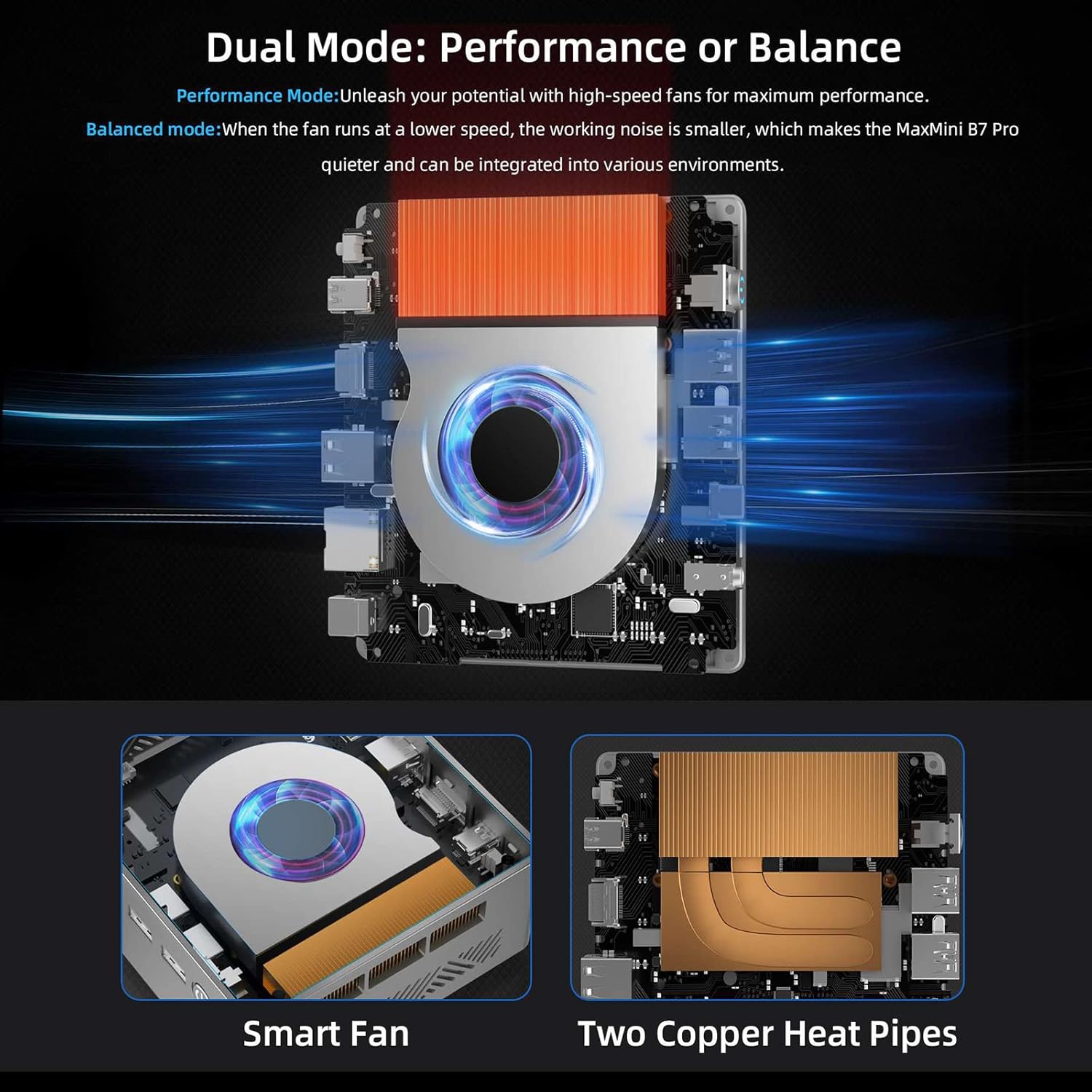
Image: Internal cooling system and explanation of Performance and Balance modes.
4. Viðhald
4.1 Smart Recovery Environment
The BMAX Smart Recovery Environment allows you to reset your PC to its factory settings, which can resolve software issues or prepare the device for a fresh start. This process will erase all data, so ensure you back up important files áður en haldið er áfram.
Video: Guide on how to restore your PC using the BMAX Smart Recovery Environment.

Image: The BMAX Smart Recovery interface for system restoration.
4.2 Almenn þrif
To maintain optimal performance and longevity, regularly clean the exterior of your Mini PC with a soft, dry cloth. Ensure ventilation openings are free from dust and obstructions. Do not use liquid cleaners directly on the device.
5. Bilanagreining
This section addresses common issues you might encounter with your BMAX B7 Pro Mini PC.
- Device Freezing or Unexpected Reboots: Ensure the Mini PC has adequate ventilation and is not placed in an enclosed space. Check for and install any available Windows updates. If issues persist, consider using the Smart Recovery Environment to reset the system (see Section 4.1).
- Enginn kraftur: Verify that the power adapter is securely connected to both the Mini PC and a working power outlet. Try a different power outlet if available.
- Sýnamál: Check all display cable connections. Ensure your monitor is set to the correct input source. Test with a different display cable or monitor if possible.
- Jaðartæki svarar ekki: Ensure USB devices are properly connected. Try connecting the device to a different USB port. Update or reinstall device drivers if necessary.
6. Tæknilýsing
| Eiginleiki | Forskrift |
|---|---|
| Nafn líkans | B7 Pro |
| Örgjörvi | Intel 11th Generation i5-1145G7 (4-Core, 4.4 GHz Max Turbo Frequency) |
| vinnsluminni | 16 GB DDR4 (Dual-channel, expandable up to 64GB) |
| Geymsla | 1 TB SATA SSD |
| Grafískur hjálpargjörvi | Intel Iris Xe grafík |
| Stýrikerfi | Windows 11 Pro |
| Þráðlaus tenging | WiFi 6 (802.11a/b/g/n/ac/ax), Bluetooth 5.2 |
| Myndbandsúttak | Triple-display support (HDMI, Type-C) up to 4K/60Hz |
| USB tengi | 2 x USB 2.0, 2 x USB 3.0 |
| Ethernet | Gigabit Ethernet |
| Þyngd hlutar | 1.87 pund |
| Litur | Svartur |
7. Ábyrgð og stuðningur
For warranty information, please refer to the 'User Manual / Warranty Card' included in your product package. For technical support or further assistance, please contact BMAX customer service through their official channels or visit their websíða.