
1. Inngangur
Thank you for choosing the VENTION Mac mini M4 Dock. This 10-in-1 aluminum stand is designed to expand the connectivity and storage capabilities of your Mac mini M4 or M4 Pro. It features an M.2 NVMe SSD enclosure, a DisplayPort for 4K video output, multiple USB 3.2 ports for high-speed data transfer, and an SD/TF card reader. This manual provides detailed instructions for setup, operation, and maintenance to ensure optimal performance of your device.
2. Vöru lokiðview
The VENTION Mac mini M4 Dock integrates seamlessly with your Mac mini, offering a compact and efficient solution for expanding your workspace.
2.1 Innihald pakka
- VENTION Mac mini M4 Dock
- Notendahandbók
- Skrúfjárn
- Thermal Silicone Pads (x2)
2.2 Uppsetning tækja og tengi
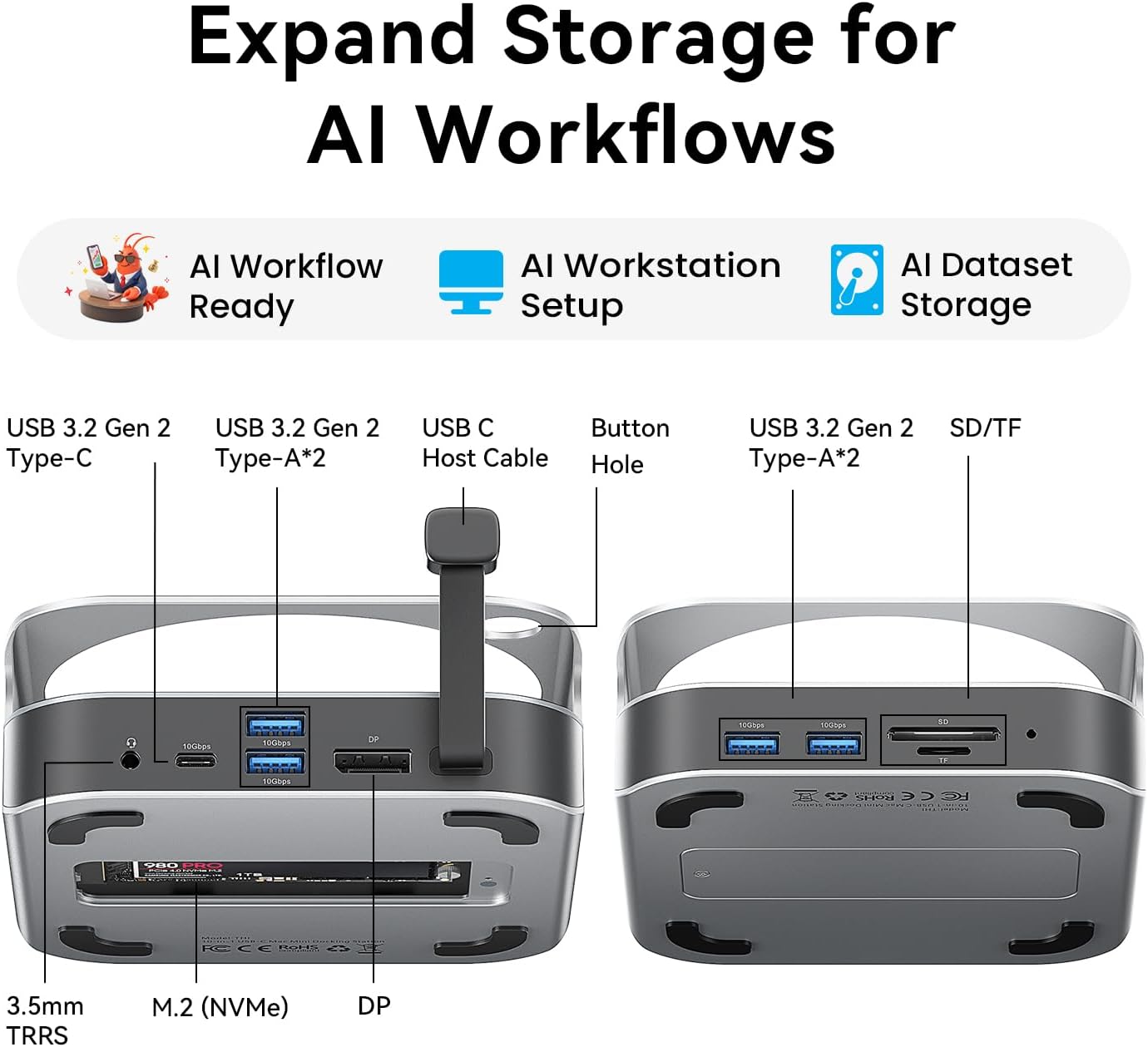
Mynd: Framan og aftan view of the VENTION Mac mini M4 Dock, highlighting all available ports and connections.
The dock features a comprehensive array of ports for enhanced connectivity:
- Framhöfn:
- 2x USB 3.2 Gen 2 Tegund-A (10Gbps)
- SD kortalesari
- TF Card Reader (supports simultaneous read with SD)
- Hafnir að aftan:
- 1x USB 3.2 Gen 2 Type-C (10Gbps)
- 2x USB 3.2 Gen 2 Tegund-A (10Gbps)
- Display Port (DP)
- 3.5mm Audio Jack (TRRS)
- M.2 NVMe SSD Enclosure (supports 2230/2242/2260/2280 sizes)

Image: The VENTION Mac mini M4 Dock with a Mac mini placed on top, illustrating the floating design that promotes airflow for efficient cooling.
The dock's design includes a floating stand that elevates your Mac mini, creating 360° airflow channels for optimal heat dissipation during intensive workloads. It also features a dedicated power button hole for easy access to your Mac mini's power button.

Mynd: Nærmynd view of the VENTION Mac mini M4 Dock, highlighting the cutout for easy access to the Mac mini's power button.
3. Uppsetningarleiðbeiningar
Uppsetning á 3.1 M.2 NVMe SSD diski
The dock supports M.2 NVMe SSDs (M Key) of sizes 2230, 2242, 2260, and 2280, allowing for storage expansion up to 8TB. Follow these steps to install your SSD:
- Turn the dock upside down. Use the included screwdriver to remove the screws securing the M.2 NVMe SSD enclosure cover.
- Carefully lift off the cover.
- If your SSD requires it, place one of the provided thermal silicone pads on top of your M.2 NVMe SSD.
- Loosen the fixing screw inside the enclosure by hand or with a flat-head screwdriver.
- Align the notch on your M.2 NVMe SSD with the latch in the enclosure, insert it firmly, and press down.
- Tighten the fixing screw to secure the SSD. Ensure the thermal pad makes contact with the enclosure cover for optimal heat dissipation.
- Replace the enclosure cover and tighten the screws.

Image: Illustration of the M.2 NVMe SSD enclosure, showing compatibility with various SSD lengths (2230, 2242, 2260, 2280).
Video: A step-by-step guide demonstrating the installation process of an M.2 NVMe SSD into the VENTION Mac mini M4 Dock's enclosure.
3.2 Connecting to Mac mini
- Place your Mac mini M4 or M4 Pro securely on top of the VENTION Dock. Ensure the power button hole aligns correctly.
- Connect the integrated USB-C host cable from the dock to an available USB-C/Thunderbolt port on your Mac mini.
- Connect any necessary peripherals (monitor, keyboard, mouse, etc.) to the corresponding ports on the dock.

Image: The VENTION Mac mini M4 Dock with a Mac mini positioned on top, showcasing the integrated setup.
4. Notkunarleiðbeiningar
4.1 Display Output (DisplayPort)
The DisplayPort on the dock supports high-resolution video output:
- Mac mini M4 Pro: Up to 4K resolution at 240Hz.
- Mac mini M4: Up to 4K resolution at 144Hz.
Mikilvægt: Ensure you use a DisplayPort-to-DisplayPort cable for optimal performance and to achieve the advertised refresh rates.
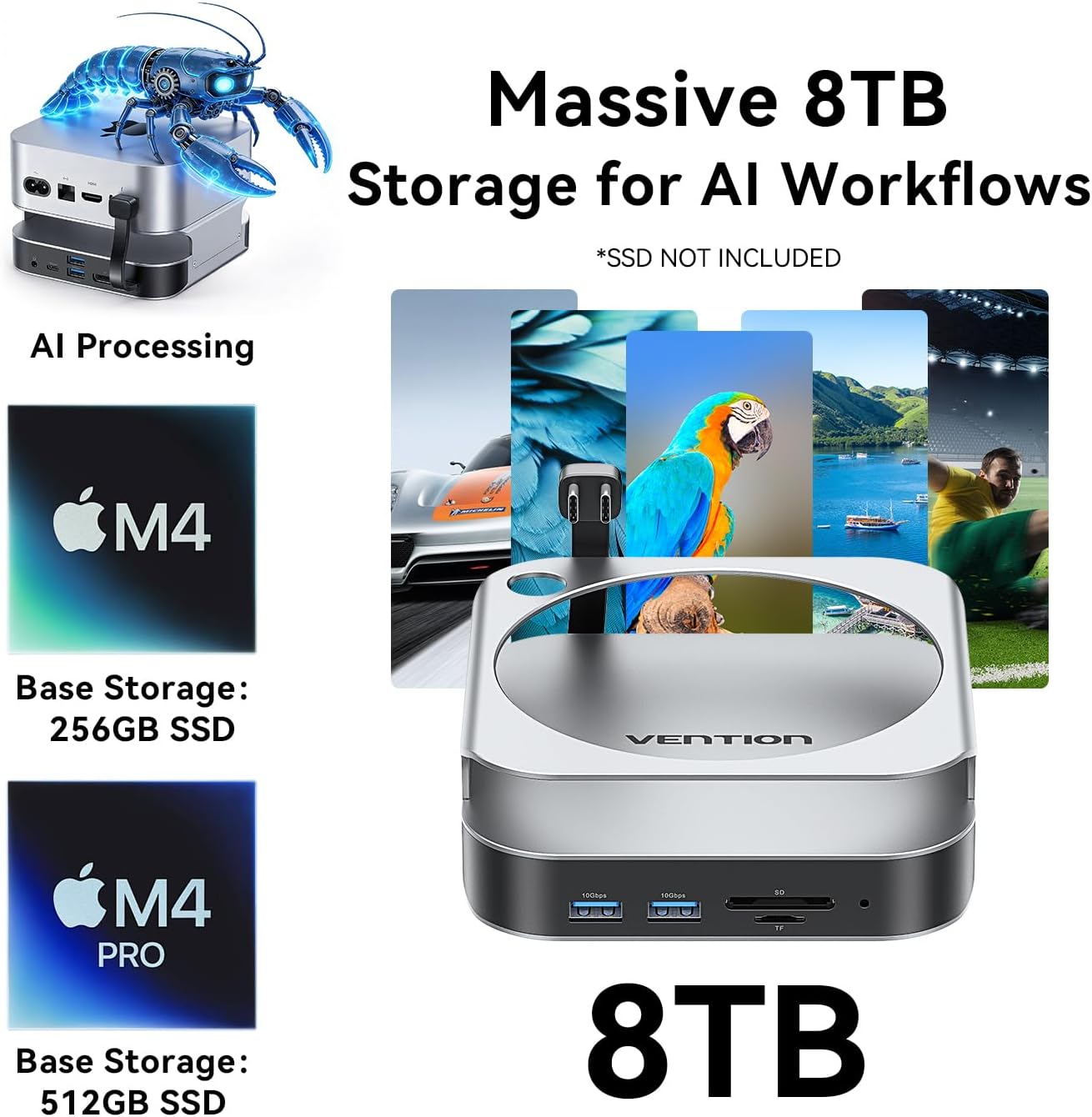
Image: A Mac mini connected to an external monitor through the VENTION Dock, demonstrating 4K display output.
4.2 High-Speed Data Transfer (USB Ports)
The dock provides 5 USB 3.2 Gen 2 ports (4x USB-A, 1x USB-C) with a data transfer speed of up to 10Gbps. This allows for rapid transfer of large files, eins og 1GB á um það bil 1 sekúndu.
Myndband: Yfirview of the VENTION Mac mini M4 Dock's features, including high-speed data transfer and display capabilities.
4.3 SD/TF kortalesari
The integrated SD and TF card readers support simultaneous reading and writing, making it convenient for photographers and content creators to access media files beint.
5. Viðhald
To ensure the longevity and optimal performance of your VENTION Mac mini M4 Dock, follow these maintenance guidelines:
- Þrif: Use a soft, dry, lint-free cloth to wipe the exterior of the dock. Avoid using harsh chemicals or abrasive materials.
- Loftræsting: Ensure the ventilation channels around the dock and your Mac mini are clear of obstructions to maintain proper airflow and heat dissipation.
- Geymsla: Þegar bryggjan er ekki í notkun í langan tíma skal geyma hana á köldum, þurrum stað fjarri beinu sólarljósi og miklum hita.
- Meðhöndlun SSD: Do not plug or unplug SSDs while the device is powered on to prevent data corruption or damage.
6. Bilanagreining
If you encounter issues with your VENTION Mac mini M4 Dock, refer to the following common solutions:
6.1 Vandamál með skjáúttak
- Engin skjámynd/blikk: Ensure you are using a high-quality DisplayPort-to-DisplayPort cable. Check that the cable is securely connected to both the dock and your monitor. Verify your monitor's input settings.
- Röng upplausn/endurnýjunartíðni: Confirm your monitor supports the desired resolution and refresh rate. Adjust display settings in macOS System Settings.
6.2 SSD diskur ekki þekktur
- Athugaðu uppsetningu: Re-open the SSD enclosure and ensure the M.2 NVMe SSD is correctly seated and the fixing screw is tightened.
- Format SSD: For new SSDs, you may need to format them using Disk Utility in macOS before they appear in Finder.
- Power Cycle: Disconnect and reconnect the dock from your Mac mini.
6.3 Hægur gagnaflutningshraði
- Verify USB 3.2 Compatibility: Ensure the connected device (e.g., USB drive) and cable support USB 3.2 Gen 2 (10Gbps) speeds. Older USB 2.0 or 3.0 devices will operate at their respective lower speeds.
- Forðastu ofhleðslu: Transferring data to/from multiple high-speed devices simultaneously may reduce individual transfer rates.
6.4 Audio Jack Not Working
- Check macOS Audio Settings: Go to System Settings > Sound > Output and ensure the VENTION Dock's audio output is selected.
- Test with Different Headphones/Speakers: Rule out issues with your audio peripherals.
7. Tæknilýsing
| Eiginleiki | Smáatriði |
|---|---|
| Vörumerki | VENTION |
| Fyrirmynd | M4 bryggju |
| Litur | Silfur |
| Vélbúnaðarviðmót | DisplayPort, SD Card, TF Card, USB 3.2 Gen 2, USB Type-C |
| Samhæf tæki | Mac mini M4/M4 Pro |
| Samtals USB tengi | 7 (5x USB 3.2 Gen 2, 2x USB-C for host connection) |
| Fjöldi hafna | 10-in-1 (including M.2 NVMe slot, DisplayPort, SD/TF) |
| Stuðningur við M.2 NVMe SSD | M Key, sizes 2230/2242/2260/2280, up to 8TB |
| DisplayPort úttak | 4K@240Hz (M4 Pro), 4K@144Hz (M4) |
| Gagnaflutningshraði | Allt að 10 Gbps (USB 3.2 2. kynslóð) |
8. Ábyrgð og stuðningur
8.1 Upplýsingar um ábyrgð
The VENTION Mac mini M4 Dock comes with a 12 mánaða ábyrgð frá kaupdegi. Þessi ábyrgð nær yfir framleiðslugalla og bilanir við eðlilega notkun. Hún nær ekki til tjóns sem orsakast af misnotkun, slysum, óheimilum breytingum eða óviðeigandi uppsetningu.
8.2 Þjónustuver
For technical assistance, warranty claims, or any questions regarding your VENTION product, please contact VENTION customer support through the official VENTION website or your retailer's support channels. Please have your purchase receipt and product model information ready when contacting support.