
1. Inngangur
This manual provides detailed instructions for setting up, operating, and maintaining your Bmax B7 Power Mini PC. Please read this manual thoroughly before using the device to ensure proper functionality and longevity. The Bmax B7 Power is a compact and powerful mini PC designed for various computing tasks, from everyday productivity to multimedia consumption and light gaming.
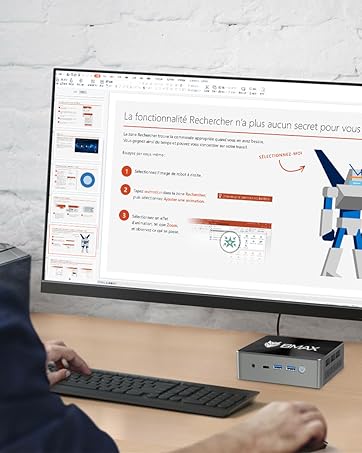
The Bmax B7 Power Mini PC in a typical desktop setup.
2. Innihald pakka
Upon opening the package, verify that all items listed below are present and in good condition. If any items are missing or damaged, please contact customer support.
- Bmax B7 Power Mini PC
- Rafmagns millistykki
- HDMI snúru
- VESA Mount Bracket and Screws
- Notendahandbók (þetta skjal)
Video: An unboxing demonstration of the Bmax B7 Power Mini PC, showing the contents of the retail package.
3. Vöru lokiðview
The Bmax B7 Power Mini PC features a compact design with essential ports for connectivity and expansion. Familiarize yourself with the port layout before connecting peripherals.
Myndband: Kynningarmyndbandview of the Bmax B7 Power Mini PC, highlighting its design, features, and port configuration.
Framhlið
- Aflhnappur: Press to turn the PC on or off.
- USB 3.0 tengi (x2): Til að tengja USB tæki við háhraða.
- Type-C höfn: For data transfer and display output.
- 3.5 mm höfuðtólstengi: Fyrir hljóðútgang og hljóðnemainntak.
- Hreinsa CMOS hnappur: Used to reset BIOS settings (use with caution).
Bakhlið
- HDMI tengi (x2): Til að tengjast við skjái.
- USB 2.0 tengi (x2): Til að tengja venjuleg USB tæki.
- Ethernet tengi: Fyrir snúrubundið nettengingu.
- Kraftur í: Tengdu meðfylgjandi rafmagnsmillistykki hér.
4. Uppsetningarleiðbeiningar
Follow these steps to set up your Bmax B7 Power Mini PC:
- Tengjast við skjá: Use the provided HDMI cable to connect the Mini PC to your monitor or TV. The B7 Power supports up to three displays simultaneously.
- Tengja jaðartæki: Stingdu USB lyklaborðinu og músinni í laus USB tengi.
- Tengjast neti (valfrjálst): For a wired connection, plug an Ethernet cable into the Ethernet port. For wireless, ensure your Wi-Fi network is available during initial setup.
- Tengdu rafmagn: Connect the power adapter to the "Power In" port on the Mini PC, then plug the adapter into a power outlet.
- Kveikt á: Press the power button on the front panel. The Mini PC will boot up.
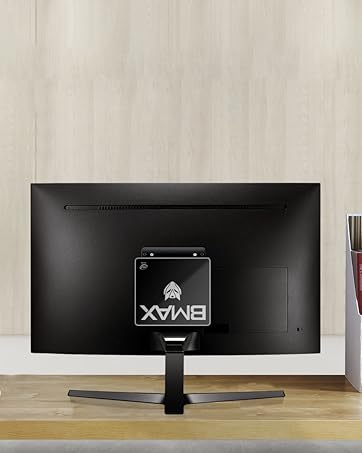
The Bmax B7 Power can be mounted behind a monitor for a clean setup.
5. Notkunarleiðbeiningar
Initial Windows Setup
Upon first boot, you will be guided through the Windows operating system setup process. Follow the on-screen prompts to configure language, region, network settings, and user accounts. Ensure you have your Wi-Fi password ready if you choose a wireless connection.
Tengist Wi-Fi
The Bmax B7 Power supports Wi-Fi 6 (802.11ax) for high-speed wireless networking. To connect:
- Click the Wi-Fi icon in the system tray (usually bottom-right of the screen).
- Veldu Wi-Fi netið sem þú vilt af listanum.
- Enter the network security key (password) and click "Connect".
Orkustjórnun
- Lokaðu: Smelltu á Start hnappinn, síðan á Power > Shutdown.
- Endurræsa: Smelltu á Start hnappinn, síðan á Power > Endurræsa.
- Svefn: Smelltu á Start hnappinn, síðan á Power > Sleep.
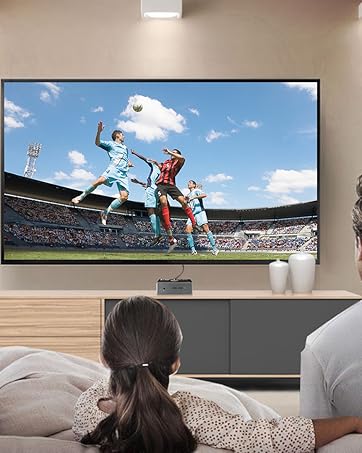
The Bmax B7 Power is suitable for home entertainment, including playing 4K UHD videos.
6. Tæknilýsing
| Eiginleiki | Smáatriði |
|---|---|
| Gerðarnúmer | B7 Kraftur |
| Örgjörvi | Intel Core i7-11390H (up to 5.0GHz) |
| vinnsluminni | 16GB DDR4 (Supports up to 64GB) |
| Geymsla | 1TB NVMe SSD |
| Þráðlaus tenging | 802.11a/b/g/n/ac/ax WiFi 6 |
| Mál | 10.51 x 6.14 x 2.91 tommur |
| Þyngd | 1.87 pund |
| Framleiðandi | BMAX |
| Fyrst í boði | 14. júní 2023 |
7. Viðhald
Regular maintenance helps ensure the optimal performance and lifespan of your Mini PC.
- Þrif: Use a soft, dry cloth to clean the exterior of the device. For dust accumulation in vents, use compressed air. Ensure the device is powered off and unplugged before cleaning.
- Hugbúnaðaruppfærslur: Regularly check for and install operating system updates (e.g., Windows Updates) and driver updates to maintain security and performance.
- Loftræsting: Ensure the Mini PC is placed in a well-ventilated area and that its vents are not obstructed to prevent overheating.
8. Bilanagreining
If you encounter issues with your Bmax B7 Power Mini PC, refer to the following common problems and solutions:
Enginn kraftur
- Gakktu úr skugga um að rafmagnsbreytirinn sé vel tengdur bæði við mini-tölvuna og virkan rafmagnsinnstungu.
- Prófaðu rafmagnsinnstunguna með öðru tæki til að staðfesta að hún virki.
- If using a power strip, ensure it is switched on.
Engin skjáúttak
- Verify that the HDMI cable is securely connected to both the Mini PC and the monitor.
- Ensure the monitor is powered on and set to the correct input source (e.g., HDMI 1, HDMI 2).
- Prófaðu aðra HDMI snúru eða skjá ef mögulegt er.
Vandamál með Wi-Fi tengingu
- Athugaðu hvort önnur tæki geti tengst Wi-Fi netinu þínu.
- Restart your Wi-Fi router and the Mini PC.
- Ensure Wi-Fi drivers are up to date in Device Manager.
- If the issue persists, consider using a wired Ethernet connection as an alternative.
9. Ábyrgð og stuðningur
Your Bmax B7 Power Mini PC comes with a manufacturer's warranty. Please refer to the warranty card included in your package for specific terms and conditions. For technical support, product inquiries, or warranty claims, please contact Bmax customer service through their official websíðuna eða tengiliðaupplýsingarnar sem fylgja með kaupunum.
For additional resources and FAQs, visit the official Bmax websíða: Bmax Official Store