
1. Inngangur
This manual provides essential information for setting up, operating, and maintaining your Bmax Y13 13.3-inch 2-in-1 Touchscreen Laptop. Please read this manual thoroughly before using your device to ensure optimal performance and longevity.

Figure 1: The Bmax Y13 2-in-1 laptop showcasing its versatile convertible design.
2. Uppsetning
2.1 Úrpakkning og fyrsta skoðun
Your Bmax Y13 laptop is carefully packaged to prevent damage during transit. Upon receiving your device, inspect the packaging for any signs of damage. Carefully remove the laptop and all accessories from the box.
Myndband 1: Upppakkning og upphafsstafirview of the Bmax Y13 laptop, demonstrating its physical features and included accessories.
2.2 Kveikja og upphafsstilling
Connect the provided power adapter to the laptop's DC port and a power outlet. Press the power button located on the side of the device. Follow the on-screen instructions to complete the initial Windows setup, including language selection, network connection, and user account creation.
2.3 System Updates and Driver Installation
After the initial setup, it is highly recommended to perform the following steps:
- Install All Windows Updates: Ensure your operating system is up-to-date for optimal security and performance.
- Install and Run 'Intel Driver Support Assistant': This tool helps identify and install the latest drivers for your Intel components, ensuring compatibility and peak performance.
3. Vélbúnaði lokiðview
3.1 Líkamleg einkenni
The Bmax Y13 features a sleek, thin all-metal body, weighing approximately 2.8 lbs (1.25 kg) and measuring 12.1" x 8.2" x 0.6". This design makes it highly portable and stylish.

Figure 2: The Bmax Y13's ultra-thin and lightweight metal body, ideal for portability.
3.2 Tengimöguleikar og tengimöguleikar
The laptop is equipped with various ports for versatile connectivity:
- Hægri hlið: Audio jack, Type-C data-only port, Micro-SD card slot, Power on/off button.
- Vinstri hlið: 12V-2A Power port, Type-C full functionality port (for data transfer, power delivery, and video out).

Mynd 3: Ítarleg view of the right-side ports on the Bmax Y13.
3.3 Lyklaborð og snertiflötur
The Bmax Y13 features a full-sized, backlit keyboard with two adjustable brightness levels (On/Off, 2-level adjustable via 'Fn+F2'). The keys offer good tactile feedback and travel for comfortable typing. The touchpad is generously sized and responsive.

Figure 4: The backlit keyboard of the Bmax Y13, illustrating the function key for backlight control.
3.4 Display and Convertible Modes
The laptop boasts a 13.3-inch Full HD (1920 x 1080) IPS multi-touch screen with a narrow bezel, providing an immersive viewing experience and excellent color reproduction. The 360-degree durable hinge allows for six versatile usage modes: Laptop, Stand, Tent, Tablet, Portable, and Drawing.

Figure 5: The Bmax Y13 in various convertible configurations.

Figure 6: Visual representation of the six versatile usage modes.
4. Notkunarleiðbeiningar
4.1 Almenn notkun
The Bmax Y13 is designed for everyday productivity and entertainment. It handles common applications like web browsing, document editing, and media playback efficiently. The Intel Celeron N4120 Quad Core Processor (up to 2.6GHz) combined with 8GB DDR4 RAM and a 256GB SSD ensures smooth operation.
Video 2: Demonstration of the Bmax Y13's performance in web browsing, media streaming, and light gaming.
4.2 Snertiskjárbendingar
The multi-touch screen supports 10-finger input with high precision. Common gestures include:
- Tveggja fingra strjúk: Scroll through content.
- Pinch with two fingers: Aðdráttur inn eða út.
- Þriggja fingra banka: Open search or switch applications.
- Four-finger tap: Open action center.
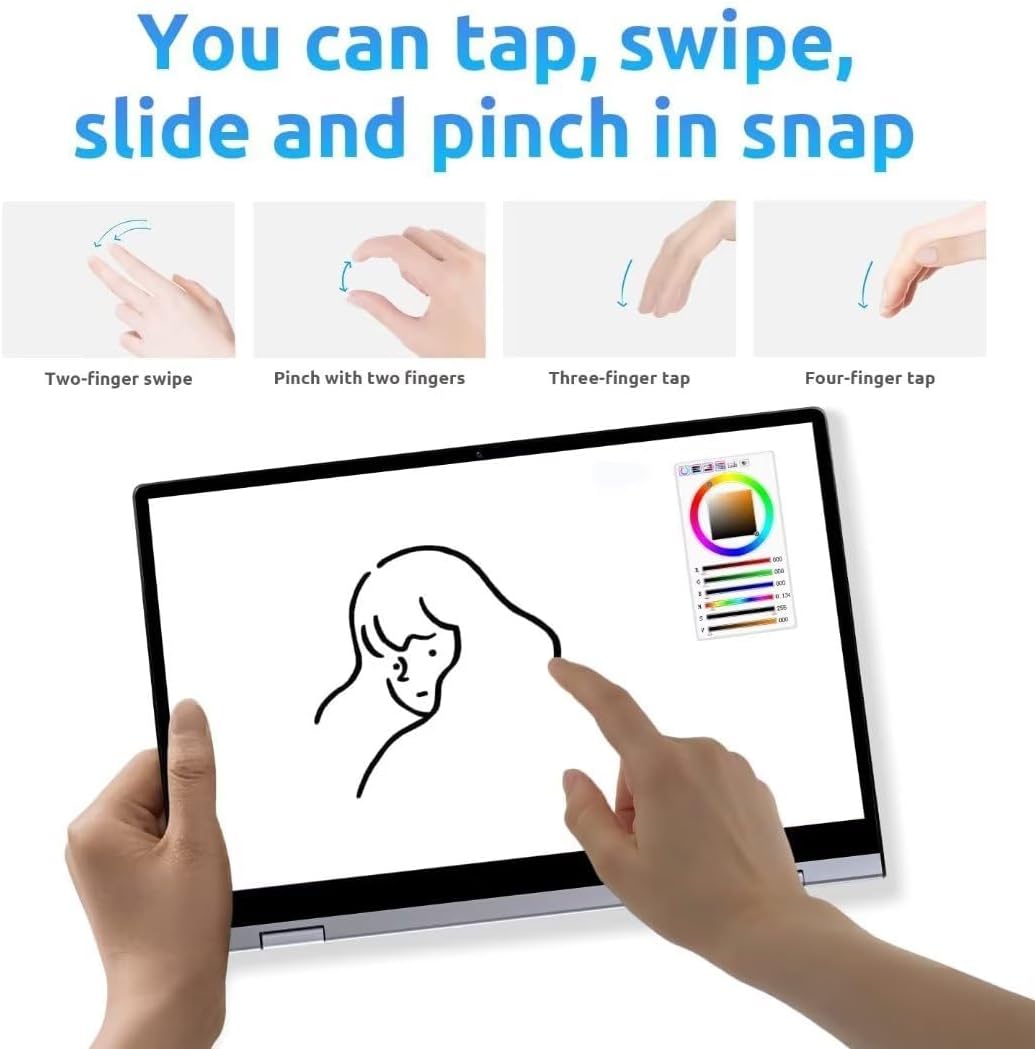
Figure 7: Common touchscreen gestures for navigation and interaction.
4.3 Þráðlaus skjávörpun
The Bmax Y13 supports wireless screen projection, allowing you to display content from your laptop onto a larger screen or projector. This feature is particularly useful for presentations or sharing media.

Figure 8: Using the touchscreen for presentations or content display.
5. Tæknilýsing
| Eiginleiki | Forskrift |
|---|---|
| Standandi skjástærð | 13.3 tommur |
| Skjáupplausn | 1920 x 1080 pixlar (FHD) |
| Örgjörvi | Intel Celeron N4120 Quad Core (up to 2.6GHz) |
| vinnsluminni | 8 GB LPDDR4 |
| Harður diskur | 256 GB SSD |
| Grafískur hjálpargjörvi | Intel UHD Graphics 600 |
| Þráðlaus gerð | 802.11a/g/n/ac, Bluetooth 5.0 |
| Stýrikerfi | OS 10 |
| Þyngd hlutar | 2.75 pund (1.25 kg) |
| Vörumál | 12.6 x 8.2 x 0.6 tommur |
| Meðal rafhlöðuending | 6 klukkustundir |
6. Viðhald
To ensure the longevity and optimal performance of your Bmax Y13 laptop, follow these maintenance guidelines:
- Þrif: Notið mjúkan, lólausan klút til að þrífa skjáinn og ytra byrðina. Fyrir þrjósk óhreinindi,ampÞurrkið klútinn með vatni eða skjáþolnu hreinsiefni. Forðist sterk efni.
- Hitastig: Operate the laptop within recommended temperature ranges. Avoid exposing it to extreme heat or cold, and ensure proper ventilation to prevent overheating.
- Hugbúnaðaruppfærslur: Regularly update your operating system and drivers to benefit from performance improvements, security patches, and new features.
- Umhirða rafhlöðu: For optimal battery life, avoid fully discharging the battery frequently. If storing the laptop for an extended period, charge it to about 50-70%.
7. Bilanagreining
If you encounter issues with your Bmax Y13, try the following troubleshooting steps:
- Enginn kraftur: Gakktu úr skugga um að rafmagnstengið sé vel tengt bæði við fartölvuna og virka innstungu. Athugaðu hvort innstungan virki.
- Skjávandamál: If the screen is blank or flickering, try restarting the laptop. If using an external display, ensure the cable connection is secure.
- Hægur árangur: Close unnecessary applications, check for malware, and ensure your operating system and drivers are updated. Consider freeing up storage space on the SSD.
- Wi-Fi/Bluetooth Connectivity: Ensure Wi-Fi and Bluetooth are enabled in Windows settings. Restart your router or Bluetooth device if connection issues persist.
- Snertiskjár svarar ekki: Restart the laptop. If the issue continues, check for driver updates for the touchscreen.
8. Ábyrgð og stuðningur
For warranty information and technical support, please refer to the documentation included with your product or visit the official Bmax webGeymið kaupkvittunina vegna ábyrgðarkröfu.