
1. Inngangur
Thank you for choosing the Maxfree P1S 12-inch FHD Portable Monitor. This manual provides essential information for setting up, operating, and maintaining your new portable display. Designed for versatility and portability, the P1S monitor enhances your productivity and entertainment experience across various devices.
The Maxfree P1S features a 12-inch FHD IPS panel, offering a clear and vibrant visual experience with wide viewing angles. Its lightweight and slim design, coupled with a smart cover, makes it an ideal companion for travel, remote work, or expanding your desktop workspace. Enjoy seamless connectivity with USB-C and Mini HDMI ports, supporting a wide range of devices including laptops, smartphones, gaming consoles, and more.

Image: Maxfree P1S Portable Monitor demonstrating multiple applications, such as extending a laptop display, connecting to a smartphone, and enhancing a gaming setup.
2. Innihald pakka
Vinsamlegast staðfestu að allir hlutir séu í pakkanum þínum:
- Maxfree P1S 12-inch Portable Monitor
- Smart Protective Cover
- USB-C í USB-C snúra (fullbúin)
- Mini HDMI til HDMI snúru
- USB-A til USB-C rafmagnssnúra
- Notendahandbók (þetta skjal)
3. Vöru lokiðview
Familiarize yourself with the ports and buttons on your Maxfree P1S portable monitor:

Mynd: Ítarleg view of the Maxfree P1S monitor's side, highlighting two USB-C ports, one Mini HDMI port, and control buttons (Menu -, Menu +, Power).
- USB-C tengi (x2): For power and video signal transmission. One port is typically full-featured (power, video, data), while the other might be for power only or specific functions. Refer to your device's compatibility.
- Mini HDMI tengi: Fyrir myndmerkisinntak frá tækjum sem styðja HDMI úttak.
- Menu - Button: Navigates down in the OSD menu or decreases values.
- Menu + Button: Navigates up in the OSD menu or increases values.
- Aflhnappur: Turns the monitor on/off and confirms selections in the OSD menu.
4. Uppsetning og tengingar
The Maxfree P1S monitor offers flexible connectivity options. Ensure your device has the necessary ports for optimal performance.
4.1 Connecting via USB-C (Full-featured)
If your laptop, smartphone, or tablet has a full-featured USB-C port (which supports DisplayPort Alternate Mode and power delivery), you can connect the monitor with a single USB-C to USB-C cable for both power and video signal.
- Connect one end of the USB-C to USB-C cable to your device's full-featured USB-C port.
- Connect the other end to one of the USB-C ports on the Maxfree P1S monitor.
- Skjárinn ætti að greina merkið sjálfkrafa og kveikja á honum.

Image: A Maxfree P1S monitor connected to a laptop using a single USB-C cable, demonstrating a streamlined setup.
4.2 Connecting via Mini HDMI and USB-A (for power)
If your device does not have a full-featured USB-C port, or if you prefer to use HDMI, you will need two cables: one for video and one for power.
- Connect one end of the Mini HDMI to HDMI cable to the Mini HDMI port on the monitor.
- Tengdu hinn endann á HDMI snúrunni við HDMI tengi tækisins.
- Connect the USB-C end of the USB-A to USB-C power cable to a USB-C port on the monitor.
- Connect the USB-A end of the power cable to a USB-A port on your device or a compatible power adapter (5V/2A or higher, not included).
- The monitor should power on and display the signal.

Image: A Maxfree P1S monitor connected to a laptop using separate HDMI and USB-A cables for video and power, respectively.
4.3 Connecting to Gaming Consoles (Xbox, PlayStation, Switch)
The Maxfree P1S is compatible with various gaming consoles. Use the Mini HDMI to HDMI cable for video and the USB-A to USB-C power cable for power.
- Connect the Mini HDMI to HDMI cable from the monitor to your gaming console.
- Connect the USB-A to USB-C power cable from the monitor to a USB port on your console or a power adapter.
- Ensure the console is powered on and configured to output video via HDMI.

Image: The Maxfree P1S monitor set up for gaming, showcasing compatibility with Xbox, PlayStation, and Nintendo Switch consoles.
4.4 Connecting to Smartphones
For smartphones with full-featured USB-C ports, a single USB-C to USB-C cable can provide both power and video. For other phones, an adapter (not included) may be required.
- Connect your smartphone to the monitor using a full-featured USB-C to USB-C cable.
- The phone's display should mirror or extend to the monitor.
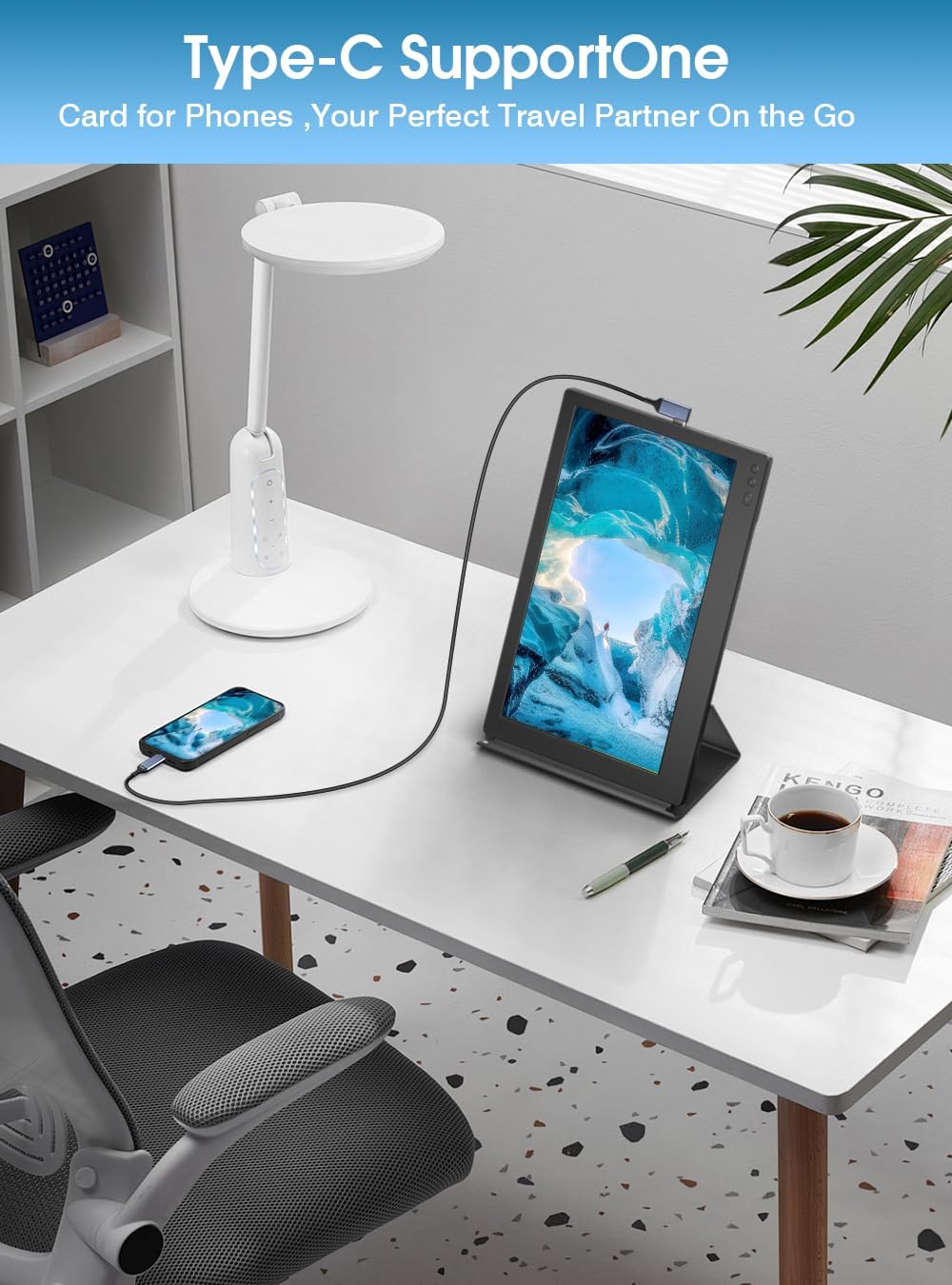
Image: A Maxfree P1S monitor connected to a smartphone via a USB-C cable, demonstrating its use as an extended display for mobile devices.
5. Notkunarleiðbeiningar
5.1 Kveikt/slökkt
- To power on: Press the Power button.
- Til að slökkva: Haltu inni aflrofanum í 3 sekúndur.
5.2 Display Modes (Windows/macOS)
Once connected, you can configure the display mode on your operating system:
- Framlengja ham: Allows you to have separate applications open on each screen, increasing your workspace.
- Speglastilling: Afritar efni aðalskjásins yfir á flytjanlegan skjá, tilvalið fyrir kynningar eða til að deila efni.
- Portrettstilling: The smart cover allows the monitor to be used in portrait orientation, which can be configured in your device's display settings.

Image: The Maxfree P1S monitor used in a business setting for screen sharing, displaying charts and data alongside a laptop.

Image: The Maxfree P1S monitor positioned vertically next to a laptop, demonstrating its flexible orientation capabilities.
5.3 Skjávalmynd (OSD)
Use the Menu -, Menu +, and Power buttons to navigate and adjust settings in the OSD menu.
- To enter OSD: Press the Power button briefly when the monitor is on.
- Leiðsögn: Use Menu - and Menu + to move through options.
- Val/Staðfesting: Press the Power button to select an option or confirm a setting.
- Exit OSD: Navigate to the 'Exit' option or wait for the menu to time out.
Algengar OSD-stillingar eru meðal annars:
- Birtustig / birtuskil: Stilla birtustig og birtuskil skjásins.
- Litastillingar: Breyta litahita, litbrigði og mettun.
- Inntaksheimild: Veldu handvirkt á milli USB-C og Mini HDMI inntaks.
- Blá ljós sía: Activate the blue light protection technology to reduce eye strain during prolonged use.
- Hlutfall: Adjust the display aspect ratio (e.g., 16:9).
6. Viðhald
6.1 Þrif á skjánum
- Always power off the monitor and disconnect all cables before cleaning.
- Notaðu létt mjúkan, lólausan klút dampÞvoið með vatni eða skjáhreinsiefni án slípiefna.
- Ekki úða vökva beint á skjáinn eða rammann.
- Forðist að nota alkóhól, ammóníak eða slípiefni, þar sem þau geta skemmt yfirborð skjásins.
6.2 Geymsla og meðhöndlun
- When not in use, keep the monitor protected by its smart cover.
- Geymið á köldum, þurrum stað fjarri beinu sólarljósi og miklum hita.
- Forðastu að setja þunga hluti á skjáinn.
- Handle with care to prevent drops or impacts.
7. Bilanagreining
If you encounter issues with your Maxfree P1S monitor, please refer to the following common solutions:
- Ekkert samband:
- Gakktu úr skugga um að allar snúrur séu vel tengdar bæði við skjáinn og tækið.
- Verify that your device's output settings are configured correctly (e.g., extended or duplicate display).
- If using USB-C, confirm your device's USB-C port supports video output (DisplayPort Alternate Mode).
- Prófaðu að velja inntaksuppsprettu handvirkt í gegnum OSD valmyndina.
- Enginn kraftur:
- Ensure the power cable is connected and receiving power from a sufficient source (laptop USB port or power adapter).
- If using a single USB-C cable, ensure your device can provide enough power. Some devices may require an external power source for the monitor.
- Try a different USB-C port or power adapter.
- Display Flickering or Unstable Image:
- Athugið hvort kapaltengingar séu lausar eða skemmdar.
- Gakktu úr skugga um að grafíkreklar tækisins séu uppfærðir.
- Reduce the display resolution or refresh rate on your device if necessary.
- Incorrect Color or Brightness:
- Stilltu birtustig, andstæðu og litastillingar í gegnum OSD valmyndina.
- Reset display settings to factory defaults in the OSD menu.
For further assistance, please contact Maxfree customer support.
8. Tæknilýsing
| Eiginleiki | Forskrift |
|---|---|
| Gerðarnúmer | P1S |
| Skjástærð | 12 tommur |
| Skjáupplausn | 1366 x 768 (FHD) |
| Tegund pallborðs | IPS |
| Endurnýjunartíðni | 60 Hz |
| Svartími | 1 millisekúnda |
| Birtustig | 300 nit |
| Andstæðuhlutfall | 1000:1 |
| Viewí horn | 178 gráður |
| Hlutfall | 16:9 |
| Skjáyfirborð | Glansandi |
| Tengingar | 2x USB Type-C, 1x Mini HDMI |
| Sérstakir eiginleikar | Blue Light Protection, Height Adjustment (via smart cover) |
| Mál (L x B x H) | 29.3 x 18.3 x 1.3 cm (u.þ.b.) |
| Þyngd | 0.6 kg (1.3 pund) |
9. Ábyrgð og stuðningur
The Maxfree P1S Portable Monitor comes with a eins árs ábyrgð frá kaupdegi. Að auki bjóðum við upp á 30 daga vandræðalaus skilastefna.
Should you encounter any issues related to connectivity, compatibility, or product quality, our dedicated customer support team is available to provide prompt and efficient technical assistance.
For warranty claims, technical support, or general inquiries, please contact Maxfree customer service through the platform where you purchased the product or visit our official websíða fyrir upplýsingar um tengiliði.