
1. Inngangur
This manual provides essential information for the installation, operation, maintenance, and troubleshooting of your PNY RTX 4000 Ada Generation 20GB DDR6 Quadro Graphics Card. This professional graphics card is designed for demanding applications such as 3D rendering, CAD/CAM, scientific simulations, and AI workflows, leveraging the NVIDIA Ada Lovelace architecture.
Key features include 6,144 CUDA cores, 48 RT Cores, 192 Tensor Cores, and 20GB of GDDR6 ECC memory, all within a single-slot, 130W design. It supports up to four 4K monitors or two 8K monitors via DisplayPort 1.4a.

Figure 1: PNY RTX 4000 Ada Generation Graphics Card overview, showing the single-slot design and an illustrative power connector icon.
2. Öryggisupplýsingar
Please read and follow all safety instructions carefully to prevent damage to the product or personal injury.
- Aftengdu alltaf rafmagnið frá tölvunni áður en þú setur upp eða fjarlægir nokkra íhluti.
- Notið úlnliðsól með rafstöðurafmagni eða snertu oft jarðtengdan málmhlut til að losa um stöðurafmagn áður en skjákortið er meðhöndlað.
- Tryggið góða loftræstingu í tölvukassanum til að koma í veg fyrir ofhitnun.
- Ekki láta skjákortið verða fyrir raka eða miklum hita.
- Handle the card by its edges; avoid touching the gold-plated connectors or components on the PCB.
3. Innihald pakka
Staðfestu að allir hlutir séu til staðar í vörupakkningunni þinni:
- PNY RTX 4000 Ada Generation Graphics Card (VCNRTX4000ADA-PB)
- Documentation (this manual, quick start guide, etc.)
Note: Additional accessories such as display adapters or power cables may be sold separately or included depending on your region/retailer.
4. Uppsetning
4.1. Líkamleg uppsetning
- Undirbúið kerfið ykkar: Slökktu á tölvunni og aftengdu rafmagnssnúruna úr innstungunni. Opnaðu tölvukassann.
- Locate a PCIe Slot: Identify an available PCI Express x16 slot on your motherboard. The RTX 4000 Ada Generation is a single-slot card.
- Fjarlægðu raufarhlífar: Fjarlægðu málmhlífina (hlífarnar) aftan á tölvukassanum sem samsvarar völdu PCIe raufinni.
- Settu skjákortið í: Stilltu skjákortinu vandlega saman við PCIe-raufina og þrýstu fast niður þar til það situr örugglega á sínum stað. Gakktu úr skugga um að festingarklemman á PCIe-raufinni læsist á sínum stað.
- Tengdu rafmagn: The RTX 4000 Ada Generation requires an 8-pin PCIe power connector from your power supply. Connect this cable to the power connector on the top edge of the graphics card. Ensure a secure connection.
- Tryggðu kortið: Use a screw to fasten the graphics card's mounting bracket to the computer case.
- Close Case and Connect Displays: Close your computer case. Connect your display monitor(s) to the DisplayPort outputs on the graphics card.
4.2. Uppsetning bílstjóra
- Kveikt á: Reconnect the power cable to your computer and power it on. Your system may boot with a basic display driver.
- Sækja bílstjóra: Navigate to the official PNY or NVIDIA website to download the latest drivers for the RTX 4000 Ada Generation. It is recommended to download drivers directly from the manufacturer's websíðu fyrir bestu mögulega afköst og stöðugleika.
- PNY stuðningur: www.pny.com/support
- NVIDIA reklar: www.nvidia.com/drivers
- Settu upp rekla: Run the downloaded driver installer and follow the on-screen instructions. A system restart may be required after installation.
- Staðfestu uppsetningu: After restarting, open the NVIDIA Control Panel or NVIDIA Settings to confirm that the graphics card is recognized and operating correctly.

Figure 2: Display output section of the PNY RTX 4000 Ada Generation, showing four DisplayPort 1.4a connectors.
5. Notkun skjákortsins
5.1. Grunnaðgerð
Once installed and drivers are updated, your PNY RTX 4000 Ada Generation graphics card will automatically handle graphics processing for your system. Applications that benefit from GPU acceleration will utilize the card's capabilities.
- NVIDIA stjórnborð: Use the NVIDIA Control Panel (Windows) or NVIDIA Settings (Linux) to adjust display settings, manage 3D application profiles, and monitor GPU status.
- Samhæfni hugbúnaðar: Ensure your professional applications (e.g., CAD, rendering software) are updated to versions that support NVIDIA Ada Lovelace architecture for optimal performance.
5.2. Uppsetning margra skjáa
The RTX 4000 Ada Generation supports up to four DisplayPort 1.4a outputs, allowing for flexible multi-monitor configurations.
- Connect your monitors to the available DisplayPort outputs on the graphics card.
- Access your operating system's display settings (e.g., Windows Display Settings) or the NVIDIA Control Panel to configure display arrangement, resolution, and refresh rates.
- The card supports resolutions up to 4K on four monitors simultaneously, or two 8K monitors.
6. Viðhald
6.1. Þrif
Regluleg þrif hjálpa til við að viðhalda bestu mögulegu afköstum og lengir líftíma skjákortsins.
- Slökkva á: Slökktu alltaf á tölvunni og aftengdu hana frá rafmagninu áður en þú þrífur hana.
- Rykhreinsun: Use compressed air to gently blow dust from the heatsink fins and fan blades. Hold the fan blades in place while blowing to prevent over-spinning and potential damage to the fan bearings.
- Þrif að utan: Wipe the exterior of the card with a soft, dry, lint-free cloth. Do not use liquid cleaners directly on the card.
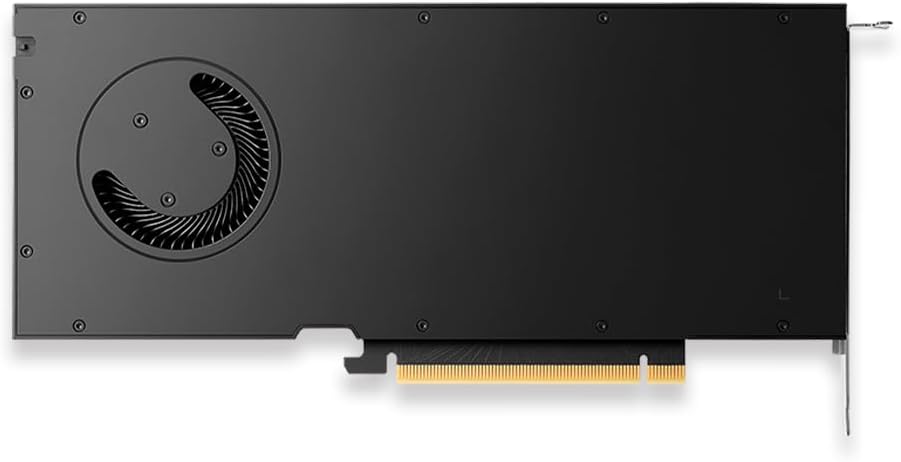
Mynd 3: Aftan view of the PNY RTX 4000 Ada Generation, highlighting the cooling fan for maintenance reference.
6.2. Geymsla
If storing the graphics card, place it in an anti-static bag and store it in a cool, dry environment away from direct sunlight and extreme temperatures.
7. Bilanagreining
Þessi hluti fjallar um algeng vandamál sem þú gætir rekist á.
- Engin skjáúttak:
- Gakktu úr skugga um að skjárinn sé kveikt á og tengdur við skjákortið, ekki við innbyggða skjákortið á móðurborðinu.
- Verify the graphics card is fully seated in the PCIe slot and the power cable is securely connected.
- Prófaðu aðra skjásnúru eða skjá.
- Check your BIOS/UEFI settings to ensure the primary display output is set to PCIe graphics.
- Vandamál með uppsetningu bílstjóra:
- Uninstall any previous graphics drivers using a utility like Display Driver Uninstaller (DDU) in Safe Mode, then attempt a fresh installation of the latest drivers.
- Ensure you downloaded the correct drivers for your operating system and graphics card model.
- Óstöðugleiki eða hrun í kerfinu:
- Gakktu úr skugga um að aflgjafinn þinn (PSU) uppfylli lágmarksvatnskröfurtagKröfur fyrir kerfið þitt, þar á meðal skjákortið.
- Monitor GPU temperatures using software utilities. Excessive heat can cause instability. Ensure proper case airflow.
- Verify that your operating system and motherboard BIOS are up to date.
8. Tæknilýsing
| Eiginleiki | Smáatriði |
|---|---|
| Vörumerki | PNY |
| Gerðarnúmer | VCNRTX4000ADA-PB |
| Grafískur hjálpargjörvi | NVIDIA Quadro RTX 4000 Ada Generation |
| Arkitektúr | NVIDIA Ada Lovelace |
| CUDA kjarna | 6,144 |
| RT kjarna | 48 (3rd Generation) |
| Tensor kjarna | 192 (4th Generation) |
| Stærð grafíkvinnsluminnis | 20 GB GDDR6 ECC |
| Minni tengi | 160 bita |
| Bandbreidd minni | 360 GB/s |
| GPU klukkuhraði | 2220 MHz (uppörvun) |
| Minnishraði | 2250 MHz |
| FP32 árangur | Up to 26.7 TFLOPS |
| Ray Tracing Performance | 61.8 TFLOPS |
| AI Performance (FP8) | 327.6 TFLOPS |
| Vídeóúttaksviðmót | 4x DisplayPort 1.4a |
| Hámarks skjáupplausn | 3840x2160 (4K) per display, up to 4 displays; 8K on 2 displays |
| Orkunotkun | 130W |
| Form Factor | Einn rifa |
| Vörumál (LxBxH) | 14.65 x 8.55 x 0.1 tommur |
| Þyngd hlutar | 1.85 pund |
9. Upplýsingar um ábyrgð
PNY products are covered by a manufacturer's warranty. The specific terms and duration of the warranty may vary by region and product type. Please refer to the official PNY website or your product's packaging for detailed warranty information.
For warranty claims or to register your product, visit: www.pny.com/support/warranty
10. Tæknileg aðstoð
If you encounter issues that cannot be resolved using the troubleshooting steps in this manual, or require further assistance, please contact PNY Technical Support.
- PNY stuðningur Websíða: www.pny.com/support
- Stuðningurinn website provides FAQs, driver downloads, and contact information for technical assistance.