
1. Vöru lokiðview
The Fuers H.265+ 8-Channel Security DVR Recorder (Model A1008CH) is a versatile surveillance solution designed for home and business security. This DVR supports various camera types including HD-CVBS, TVI, CVI, XVI, AHD, and IP analog cameras, allowing for flexible system expansion. It features H.265+ video compression for efficient storage and comes with a pre-installed 1TB hard drive for 24/7 recording.
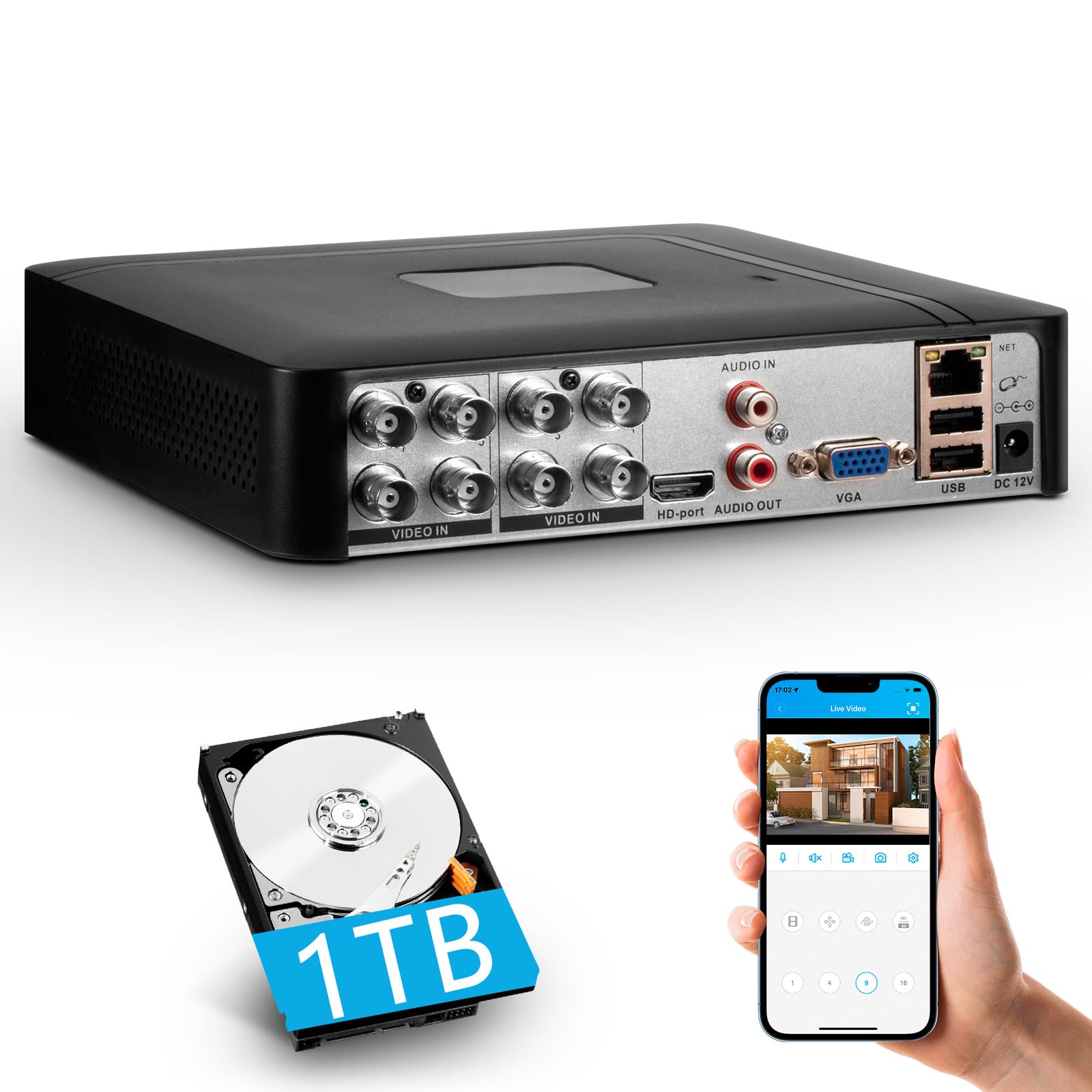
Image 1.1: Fuers H.265+ 8-Channel Security DVR Recorder.
Helstu eiginleikar:
- 8-rása kerfi: Supports up to 8 cameras simultaneously, compatible with HD-TVI, CVBS, CVI, XVI, AHD, and IP cameras.
- H.265+ myndþjöppun: Offers extended recording time and saves up to 50% storage space compared to H.265 systems.
- Fyrirfram uppsettur 1TB harður diskur: Security-grade hard drive for continuous surveillance recording. Expandable up to 14TB via SATA port.
- Fjaraðgangur: View and manage your system remotely using the free iCSee App (iOS/Android) or VMS Client (Windows/Mac).
- Greindur hreyfiskynjun: Receive mobile push notifications for detected motion types, including person and face detection.
- Plug & Play uppsetning: Easy connection with simultaneous VGA/HDMI output.
2. Uppsetning og uppsetning
2.1 Hvað er í kassanum
Áður en þú byrjar skaltu ganga úr skugga um að allir íhlutir séu til staðar:
- 1x A1008 8CH DVR
- 1x 1TB HDD (Pre-installed on DVR)
- 1x DVR Power Adapter
- 1x USB mús
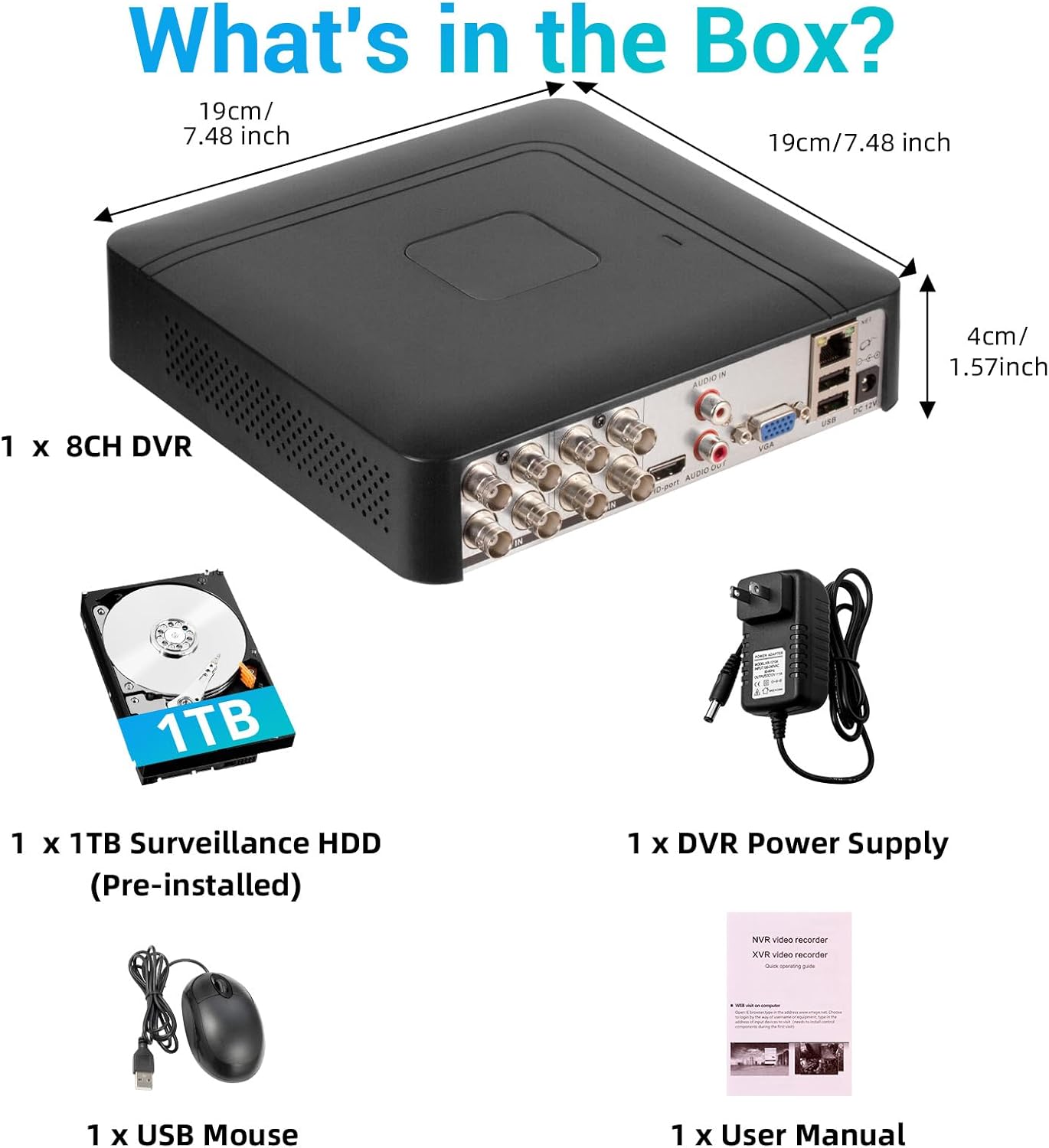
Mynd 2.1: Innihald vörupakkningarinnar.
2.2 Hard Drive Installation (if not pre-installed or for upgrade)
The DVR comes with a pre-installed 1TB HDD. If you need to replace or upgrade the hard drive (up to 14TB), follow these steps:
- Unscrew the bottom cover of the DVR unit.
- Opnaðu varlega casing.
- Connect the SATA data cable and power cable from the DVR to the new hard drive.
- Secure the hard drive within the casing using the provided screws.
- Close the DVR casing og festið það með skrúfum.

Image 2.2: Hard drive installation and expansion options.
2.3 Connecting the DVR System
Fylgdu þessum skrefum til að tengja DVR kerfið þitt:
- Tengja myndavélar: Connect your security cameras to the 'VIDEO IN' ports on the back of the DVR using BNC cables.
- Tengja skjá: Tengdu skjá við DVR með annað hvort HDMI eða VGA tengi.
- Tengdu USB mús: Stingdu meðfylgjandi USB mús í eina af USB tengjunum á DVR-tækinu.
- Connect Network (Optional for Remote Access): Fyrir fjarstýringu viewing and notifications, connect an Ethernet cable from your router to the 'NET' port on the DVR.
- Kveikt á: Connect the DVR power adapter to the 'DC 12V' port and then plug it into a power outlet.

Image 2.3: Connecting cameras and network to the DVR.
2.4 Initial Setup and Channel Type Selection
Upon first power-on, the system may prompt for initial setup. You may need to select the appropriate channel type for your cameras.
- Right-click on the screen to access the Main Menu.
- Siglaðu til Kerfi > Stafræn > ChannelType.
- Select the configuration that matches your camera setup:
- First row: Supports 8 XVI, CVBS, AHD, TVI, CVI coaxial cameras.
- Second row: Supports 8 XVI, CVBS, AHD, TVI, CVI coaxial + 4 IP cameras.
- Third row: Supports 16 1080P IP cameras.
- Fourth row: Supports 16 5MP IP cameras.
- Smelltu OK to apply changes. The system may restart.

Image 2.4: DVR Channel Type selection screen.
3. Notkunarleiðbeiningar
3.1 Í beinni View og Upptaka
Once the DVR is powered on and cameras are connected, you should see the live feed on your connected monitor. The system is configured for 24/7 recording to the pre-installed 1TB hard drive.

Image 3.1: Live view of multiple camera feeds.
3.2 Remote Access via Mobile App
To access your DVR remotely, download the free iCSee App (for iOS/Android) or VMS Client (for Windows/Mac).
- Download the iCSee App from your device's app store.
- Opnaðu appið og skráðu aðgang ef þú ert ekki með einn.
- In the DVR's main menu, navigate to Upplýsingar > Útgáfa to find the DVR's QR code.
- Use the iCSee app to scan the QR code to add your device.
- Þegar þú hefur bætt við geturðu view live feeds, playback recordings, and receive alerts from anywhere with an internet connection.

Image 3.2: Steps for remote access via mobile app.
3.3 Spilun upptekinna myndbandatage
Að endurtakaview tekið upp myndband:
- Right-click on the screen to access the Main Menu.
- Veldu Upptaka > Afspilun.
- Choose the desired channel(s) and date/time range for playback.
- Smelltu Byrjaðu spilun til view footage.

Image 3.3: Playback interface with timeline.
3.4 Motion Detection Alerts
The DVR supports intelligent motion detection, including person and face detection. When motion is detected, you can receive instant mobile push notifications.
- Configure motion detection settings in the DVR's Viðvörun matseðill.
- Ensure your mobile app is properly linked and notifications are enabled.

Image 3.4: Human and face detection in action.
4. Viðhald
4.1 Stjórnun harðdisks
The pre-installed 1TB hard drive provides ample storage. Due to H.265+ compression, storage is optimized. If more storage is needed, you can replace the internal HDD with a larger one (up to 14TB). Regularly check the hard drive status in the DVR's system settings to ensure optimal performance.
4.2 Almenn umönnun
- Keep the DVR in a cool, dry, and well-ventilated area.
- Avoid exposing the unit to direct sunlight, extreme temperatures, or moisture.
- Clean the exterior of the DVR with a soft, dry cloth. Do not use liquid cleaners.
- Gakktu úr skugga um að allar kapaltengingar séu öruggar.
5. Bilanagreining
5.1 Engin myndútgangur á skjá
- Check if the DVR is powered on and the power adapter is securely connected.
- Verify the HDMI or VGA cable connection between the DVR and the monitor.
- Gakktu úr skugga um að skjárinn sé stilltur á rétta inntaksuppsprettu (HDMI/VGA).
5.2 Myndavélar birtast ekki
- Check all camera power and video cable connections.
- Verify that the camera type (AHD, TVI, CVI, etc.) is compatible with the DVR.
- Ensure the correct channel type is selected in the DVR settings (refer to Section 2.4).
- Test cameras individually if possible to isolate the issue.
5.3 Fjarlægur aðgangur virkar ekki
- Confirm the DVR is connected to the internet via an Ethernet cable.
- Athugaðu internettengingu leiðarans þíns.
- Gakktu úr skugga um að iCSee appið sé uppfært í nýjustu útgáfu.
- Verify that the DVR was added correctly to the app by scanning the QR code.
- For some networks, you might need to adjust router settings (e.g., port forwarding), consult your network administrator or ISP.
6. Tæknilýsing
| Eiginleiki | Smáatriði |
|---|---|
| Vörumerki | Fuers |
| Gerðarnúmer | A1008CH |
| Fjöldi rása | 8 |
| Tengitækni | HDMI, USB, VGA |
| Samhæf tæki | Desktop, Tablet, Camera, Smartphone |
| Vörumál | 7.48" L x 7.48" B x 1.57" H |
| Geymslugeta minni | 1 TB (fyrirfram uppsett) |
| Hard-Drive Size | 1 TB (Expandable up to 14 TB) |
| Fjölmiðlasnið Stafrænt myndband | H.265 + |
| Vídeóinntak | AHD, CVI, HDMI, HDTVI, IP Input, VGA |
| UPC | 765142240850 |
7. Ábyrgð og stuðningur
7.1 Vöruábyrgð
This Fuers DVR Recorder is covered by a standard manufacturer's warranty. Please refer to the warranty card included with your product or visit the official Fuers webvefsíðunni til að fá ítarlegri ábyrgðarskilmála. Geymið kaupkvittunina sem sönnun fyrir kaupum vegna ábyrgðarkröfu.
7.2 Tæknileg aðstoð
For technical assistance, troubleshooting, or any questions regarding your Fuers DVR, please contact Fuers customer support. Contact information can typically be found on the product packaging, the official Fuers websíðuna eða í gegnum söluaðila þinn.
Tilföng á netinu:
- Heimsæktu Fuers Store on Amazon fyrir upplýsingar um vörur og uppfærslur.