
ZYWELL ZY608-URE-Black-US001
Notendahandbók fyrir ZYWELL ZY608 hitakvittunarprentara
Model: ZY608-URE-Black-US001
1. Vöru lokiðview
The ZYWELL ZY608 is a high-performance thermal receipt printer designed for various point-of-sale (POS) and kitchen environments. It features an automatic cutter, an audio-visual alarm system to prevent missed orders, and supports both 58mm and 80mm paper widths with flexible paper output options (forward and upward). This printer offers multiple connectivity interfaces including USB, Serial, and Ethernet, ensuring broad compatibility with Windows, Linux, and Mac operating systems.

Image 1.1: ZYWELL ZY608 Thermal Receipt Printer. This image shows the compact black printer with a receipt emerging from the top, demonstrating its primary function.
2. Uppsetningarleiðbeiningar
2.1. Hvað er í kassanum
- ZYWELL ZY608 Thermal Receipt Printer
- Notendahandbók
- USB snúru
- Pappírsrúlla
- Rafmagnssnúra
- USB Flash Drive (containing drivers and tools)
- Pappírstoppi
- USB C til USB millistykki
2.2. Efnisleg uppsetning
- Hleðst pappír: Open the printer cover. Insert the thermal paper roll, ensuring the paper feeds from the bottom and extends out of the top slot. Close the cover securely. The printer supports both 58mm and 80mm paper widths.
- Tengingar snúrur: Connect the power cord to the printer and a power outlet. Connect the desired interface cable (USB, LAN, or Serial) from the printer to your computer or network device.
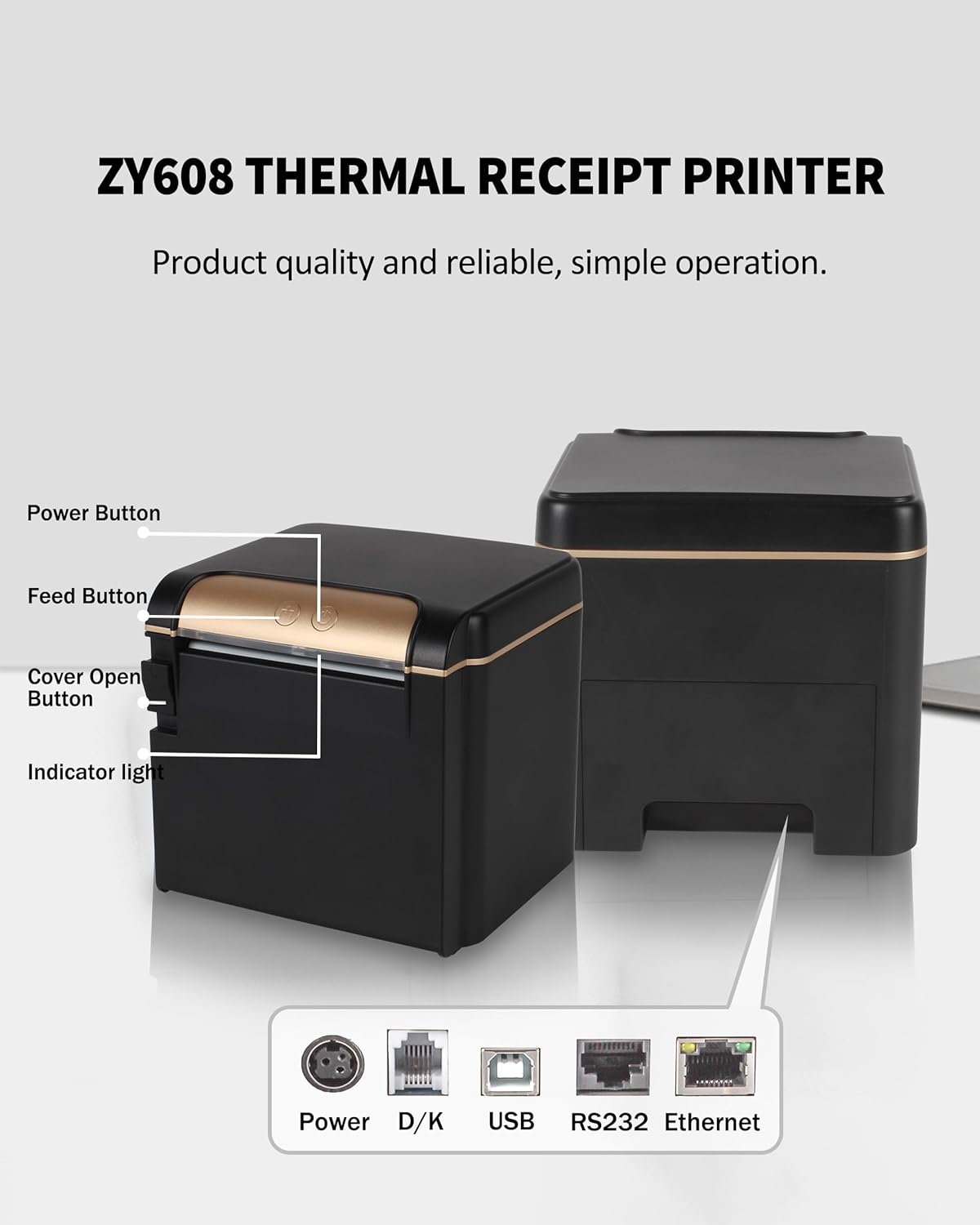
Image 2.1: Printer Buttons and Ports. This diagram illustrates the location of the Power Button, Feed Button, Cover Open Button, and Indicator Light on the printer's top and front, along with the Power, D/K (Cash Drawer), USB, RS232 (Serial), and Ethernet ports on the rear.
2.3. Driver Installation and Initial Configuration
The included USB flash drive contains the necessary drivers and utility software for the printer. Insert the USB flash drive into your computer and follow the instructions to install the drivers for your operating system (Windows, Linux, or Mac).
For specific POS system integrations, such as Square, refer to the following:
- Square Compatibility: The printer is compatible with Square (LAN port suggested). Note that iPad and iPhone devices do not support USB connection to the printer. If using Square on iPad/iPhone or with a Square Stand, the printer must be connected via a network cable (LAN).

Image 2.2: iPad to Printer LAN Connection. This image illustrates how an iPad can connect to the printer wirelessly via Wi-Fi to a router, which is then connected to the printer via an Ethernet cable, enabling Square functionality.
3. Notkunarleiðbeiningar
3.1. Grunnprentun
Once the printer is connected and drivers are installed, you can initiate printing from your POS software or application. The printer will automatically cut the paper after each receipt.
3.2. Flexible Paper Output
The ZY608 printer supports two paper output methods: forward and upward. This flexibility allows for adaptation to different counter layouts and operational needs.

Image 3.1: Multiple Ways to Print Out Paper. This image displays two printer configurations: one with paper exiting upwards from the top, and another with paper exiting forwards from the front, illustrating the versatile output options.
3.3. Audible and Visual Alarm
The ZY608 kitchen printer is equipped with an audible and visual alarm system. After printing, it automatically emits four short "beep" sound prompts and a visual light cue to alert staff, helping to prevent missed orders. This feature is particularly useful in busy kitchen environments.
3.4. Cash Drawer Connection
The printer can be connected to a cash drawer. To enable cash drawer functionality, use the provided utility software:
- Connect your computer and printer via USB.
- Download "Printer Test V5.2C" from the USB flash drive (Path: Driver installer-PrinterTest-PrinterTestV5.2C).
- Open the "Printer Test V5.2C" software, select "Port Select" and click "USB".
- Click on "Advanced", find "Cutter with Cash Drawer" and select "ON". A successful setup will be indicated by a printer beep.

Image 3.2: How to Use Cash Drawer for Square. This image provides a step-by-step guide within the "Printer Test V5.2C" software interface to enable the cash drawer function, showing the USB connection and software settings.
3.5. Supported Systems and Connections
The ZY608 printer offers broad compatibility with various POS systems and operating environments:
| Kerfi | OS | USB | LAN | RAÐ |
|---|---|---|---|---|
| Loyverse | Android | ✓ | ✓ | ✗ |
| iOS | ✗ | ✓ | ✗ | |
| W&OPOS | Android | ✓ | ✓ | ✗ |
| Ferningur | Android | ✓ | ✓ | ✗ |
| iOS | ✗ | ✓ | ✗ | |
| Square Register | POS vél | ✗ | ✓ | ✗ |
| Square stand pos | POS vél | ✗ | ✓ | ✗ |
| SumUp | Android | ✓ | ✓ | ✗ |
| iOS | ✗ | ✓ | ✗ | |
| Uber Eats | Android | ✓ | ✓ | ✗ |
| iOS | ✗ | ✓ | ✗ | |
| Shopify POS | Android | ✓ | ✓ | ✗ |
| iOS | ✗ | ✓ | ✗ |
Athugið: Prentarinn er ekki compatible with Grubhub, Doordash, Lightspeed, or Postmates.
4. Viðhald
Regular maintenance ensures optimal performance and extends the lifespan of your ZYWELL ZY608 printer.
4.1. Þrif
- Periodically clean the printer's exterior with a soft, damp klút.
- To clean the print head, use a lint-free cloth lightly dampened with isopropyl alcohol. Ensure the printer is turned off and cool before cleaning.
4.2. Print Head Durability
The print head is designed for long-lasting durability, capable of printing up to 150 kilometers. It also features overheating protection to prevent damage during continuous operation.
5. Bilanagreining
5.1. Prentari svarar ekki
- Check all cable connections (power, USB/LAN/Serial) to ensure they are secure.
- Verify the printer is powered on and the indicator light is active.
- Ensure the correct printer driver is installed and selected in your operating system's printer settings.
5.2. Missing Orders (Kitchen Environment)
The audio-visual alarm is designed to prevent missed orders. If orders are still being missed, ensure the alarm feature is enabled. You can adjust or disable the alarm using the "Printer Test V5.2C" utility:
- Connect your Windows computer and printer via USB.
- Download "Printer Test V5.2C" from the USB flash drive.
- Open the "Printer Test V5.2C" software, select "Port Select" and click "USB".
- Click on "Advanced", find "Idle alarm set" and select "OFF" if you wish to disable it, or adjust settings as needed.

Image 5.1: How to Turn Off Audible and Visual Alarms. This image provides a guide to navigating the "Printer Test V5.2C" software to manage the printer's alarm settings.
5.3. Printing Issues with Square (iPad/iPhone)
As noted in the compatibility section, iPad and iPhone devices do not support USB connection for printing. Ensure your printer is connected via LAN (Ethernet) to your network for Square functionality on these devices.
6. Tæknilýsing
| Eiginleiki | Smáatriði |
|---|---|
| Nafn líkans | ZY608-URE-Black-US001 |
| Prenttækni | Hitauppstreymi |
| Hámarks prenthraði | 300 mm/s |
| Hámarks prentupplausn | 203 dpi |
| Stuðningur við pappírsbreidd | 58mm / 80mm |
| Tengitækni | USB, Serial (RS232), Ethernet |
| Sjálfvirk skeri | Já |
| Viðvörunarkerfi | Hljóð- og sjónviðvörun |
| Paper Output Options | Forward, Upward |
| Vörumál (D x B x H) | 5.5" x 5.5" x 5.1" (137 mm x 137 mm x 130 mm) |
| Þyngd hlutar | 3.72 pund |
| Samhæfni stýrikerfis | Windows, Linux, Mac |
| Print Head Durability | 150 kílómetrar |
7. Ábyrgð og stuðningur
For warranty information and technical support, please contact ZYWELL customer service. Details can typically be found on the manufacturer's official webá síðunni eða í gegnum söluaðilann þar sem varan var keypt.
ZYWELL is committed to providing reliable products and support to its users worldwide.
Ask a question about this manual
Ask about setup, troubleshooting, compatibility, parts, safety, or missing instructions. Manuals+ will review the question and use this page’s manual context to help answer it.