
MSI MAG X870E Tomahawk WiFi
MSI MAG X870E Tomahawk WiFi Motherboard User Manual
Model: MAG X870E Tomahawk WiFi
Vara lokiðview
The MSI MAG X870E Tomahawk WiFi Motherboard is designed for high-performance computing, supporting the latest AMD Ryzen 9000/8000/7000 Processors on the AM5 platform. It features advanced connectivity and cooling solutions to ensure stable and efficient operation for demanding tasks and gaming.
- ULTRA POWER: Supports the latest Ryzen 9000 Processors with a 14 Duet Rail Power System (80A, SPS) VRM for the AMD X870E chipset.
- FROZR GUARD: Premium cooling features including 7W/mK MOSFET thermal pads, extra choke thermal pads, an Extended Heatsink, chipset heatsink, and double-sided EZ M.2 Shield Frozr II.
- DDR5 MEMORY, PCIe 5.0 x16 SLOT: Four DDR5 DIMM SMT slots for extreme memory overclocking (8400+ MT/s) and one PCIe 5.0 x16 SMT slot with Steel Armor II for cutting-edge graphics cards.
- QUADRUPLE M.2 CONNECTORS: Two M.2 Gen5 x4 128Gbps slots and two M.2 Gen4 x4 64Gbps slots, featuring EZ M.2 Shield Frozr II and EZ M.2 Clip II.
- ULTRA CONNECT: Full-speed Wi-Fi 7 module with Bluetooth 5.4, Realtek 5G LAN, USB4 Type-C (40Gbps) with 8K/60Hz display support, and 7.1 USB High Performance Audio with Audio Boost 5.
Innihald pakka
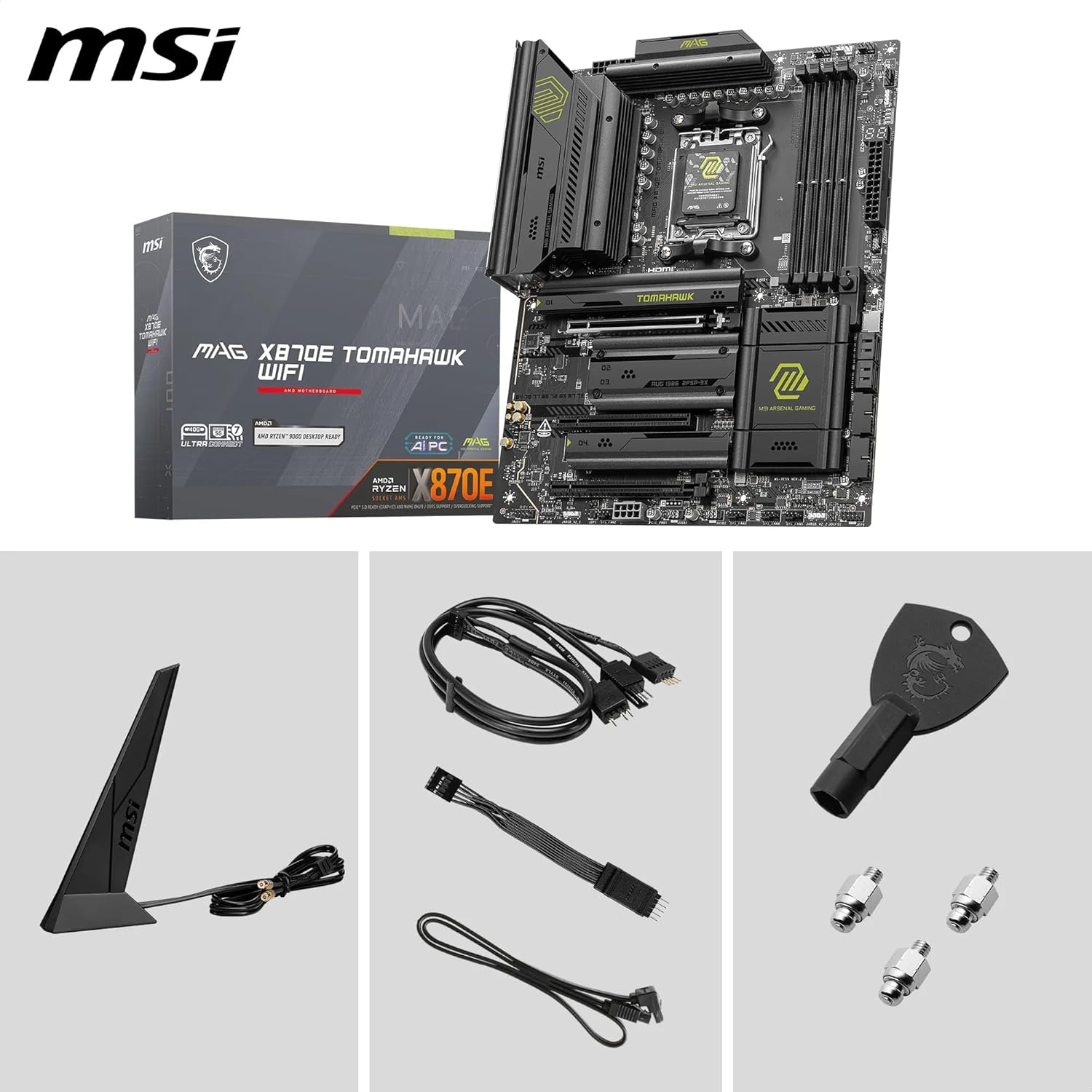
Image: The MSI MAG X870E Tomahawk WiFi Motherboard with its retail box and various accessories, including the Wi-Fi antenna, cables, and M.2 screws.
Please verify that all items listed below are present in your package. If any item is missing or damaged, contact your retailer.
- MSI MAG X870E Tomahawk WiFi Motherboard
- Wi-Fi loftnet
- SATA snúrur
- M.2 skrúfur og afstöður
- Notendahandbók og Quick Start Guide
- Driver CD/USB Drive (if applicable)
Uppsetningarleiðbeiningar
Follow these steps for proper installation of your MSI MAG X870E Tomahawk WiFi Motherboard into your system.
1. Uppsetning móðurborðs

Mynd: Ítarleg mynd ofan frá view of the MSI MAG X870E Tomahawk WiFi Motherboard, showing the CPU socket, DIMM slots, and PCIe slots.
- Gakktu úr skugga um að rafmagnstengið sé aftengt frá vegginnstungunni.
- Install the CPU into the AM5 socket, aligning the triangular markers.
- Setjið upp kælirinn fyrir örgjörvann samkvæmt leiðbeiningum framleiðanda.
- Install DDR5 memory modules into the DIMM slots. Refer to the motherboard manual for optimal slot population.
- Mount the motherboard into your PC case, securing it with screws.
2. Uppsetning geymslutækis

Mynd: Nærmynd view of the M.2 slots on the MSI MAG X870E Tomahawk WiFi Motherboard, highlighting the EZ M.2 Shield Frozr II heatsinks.
- For M.2 NVMe SSDs, remove the EZ M.2 Shield Frozr II heatsink, insert the SSD, and secure it with the EZ M.2 Clip II. Reattach the heatsink.
- Connect SATA drives (HDDs/SSDs) to the SATA ports using SATA data and power cables.
3. Graphics Card and Expansion Slots

Image: The MSI MAG X870E Tomahawk WiFi Motherboard with labels indicating the PCIe Gen5 x16 slot and PCIe Gen4 slots, emphasizing its expansion capabilities.
- Insert your graphics card into the primary PCIe 5.0 x16 slot (usually the top reinforced slot).
- Secure the graphics card with the case screw.
- Install any additional expansion cards (e.g., sound cards, network cards) into available PCIe slots.
4. Rafmagnstengingar
- Tengdu 24 pinna ATX aðalrafmagnstengið frá aflgjafanum við móðurborðið.
- Tengdu 8 pinna (eða 4+4 pinna) rafmagnstengi örgjörvans við móðurborðið.
- Connect power cables to your graphics card and other components as needed.
5. Framhlið og jaðartæki
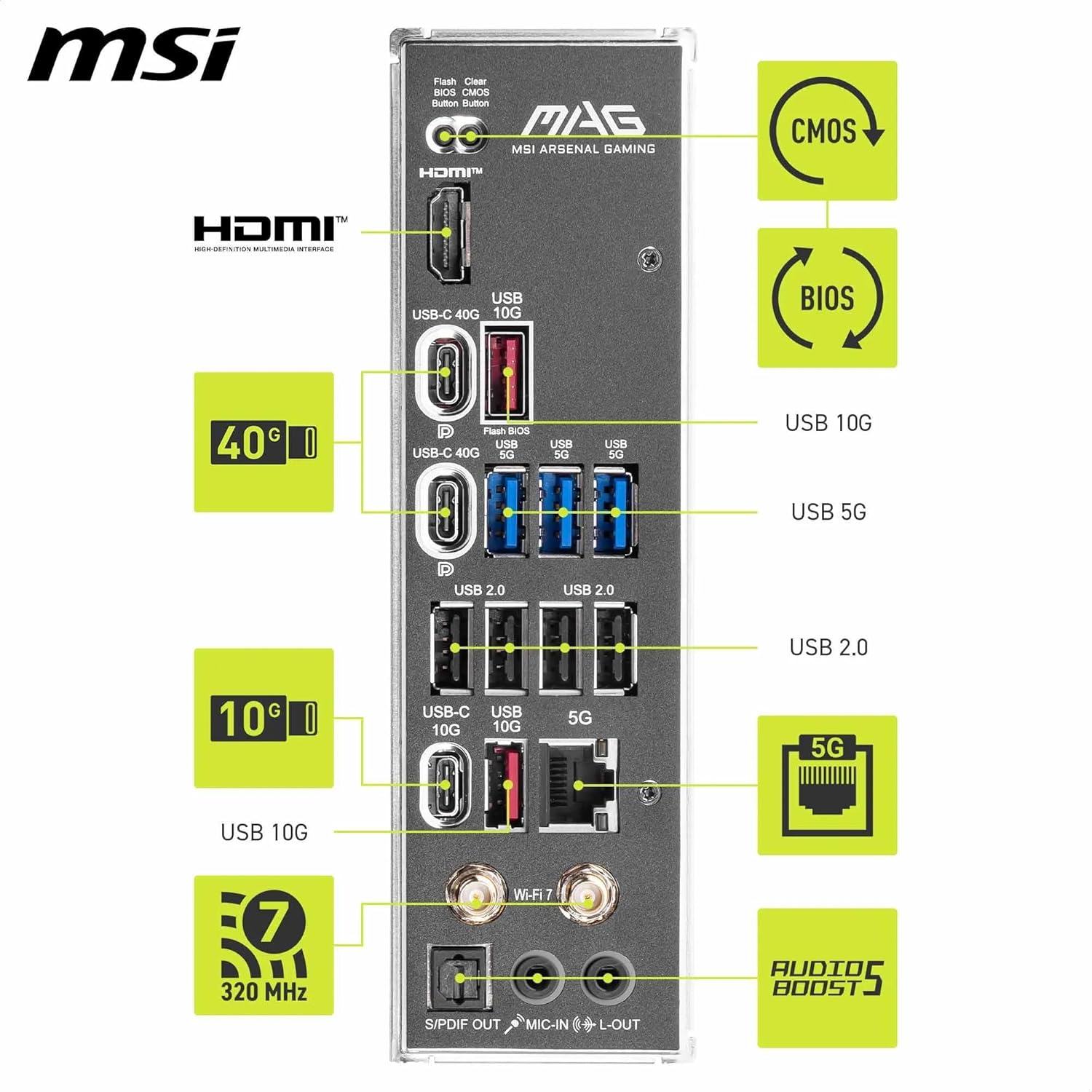
Image: The rear input/output panel of the MSI MAG X870E Tomahawk WiFi Motherboard, showcasing various USB ports, LAN, Wi-Fi 7 antenna connectors, and audio jacks.
- Connect your case's front panel connectors (power button, reset button, USB ports, audio jacks) to the corresponding headers on the motherboard. Refer to the motherboard manual for header locations.
- Attach the Wi-Fi antenna to the rear I/O panel connectors.
- Tengdu skjáinn, lyklaborðið, músina og annan jaðarbúnað við aftari I/O tengin.
Notkunarleiðbeiningar
This section provides basic instructions for operating your motherboard and system.
Fyrsta ræsing og BIOS uppsetning
- After connecting all components and peripherals, connect your power supply to the wall outlet and turn it on.
- Ýttu á rofann á tölvukassanum þínum.
- Ýttu ítrekað á meðan á ræsingu stendur DEL key to enter the BIOS/UEFI setup.
- In the BIOS, you can configure boot order, enable/disable features, and monitor system status. Save changes and exit to continue booting into your operating system installer or existing OS.
Uppsetning bílstjóri
For optimal performance and stability, install the latest drivers for your motherboard components. These can typically be found on the MSI official websíðu fyrir þína tilteknu gerð.
- Flísasettsreklar
- LAN Drivers (for 5G Ethernet)
- Wi-Fi og Bluetooth reklar
- Bílstjóri fyrir hljóð
- USB bílstjóri
Viðhald
Rétt viðhald tryggir langlífi og bestu mögulegu afköst móðurborðsins.
- Haltu því hreinu: Hreinsið reglulega ryk af tölvukassanum og móðurborðshlutum með þrýstilofti. Gakktu úr skugga um að kerfið sé slökkt og aftengt áður en það er hreinsað.
- BIOS/UEFI uppfærslur: Periodically check the MSI website for BIOS/UEFI updates. Updates can improve compatibility, stability, and performance. Follow MSI's instructions carefully when updating the BIOS.
- Bílstjóri uppfærslur: Keep all system drivers updated to their latest versions for best performance and security.
- Fylgjast með hitastigi: Use monitoring software to keep an eye on CPU, chipset, and M.2 temperatures to prevent overheating, especially under heavy loads.
Úrræðaleit
Þessi hluti fjallar um algeng vandamál sem þú gætir rekist á og mögulegar lausnir á þeim.
No Display/No Boot
- Athugaðu rafmagnstengingar: Gakktu úr skugga um að allir rafmagnssnúrur (24 pinna ATX, 8 pinna örgjörvi, skjákort) séu vel tengdir.
- Setjið íhluti aftur á sinn stað: Try reseating the RAM modules, graphics card, and CPU to ensure they are properly seated in their slots.
- Hreinsa CMOS: Vísaðu í handbók móðurborðsins til að fá leiðbeiningar um hvernig á að hreinsa CMOS stillingarnar (Complementary Metal-Oxide-Semiconductor). Þetta getur leyst ræsingarvandamál sem orsakast af röngum BIOS stillingum.
- Prófun með lágmarksþáttum: Remove all non-essential components (extra drives, expansion cards) and try booting with only the CPU, one RAM stick, and the graphics card.
Óstöðugleiki/hrun kerfisins
- Athugaðu hitastig: Overheating can cause instability. Monitor component temperatures.
- Uppfæra rekla/BIOS: Gakktu úr skugga um að allir reklar og BIOS séu uppfærð.
- Minni vandamál: Keyrðu minnisgreiningartól (t.d. Windows Memory Diagnostic, MemTest86) til að athuga hvort vinnsluminni sé gallað.
- Aflgjafi: Gakktu úr skugga um að aflgjafinn þinn (PSU) hafi nægilegt afltage og virkar rétt.
Vandamál með nettengingu
- Check Cables/Antenna: Ensure Ethernet cables are properly connected and Wi-Fi antennas are securely attached.
- Uppsetning ökumanns: Verify that the correct LAN and Wi-Fi drivers are installed.
- Beinir/Módel: Endurræstu leiðina og mótaldið.
Tæknilýsing
| Eiginleiki | Smáatriði |
|---|---|
| Vörumerki | MSI |
| Nafn líkans | MAG X870E Tomahawk WiFi |
| CPU fals | Innstunga AM5 |
| Samhæfðir örgjörvar | Supports AMD Ryzen 9000/7000 Series Desktop Processor |
| Tegund flísasetts | X870E |
| RAM minni tækni | DDR5 |
| Minnishraði | 8400 MT/s (OC) |
| PCIe Slots | 1 x PCIe 5.0 x16, other PCIe Gen4 slots |
| M.2 Tengi | 2 x M.2 Gen5 x4, 2 x M.2 Gen4 x4 |
| LAN | Realtek 5G staðarnet |
| Þráðlaus tenging | Wi-Fi 7, Bluetooth 5.4 |
| USB tengi | USB4 Type-C (40Gbps), USB 10G, USB 5G, USB 2.0 |
| Hljóð | 7.1 USB High Performance Audio with Audio Boost 5 |
| Mál (LxBxH) | 13.6 x 10.7 x 2.9 tommur |
| Þyngd hlutar | 4.82 pund |
Ábyrgð og stuðningur
Fyrir upplýsingar um ábyrgð, tæknilega aðstoð og niðurhal á rekla, vinsamlegast farðu á opinberu vefsíðu MSI. webvefsíðu eða hafðu samband við þjónustuver þeirra. Geymdu kaupkvittunina vegna ábyrgðarkröfu.
MSI Official Websíða: www.msi.com
Vörusíða Amazon: https://www.amazon.com/MSI-MAG-X870E-Tomahawk-WiFi/dp/B0DT55ZJM7