Inngangur
This manual provides detailed instructions for the setup, operation, and maintenance of your Generic Delux T11 One-Handed Mechanical Keyboard. Designed for left-handed users, this compact keyboard features customizable shortcut keys to enhance your workflow.
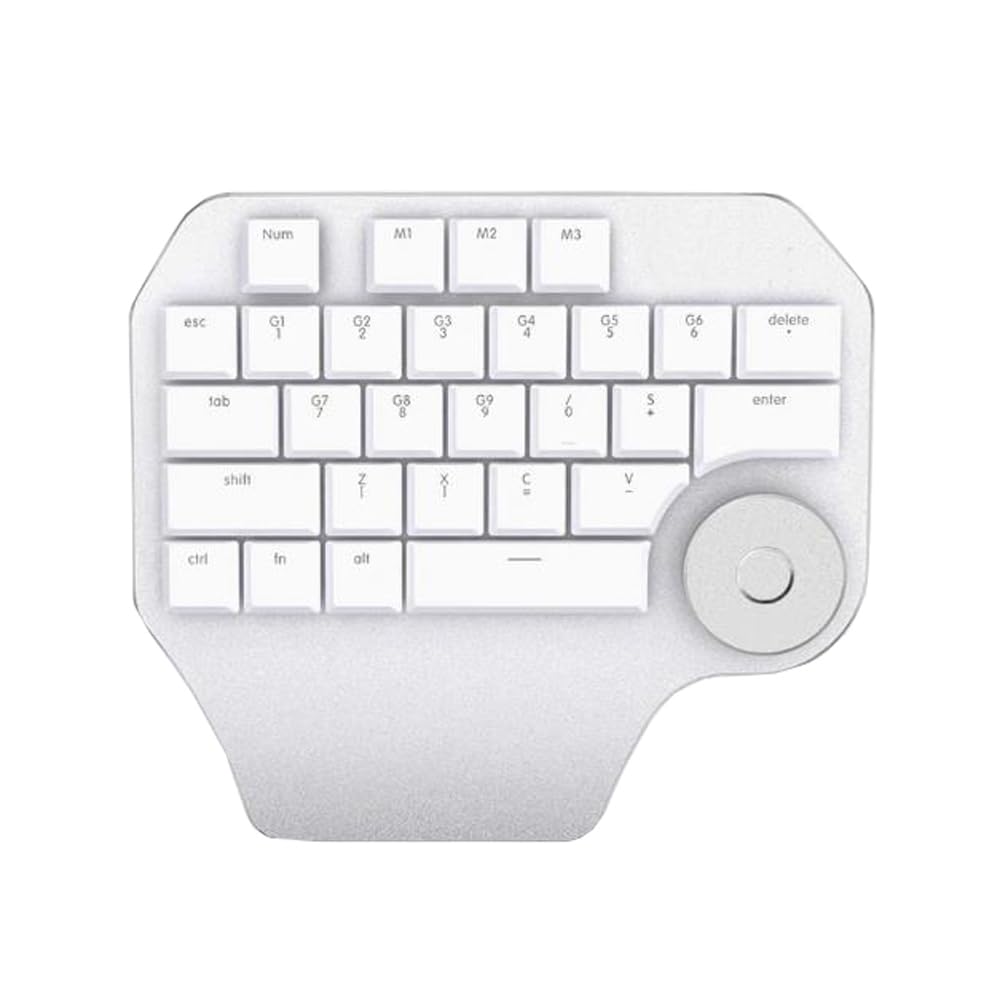
Image: The Delux T11 One-Handed Mechanical Keyboard. This image displays the compact design and key layout of the device, highlighting its ergonomic form factor for single-hand use.
Uppsetning
1. Upptaka
Carefully remove the keyboard from its packaging. Ensure all components, including the keyboard and any included cables, are present and undamaged.
2. Tengimöguleikar
Your Delux T11 keyboard supports two primary connectivity methods: USB-C (vírað) og Bluetooth (þráðlaust).
2.1. Tenging með snúru (USB-C)
- Finndu USB-C tengið á lyklaborðinu.
- Tengdu annan endann á meðfylgjandi USB-C snúrunni við lyklaborðið.
- Connect the other end of the USB-C cable to an available USB port on your computer or laptop.
- Stýrikerfið ætti að þekkja lyklaborðið sjálfkrafa. Venjulega eru engir viðbótarreklar nauðsynlegir fyrir grunnvirkni.
2.2. Bluetooth Connection (Wireless)
- Ensure your computer or laptop has Bluetooth enabled.
- Put the keyboard into Bluetooth pairing mode. (Refer to the specific instructions on the keyboard itself or a small included guide for the exact key combination, as this information is not provided. Typically, this involves holding a function key + a Bluetooth key.)
- On your computer, navigate to Bluetooth stillingar.
- Leitaðu að new devices. The keyboard should appear as "Delux T11" or a similar identifier.
- Select the keyboard and follow any on-screen prompts to complete the pairing process.
Notkunarleiðbeiningar
Grunn notkun
The Delux T11 is a compact, left-handed mechanical keyboard designed for efficiency. Its QWERTY layout provides familiar key placement for common functions.
Sérsniðnir flýtileiðir
A key feature of this keyboard is its customizable shortcut keys. These keys are pre-programmed for common design or editing functions, but can often be remapped using dedicated software (if available from the manufacturer) or operating system settings. Consult the manufacturer's website for any specific software tools.
- Identify Programmable Keys: Look for keys with special markings or those designated as "custom" or "macro" keys.
- Hugbúnaðarstilling: If manufacturer software is available, install it and follow its instructions to assign new functions or macros to the programmable keys.
- Operating System Shortcuts: For basic remapping, your operating system's keyboard settings may allow some customization.
Viðhald
Þrif
- Slökkva á: Aftengdu lyklaborðið frá tölvunni áður en þú þrífur það.
- Rykhreinsun: Notið brúsa af þrýstilofti til að fjarlægja ryk og rusl á milli takkanna.
- Yfirborðshreinsun: Þurrkið varlega af lyklaborðinu og yfirborði lyklaborðsins með mjúkum, lólausum klút.ampÞvoið með vatni eða mildri, ekki slípandi hreinsilausn. Forðist mikinn raka.
- Forðastu sterk efni: Do not use strong solvents, alcohol, or abrasive cleaners, as these can damage the keyboard's finish or keycap legends.
Geymsla
When not in use, store the keyboard in a clean, dry environment away from direct sunlight and extreme temperatures. Protect it from dust and spills.
Úrræðaleit
- Lyklaborð svarar ekki (vírað):
- Gakktu úr skugga um að USB-C snúran sé vel tengd bæði við lyklaborðið og tölvuna.
- Prófaðu að tengja lyklaborðið við aðra USB tengi á tölvunni þinni.
- Prófaðu lyklaborðið á annarri tölvu til að útiloka vandamál sem tengist kerfinu.
- Keyboard Not Responding (Bluetooth):
- Ensure Bluetooth is enabled on your computer and the keyboard is in pairing mode.
- Remove the keyboard from your computer's Bluetooth device list and attempt to re-pair it.
- Check the keyboard's battery level if it's a wireless-only model (though this model is listed as "Wired" for power source, Bluetooth implies a battery for wireless use).
- Lyklar virka ekki rétt:
- Clean the keyboard to remove any debris that might be obstructing the key switches.
- If specific keys are not working, it might indicate a hardware issue.
- Custom Shortcuts Not Working:
- Verify that any necessary software for customization is installed and running.
- Check the software settings to ensure the shortcuts are correctly configured.
- Ensure there are no conflicts with other software or operating system shortcuts.
Tæknilýsing
| Vörumál | 3.94 x 7.87 x 11.81 tommur |
| Þyngd hlutar | 2.2 pund |
| Framleiðandi | Almennt |
| Tegundarnúmer vöru | Laptop Parts-24-1-22-18 |
| Vörumerki | Almennt |
| Samhæf tæki | Fartölva |
| Tengitækni | Bluetooth, USB-C |
| Lýsing á lyklaborði | Compact, Left-Handed, Mechanical, Customizable |
| Aflgjafi | Þráðlaust |
| Skiptategund | Vélrænn |
| Lyklaborðsuppsetning | QWERTY |
| Handstilling | Vinstri |
Upplýsingar um ábyrgð
Þessi vara kemur með a 90 daga ábyrgð frá kaupdegi. Þessi ábyrgð nær til framleiðslugalla við eðlilega notkun. Hún nær ekki til tjóns sem orsakast af misnotkun, slysum, óheimilum breytingum eða eðlilegu sliti. Vinsamlegast geymið kaupkvittunina vegna ábyrgðarkröfu.
Stuðningur
For further assistance, technical support, or warranty inquiries, please refer to the contact information provided with your purchase or visit the manufacturer's official website. When contacting support, please have your product model number (Laptop Parts-24-1-22-18) and proof of purchase readily available.
Note: As this is a generic product, specific support channels may vary.


