
1. Inngangur og kerfisbreytingview
This manual provides detailed instructions for the Fuers 8CH 4K PoE Security Camera System. This system includes an 8-channel Network Video Recorder (NVR) with a pre-installed 500GB hard drive and two wired 6MP PoE dual-lens security cameras. The system is designed for 24/7 surveillance, offering features such as smart person detection, two-way audio, and remote access via mobile application or PC client.
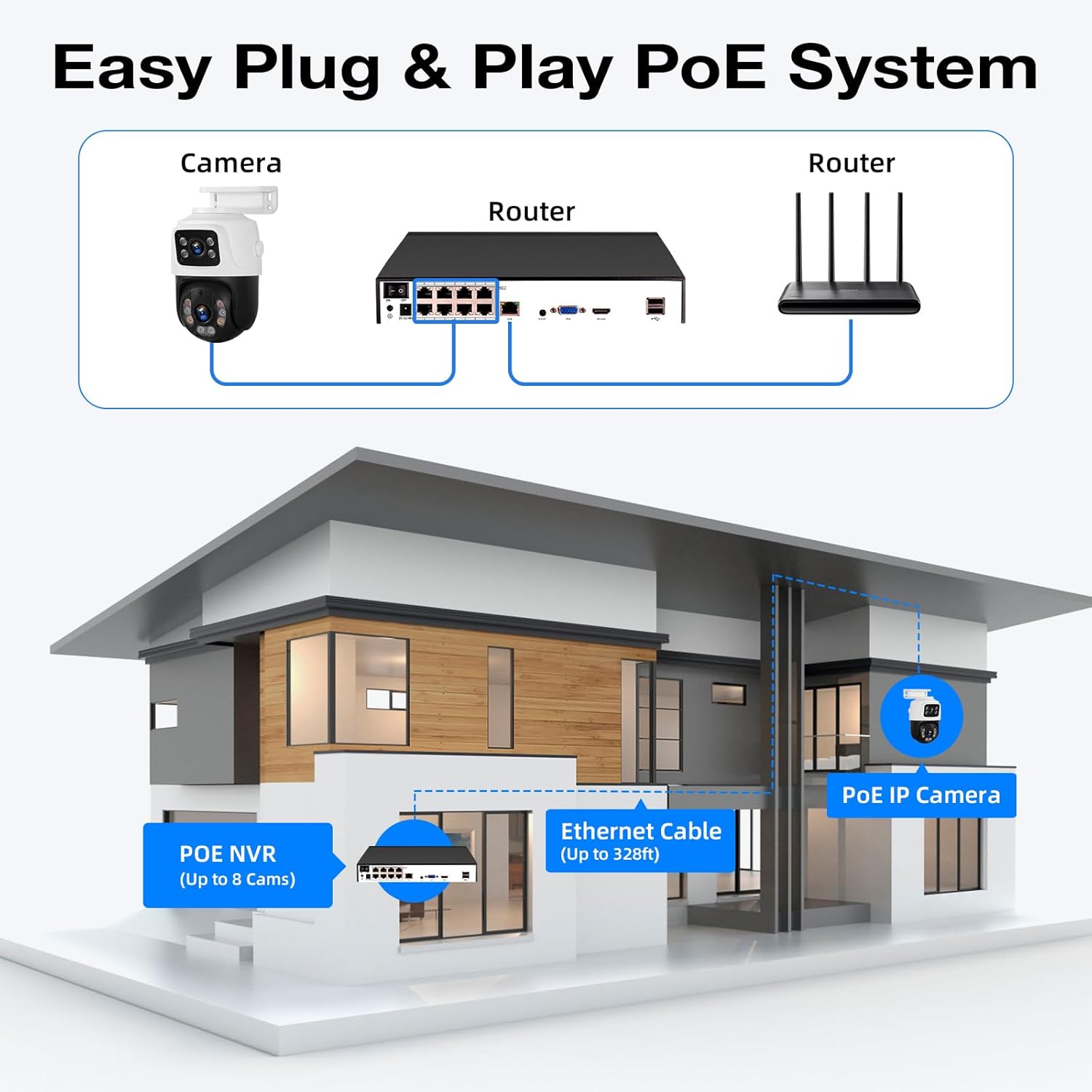
The NVR supports up to 8 cameras, allowing for future expansion with additional Fuers IP cameras. Its Power over Ethernet (PoE) capability simplifies installation by providing both power and data transmission through a single network cable.
2. Hvað er í kassanum
Vinsamlegast staðfestu að allir hlutir sem taldir eru upp hér að neðan séu innifaldir í pakkanum þínum:
- 1x 8CH NVR with 500G Hard Drive Pre-installed
- 1x NVR straumbreytir
- 2x 6MP PoE Dual-Lens Cameras
- 2x 18m netsnúra
- 1x HDMI snúru
- 1x USB mús
- 2x Mounting Screw Kits
- 1x Notendahandbók (þetta skjal)
Mynd 2.1: Innihald pakka
3. Kerfishlutar
3.1 Netmyndbandsupptökutæki (NVR)
The NVR is the central unit for recording, storing, and managing video footage from your cameras. It features 8 PoE ports for direct camera connection, eliminating the need for separate power adapters for each camera.

Figure 3.1: NVR Rear Panel Ports
- PoE tengi (1-8): Connect PoE cameras directly.
- LAN tengi: Connect to your router for internet access and remote viewing.
- VGA/HDMI Ports: Connect to a monitor for local viewing.
- USB tengi: Connect the included USB mouse for control and for external storage/backup.
- Rafmagnsinntak: Connect the NVR power adapter.
- Kveikja/slökkva rofi: Power control for the NVR.
3.2 6MP PoE Dual-Lens Cameras
The included cameras are 6-megapixel (6MP) dual-lens units, providing high-resolution video. They are designed for outdoor use with IP66 waterproofing and support both ceiling and wall mounting.
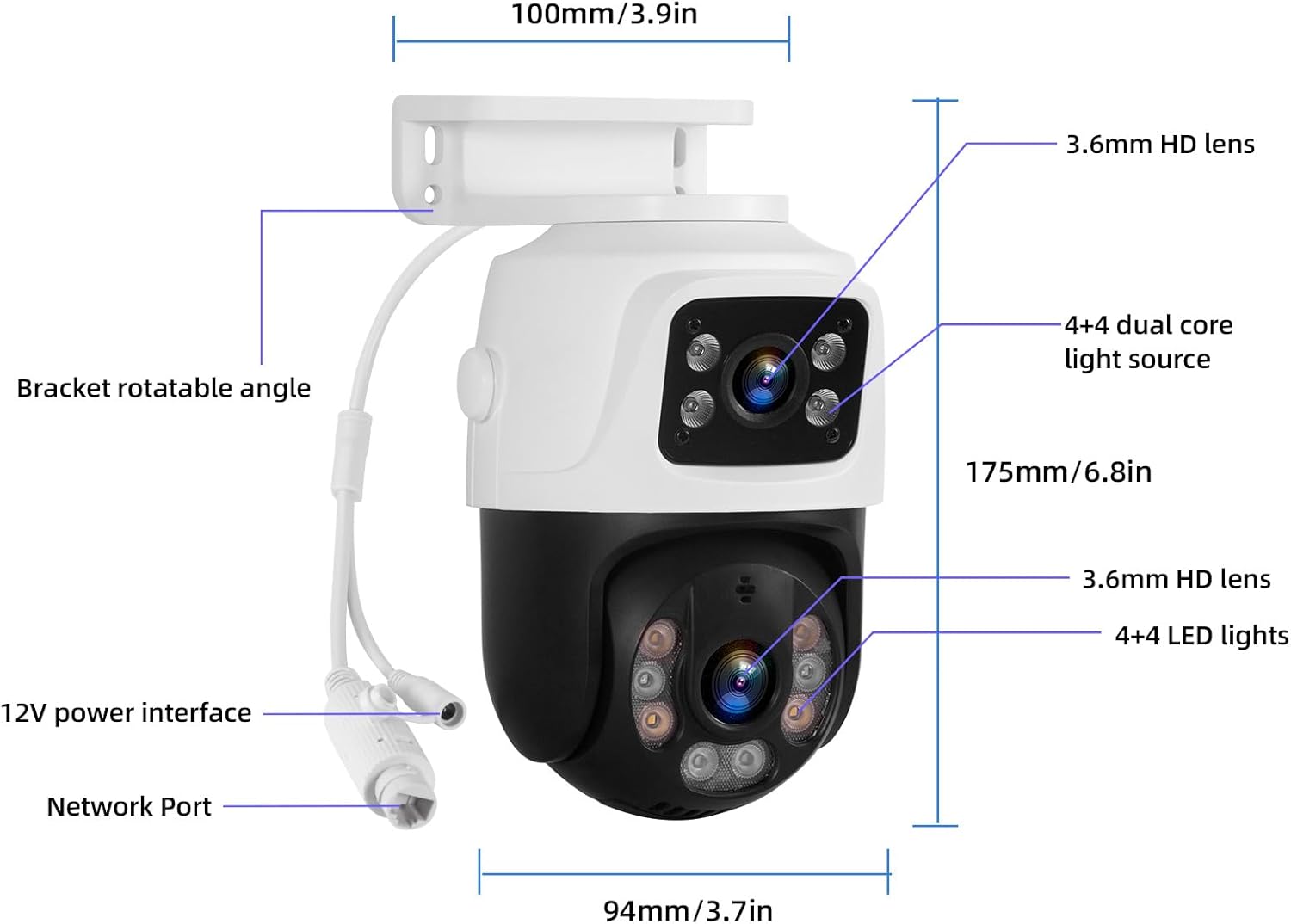
Mynd 3.2: Myndavélarhlutir og stærðir
- Tvöfaldar linsur: Provide a wider field of view or simultaneous views.
- PoE tenging: Receives power and data via a single Ethernet cable.
- Innbyggður hljóðnemi: Gerir kleift að nota tvíhliða hljóðsamskipti.
- Nætursjón: Supports both infrared (black & white) and full-color night vision.
- IP66 Veðurþolið: Suitable for outdoor installation in various weather conditions.
4. Uppsetning og uppsetning
4.1 Upphafleg tenging við NVR
- Tengdu USB músina við USB tengi á NVR tækinu.
- Connect your monitor to the NVR using either the VGA or HDMI cable.
- Connect the NVR power adapter to the NVR's DC input and plug it into a power outlet.
- Turn on the NVR using the power switch on the rear panel. The system will boot up and display on the connected monitor.
4.2 Camera Connection (PoE Plug & Play)
The PoE feature allows for a straightforward connection:
- Connect one end of the provided network cable to a PoE port on the NVR.
- Connect the other end of the network cable to the camera's network port.
- Repeat for all cameras. The cameras will automatically power on and connect to the NVR.

Figure 4.1: PoE System Connection Diagram
4.3 Nettenging fyrir fjaraðgang
Til að virkja fjarstýringu viewing and alerts, connect the NVR to your home network:
- Connect one end of a network cable to the NVR's LAN port.
- Connect the other end of the network cable to an available LAN port on your router.
- Gakktu úr skugga um að leiðin þín hafi virka internettengingu.

Figure 4.2: Remote Access Connection
4.4 Mobile App & PC Client Setup
Download the free 'xmeye pro' app from your device's app store (iOS or Android) or the PC client for Windows/Mac. Follow the in-app instructions to add your device by scanning the QR code displayed on the NVR monitor or manually entering the device ID. This will allow you to view lifandi footage, playback recordings, and receive alerts remotely.
4.5 Uppsetning myndavélar
The cameras can be mounted on ceilings or walls. Choose a location that provides the desired viewing angle and is within reach of the network cables. Ensure the mounting surface is stable and secure.

Mynd 4.3: Loft- og veggfestingarmöguleikar
Video 4.1: Step-by-step guide on connecting the NVR, cameras, and setting up the mobile application for live viewing.
5. Rekstur
5.1 Í beinni View og spilun
Þegar kerfið er komið upp geturðu view live camera feeds on your connected monitor, mobile app, or PC client. Use the USB mouse to navigate the NVR interface for playback of recorded footage, system settings, and other functions.
5.2 Smart Person Detection
The cameras are equipped with smart person detection, which accurately identifies human figures and reduces false alarms from other movements. When a person is detected, the system can send instant alerts to your mobile device.
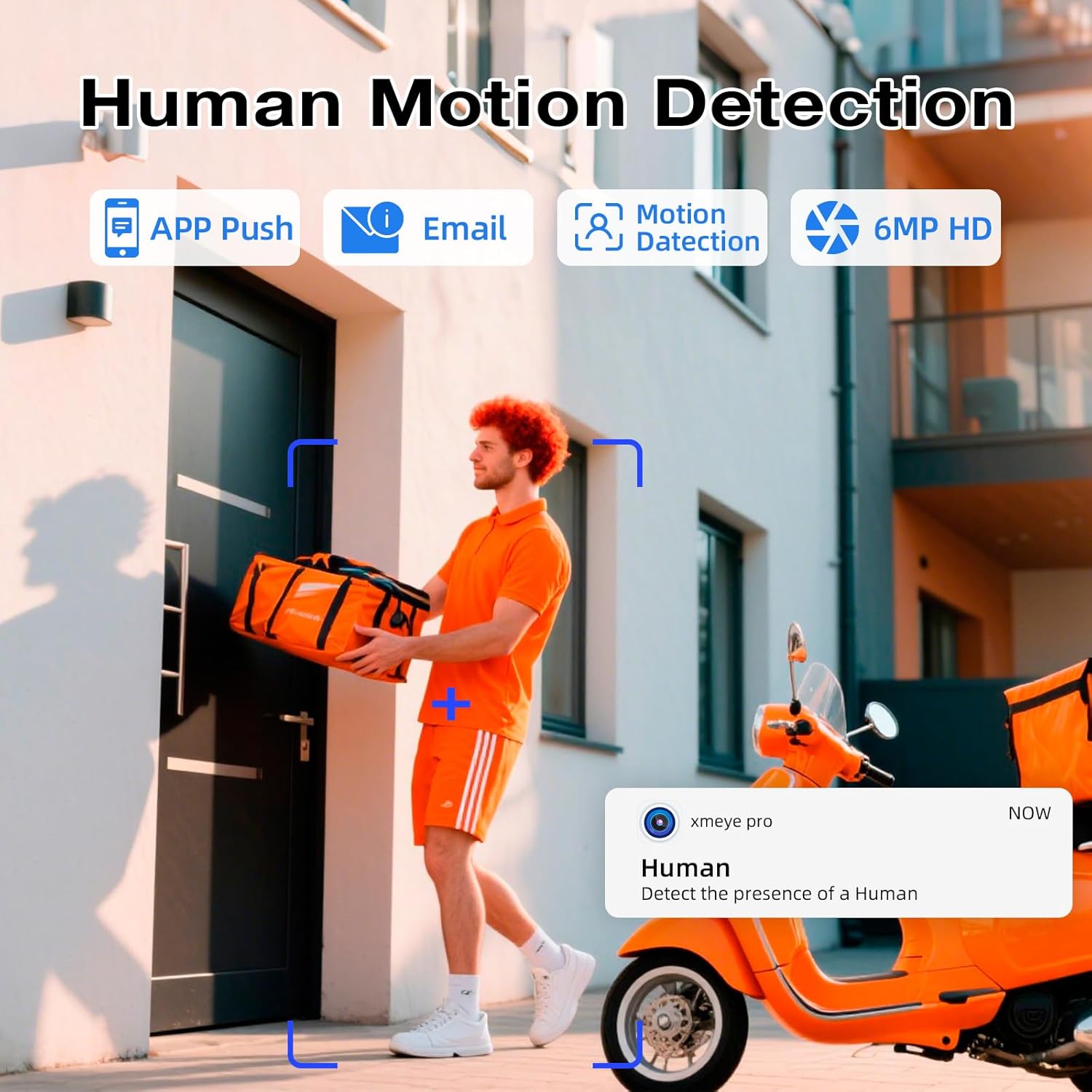
Figure 5.1: Smart Person Detection in Action
5.3 Tvíhliða hljóð
The built-in microphone and speaker in the cameras allow for two-way audio communication. You can listen to audio from the camera's location and speak through your mobile app or NVR to communicate with individuals near the camera.

Mynd 5.2: Tvíhliða hljóðsamskipti
5.4 Nætursjón
The cameras offer both infrared (IR) night vision for clear black and white images in low light, and full-color night vision when ambient light is available or the camera's light alarm is activated. This ensures comprehensive surveillance around the clock.

Figure 5.3: Infrared vs. Full-Color Night Vision
5.5 Dual Lens & Auto Lock Motion
The dual-lens design allows for broader coverage or specific area focus. Some camera models may feature auto-tracking and auto-lock motion, where the camera automatically follows detected movement within its field of view, ensuring critical events are captured.

Figure 5.4: Dual Lens and Auto Lock Motion
6. Viðhald
6.1 24/7 Recording and Storage Management
The NVR records continuously to the pre-installed 500GB hard drive. For extended recording capacity, an additional hard drive up to 8TB can be connected via the eSATA port. Regularly check the NVR's storage status to ensure continuous recording.

Figure 6.1: 24/7 Recording and Storage Options

Figure 6.2: Maximize Storage Capacity up to 8TB
6.2 Þrif
Periodically clean the camera lenses with a soft, dry cloth to ensure clear image quality. For outdoor cameras, remove any accumulated dirt or debris from the housing.
6.3 vélbúnaðaruppfærslur
Athugaðu framleiðanda website or your mobile app for available firmware updates. Keeping your system's firmware updated ensures optimal performance, security, and access to new features.
7. Bilanagreining
- Engin myndskjár:
- Check all cable connections (power, HDMI/VGA, network).
- Ensure the NVR and monitor are powered on.
- Verify that cameras are properly connected to PoE ports and their indicator lights are active. - Enginn fjarlægur aðgangur:
- Confirm the NVR is connected to your router and has internet access.
- Athugaðu nettengingu leiðarans þíns.
- Ensure the 'xmeye pro' app is correctly configured with your device ID and network settings. - Hreyfiskynjun virkar ekki / Falskar viðvaranir:
- Adjust the motion detection sensitivity settings in the NVR or app.
- Ensure the detection area is correctly configured, avoiding areas with constant movement (e.g., trees swaying).
- Verify that smart person detection is enabled if you wish to filter out non-human movements. - Léleg myndgæði:
- Hreinsið myndavélarlinsuna.
- Athugaðu hvort hindranir séu í sjónsviði myndavélarinnar view.
- Ensure the camera is securely mounted and not vibrating. - Ekkert hljóð / Léleg hljóðgæði:
- Check audio settings on the NVR and in the app.
- Ensure the camera's microphone is not obstructed.
8. Tæknilýsing
| Eiginleiki | Smáatriði |
|---|---|
| Vörumerki | Fuers |
| Gerðarnúmer | N6708-3 |
| NVR rásir | 8 rásir |
| Upplausn myndavélar | 6MP |
| Tegund myndavélar | Wired PoE Dual-Lens |
| Geymslurými NVR | 500GB HDD (pre-installed), expandable up to 8TB via eSATA |
| Tengitækni | Tengt við vír (PoE) |
| Sérstakir eiginleikar | Smart Person Detection, Two-Way Audio, Color/IR Night Vision, IP66 Weatherproof |
| Vöruvídd (NVR) | 10.08 x 9.45 x 1.73 tommur (256 x 240 x 44 mm) |
| Þyngd hlutar | 8.64 pund |
9. Ábyrgð og stuðningur
For warranty information and technical support, please refer to the documentation provided with your purchase or contact Fuers customer service directly. You can often find support contact details on the manufacturer's official websíða.