
Inngangur
This manual provides essential instructions for setting up, operating, and maintaining your Vamvo Mini Projector VF240. Please read this manual thoroughly before using the projector to ensure safe and optimal performance.
Hvað er í kassanum
- Vamvo Mini Projector VF240
- Millistykki
- HDMI snúru
- Fjarstýring
- Notendahandbók
- Ábyrgðarkort
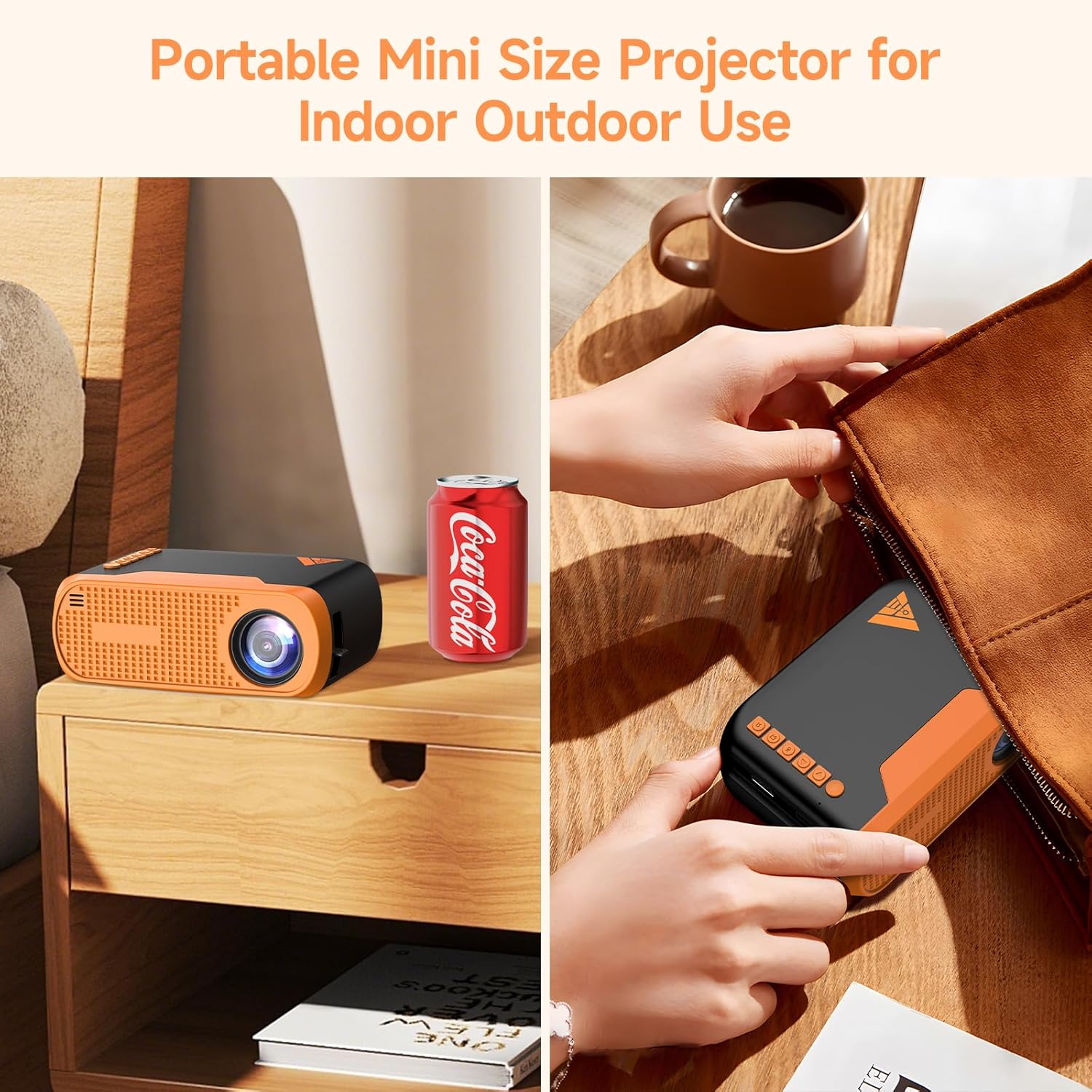
Image: The Vamvo Mini Projector is compact and portable, ideal for indoor and outdoor use.
Uppsetning
1. Rafmagnstenging
Connect the provided AC adapter to the projector's DC IN port and then plug it into a power outlet. The projector can also be powered via a Type-C cable (not included) for increased portability.

Image: Powering the Vamvo Mini Projector using either the AC adapter or a Type-C cable. Do not use both simultaneously.
2. Staðsetning og skjástilling
Place the projector on a stable surface. For optimal viewing, position the projector between 3.3 feet (60 inches screen) and 13 feet (170 inches screen) from the projection surface. Adjust the focus and keystone correction manually using the controls on the projector to achieve a clear, rectangular image.
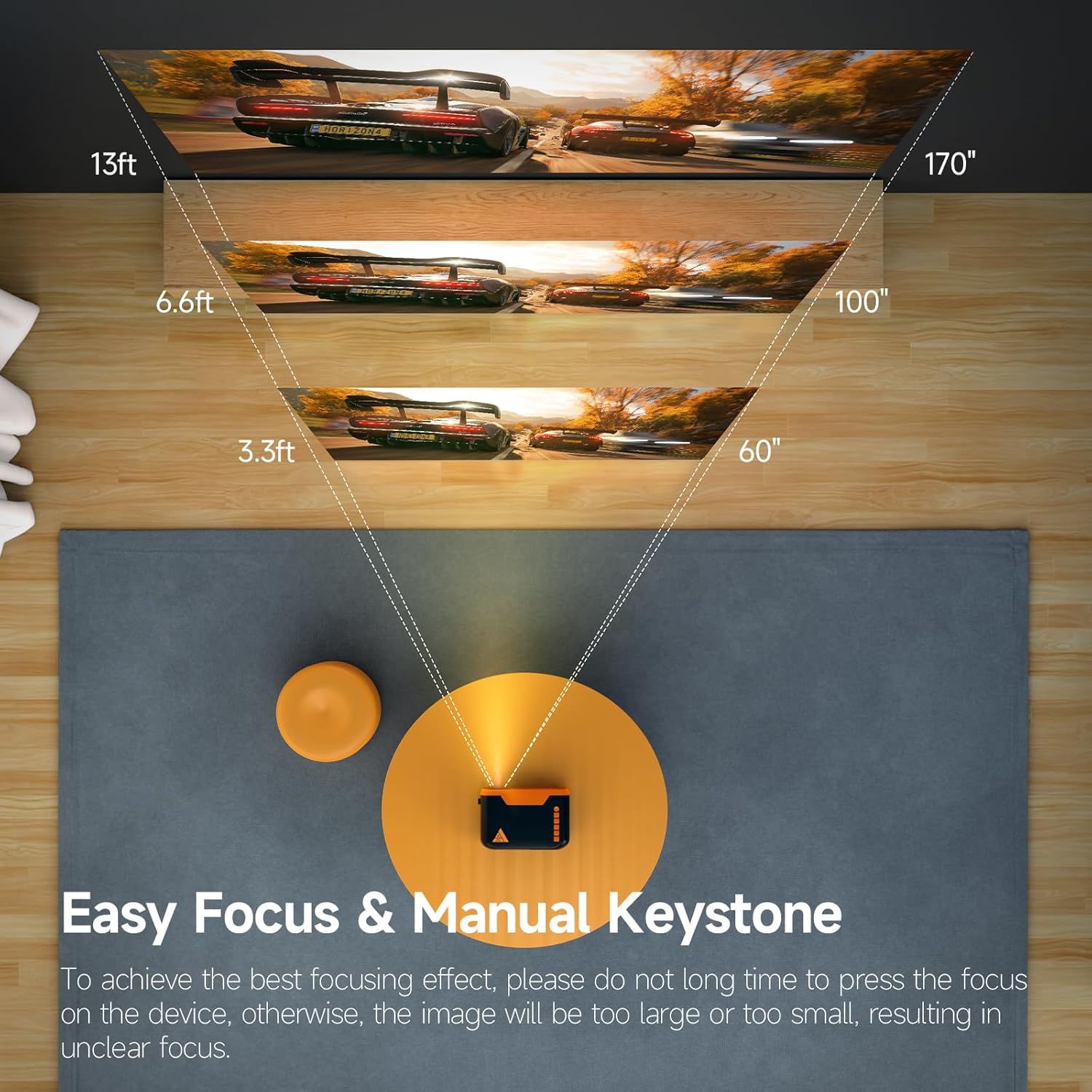
Image: Recommended projection distances for screen sizes from 60 to 170 inches.

Image: Manual focus and keystone adjustment controls on the projector.
The projector supports various installation methods: table placement, tripod installation, or ceiling mount.

Image: Different installation options for the projector.
Rekstur
1. Kveikt/slökkt
Ýttu á rofann á skjávarpanum eða fjarstýringunni til að kveikja eða slökkva á tækinu.
2. Leiðsögn
Use the directional buttons (up, down, left, right) and the OK button on the projector's top panel or the remote control to navigate through the menu and select options. The top panel also includes a dedicated power button and a back button.
3. Val á inntaksheimild
Select the desired input source (HDMI, USB, Screen Mirroring) from the projector's menu.
Tengingar
1. Tengingar með snúru
The projector features HDMI, USB, and Micro USB ports for connecting various devices such as laptops, gaming consoles (PS4, PS5), TV sticks, DVD players, and smartphones/tablets (with appropriate adapters). An earphone port is also available for wired audio output.
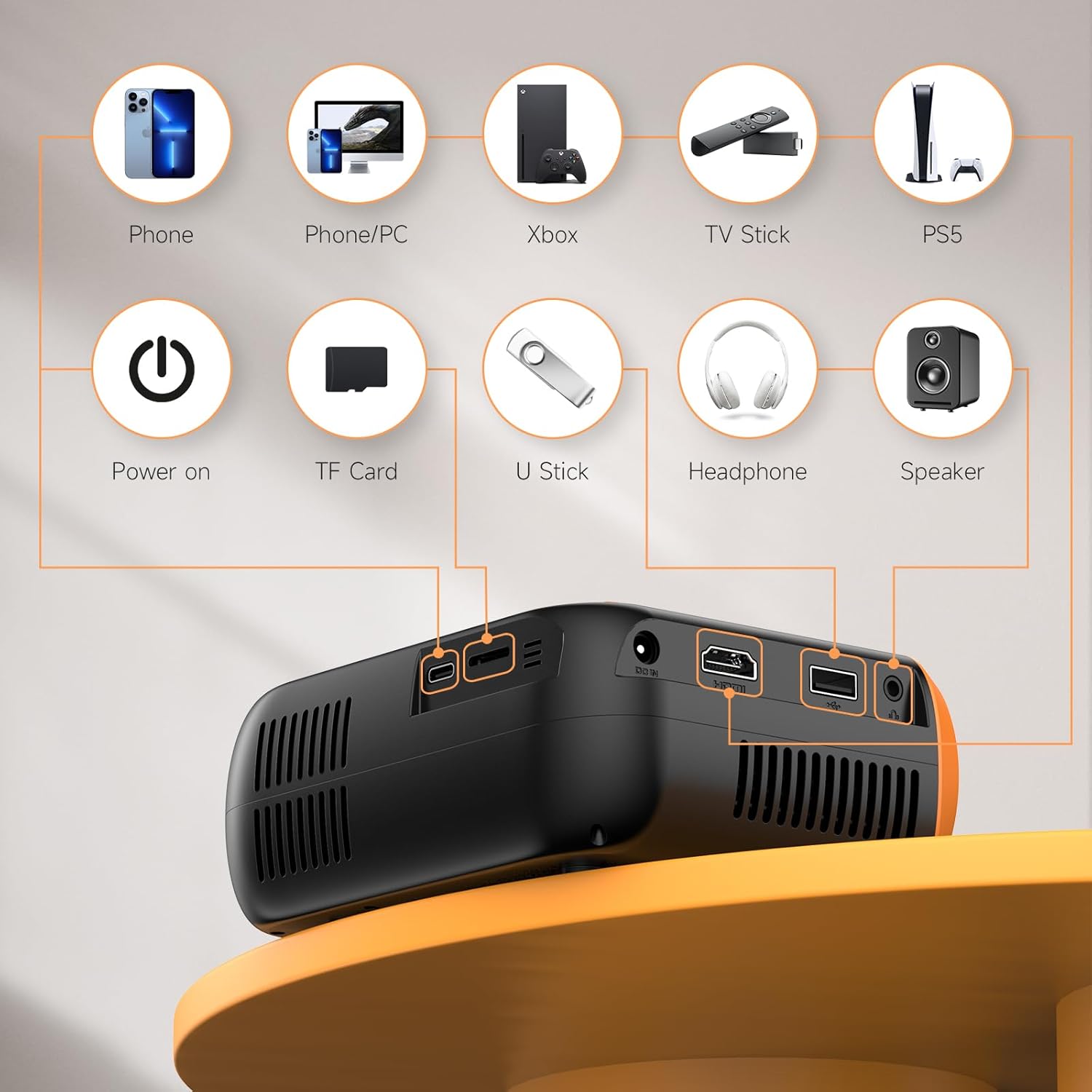
Mynd: Yfirview of the projector's input and output ports for wired connections.
2. Þráðlaus skjáspeglun (WiFi)
The projector supports WiFi screen mirroring for Android and iOS devices. Connect your phone or tablet to the projector wirelessly to display content. Note that due to copyright restrictions, some streaming services like Netflix and Disney+ may not support wireless mirroring.

Image: Wireless screen mirroring setup with a smartphone and the projector.
3. Bluetooth hljóð
Utilize Bluetooth 5.0 technology to connect external Bluetooth speakers or headphones for enhanced audio. The built-in Hi-Fi stereo speakers provide clear sound, but external audio devices can offer a richer experience.

Image: Connecting the projector to external Bluetooth speakers for improved sound.
Viðhald
1. Þrif á linsunni
Gently wipe the projector lens with a soft, lint-free cloth. Avoid using abrasive cleaners or excessive force, as this can damage the lens coating.
2. Rykhreinsun
Regularly clean the ventilation openings to prevent dust buildup, which can affect performance and lead to overheating. Use a soft brush or compressed air.
3. Geymsla
When not in use, store the projector in a cool, dry place away from direct sunlight and extreme temperatures. Use the original packaging or a protective case to prevent damage.
Úrræðaleit
Engin mynd eða óskýr mynd
- Gakktu úr skugga um að rafmagnssnúran sé tryggilega tengd.
- Adjust the focus ring on the projector until the image is clear.
- Verify the keystone correction is properly set to ensure a rectangular image.
- Check the input source selection to match your connected device.
Ekkert hljóð
- Hækkið hljóðstyrkinn bæði á skjávarpanum og tengda tækinu.
- Ef þú notar ytri hátalara skaltu ganga úr skugga um að þeir séu rétt tengdir og kveikt á.
- Check Bluetooth connection for external audio devices.
Wireless Mirroring Issues
- Ensure both the projector and your device are connected to the same WiFi network.
- Restart both the projector and your device.
- Some apps (e.g., Netflix, Disney+) do not support wireless mirroring due to copyright protection.
Tæknilýsing
| Vörumerki | Vamvo |
| Gerðarnúmer | VF240 |
| Skjáupplausn | 1920 x 1080 (upprunalegt 1080P) |
| Tengitækni | Bluetooth 5.0, WiFi, HDMI, USB, Micro USB |
| Ráðlagður vörpunarstærð | 60 - 130 inches (Supports up to 200 inches) |
| Þyngd hlutar | 1.57 pund |
| Stærðir pakka | 7.91 x 7.13 x 3.43 tommur |
| Sérstakur eiginleiki | Innbyggðir hátalarar |
| Power Input | AC Adapter, Type-C |
Ábyrgð og stuðningur
Vamvo provides comprehensive customer support for the VF240 Mini Projector:
- 24/7 þjónustuver: Assistance is available around the clock for any inquiries or issues.
- 30 daga peningaábyrgð: If you are not satisfied with your purchase, you can return it within 30 days for a full refund.
- 2 ára viðgerðarábyrgð: The projector is covered by a 2-year warranty for repairs.
- Ævi tækniaðstoð: Receive ongoing technical assistance for the lifespan of your product.
For support, please refer to the contact information provided on your Warranty Card or visit the official Vamvo websíða.