
1. Inngangur
Thank you for choosing the COMEXION G10 Bluetooth Headset V5.3. This manual provides detailed instructions on how to set up, operate, and maintain your new headset. Please read this manual carefully before use to ensure optimal performance and longevity of your device.
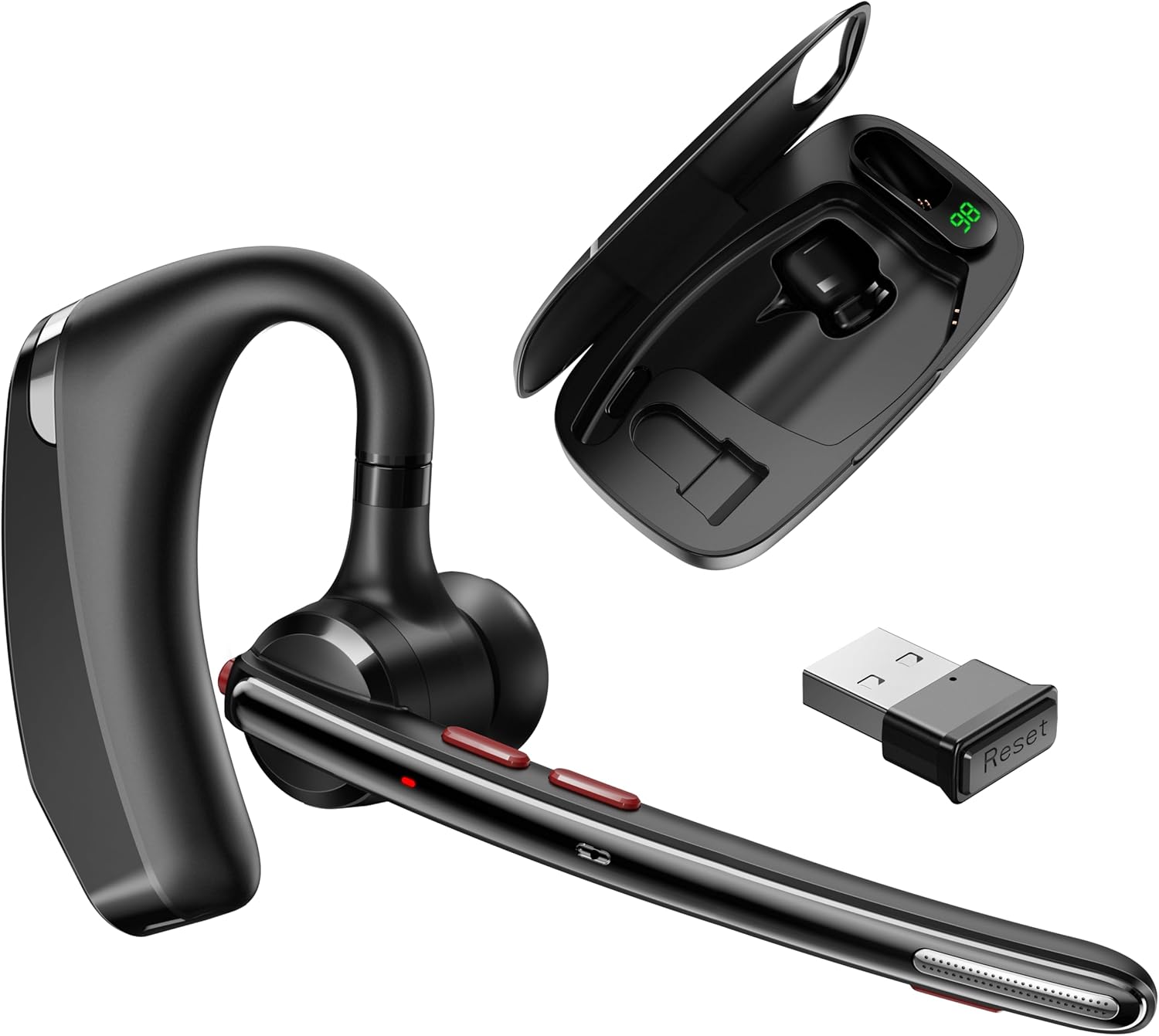
Image: The COMEXION G10 Bluetooth Headset, its portable charging case, and the USB dongle.
2. Innihald pakka
Vinsamlegast athugið hvort eftirfarandi atriði séu í pakkanum:
- COMEXION G10 Bluetooth Headset
- Færanlegt hleðslutaska
- USB dongle
- USB-C hleðslusnúra (ekki sérstaklega nefnd en gefið í skyn að hún sé notuð til hleðslu)
- Eyrnatappar (ýmsar stærðir)
- Notendahandbók (þetta skjal)
3. Vöru lokiðview
Familiarize yourself with the components and controls of your COMEXION G10 headset and charging case.

Image: Detailed diagram illustrating the various parts and buttons of the headset and charging case.
- Multifunction Button (MFB): Kveikja/slökkva, spila/gera hlé, svara/leggja niður símtöl.
- V+/Previous Track: Volume up, previous track.
- V-/Next Track: Volume down, next track.
- Hleðsluviðmót: For direct headset charging.
- Second Microphone: Part of the dual noise-canceling system.
- LED ljós: Indicates status (pairing, charging, connected).
- Main Microphone: Primary voice input.
- Þagga hnappur: Slökkva/kveikja á hljóðnema meðan á símtölum stendur.
- Hleðsluport: For direct headset charging.
- Geymsla á millistykki: Compartment for the USB dongle within the charging case.
- Charging Interface-1: Charging contact for the headset in the case.
- USB-C hleðslutengi: For charging the portable charging case.
- Stafrænn aflskjár: Sýnir hleðslu rafhlöðunnartage hleðslutækisins.
- Charging Interface-2: Charging contact for the headset in the case.
4. Charging the Headset and Case
Ensure your headset and charging case are fully charged before first use.

Image: Illustration of three different charging methods for the headset and its case.
4.1 Hleðsla heyrnartólanna
- Method 1 (Via Charging Case): Place the headset into the portable charging case. Close the lid. The headset will begin charging automatically. The digital display on the case will show its battery level.
- Method 2 (Directly): Connect a USB-C charging cable to the headset's charging port (4 or 9) and a power source. The LED light on the headset will indicate charging status.
4.2 Charging the Portable Charging Case
- Connect a USB-C charging cable to the USB-C Charging Port (12) on the charging case and a power source. The digital power display (13) will show the current battery percentage meðan á hleðslu stendur.
5. Tenging við tæki
5.1 Bluetooth Pairing (for Phones, Tablets, etc.)
- Gakktu úr skugga um að heyrnartólið sé hlaðið og slökkt.
- Press and hold the Multifunction Button (MFB) until the LED light flashes red and blue alternately, indicating pairing mode.
- Í tækinu þínu (t.d. snjallsíma) skaltu fara í Bluetooth-stillingar og kveikja á Bluetooth.
- Leitaðu að tiltæk tæki og veldu „G10“ af listanum.
- Once connected, the LED light on the headset will flash blue slowly, and you will hear a voice prompt "connected".

Image: Visual guide for connecting the G10 headset via Bluetooth to a mobile phone.
5.2 USB Dongle Connection (for Computers)
- Retrieve the USB dongle from its storage compartment (10) in the charging case.
- Plug the USB dongle into an available USB port on your computer. The dongle will automatically turn on.
- Power on your G10 headset. It will automatically attempt to connect to the dongle.
- Once connected, the LED on the headset will flash blue slowly. Your computer should recognize the headset as an audio device.

Image: The USB dongle being plugged into a laptop, illustrating its automatic activation and storage in the charging case.
5.3 Connecting to Multiple Devices
The G10 headset supports connecting to two devices simultaneously.
- Connect the headset to the first device (e.g., computer via dongle or phone via Bluetooth).
- To connect to a second device, long press the Mute button (8) for 5 seconds to enter pairing mode again.
- On the second device, search for "G10" in Bluetooth settings and connect.
- The headset will now be connected to both devices, allowing for seamless switching between audio sources.

Image: The G10 headset positioned between a laptop and a smartphone, demonstrating its ability to connect to both devices.
6. Notkun heyrnartólsins
6.1 Grunnstýringar
| Hnappur | Virka |
|---|---|
| Multifunction hnappur (MFB) |
|
| V+ hnappur |
|
| V- hnappur |
|
| Hljóðnemi |
|
6.2 Að bera heyrnartólin
The G10 headset is designed for comfort and can be worn on either the left or right ear. Adjust the ear hook and select the appropriate eartip size (found at the bottom of the box compartment) to ensure a secure and comfortable fit for extended use.
6.3 Dual MIC Intelligent Noise Reduction Technology
The headset features dual microphones and an upgraded noise-canceling chip to intelligently identify and eliminate environmental noise. This ensures clear communication by reducing background sounds such as wind, keyboard typing, or general ambient noise during calls.

Image: A visual representation of the headset's dual microphone intelligent noise reduction technology, highlighting its effectiveness.
6.4 Notkunarsvið
The COMEXION G10 headset is suitable for various environments, including:
- Office work and remote meetings
- Akstur
- Hjólreiðar
- Business travel

Image: Four panels showing individuals using the G10 headset while working, driving, biking, and during a business interaction.
7. Viðhald
Til að tryggja endingu og bestu mögulegu virkni heyrnartólanna skaltu fylgja þessum viðhaldsleiðbeiningum:
- Þrif: Use a soft, dry cloth to clean the headset and charging case. Avoid using harsh chemicals or abrasive materials.
- Geymsla: When not in use, store the headset in its charging case to protect it from dust and damage. Keep it in a cool, dry place away from extreme temperatures.
- Forðastu vatn: Heyrnartólin eru ekki vatnsheld. Forðist að þau verði fyrir vatni eða miklum raka.
- Umhirða rafhlöðu: Til að hámarka endingu rafhlöðunnar skaltu forðast að tæma hana alveg oft. Hladdu hana reglulega.
8. Bilanagreining
If you encounter any issues with your COMEXION G10 headset, please refer to the following common problems and solutions:
| Vandamál | Lausn |
|---|---|
| Heyrnartólið kviknar ekki á. | Ensure the headset is fully charged. Press and hold the MFB for a few seconds to power on. |
| Ekki er hægt að para við tækið. |
|
| Ekkert hljóð eða léleg hljóðgæði. |
|
| Hljóðnemi virkar ekki. |
|
| Hleðsluhólfið hleðst ekki. | Gakktu úr skugga um að USB-C snúran sé vel tengd bæði við kassann og aflgjafann. Prófaðu aðra snúru eða straumbreyti. |
9. Tæknilýsing
| Eiginleiki | Smáatriði |
|---|---|
| Nafn líkans | G10 |
| Tengitækni | Þráðlaust |
| Þráðlaus samskiptatækni | Bluetooth V5.3 |
| Innifalið íhlutir | Headset, Charging Case, USB Dongle, Eartips |
| Þyngd hlutar | 4.2 aura |
| Rafhlaða | 1 9V rafhlaða (innifalin) |
| Biðtími | Allt að 300 klukkustundir (með hleðsluhylki) |
| Staðsetning eyrna | In Ear |
| Form Factor | In Ear |
| Viðnám | 32 ohm |
10. Ábyrgð og stuðningur
For warranty information and customer support, please refer to the documentation included with your product or contact COMEXION customer service through the official channels. Keep your purchase receipt as proof of purchase for warranty claims.


