
1. Inngangur
This manual provides detailed instructions for the installation, operation, and maintenance of your KIMISS 4K DVR Dash Camera. This device features a 10.26-inch touchscreen, 4K front and 1080P rear cameras, Wi-Fi connectivity, and advanced driving assistance functions to enhance your safety on the road.
2. Öryggisupplýsingar
- Ensure the dash camera is securely mounted and does not obstruct the driver's view eða trufla stjórntæki ökutækis.
- Ekki reyna að stjórna tækinu eða breyta stillingum á meðan ekið er. Stöðvið alltaf á öruggum stað áður en stillingar eru gerðar.
- Use only the provided power cable and accessories to prevent damage to the device or vehicle.
- Forðist að láta tækið verða fyrir miklum hita, beinu sólarljósi í langan tíma eða raka.
- Regularly check the memory card for errors and ensure it is functioning correctly.
3. Innihald pakka
Gakktu úr skugga um að allir hlutir séu til staðar í pakkanum:
- KIMISS 4K DVR Dash Camera Unit (10.26-inch touchscreen)
- Myndavél að aftan
- Rafmagnssnúra fyrir ökutæki
- Festingarbúnaður
- Notendahandbók
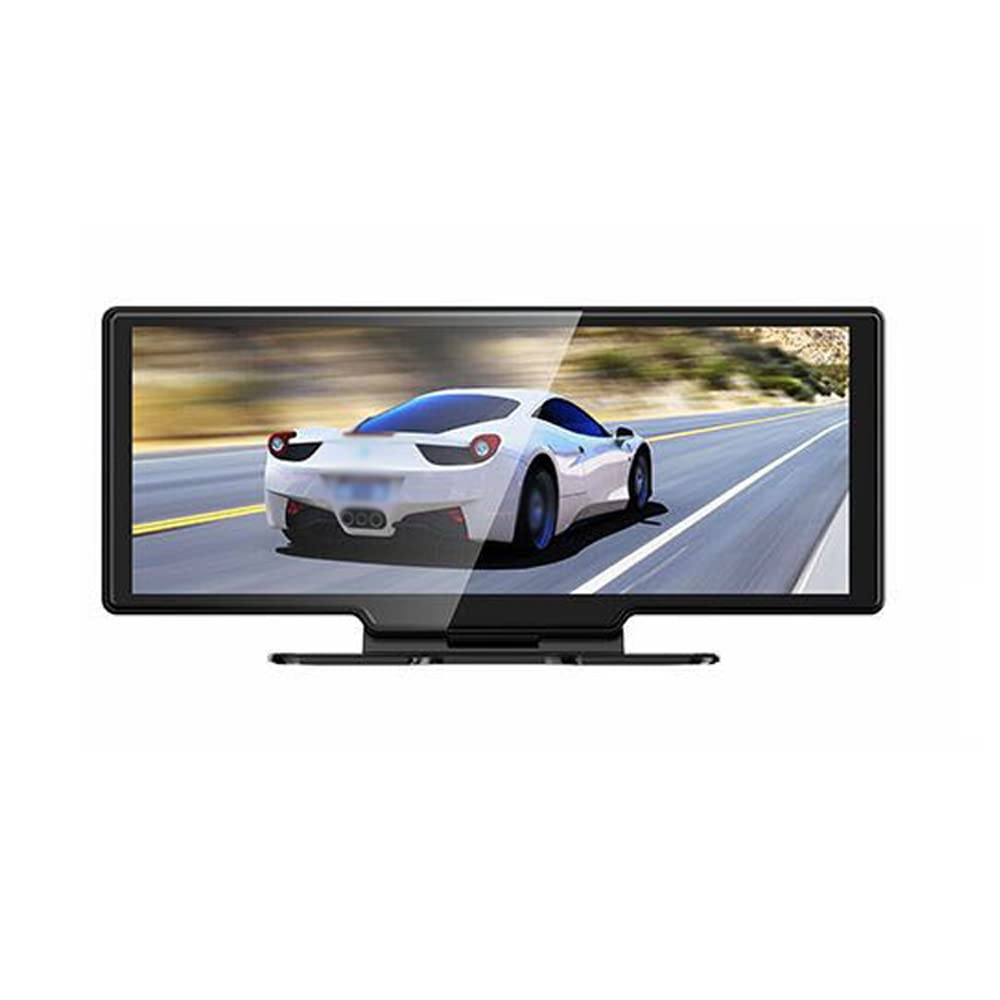
Image: The main dash camera unit, a separate rear camera, and the vehicle power cable.
4. Uppsetning
4.1. Uppsetning minniskorts
Insert a high-speed (Class 10 or higher) MicroSD card (up to 256GB, not included) into the designated slot on the dash camera. Ensure the card is inserted correctly until it clicks into place.
4.2. Uppsetning frammyndavélarinnar
- Clean the windshield area where the dash camera will be mounted.
- Attach the mounting bracket to the dash camera unit.
- Securely affix the dash camera to the windshield, ensuring it does not obstruct your view. Adjust the lens angle to capture the road ahead clearly.
4.3. Uppsetning afturmyndavélarinnar
- Mount the rear camera on the rear windshield or license plate area, ensuring a clear view.
- Route the rear camera cable to the front dash camera unit, connecting it to the designated port. Ensure cables are tucked away safely and do not interfere with vehicle operation.
4.4. Rafmagnstenging
Connect the vehicle power cable to the dash camera and plug the other end into your car's 12V power outlet (cigarette lighter socket). The camera will typically power on automatically when the vehicle starts.

Image: Front and rear perspectives of the dash camera unit, illustrating its design and camera placement.
5. Notkunarleiðbeiningar
5.1. Grunnupptaka
The dash camera automatically begins recording when powered on. It records simultaneously with the 4K front camera and 1080P rear camera, providing a wide 170° angle view fyrir alhliða umfjöllun.

Image: A visual representation of the dual camera system, indicating the 4K front and 1080P rear recording capabilities and their respective fields of view.
5.2. Snertiskjáviðmót
Navigate the 10.26-inch touchscreen to access various functions and settings. The intuitive interface allows for easy control of recording, playback, and system configurations.

Image: The dash camera's touchscreen interface displaying icons for 'Driving recorder', 'Carplay', 'Android Auto', 'FM launch', 'BT', 'Replay', 'Screen Brightness', and 'Setting'.
5.3. Lykkjuupptaka
The device supports loop recording. When the memory card is full, the oldest unlocked video files will be automatically overwritten by new recordings. Ensure important footage is saved or backed up to prevent loss.
5.4. Parking Monitoring & G-Sensor
The built-in G-sensor detects sudden movements or impacts while the vehicle is parked. If vibration is detected, the camera will automatically start recording to capture potential incidents, providing 24-hour monitoring.
5.5. WiFi Connectivity & App
Connect your smartphone to the dash camera via Wi-Fi to access the dedicated app. This allows for real-time video playback, downloading recorded footage, and adjusting settings directly from your phone. Compatible with Android and iOS systems.

Image: The dash camera screen showing a driving scene, with a smartphone held below it displaying the same video feed, demonstrating Wi-Fi connectivity and app mirroring.
5.6. Phone Link (CarPlay/Android Auto)
The dash camera supports Apple CarPlay for iOS phones and Android Auto for Android phones. This feature enables voice control, allowing you to manage navigation, calls, and music hands-free, keeping your focus on the road.

Image: The dash camera screen showing a split view with navigation on one side and a driving scene with a truck on the other, indicating a Bluetooth connection to a smartphone.
5.7. Reversing Assist
When the vehicle is put into reverse, the dash camera automatically displays the rear camera view on the screen, providing guidelines to assist with safe parking and reversing maneuvers.
5.8. FM Transmitter
Utilize the built-in FM transmitter to seamlessly play audio from the dash camera through your car's stereo system.
5.9. Nætursjón
Equipped with a 6-layer full-glass lens, the camera provides enhanced night-vision recording capabilities, ensuring clear footage jafnvel við litla birtu.
6. Viðhald
- Þrif: Gently wipe the camera lens and screen with a soft, dry cloth. Do not use abrasive cleaners or solvents.
- Minniskort: Format the MicroSD card regularly (e.g., once a month) within the camera's settings to maintain optimal performance and prevent data corruption. Replace the card if it shows signs of wear or error.
- Uppfærsla vélbúnaðar: Athugaðu framleiðanda webSæktu reglulega vefsíðuna til að uppfæra vélbúnaðarhugbúnaðinn til að tryggja að tækið þitt hafi nýjustu eiginleika og villuleiðréttingar.
7. Bilanagreining
- Myndavélin tekur ekki upp: Ensure a MicroSD card is inserted and formatted. Check if loop recording is enabled.
- Screen not turning on: Verify the power cable is securely connected and the vehicle's 12V outlet is functioning.
- Léleg myndgæði: Clean the camera lenses. Ensure the protective film is removed. Check resolution settings.
- Vandamál með Wi-Fi tengingu: Restart both the dash camera and your smartphone. Ensure you are within range and have selected the correct Wi-Fi network.
- G-sensor too sensitive/not sensitive enough: Adjust the G-sensor sensitivity setting in the camera's menu.
8. Tæknilýsing
| Eiginleiki | Forskrift |
|---|---|
| Vörumerki | KIMISS |
| Nafn líkans | KIMISS3fkxbdzqi6 |
| Upplausn myndavélar að framan | 4K |
| Upplausn myndavélar að aftan | 1080P |
| Breiðhorn | 170° |
| Skjárstærð | 10.26 tommur (snertiskjár) |
| Tengingar | Wi-Fi, Ethernet (for certain functions) |
| Sérstakir eiginleikar | Night Vision, Reversing Assist, Hands-free Calling, FM Transmitter, G-Sensing, Parking Monitoring, Adjustable |
| Stuðningur við minniskort | Allt að 256GB (MicroSD, fylgir ekki með) |
| Vörumál | 11.81" D x 6.69" B x 3.94" H |
| Þjónustutegund ökutækja | ATV (General compatibility) |
9. Ábyrgð og stuðningur
This KIMISS product comes with a manufacturer warranty for 90 days from the date of purchase. Please retain your proof of purchase for warranty claims.
For technical support or warranty inquiries, please contact KIMISS customer service through your retailer or the official KIMISS support channels.