Inngangur
This manual provides instructions for the setup, operation, and maintenance of your Microsoft Wireless Comfort Desktop 5000. This product combines a wireless keyboard and a wireless mouse designed for comfortable and efficient computer interaction.
The Microsoft Wireless Comfort Desktop 5000 features an ergonomically designed Comfort Curve keyboard and a mouse utilizing BlueTrack Technology for versatile surface tracking. It operates on a 2.4 GHz wireless connection, offering a reliable connection with a range of up to 30 feet.
Uppsetningarleiðbeiningar
Hvað er í kassanum
- Microsoft Wireless Comfort Desktop 5000 Keyboard
- Microsoft Wireless Comfort Desktop 5000 Mouse
- USB Mini-Transceiver
- 2 AA alkaline rafhlöður (fyrir lyklaborð)
- 1 AA Alkaline Battery (for mouse)
Kerfiskröfur
- Stýrikerfi: Windows 8, Windows 7, Windows Vista, Windows XP (excluding Windows XP 64-bit)
- Harður diskur: 100 MB free space
- Höfn: USB tengi
Uppsetning rafhlöðu
The keyboard requires two AA alkaline batteries, and the mouse requires one AA alkaline battery. Batteries are included with the product.
- Finndu rafhlöðuhólfið neðst á lyklaborðinu og músinni.
- Opnaðu hlífina á rafhlöðuhólfinu.
- Settu AA rafhlöðurnar í og gætið þess að pólunin (+/-) sé rétt.
- Lokaðu rafhlöðuhólfinu tryggilega.
Tenging við þráðlausa senditækið
The wireless desktop set connects to your computer via a USB mini-transceiver.
- Locate the USB mini-transceiver. It may be stored in the mouse's battery compartment for transport.
- Insert the USB mini-transceiver into an available USB port on your computer.
- Tölvan þín ætti sjálfkrafa að greina og setja upp nauðsynlega rekla. Þetta ferli gæti tekið nokkrar stundir.
- Þegar reklarnir hafa verið settir upp ættu lyklaborðið og músin að vera tilbúin til notkunar.

Figure 1: The compact USB mini-transceiver for wireless connection.

Figure 2: The underside of the mouse showing the storage slot for the USB mini-transceiver.
Notkunarleiðbeiningar
Eiginleikar lyklaborðs

Mynd 3: Ofan frá og niður view of the Comfort Curve keyboard layout.
- Comfort Curve Design: The keyboard features an ergonomist-approved Comfort Curve design that encourages a natural wrist posture, reducing strain during extended use.
- Quiet Touch Keys: Experience comfortable typing with low-profile, quiet-touch keys.
- Pálmahvíli: A soft-touch palm rest is integrated to provide additional comfort and support for your wrists.
- Removable Feet: Adjustable feet on the underside allow you to set the keyboard at a preferred angle for a more comfortable wrist posture.
- Taskbar Favorites for Windows 7: Easily access programs pinned to the Windows Taskbar using dedicated shortcut keys. The keys automatically adapt if you rearrange icons in the Taskbar.
- Media Center Controls: Control media playback directly from your keyboard using dedicated media keys (e.g., play/pause, volume up/down, mute).

Mynd 4: Hornlaga view highlighting the integrated palm rest and Comfort Curve design.
Músareiginleikar

Mynd 5: Hornlaga view of the wireless mouse.
- BlueTrack tækni: The mouse utilizes Microsoft's BlueTrack Technology, combining the power of optical with the precision of laser for remarkable tracking on virtually any surface, including granite, carpet, and wood.
- Fjórátta skrunun: The tilt wheel allows for four-way scrolling (up, down, left, and right), enhancing efficiency and comfort when navigating documents or web síður.
- Sérhannaðar hnappar: The mouse buttons can be customized for quick access to programs, files, media, and webpages you use most often. Refer to your operating system's mouse settings for customization options.
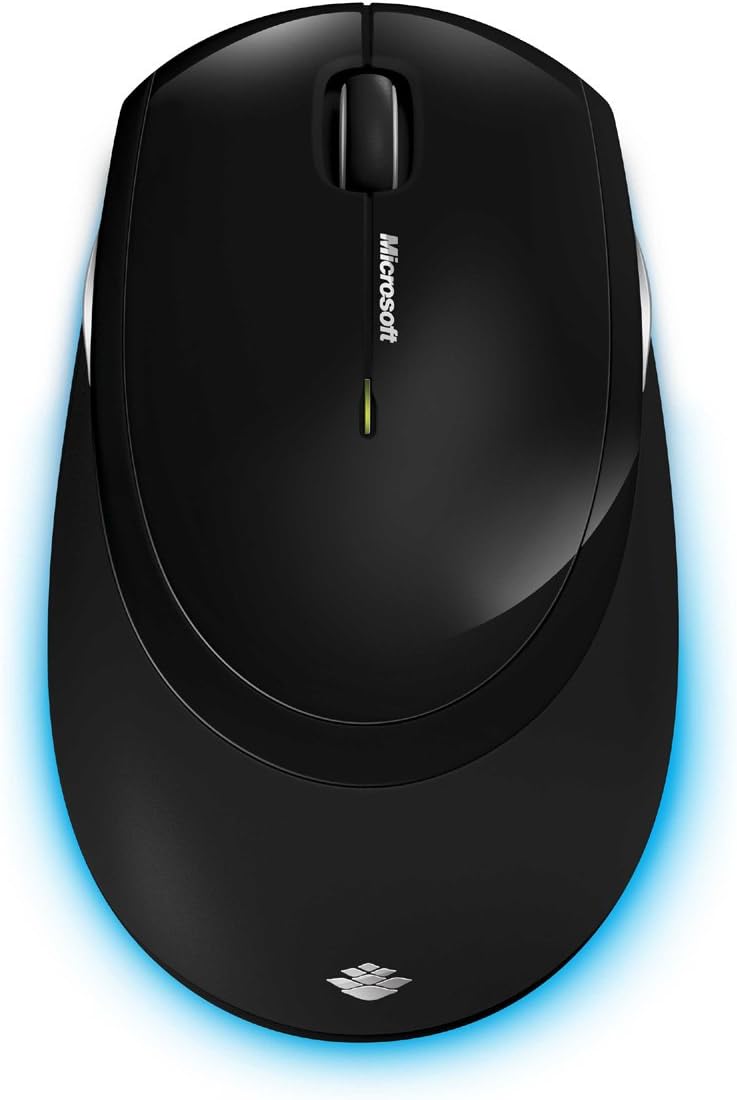
Mynd 6: Ofan frá og niður view of the wireless mouse.
Viðhald
Þrif
To maintain the performance and appearance of your Microsoft Wireless Comfort Desktop 5000, follow these cleaning guidelines:
- Disconnect the USB transceiver from your computer before cleaning.
- Notaðu mjúkan, lólausan klút örlítið dampendað með vatni eða mildri hreinsilausn.
- Forðist að nota sterk efni, slípiefni eða leysiefni, þar sem þau geta skemmt yfirborðin.
- Fyrir lyklaborðið er hægt að nota þrýstiloft til að fjarlægja ryk og óhreinindi á milli takkanna.
- For the mouse, gently wipe the optical sensor area on the bottom to ensure optimal tracking performance.
Skipt um rafhlöðu
When the batteries are low, the indicator light on the keyboard or mouse may flash. Replace the batteries as described in the "Battery Installation" section under Setup Guide.
- Always use new, high-quality AA alkaline batteries.
- Fargaðu notuðum rafhlöðum í samræmi við staðbundnar reglur.
Úrræðaleit
Tengingarvandamál
- No response from keyboard/mouse:
- Ensure the USB mini-transceiver is securely plugged into a working USB port on your computer.
- Check if the batteries in the keyboard and mouse are correctly installed and have sufficient charge. Replace if necessary.
- Try plugging the transceiver into a different USB port.
- Endurræstu tölvuna þína.
- Truflun:
- The 2.4 GHz wireless technology can be affected by other wireless devices. Move the transceiver closer to the keyboard and mouse, or move other wireless devices away.
- Avoid placing the transceiver near large metal objects, which can block the wireless signal.
Vandamál með músarrakningu
- Erratic or no tracking:
- Ensure the BlueTrack sensor on the bottom of the mouse is clean and free of debris.
- Try using the mouse on a different surface. While BlueTrack is versatile, highly reflective or transparent surfaces (like clear glass) may still cause issues.
Tæknilýsing
| Eiginleiki | Smáatriði |
|---|---|
| Vörumerki | Microsoft |
| Gerðarnúmer | CSD-00001 |
| Tengitækni | Wireless (USB Transceiver) |
| Þráðlaus gerð | 2.4 GHz útvarpstíðni |
| Samhæf tæki | Einkatölva |
| Samhæfni stýrikerfis | Windows 8, Windows 7, Windows Vista, Windows XP (excluding Windows XP 64-bit) |
| Litur | Svartur |
| Þyngd hlutar | 2.9 pund |
| Vörumál (LxBxH) | 8.7 x 2.9 x 18.54 tommur |
| Aflgjafi | Rafhlöðuknúið |
| Rafhlöður nauðsynlegar | 3 AA rafhlöður (2 fyrir lyklaborð, 1 fyrir mús) |
| Fyrsti laus dagsetning | 29. júlí 2009 |
Upplýsingar um ábyrgð
Specific warranty details for the Microsoft Wireless Comfort Desktop 5000 are not provided within this manual. For comprehensive warranty information, including terms, conditions, and duration, please refer to the official Microsoft website or the warranty card included with your product packaging.
Stuðningur
For further assistance, technical support, or to download the latest drivers and software for your Microsoft Wireless Comfort Desktop 5000, please visit the official Microsoft support websíða:
You can also visit the Microsoft Store on Amazon for product information and related accessories:
Mikilvægar upplýsingar
Lagalegur fyrirvari
Please note that the "Legal Disclaimer" provided with the product pertains to sales terms and conditions, such as return policies and shipping details, and is separate from the operational instructions in this user manual. For specific product usage and safety guidelines, please refer to the relevant sections of this manual.


