Inngangur
This manual provides essential information for the installation, operation, maintenance, and troubleshooting of your NVIDIA 699-51030-0501-101 graphics card. This component is designed for desktop computer systems to enhance graphics processing capabilities. Please read this manual thoroughly before proceeding with installation or use.
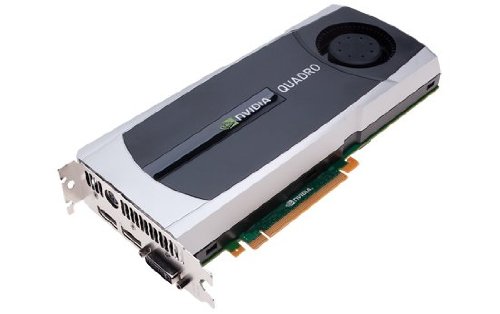
Image: NVIDIA 699-51030-0501-101 Graphics Card. This image displays the graphics card from an angled perspective, showing the cooling fan, heatsink, and the PCIe connector.
Öryggisleiðbeiningar
Fylgið eftirfarandi öryggisráðstöfunum til að koma í veg fyrir skemmdir á vörunni eða meiðsli á ykkur:
- Aftengdu alltaf rafmagnið frá tölvunni áður en þú setur upp eða fjarlægir nokkra íhluti.
- Notið úlnliðsól sem er með rafstöðurafmagn eða snerið oft jarðtengdan málmhlut til að losa um stöðurafmagn.
- Haltu skjákortinu á brúnunum til að forðast að snerta viðkvæma íhluti.
- Tryggið góða loftræstingu í tölvukassanum til að koma í veg fyrir ofhitnun.
- Haltu vörunni í burtu frá raka og miklum hita.
Uppsetning
1. Athuganir fyrir uppsetningu
- Verify your power supply unit (PSU) has sufficient wattage and appropriate connectors for the graphics card.
- Ensure your motherboard has an available PCI Express (PCIe) x16 slot.
- Confirm your computer case has adequate space for the graphics card dimensions.
- Safnaðu saman nauðsynlegum verkfærum: Phillips skrúfjárn, úlnliðsól með rafstöðueiginleikum (ráðlagt).
2. Uppsetning vélbúnaðar
- Slökktu á og aftengdu: Slökktu alveg á tölvunni þinni og taktu rafmagnssnúruna úr sambandi við vegginnstunguna.
- Opið mál: Fjarlægðu hliðarplötuna á tölvukassanum til að komast að móðurborðinu.
- Finndu PCIe raufina: Finndu lausa PCI Express x16 rauf á móðurborðinu þínu. Þetta er yfirleitt lengsta raufin.
- Fjarlægðu raufarhlífina: Remove the metal slot cover(s) from the back of your computer case corresponding to the PCIe slot you will use.
- Settu inn skjákort: Carefully align the graphics card with the PCIe slot. Press down firmly and evenly on both ends of the card until it is fully seated in the slot. You should hear a click from the retention clip.
- Öruggt kort: Secure the graphics card to the computer case using the screw(s) removed from the slot cover(s).
- Tengja rafmagn (ef við á): If your graphics card requires additional power, connect the appropriate PCIe power cables from your PSU to the graphics card. This model (NVIDIA 699-51030-0501-101) may not require external power, but always check the card itself for connectors.
- Loka málinu: Skiptu um hliðarplötuna á tölvukassanum þínum.
- Reconnect Peripherals: Reconnect your monitor cable to one of the display outputs on the new graphics card. Reconnect all other peripherals and the power cord.
3. Uppsetning bílstjóra
- Kveikt á: Kveiktu á tölvunni þinni.
- Sækja bílstjóra: Farðu á opinberu NVIDIA webvefsvæði (www.nvidia.com/drivers) and download the latest drivers compatible with your NVIDIA 699-51030-0501-101 graphics card and operating system.
- Settu upp rekla: Keyrðu niðurhalaða uppsetningarforritið fyrir rekla og fylgdu leiðbeiningunum á skjánum. Mælt er með að framkvæma hreina uppsetningu ef beðið er um það.
- Endurræsa: Endurræstu tölvuna eftir að uppsetningu bílstjórans er lokið.
Í rekstri
Once installed and drivers are updated, your NVIDIA 699-51030-0501-101 graphics card will automatically handle graphics processing for your system. You can verify its operation through your operating system's device manager or NVIDIA Control Panel.
- NVIDIA stjórnborð: Access the NVIDIA Control Panel (usually via right-click on desktop or through Windows Control Panel) to adjust display settings, 3D settings, and monitor various aspects of your graphics card.
- Bílstjóri uppfærslur: Athugaðu reglulega NVIDIA website for driver updates to ensure optimal performance and compatibility with new software and games.
Viðhald
Rétt viðhald tryggir langlífi og bestu mögulegu afköst skjákortsins.
- Rykhreinsun: Periodically (e.g., every 6-12 months), power off and unplug your computer. Open the case and use compressed air to gently clear dust from the graphics card's heatsink and fan. Hold the fan blades to prevent over-spinning during cleaning.
- Umhverfisskilyrði: Operate your computer in a clean, dry, and well-ventilated environment. Avoid extreme temperatures and humidity.
Úrræðaleit
Ef þú lendir í vandræðum skaltu skoða eftirfarandi algengar úrræðaleitarskref:
- Engin skjáúttak:
- Gakktu úr skugga um að skjásnúran sé vel tengd við skjákortið og skjáinn.
- Verify the monitor is set to the correct input source.
- Check if the graphics card is fully seated in its PCIe slot.
- If applicable, ensure all PCIe power connectors are securely attached.
- Prófaðu með öðrum skjá eða snúru ef mögulegt er.
- Vandamál ökumanns:
- Reinstall the latest drivers from the NVIDIA websíða.
- Try rolling back to a previous driver version if issues started after an update.
- Notaðu Display Driver Uninstaller (DDU) í öruggri stillingu til að fjarlægja gamla rekla alveg áður en þú setur upp nýja.
- Performance Problems (Low FPS, Stuttering):
- Gakktu úr skugga um að ökumenn séu uppfærðir.
- Check for overheating using monitoring software (e.g., MSI Afterburner, HWMonitor). Clean dust if necessary.
- Verify that your system meets the minimum requirements for the applications or games you are running.
- Athugaðu spennu aflgjafans (PSU)tage; an insufficient PSU can cause performance issues.
- System Instability (Crashes, Blue Screens):
- Check for driver conflicts or corruption.
- Monitor temperatures to rule out overheating.
- Ensure the graphics card is properly seated and secured.
- Keyrðu greiningartól fyrir minni til að athuga hvort vandamál séu með vinnsluminni.
Tæknilýsing
Key specifications for the NVIDIA 699-51030-0501-101 graphics card:
| Gerðarnúmer | NVIDIA 699-51030-0501-101 |
| Vörumerki | NVIDIA |
| Grafískur hjálpargjörvi | NVIDIA 699-51030 |
| Framleiðandi grafíkvinnsluforrita | NVIDIA |
| Samhæf tæki | Skrifborð |
| ASIN | B01NBI92VC |
| Dagsetning fyrst í boði | 8. desember 2016 |
Ábyrgð og stuðningur
This NVIDIA graphics card is covered by the manufacturer's standard warranty. For specific warranty terms, duration, and to register your product, please refer to the official NVIDIA website or contact NVIDIA customer support directly.
For technical assistance, driver downloads, and further support resources, visit the official NVIDIA support portal:
- NVIDIA stuðningur: www.nvidia.com/support


