Inngangur
This manual provides comprehensive instructions for the installation, operation, and maintenance of your Lockly Secure Plus Bluetooth Smart Door Lock. Please read this manual thoroughly before use to ensure proper function, optimal security, and longevity of your device. Keep this manual for future reference.
Vara lokiðview
Helstu eiginleikar
- Multiple Ways to Unlock: Access your home using the patented PIN Genie digital keypad, a 3D biometric fingerprint sensor, the Lockly mobile application, voice control (with optional Wi-Fi hub), Scan to Open QR code (with optional Wi-Fi hub), or traditional physical keys.
- Secure PIN Genie Keypad: Features a patented peek-proof numeric keypad where numbers dynamically shuffle after each use, making it impossible for onlookers to guess your code.
- Advanced 3D Biometric Fingerprint Sensor: Provides quick access in approximately 0.3 seconds and can store up to 99 unique fingerprints. The AI learning algorithm improves recognition over time.
- Stýring farsímaforrita: Remotely lock and unlock your door, monitor real-time status, and view access history from anywhere using the Lockly App (requires optional Wi-Fi hub for remote functionality).
- Raddstýring samþætting: Seamlessly connect with Amazon Alexa or Google Assistant-enabled devices for convenient voice commands (requires optional Wi-Fi hub).
- Rauntímaeftirlit og viðvaranir: Receive instant notifications on your smartphone regarding lock status, unauthorized access attempts, and low battery warnings.
- Offline Access Code (OAC): Generate single-use or limited-use access codes that can be used without an internet connection or the Lockly app, ideal for guests or service providers.
- Programmable Auto-Lock: Customize the auto-lock delay from 5 to 300 seconds, ensuring your door is always secured after entry or exit.
Íhlutir
The Lockly Secure Plus package typically includes the following:
- Exterior Assembly (Keypad with Handle)
- Innanhússþing
- Lífsbolti
- Verkfallsplata
- Uppsetningarbúnaður
- 4 x AA rafhlöður
- 2 x Physical Backup Keys
- Uppsetningarhandbók og notendahandbók
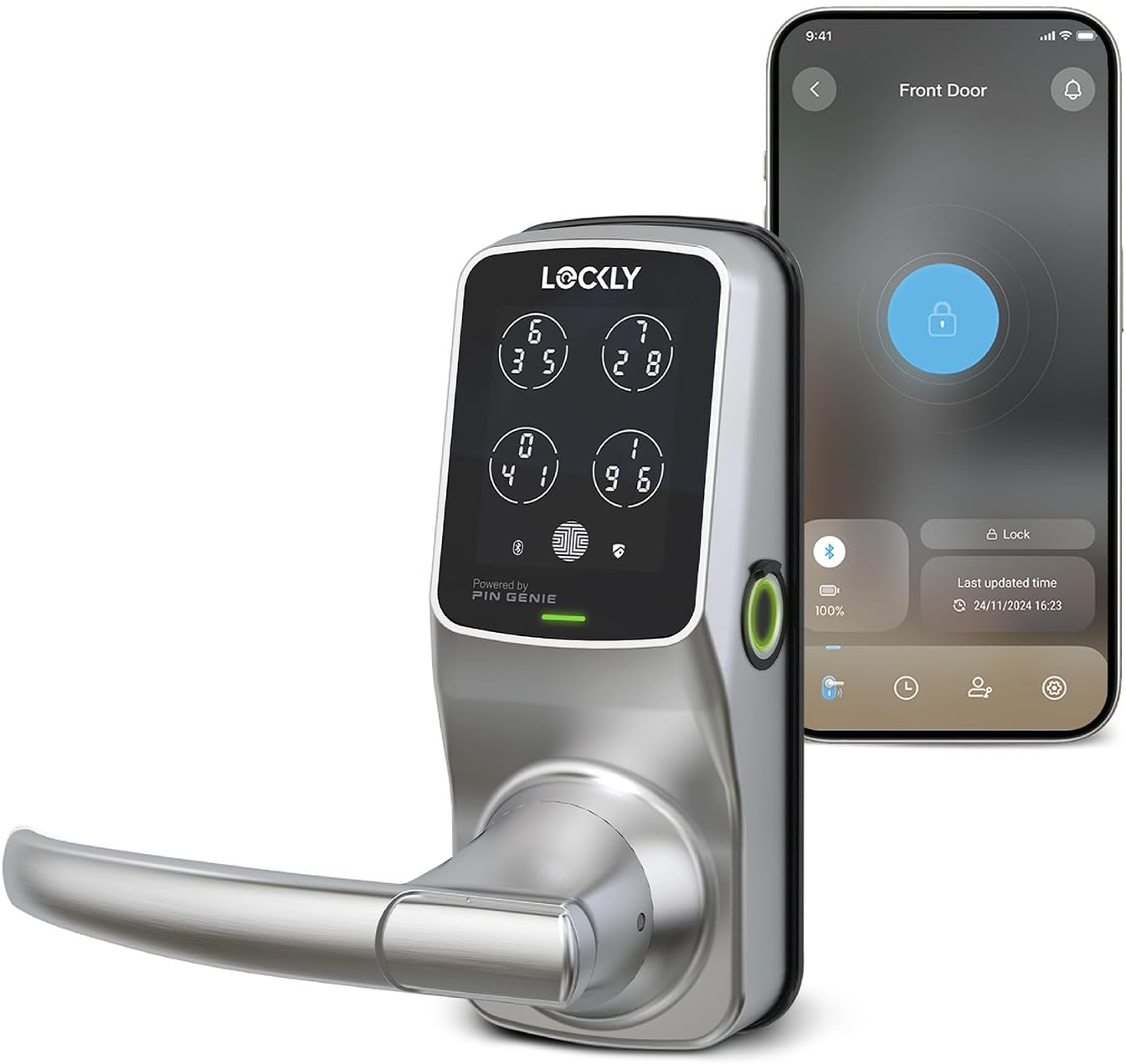
Image: Lockly Secure Plus Smart Door Lock in Satin Nickel finish, shown alongside a smartphone displaying the Lockly app interface for lock control.
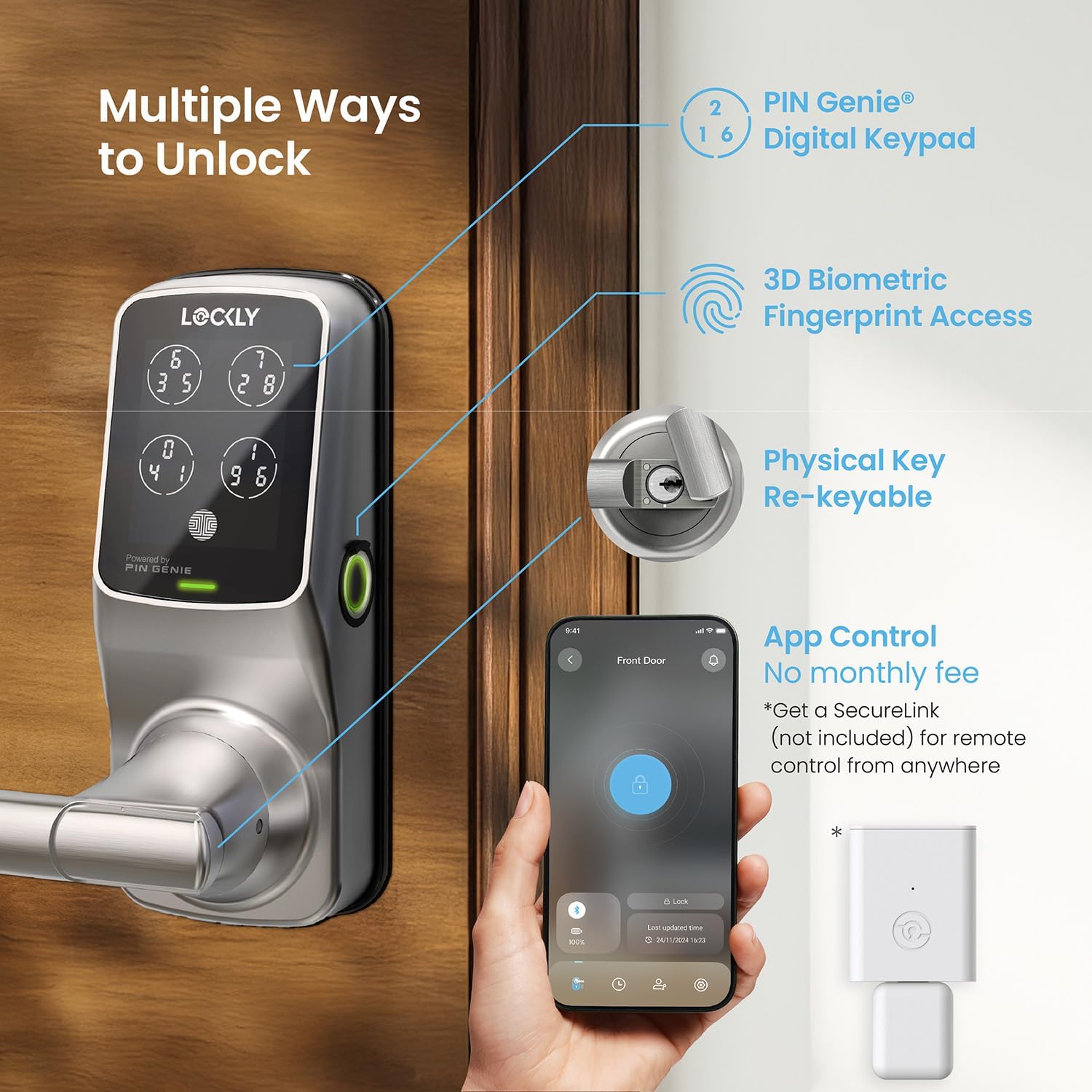
Image: Diagram illustrating the various unlocking methods: PIN Genie Digital Keypad, 3D Biometric Fingerprint Access, Physical Key, and App Control (with optional Secure Link Wi-Fi Hub).
Uppsetning
Hurðarsamhæfni
Before beginning installation, verify that your door meets the following specifications:
- Hurðarþykkt: 1 3/8" to 2" (35mm - 50mm)
- Bakslag: 2 3/8" eða 2 3/4" (60 mm eða 70 mm)
- Þvermál borholu: 2 1/8" (54 mm)

Image: Diagram detailing door thickness (1 3/8" - 2"), backset (2 3/8" or 2 3/4"), and bore hole diameter (2 1/8") for compatibility.
Uppsetning
For detailed step-by-step installation instructions, please refer to the dedicated Installation Manual (PDF) included with your product. An official installation video may also be available on the Lockly support websíða.
Uppsetning og tenging forrits
To unlock the full potential of your Lockly Secure Plus, download and set up the Lockly App:
- Sækja appið: Leitaðu að "LOCKLY" in your smartphone's app store (iOS or Android) and download the official application.
- Búa til reikning: Opnaðu appið og fylgdu leiðbeiningunum til að búa til nýjan notandareikning eða skrá þig inn ef þú ert þegar með einn.
- Bæta við lás: Select the option to add a new lock and choose your specific model (Lockly Secure Plus Latch Edition).
- Tengjast í gegnum Bluetooth: Ensure Bluetooth is enabled on your smartphone and that you are within close proximity to the lock. The app will guide you through the connection process. You may need to scan a QR code or enter an initial code found on your Lockly Activation Card.
- Uppsetning stjórnanda: Note that only one administrator is allowed per lock. If you wish to control the lock from multiple devices, log in with the same administrator account.

Image: A hand holding a smartphone displaying the Lockly app, showing options for managing trusted users, guests, one-time access codes, and offline access.
Notkunarleiðbeiningar
Aðferðir til að opna
PIN Genie Digital Keypad
The PIN Genie keypad provides enhanced security by shuffling the numbers on the display:
- Virkja lyklaborð: Lightly touch the keypad to activate the display.
- Sláðu inn kóða: Input your 6-8 digit access code. The numbers on the four virtual buttons will change positions after each digit is pressed.
- Staðfesta: Press the Lockly button (located at the bottom right of the keypad) to confirm your entry and unlock the door.
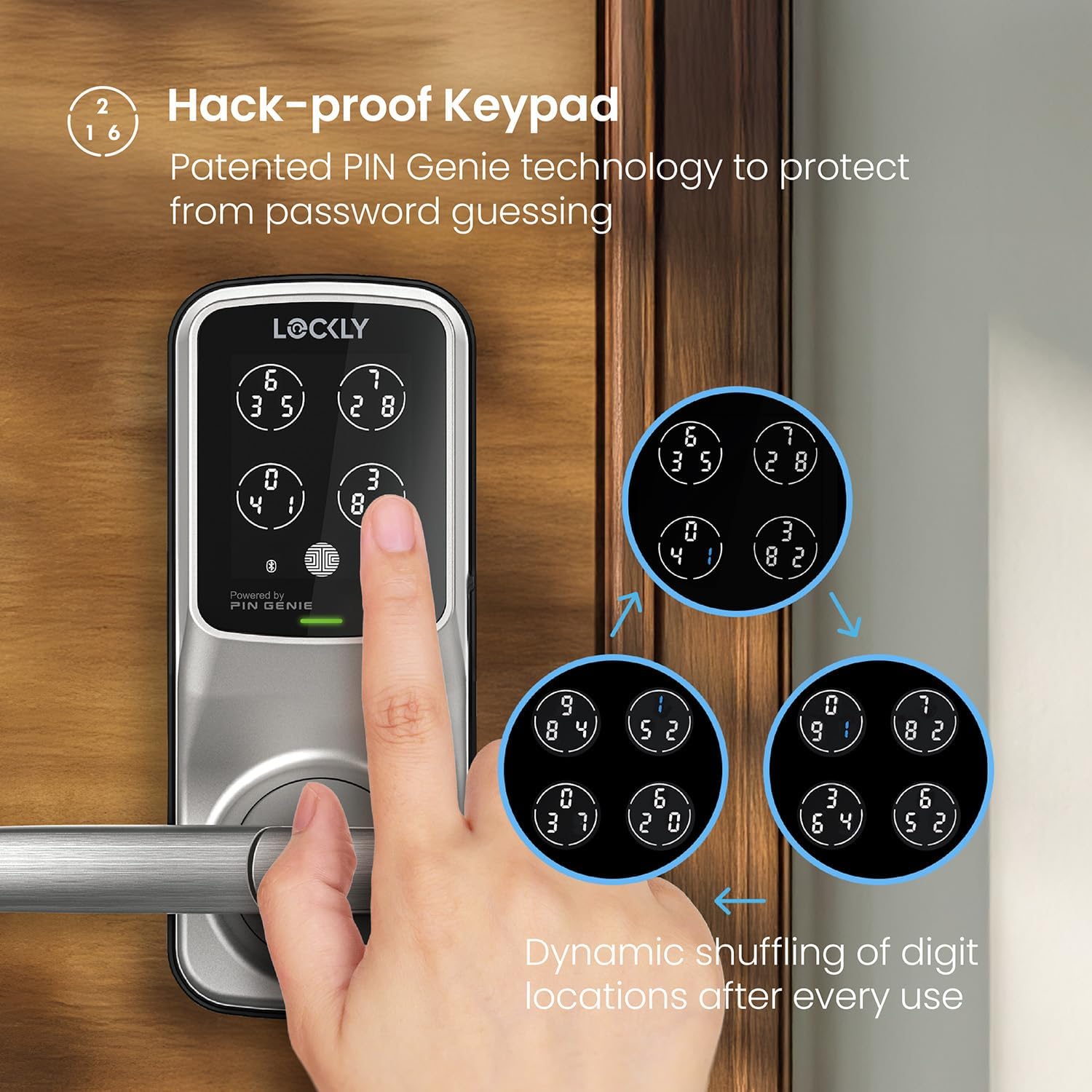
Image: A hand interacting with the Lockly PIN Genie keypad, demonstrating the dynamic shuffling of digits across the four virtual buttons for enhanced security.
3D Biometric Fingerprint Sensor
For quick and convenient access:
- Place Finger: Position your registered finger flat on the fingerprint sensor located on the side of the lock.
- Opna: The lock will recognize your fingerprint and unlock in approximately 0.3 seconds.
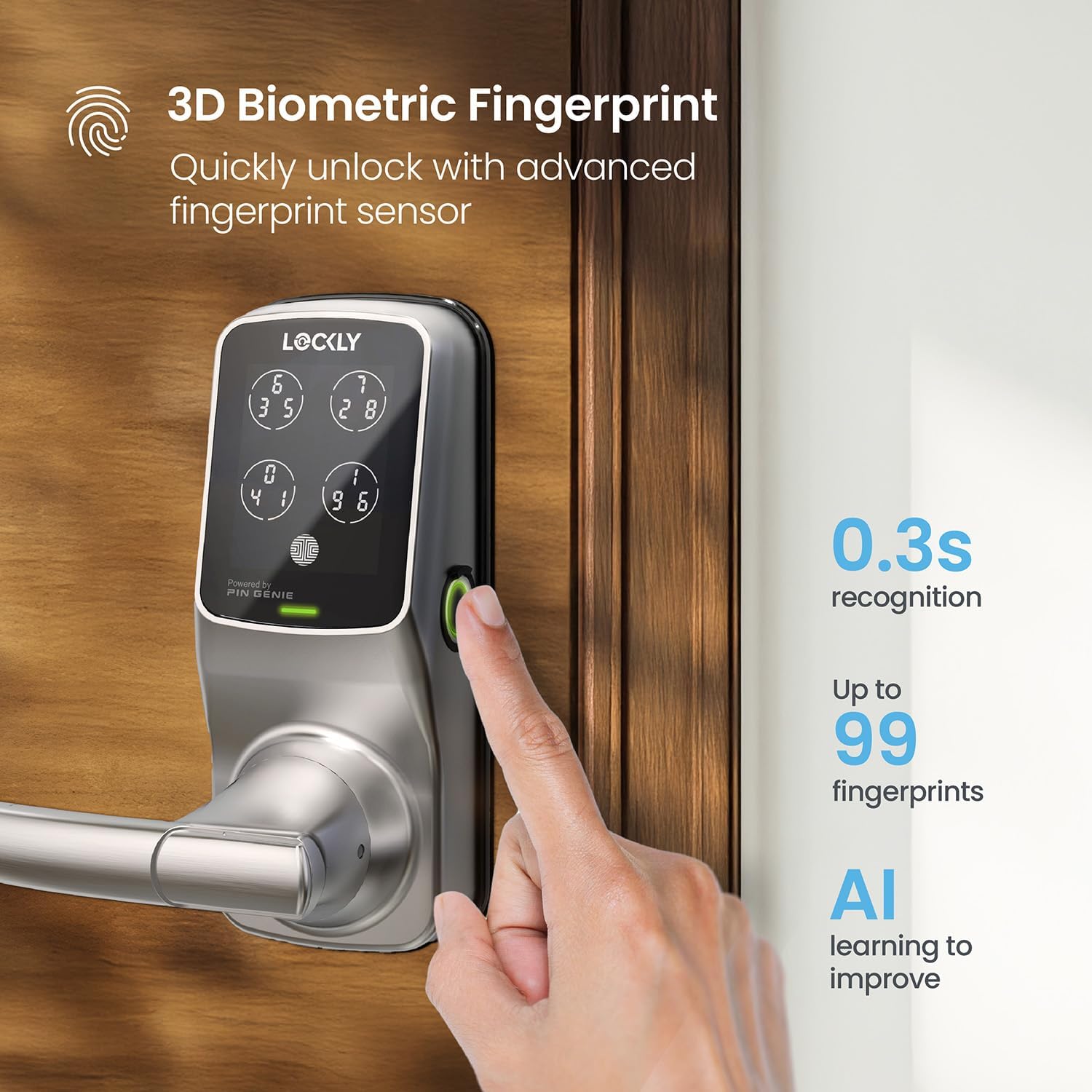
Image: A hand placing a finger on the side-mounted 3D biometric fingerprint sensor of the Lockly smart lock for quick unlocking.
Stjórnun farsímaforrita
Control your lock directly from your smartphone:
- Opna app: Launch the Lockly App on your smartphone.
- Select Lock: Choose the specific lock you wish to control from your list of devices.
- Læsa/opna: Tap the prominent lock/unlock icon on the main screen to change the door's status.

Image: A smartphone displaying the Lockly app's access history log, showing timestamps and methods of lock/unlock events.
Voice Control (with optional Wi-Fi Hub)
If you have the optional Lockly Secure Link Wi-Fi Hub, you can use voice commands:
- Virkja færni/aðgerð: Ensure the Lockly skill (for Amazon Alexa) or action (for Google Assistant) is enabled in your respective smart home app.
- Útgáfuskipun: Use voice commands such as "Alexa, unlock the front door" or "Hey Google, is the front door locked?"

Image: A woman using voice commands with a smart speaker to control her Lockly smart lock, illustrating compatibility with Alexa and Google Assistant.
Sjálfvirk læsing
The auto-lock feature provides peace of mind by automatically securing your door after a specified time:
- Aðgangsstillingar: Navigate to the auto-lock settings within the Lockly App.
- Set Delay: Choose your preferred auto-lock delay, ranging from 5 to 300 seconds.

Image: A smartphone screen displaying the Lockly app's auto-lock settings, showing options to customize the automatic locking delay.
Viðhald
Skipt um rafhlöðu
Your Lockly Secure Plus is powered by 4 AA batteries. The lock will provide low battery alerts via the app and on the lock's display when replacement is needed.
- Finndu hólf: The battery compartment is located on the interior side of the lock.
- Skipta um rafhlöður: Remove the cover and replace all four AA batteries, ensuring correct polarity.
Neyðarafl
In the event of complete battery depletion, you can temporarily power the lock using a 9V battery:
- Locate Contacts: Find the two contact points on the bottom edge of the exterior keypad.
- Notaðu kraft: Press a 9V battery firmly against these contacts while simultaneously entering your access code or using your registered fingerprint.

Image: Diagram showing the location of the 4x AA battery compartment and the 9V battery emergency power contacts on the Lockly smart lock.
Þrif
To maintain the appearance and functionality of your lock, clean the keypad and fingerprint sensor with a soft, dry, lint-free cloth. Avoid using abrasive cleaners, solvents, or harsh chemicals, as these can damage the finish or electronic components.
Úrræðaleit
Algeng vandamál og lausnir
| Útgáfa | Möguleg orsök | Lausn |
|---|---|---|
| Lock not responding to keypad or fingerprint. | Low batteries, incorrect code/fingerprint, sensor obstruction. | Replace all four AA batteries. Ensure correct PIN entry. Clean fingerprint sensor and re-register fingerprint if necessary. |
| Mobile app not connecting to lock. | Bluetooth disabled, out of range, app glitch, Wi-Fi Hub issue. | Verify Bluetooth is enabled on your phone and you are within range. Restart the Lockly app or your phone. Check Wi-Fi Hub connection if using remote access. |
| Auto-lock feature is not engaging. | Auto-lock setting is disabled or set to a long delay. | Open the Lockly App, navigate to settings, and confirm that auto-lock is enabled with your desired delay time. |
| Physical backup key is not working. | Incorrect key, debris in keyway, lock mechanism issue. | Ensure you are using one of the two provided backup keys. Check the keyway for any obstructions. If the issue persists, contact Lockly support. |
| Keypad numbers are not visible or dim. | Low batteries, keypad malfunction. | Skiptu um rafhlöður. Ef vandamálið heldur áfram skaltu hafa samband við þjónustuver. |
Tæknilýsing
- Vörumerki: Lockly
- Fyrirmyndarheiti: Lockly Secure Plus
- Gerðarnúmer: PGD628F
- UPC: 850003895062
- Tegund læsa: Smart Lock
- Efni: Sinkblendi
- Litur: Satin nikkel
- Mál (L x B x H): 7.8 x 2.9 x 7.2 tommur
- Þyngd hlutar: 6.48 pund
- Aflgjafi: 4 AA rafhlöður (innifalið)
- Rafhlöðuending: Allt að 12 mánuðir (venjuleg notkun)
- Tengingar: Bluetooth, Wi-Fi (with optional Secure Link Wi-Fi Hub)
- Rekstrarhitastig: -4°F til 140°F (-20°C til 60°C)
- Veðurþol: IPX4 certified (Waterproof)
- Sérstakir eiginleikar: Biometric Fingerprint, Touchscreen Keypad, Patented PIN Genie Technology, Smartphone Control, eKeys & eBadges, Offline Access Codes™
Ábyrgð og stuðningur
Lockly products are designed for durability and reliability. Your Lockly Secure Plus comes with a manufacturer's warranty. For detailed information regarding warranty terms, coverage, and duration, please refer to the warranty card included in your product packaging or visit the official Lockly websíða.
For technical assistance, troubleshooting, or any product-related inquiries, Lockly offers dedicated customer support:
- Stuðningur á netinu: Visit the Lockly Support Center at www.lockly.com/support for FAQs, guides, and contact options.
- Símastuðningur: Refer to your product packaging or the Lockly website for the most current customer service contact numbers and operating hours.


