1. Inngangur
Welcome to the user manual for your Orbic Journey V Verizon Postpaid 4G LTE Flip Phone. This guide provides essential information on setting up, operating, maintaining, and troubleshooting your device. The Orbic Journey V is a compact and reliable flip phone designed for clear communication and essential smart features, running on the KaiOS operating system and supporting 4G LTE connectivity.
Please read this manual thoroughly to ensure proper use and to maximize the performance and longevity of your phone.
2. Uppsetning
2.1. Upppakkning og innihald pakkans
Upon opening your Orbic Journey V package, verify that all components are present:
- Orbic Journey V Flip sími
- Endurhlaðanleg litíumjónarafhlaða
- Hleðslutæki
2.2. Uppsetning rafhlöðu
- Finndu rafhlöðulokið aftan á símanum.
- Gently pry open the battery cover using the designated notch.
- Align the battery's gold contacts with the terminals inside the battery compartment.
- Ýttu rafhlöðunni fast niður þar til hún smellpassar.
- Replace the battery cover, ensuring it is securely latched.
2.3. Uppsetning SIM-korts
Your Orbic Journey V requires a Nano-SIM card for cellular service. Ensure the phone is powered off before inserting or removing the SIM card.
- Remove the battery cover and the battery as described in Section 2.2.
- Locate the SIM card slot, typically near the battery compartment.
- Insert the Nano-SIM card into the slot with the gold contacts facing down and the notched corner aligned with the slot's guide.
- Gently push the SIM card until it locks into place.
- Setjið rafhlöðuna og rafhlöðulokið aftur á sinn stað.
2.4. Fyrsta ræsing og hleðsla
To power on your phone for the first time, press and hold the Power/End Call button until the screen illuminates. It is recommended to fully charge the phone before first use.
- Tengdu hleðslutækið við hleðslutengi símans.
- Stingdu hleðslutækinu í venjulegt rafmagnsinnstungu.
- Hleðsluvísirinn mun birtast á skjánum.
- Þegar það er fullhlaðint skaltu aftengja hleðslutækið.
3. Notkun símans
3.1. Phone Layout and Keys
Familiarize yourself with the physical components and buttons of your Orbic Journey V.
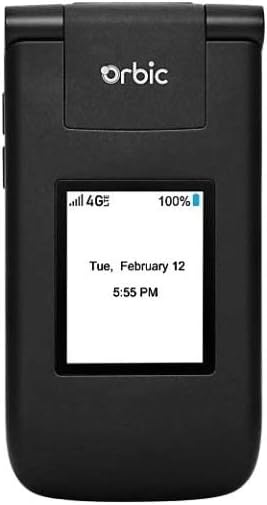
Mynd 3.1: Framan view of the Orbic Journey V, closed. The external display shows signal strength, battery level, and the current time and date.

Figure 3.2: Orbic Journey V in open position, revealing the main screen and the full alphanumeric keypad with navigation buttons.

Mynd 3.3: Aftan view of the Orbic Journey V, highlighting the main camera lens and the Verizon branding.
- Ytri skjár: Shows time, date, notifications, and caller ID when the phone is closed.
- Innri skjár: Main screen for navigating menus, viewing content, and interacting with applications.
- Navigation Key (D-Pad): Notað til að fletta í gegnum valmyndir og velja valkosti.
- Center Select Key: Staðfestir val.
- Hringja/Senda lykill: Hefur símtöl og svarar innhringingum.
- Ljúka símtali/Rofi: Ends calls, returns to the home screen, and powers the phone on/off.
- Til baka/Hreinsa takki: Returns to the previous screen or deletes characters.
- Hljóðstyrkstakkar: Adjusts call volume, media volume, and ringer volume.
- Myndavélarlykill: Fljótur aðgangur að myndavélaraðgerðinni.
3.2. Grunnleiðsögn
The Orbic Journey V operates on KaiOS. Use the Navigation Key to scroll through menu options and the Center Select Key to open applications or confirm actions.
- From the home screen, press the Navigation Key (up, down, left, right) to access shortcuts or navigate the main menu.
- Press the Center Select Key to open the main application menu.
- Press the Back/Clear key to go back to the previous screen.
3.3. Hringt og tekið á móti símtölum
- Til að hringja: Enter the phone number using the keypad and press the Call/Send key. Alternatively, navigate to Contacts, select a contact, and press the Call/Send key.
- Til að svara símtali: When the phone rings, press the Call/Send key.
- Til að slíta símtali: Ýttu á Ljúka símtali/Rofa-hnappinn.
3.4. Að senda og taka á móti skilaboðum
- Til að senda skilaboð: From the main menu, select 'Messages'. Choose 'New Message', enter the recipient's number or select from contacts, type your message using the keypad, and press 'Send'.
- To Receive a Message: New messages will typically display a notification on the screen. Navigate to the 'Messages' application to view pósthólfið þitt.
3.5. Notkun myndavélar
The Orbic Journey V is equipped with front and rear cameras. The rear camera is located on the upper-right back of the phone.
- To Open Camera: Press the dedicated Camera key or navigate to the 'Camera' application from the main menu.
- Til að taka mynd: Frame your shot on the screen and press the Center Select key to capture the image.
- Viewing myndir: Access your photos through the 'Gallery' application.
3.6. Connectivity (Bluetooth, Wi-Fi)
Your phone supports Bluetooth and Wi-Fi for wireless connectivity.
- Bluetooth: Go to 'Settings' > 'Network & Connectivity' > 'Bluetooth'. Turn Bluetooth on, and the phone will search for available devices. Select a device to pair.
- Wi-Fi: Go to 'Settings' > 'Network & Connectivity' > 'Wi-Fi'. Turn Wi-Fi on, select an available network, and enter the password if required.
4. Viðhald
4.1. Þrif á símanum
To keep your phone in optimal condition, clean it regularly:
- Notið mjúkan, lólausan klút til að þurrka skjáinn og hlífina.
- Forðist að nota sterk efni, slípiefni eða úðabrúsa.
- Gakktu úr skugga um að síminn sé slökktur og úr sambandi áður en hann er þrifinn.
4.2. Umhirða rafhlöðu
Rétt umhirða rafhlöðunnar getur lengt líftíma hennar:
- Forðastu mikinn hita.
- Ekki láta símann hlaðast of lengi eftir að hann er fullur.
- If the phone will not be used for an extended period, store it with a partial charge (around 50%).
4.3. Hugbúnaðaruppfærslur
Regular software updates provide new features, security enhancements, and bug fixes.
- Tengdu símann þinn við Wi-Fi.
- Go to 'Settings' > 'Device' > 'Software Update'.
- Fylgdu leiðbeiningunum á skjánum til að athuga hvort tiltækar uppfærslur séu tiltækar og setja þær upp.
5. Bilanagreining
This section addresses common issues you might encounter with your Orbic Journey V.
5.1. Síminn kveikir ekki á sér
- Gakktu úr skugga um að rafhlaðan sé rétt sett í og hlaðin. Tengdu hleðslutækið og bíddu í nokkrar mínútur áður en þú reynir að kveikja á því.
- Try removing and reinserting the battery, then attempt to power on again.
5.2. Léleg símtalsgæði eða ekkert merki
- Check your location for network coverage. Move to an area with better signal.
- Gakktu úr skugga um að SIM-kortið þitt sé rétt sett í.
- Endurræstu símann.
- Verify that your account with Verizon is active and in good standing.
5.3. Rafhlaðan tæmist hratt
- Lokaðu ónotuðum forritum sem keyra í bakgrunni.
- Minnka birtustig skjásins.
- Slökktu á Wi-Fi, Bluetooth eða GPS þegar það er ekki í notkun.
- Check for and install any available software updates, as these often include battery optimizations.
5.4. Software or Navigation Issues
- If the phone is unresponsive, try a soft reset by removing and reinserting the battery.
- Ensure the phone's software is up to date.
- Ef vandamálin halda áfram skaltu íhuga að endurstilla verksmiðjustillingar (Athugið: Þetta mun eyða öllum gögnum í símanum. Takið fyrst öryggisafrit af mikilvægum upplýsingum.). Navigate to 'Settings' > 'Device' > 'Reset Phone'.
6. Tæknilýsing
| Eiginleiki | Smáatriði |
|---|---|
| Nafn líkans | Orbic Journey V |
| Vörumerki | Orbic |
| ASIN | B08971YYM1 |
| Stýrikerfi | KaiOS |
| Þráðlaus símafyrirtæki | Verizon |
| Farsímatækni | LTE |
| Tengitækni | Bluetooth, WiFi |
| Form Factor | Flip |
| Litur | Svartur |
| Skjástærð | 5.8 tommur (standandi skjástærð) |
| Upplausn | 1520 x 720 |
| Myndavélareiginleikar | Framan, Aftan |
| Hljóð Jack | Enginn heyrnartólstengi |
| Rafhlöður | 1 Lithium Ion rafhlaða (fylgir með) |
| Þyngd hlutar | 12.8 aura |
| Stærðir pakka | 5 x 3 x 3 tommur |
| Dagsetning fyrst í boði | 26. maí 2020 |
7. Ábyrgð og stuðningur
For warranty information and technical support regarding your Orbic Journey V phone, please refer to the documentation provided with your purchase or contact Orbic directly. You can also visit the official Orbic websíða fyrir stuðningsúrræði.
For service-related inquiries, please contact your wireless carrier, Verizon.
- Framleiðandi: Orbic
- Þráðlaus símafyrirtæki: Verizon


