1. Inngangur
This manual provides comprehensive instructions for setting up, operating, and maintaining your Microsoft Surface Go 2 tablet. The Surface Go 2 is a versatile 10.5-inch touch-screen device, powered by an Intel Pentium processor, 8GB of RAM, and a 128GB SSD, running Windows 10. It is designed for portability and efficiency, suitable for various tasks from productivity to entertainment.
2. Íhlutir og tengi
Familiarize yourself with the physical components and connection ports of your Surface Go 2.
2.1 Tæki lokiðview
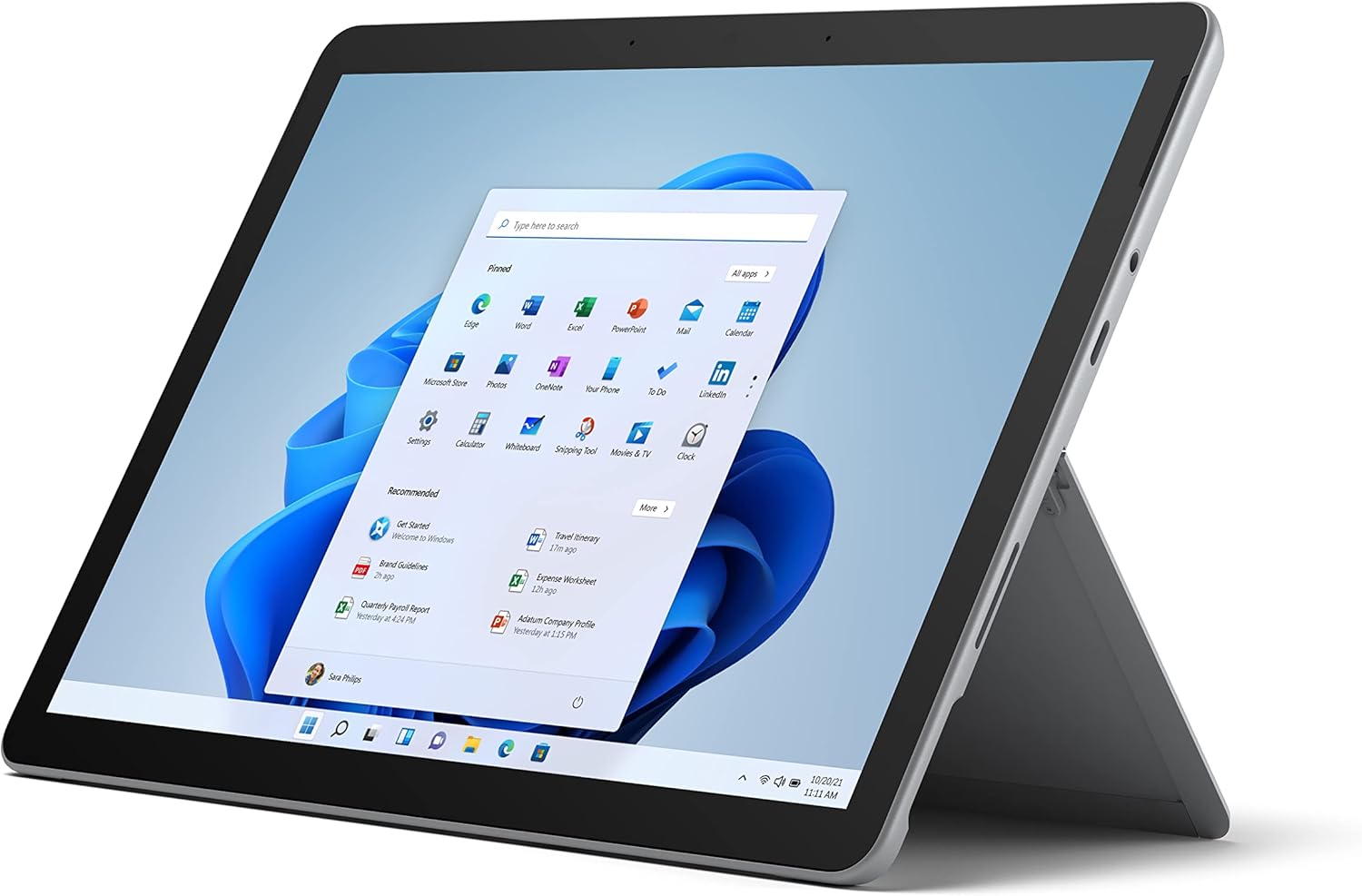
Figure 2.1: Microsoft Surface Go 2 tablet in landscape orientation, showcasing the Windows desktop interface.
2.2 Side Ports and Buttons
- USB Type-C tengi: For data transfer, video output, and charging.
- 3.5 mm heyrnartólstengi: Til að tengja heyrnartól eða ytri hljóðtæki.
- Surface Connect Port: Magnetic port for charging and connecting to Surface Dock (sold separately).
- MicroSD kortalesari: For expanding storage with a microSD card.
- Hljóðstyrkshnappar: Til að stilla hljóðstyrk.
- Aflhnappur: Til að kveikja/slökkva á tækinu eða setja það í dvala.

Mynd 2.2: Hliðarprofile of the Surface Go 2, illustrating the various ports and buttons along its edge.
2.3 Innbyggður stuðningur
The Surface Go 2 features an integrated kickstand on the back, allowing for multiple viewing angles. This enables comfortable use in various modes, such as tablet, laptop (with Type Cover), or studio mode.

Figure 2.3: The Surface Go 2 with its Type Cover keyboard attached and the kickstand deployed, demonstrating its laptop-like configuration.
3. Upphafsuppsetning
Follow these steps to set up your Surface Go 2 for the first time.
3.1 Kveikja og grunnstilling
- Hlaða tækið: Connect the included power adapter to the Surface Connect port on your device and plug it into a power outlet.
- Kveikt á: Press and hold the power button located on the top edge of the device until the Microsoft logo appears on the screen.
- Fylgdu leiðbeiningunum á skjánum: The device will guide you through selecting your region, language, and connecting to a Wi-Fi network.
- Microsoft Account Setup: Sign in with an existing Microsoft account or create a new one. This is essential for accessing Microsoft services and applications.
- Persónuverndarstillingar: Review and adjust your privacy settings as prompted.
- Windows Halló: Set up facial recognition for faster and more secure sign-in (optional).
4. Notkunarleiðbeiningar
The Surface Go 2 offers flexible interaction methods.
4.1 Snertiskjárleiðsögn
The 10.5-inch PixelSense display supports 10-point multi-touch. You can navigate Windows 10 using gestures similar to a smartphone or tablet:
- Bankaðu á: Veldu hluti eða opnaðu forrit.
- Strjúktu: Fletta í gegnum efni eða fletta á milli skjáa.
- Klípaðu til aðdráttar: Stækka eða minnka stærð efnis.
- Haltu inni: Access context menus (right-click equivalent).
4.2 Using the Type Cover Keyboard (Sold Separately)
Attach the Type Cover keyboard to transform your Surface Go 2 into a laptop. The keyboard connects magnetically to the bottom edge of the tablet.
- Viðhengi: Align the Type Cover with the magnetic connector at the bottom of the Surface Go 2 until it snaps into place.
- Vélritun: Use the physical keys for efficient text input.
- Trackpad: The integrated trackpad allows for precise cursor control and multi-touch gestures.

Figure 4.1: The Surface Go 2 tablet separated from its Type Cover keyboard, illustrating the modular design.
4.3 Using the Surface Pen (Sold Separately)
The Surface Pen (sold separately) enhances creativity and productivity, allowing for natural writing and drawing directly on the screen.

Figure 4.2: The Surface Go 2 tablet displayed with a compatible Surface Pen, highlighting its digital inking capabilities.
5. Viðhald
Proper care ensures the longevity and performance of your Surface Go 2.
- Að þrífa skjáinn: Notaðu mjúkan, lólausan klút örlítið dampened with water or an approved screen cleaner. Avoid harsh chemicals.
- Hreinsun yfirbyggingar tækisins: Þurrkaðu að utan með mjúkum, þurrum klút.
- Hugbúnaðaruppfærslur: Athugaðu reglulega hvort Windows uppfærslur séu tiltækar og settu upp þær til að tryggja bestu mögulegu afköst og öryggi. Farðu á Stillingar > Uppfærsla og öryggi > Windows Update.
- Umhirða rafhlöðu: To maximize battery lifespan, avoid extreme temperatures and try to keep the battery charge between 20% and 80% when possible.
- Geymslustjórnun: Periodically clear temporary files and unnecessary data to free up storage space. Go to Stillingar > Kerfi > Geymsla.
6. Bilanagreining
Algeng vandamál og lausnir á þeim.
- Kveikir ekki á tækinu: Gakktu úr skugga um að tækið sé hlaðið. Tengdu straumbreytinn við og bíddu í nokkrar mínútur áður en þú reynir að kveikja aftur.
- Snertiskjár svarar ekki: Restart the device. If the issue persists, check for pending Windows updates or consider a system restore.
- Vandamál með Wi-Fi tengingu: Verify your Wi-Fi network is active. Restart your router and the Surface Go 2. Check Wi-Fi settings on the device.
- Hægur árangur: Close unnecessary applications. Check for background processes consuming high resources (Task Manager). Ensure sufficient free storage space.
- Rafhlaða tæmist hratt: Adjust screen brightness, disable unnecessary background apps, and ensure all software is up to date.
7. Tæknilýsing
| Eiginleiki | Smáatriði |
|---|---|
| Skjár | 10.5" PixelSense 10-Point Touch Display |
| Upplausn | 1920 x 1280 (216 ppi) |
| Örgjörvi | 1.6 GHz Intel Pentium 4425Y Dual-Core Processor |
| vinnsluminni | 8GB |
| Geymsla | 128GB SSD |
| Grafík | Innbyggt Intel HD Graphics 615 |
| Þráðlaust | Wi-Fi 5 (802.11ac) | Bluetooth 4.1 |
| Myndavélar | 8MP Rear Camera | 5MP Front Camera |
| Hafnir | USB Type-C, 3.5 mm Headphone Jack, Surface Connect, MicroSD Card Reader |
| Rafhlöðuending | Allt að 9 klukkustundir (venjuleg notkun) |
| Stýrikerfi | Windows 10 |
| Þyngd | 1.15 lbs (u.þ.b.) |
| Mál | 6.8 x 9.64 x 0.32 tommur |
8. Ábyrgð og stuðningur
This Microsoft Surface Go 2 is a renewed product. Renewed products are eligible for replacement or refund under the Amazon Renewed Guarantee if you are not satisfied with your purchase. For specific terms and conditions, please refer to the Amazon Renewed program details.
For further technical support or inquiries, please visit the official Microsoft Surface support websíðuna eða hafðu samband við þjónustuver þeirra.


