Inngangur
This manual provides comprehensive instructions for the setup, operation, and maintenance of your Plantronics Poly Studio P5 Webcam and Voyager 4220 UC Headset Kit. Please read this manual thoroughly before using the product to ensure optimal performance and longevity.
The kit includes a high-definition webcam designed for professional video conferencing and a stereo Bluetooth wireless headset for clear audio communication.
Innihald pakka
- Poly Studio P5 Webkambur
- Poly Voyager 4220 UC þráðlaus heyrnartól
- USB-A Adapter (for headset)
- USB Cable (for webkambur)
- Flýtileiðarvísir
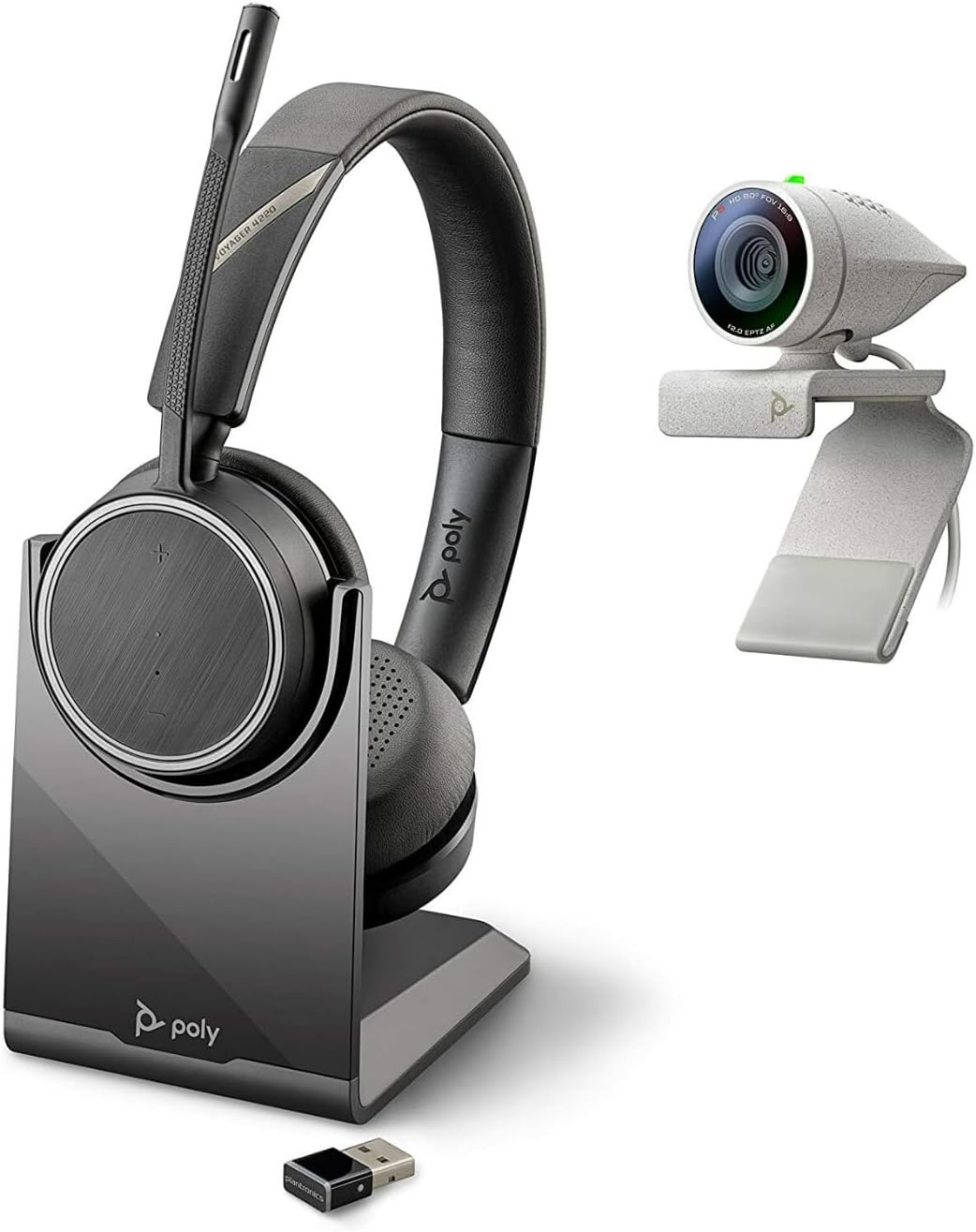
Image: Poly Studio P5 Webcam and Voyager 4220 UC Headset Kit, showing the webcam, headset, charging stand, and USB adapter.
Uppsetningarleiðbeiningar
1. Poly Studio P5 Webuppsetning myndavélar
- Uppsetning á Webkambur:
Settu webcam on top of your monitor or laptop screen. Adjust the clip to secure it firmly. The webcam can also be mounted on a tripod using the integrated tripod-ready design.

Image: Poly Studio P5 Webcam positioned on top of a laptop screen, showing its compact design and mounting clip.
- Tenging við tölvuna þína:
Connect the integrated USB cable from the webcam to an available USB port on your PC or Mac. The device is plug-and-play; drivers will install automatically.
- Persónuverndarlokari:
The webcam features an integrated privacy shutter. Slide the shutter to cover the lens when not in use to enhance security and privacy.

Mynd: Framan view of the Poly Studio P5 Webcam, highlighting the lens and the integrated privacy shutter mechanism.
2. Voyager 4220 UC Headset Setup
- Hleðsla heyrnartólsins:
Before first use, fully charge the headset. Connect the charging cable to the headset and a USB power source. A full charge provides approximately 12 hours of talk time or 15 hours of listening time.
- Connecting the USB-A Adapter:
Insert the USB-A adapter into an available USB port on your PC or Mac. The adapter will automatically pair with the Voyager 4220 UC headset.
- Að vera með höfuðtólið:
Adjust the headband for a comfortable fit. Position the microphone boom approximately two finger-widths from the corner of your mouth for optimal voice pickup.
Notkunarleiðbeiningar
1. Using the Poly Studio P5 Webkambur
- Myndbandsfundur: The webcam is compatible with Zoom, Microsoft Teams, and other video conferencing services. Select "Poly Studio P5" as your camera and microphone input within your chosen application's settings.
- Automatic Low-Light Compensation: The webcam automatically adjusts to maintain proper light exposure, ensuring clear visibility even in darker environments.
- Stafrænn aðdráttur: The camera supports up to 4x digital zoom. This feature can typically be controlled through your video conferencing software or the Poly Lens Desktop app.

Image: A person wearing the Voyager 4220 UC Headset and using the Poly Studio P5 Webcam with a laptop, demonstrating a typical video conferencing setup.
2. Using the Voyager 4220 UC Headset
- Kveikt/slökkt: Slide the power switch to turn the headset on or off.
- Hljóðstyrkur: Use the volume up (+) and volume down (-) buttons on the earcup to adjust audio levels.
- Þagga/kveikja á: Press the mute button on the microphone boom or earcup to mute or unmute your microphone.
- Símtalsstjórnun: Press the call button to answer or end calls in supported applications.
- Hávaðadeyfandi hljóðnemar: The headset features dual noise-cancelling microphones to reduce background noise for clear voice transmission.
3. Poly Lens Desktop App
The Poly Lens Desktop app allows you to customize settings, receive firmware updates, and access practical tips for your devices. Download the app from the official Poly websíða.
- Stilla webcam settings (e.g., brightness, contrast, zoom).
- Configure headset audio preferences.
- Receive health and wellness reminders.
Viðhald
- Þrif:
Þurrkaðu af webcam lens and headset surfaces with a soft, dry, lint-free cloth. Do not use liquid cleaners or abrasive materials.
- Geymsla:
Geymið tækin á köldum, þurrum stað fjarri beinu sólarljósi og miklum hita þegar þau eru ekki í notkun.
- Uppfærsla vélbúnaðar:
Regularly check for firmware updates via the Poly Lens Desktop app to ensure optimal performance and access to new features.
Úrræðaleit
| Vandamál | Möguleg orsök | Lausn |
|---|---|---|
| Webmyndavél fannst ekki | Loose USB connection, incorrect software settings, driver issue. |
|
| Ekkert hljóð frá heyrnartólum | Headset not powered on, not paired, volume too low, incorrect audio output selected. |
|
| Hljóðnemi virkar ekki | Microphone muted, incorrect audio input selected, boom not positioned correctly. |
|
| Léleg myndgæði | Low light conditions, dirty lens, internet bandwidth issues. |
|
Tæknilýsing
Poly Studio P5 Webkambur
- Hámarks skjáupplausn: FHD (1080p)
- Upplausn myndbandsupptöku: 1080p
- Ljósskynjaratækni: CMOS
- Aftan Webmyndavélarupplausn: 5 MP
- Hámarks brennivídd: 4
- Hámarks ljósop: f/2.0
- Tengingartækni: USB
- Vélbúnaðarvettvangur: PC, Mac
- Sérstakir eiginleikar: Integrated privacy shutter, automatic low-light compensation, tripod-ready design.
- Vörumál: 14.1 x 8.3 x 4.5 inches (Kit dimensions)
- Þyngd hlutar: 2.09 pounds (Kit weight)
Poly Voyager 4220 UC heyrnartól
- Þráðlaus gerð: Bluetooth
- Talatími: Allt að 12 klst
- Hlustunartími: Allt að 15 klst
- Hljóðnemar: Dual noise-cancelling
- Tengingar: USB-A millistykki
- Styður hljóðsnið: AAC, MP3
- Rafhlöður: 1 Lithium Polymer rafhlaða (fylgir með)
Upplýsingar um ábyrgð
For detailed warranty information, please refer to the warranty card included with your product or visit the official Poly webStaðlaðar ábyrgðarskilmálar ná yfirleitt yfir framleiðslugalla í tiltekinn tíma frá kaupdegi.
Stuðningur og samband
For technical support, product registration, or to download the latest software and drivers, please visit the official Poly support websíða:
Websíða: www.poly.com/support
You can also find FAQs and community forums on the support page.


