1. Inngangur
Thank you for choosing the NEC E438 43-inch LCD 4K UHD Commercial-Grade Monitor. This manual provides detailed instructions for the safe and efficient use of your display. Please read this manual thoroughly before operating the product and retain it for future reference.
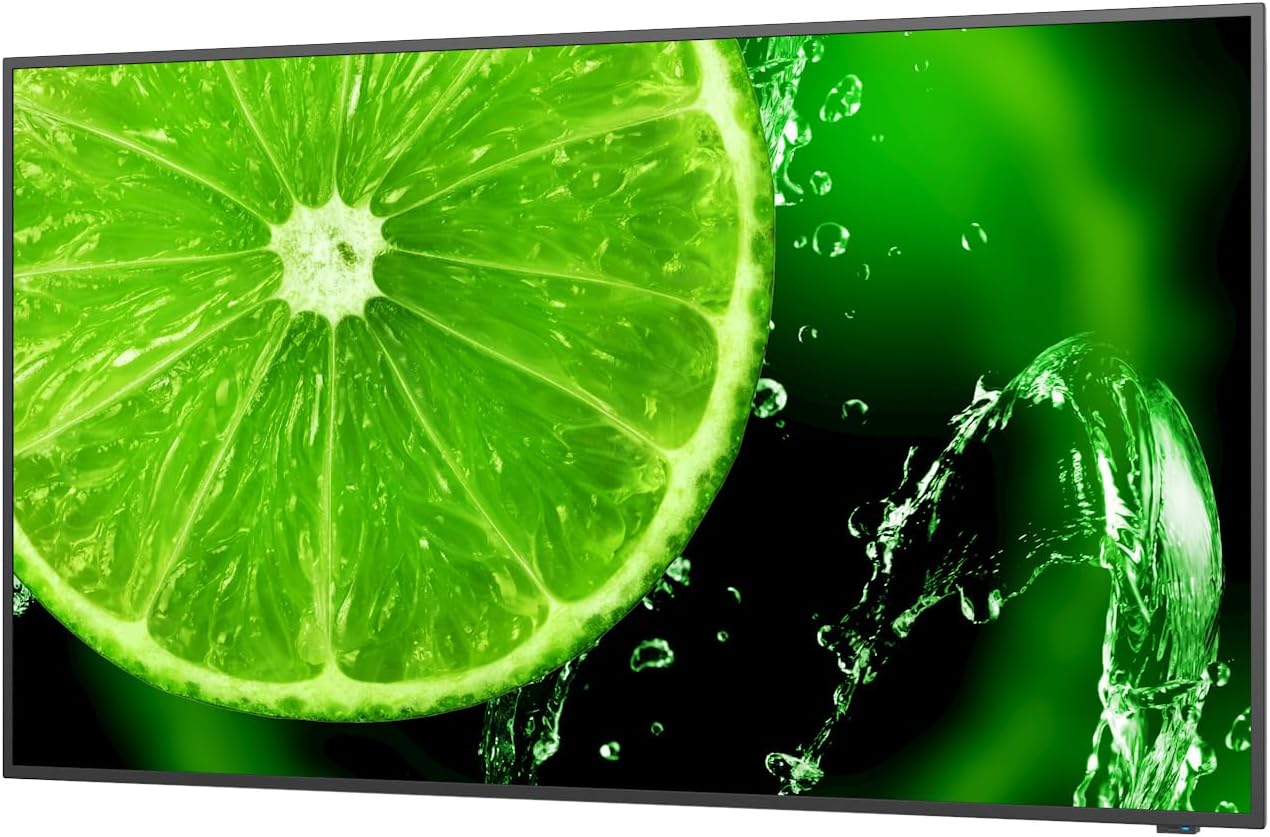
Mynd 1: Framan view of the NEC E438 43-inch 4K UHD monitor.
2. Öryggisupplýsingar
Observe the following safety precautions to prevent damage to the product and to ensure your safety:
- Ekki láta skjáinn verða fyrir rigningu eða raka til að forðast eld eða raflosti.
- Ekki opna skjáinn casing. Látið hæft þjónustufólk sjá um alla þjónustu.
- Tryggið góða loftræstingu. Ekki loka fyrir loftræstiop.
- Use only the power cord supplied with the monitor or a suitable replacement.
- Place the monitor on a stable, level surface or mount it securely according to VESA standards.
- Aftengdu rafmagnssnúruna úr vegginnstungunni ef skjárinn verður ekki notaður í langan tíma.
3. Innihald pakka
Gakktu úr skugga um að allir hlutir séu til staðar í pakkanum:
- NEC E438 43-inch LCD 4K UHD Monitor
- Rafmagnssnúra
- HDMI snúru
- USB-C kapall
- Fjarstýring (með rafhlöðum)
- Notendahandbók (þetta skjal)
- Quick Setup Guide
4. Uppsetning
4.1 Staðsetning
Place the monitor on a sturdy, flat surface or mount it using a VESA-compatible wall mount or stand. Ensure adequate space around the monitor for ventilation.
4.2 Tengisnúrur
Connect the necessary cables to the corresponding ports on the monitor and your source device (e.g., computer, media player).

Mynd 2: Aftan view of the monitor showing connection ports and mounting points.

Mynd 3: Hlið view of the monitor illustrating the input port cluster.
- Kraftur: Connect the power cord to the monitor's AC input and then to a grounded electrical outlet.
- Video Input: Use an HDMI, VGA, or USB-C cable to connect your source device to the monitor. The monitor supports multiple HDMI inputs.
- LAN: Connect an Ethernet cable to the LAN port for network connectivity.
- USB-C: For video, data, and power delivery (if supported by the source device).
5. Notkunarleiðbeiningar
5.1 Kveikt/slökkt
Press the power button located on the monitor or on the remote control to turn the display on or off. The power indicator light will illuminate when the monitor is on.
5.2 Inntaksval
Use the 'Input' button on the remote control or the monitor's control panel to cycle through available input sources (HDMI 1, HDMI 2, HDMI 3, VGA, USB-C, etc.).
5.3 Skjávalmynd (OSD)
Access the OSD menu to adjust various display settings such as brightness, contrast, color temperature, aspect ratio, and audio settings. Navigate the menu using the directional buttons on the remote or monitor and confirm selections with the 'Enter' button.
5.4 Hljóð
The monitor includes integrated speakers. Adjust the volume using the remote control or through the OSD menu. You can also connect external audio devices if desired.
6. Viðhald
6.1 Þrif á skjánum
- Taktu alltaf skjáinn úr sambandi áður en þú þrífur.
- Notaðu mjúkan, lólausan klút örlítið dampÞvoið með vatni eða mildum, ekki slípandi skjáhreinsiefni.
- Ekki úða hreinsiefni beint á skjáinn.
- Forðist að nota sterk efni, leysiefni eða slípiefni.
6.2 Almenn umönnun
- Haldið skjánum frá beinu sólarljósi og hitagjöfum.
- Gakktu úr skugga um rétta loftræstingu til að koma í veg fyrir ofhitnun.
- Forðist að setja þunga hluti ofan á skjáinn eða snúrur hans.
7. Bilanagreining
Ef þú lendir í vandræðum með skjáinn þinn skaltu skoða eftirfarandi algengar úrræðaleitarskref:
| Vandamál | Möguleg lausn |
|---|---|
| Enginn kraftur | Gakktu úr skugga um að rafmagnssnúran sé vel tengd bæði við skjáinn og innstunguna. Gakktu úr skugga um að innstungan virki. |
| Ekkert merki | Verify that the video cable (HDMI, VGA, USB-C) is correctly connected to both the monitor and the source device. Select the correct input source using the 'Input' button. |
| Myndin er brengluð eða óskýr | Adjust resolution and refresh rate settings on your source device. Check cable connections for looseness or damage. Perform an auto-adjustment via the OSD menu if using VGA. |
| Ekkert hljóð frá hátalara | Check the volume settings on the monitor and your source device. Ensure the audio output is correctly configured on your source device. |
If the problem persists after trying these steps, please contact NEC customer support.
8. Tæknilýsing
Key technical specifications for the NEC E438 monitor:
- Skjástærð: 43 tommur
- Upplausn: 3840 x 2160 (4K UHD)
- Hlutfall: 16:9
- Tegund pallborðs: IPS (In-Plane Switching)
- Birtustig myndar: 350 cd/m² (NITS)
- Vídeóinntak: HDMI (multiple), VGA, USB-C
- Aðrar hafnir: LAN, Total 2 USB Ports
- Hátalarar: Innbyggt
- Vörumál: 2.8 x 38.2 x 22.04 tommur
- Þyngd hlutar: 19.58 pund
- Voltage: 240 volt
- Gerðarnúmer: 60005045

Figure 4: Excerpt from the product data sheet.
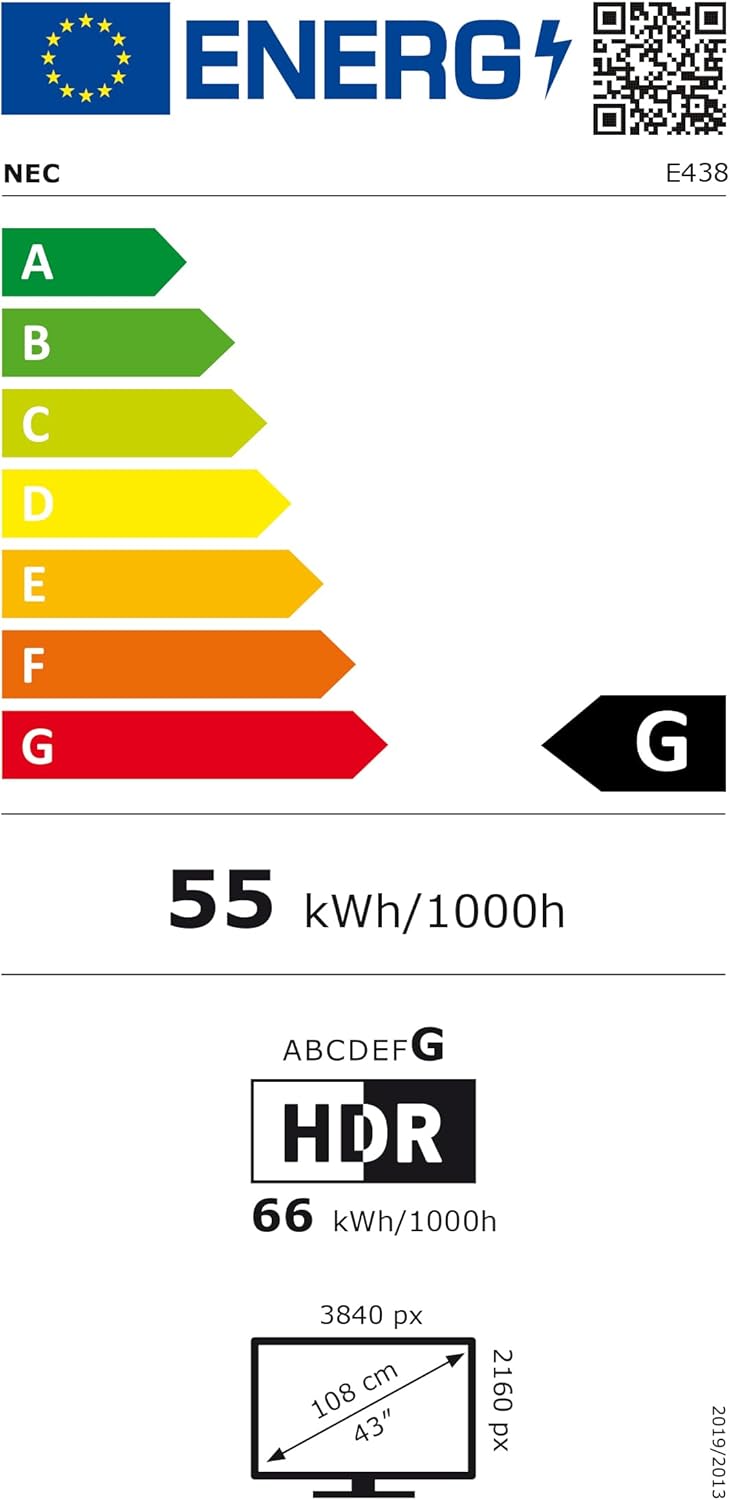
Figure 5: EU Energy Label for the NEC E438 monitor.
Nánari upplýsingar um orkunotkun er að finna í EPREL gagnagrunninum: https://eprel.ec.europa.eu/qr/429363
9. Ábyrgð og stuðningur
9.1 Upplýsingar um ábyrgð
This NEC E438 monitor comes with a 3-year limited warranty. Please refer to the warranty card included in your package for specific terms and conditions. Keep your proof of purchase for warranty claims.
9.2 Þjónustuver
For technical assistance, service, or further inquiries, please contact NEC customer support. Visit the official NEC websíðu fyrir upplýsingar um tengiliði og stuðningsúrræði.


