1. Inngangur og yfirview
The Logitech Rugged Combo 3 is a robust and versatile keyboard case designed for iPad (7th and 8th Generation) users, particularly in educational environments. It offers comprehensive protection and enhanced functionality, transforming your iPad into a powerful productivity tool.
This keyboard case is engineered for durability, meeting MIL SPEC 810G drop standards with 4.5 ft. drop protection, making it resilient against daily wear and tear. Its keys are pry-resistant and sealed, preventing damage and keeping out debris.
The Smart Connector technology ensures an instant, reliable physical connection to your iPad without the need for pairing or separate charging the keyboard, as it draws power directly from the iPad. The adjustable kickstand provides five versatile use modes, adapting to various tasks from typing to sketching.
Additionally, the case features a magnetic latch with integrated storage for a Logitech Crayon or Apple Pencil (1st gen), ensuring your stylus is always accessible. A large asset tagging window is also included for easy device management.
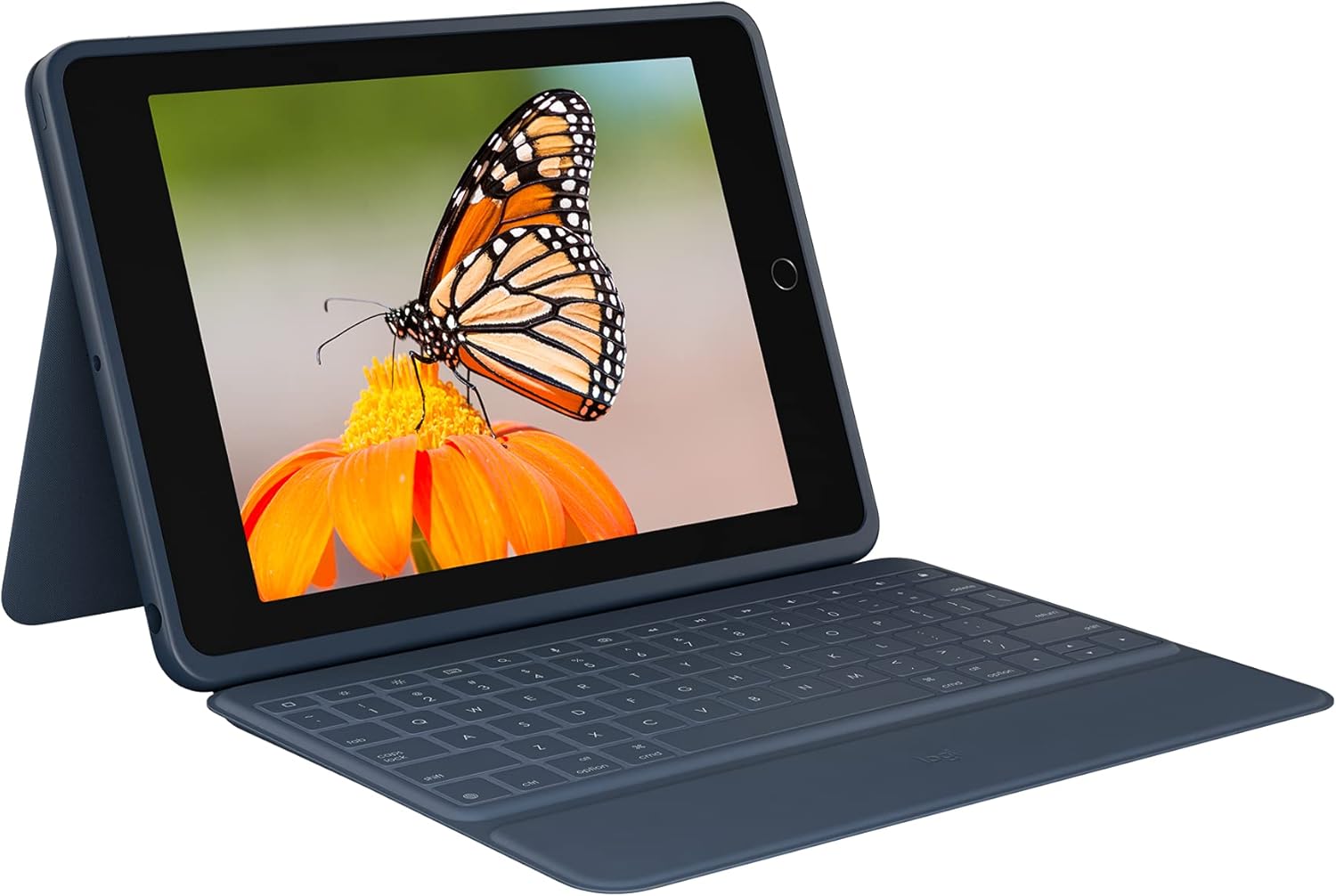
Figure 1.1: The Logitech Rugged Combo 3 with an iPad in typing mode, showcasing the integrated keyboard and adjustable stand.
2. Uppsetning og tenging
The Logitech Rugged Combo 3 utilizes Apple's Smart Connector technology for a seamless and instant connection to your compatible iPad. No Bluetooth pairing or separate charging is required for the keyboard.
2.1. Tenging við iPad-inn þinn
- Align the iPad: Carefully align your iPad with the protective case portion of the Rugged Combo 3. Ensure the camera cutout and ports match the case openings.
- Smella á sinn stað: Gently press the iPad into the case until it securely snaps into all corners. The durable design provides a snug fit.
- Connect the Smart Connector: Once the iPad is seated in the case, align the Smart Connector on the edge of the iPad with the corresponding pins on the keyboard. The magnetic connection will automatically snap into place, establishing the connection.
The keyboard will instantly power on and be ready for use. There is no need to manually turn the keyboard on or off, as it draws power directly from the iPad via the Smart Connector.

Figure 2.1: The Logitech Rugged Combo 3 in its closed position, providing full protection for the iPad.
3. Operating the Keyboard Case
The Rugged Combo 3 offers multiple modes of use and a full-sized keyboard for efficient interaction with your iPad.
3.1. Use Modes
The adjustable kickstand and foldable keyboard allow for five distinct use modes:
- Tegundarstilling: Settu iPad-ið upprétt með lyklaborðið útrétt til að auðvelda innslátt.
- View Stilling: Fold the keyboard back and adjust the kickstand to an optimal angle for watching videos or presentations.
- Teikningastilling: Lower the kickstand to a shallow angle, ideal for drawing or writing with a stylus.
- Lestur: Fold the keyboard completely behind the iPad, allowing you to hold the tablet like a book.
- Myndavélarstilling: The design ensures the iPad camera remains unobstructed in all modes, allowing for easy photo and video capture.

Mynd 3.1: Hlið view illustrating the adjustable kickstand, enabling various viewing horn.
3.2. Keyboard Functionality
The integrated keyboard provides a comfortable and responsive typing experience. It includes a full row of iPadOS shortcut keys for quick access to common functions:
- Heimili: Fer aftur á heimaskjáinn.
- Skjár birta: Stillir birtustig skjásins.
- Leita: Virkjar leitarmöguleika iPad-sins.
- Sýndarlyklaborð: Toggles the on-screen keyboard.
- Miðlunarstýringar: Spila/gera hlé, fyrra lag, næsta lag.
- Hljóðstyrkir: Hljóðnemi, hljóðstyrkur lækkaður, hljóðstyrkur hækkaður.
- Læsiskjár: Locks the iPad display.

Mynd 3.2: Ofan frá og niður view of the keyboard, highlighting the dedicated iPadOS shortcut keys for enhanced productivity.
4. Viðhald og umönnun
To ensure the longevity and optimal performance of your Logitech Rugged Combo 3, follow these maintenance guidelines:
- Þrif: Notaðu mjúkan, damp cloth to wipe down the exterior of the case and keyboard. Avoid harsh chemicals or abrasive materials.
- Lekaþol: The keyboard features sealed keys designed to resist spills. In case of a spill, immediately wipe off any liquid and allow the keyboard to air dry before continued use.
- Lykilþjónusta: The keys are pry-resistant, but avoid excessive force when cleaning or handling to prevent damage.
- Geymsla: When not in use, keep the case closed to protect both the iPad and the keyboard from dust and potential damage.

Figure 4.1: The keyboard's spill-resistant design helps protect against accidental liquid exposure.
5. Bilanagreining
If you encounter issues with your Logitech Rugged Combo 3, refer to the following common troubleshooting steps:
5.1. Lyklaborðið svarar ekki
- Check Smart Connector: Ensure the iPad is correctly seated in the case and the Smart Connector on the iPad is firmly connected to the keyboard. Remove and re-attach the iPad to ensure a proper connection.
- Endurræstu iPadinn: Sometimes, a simple restart of your iPad can resolve connectivity issues.
- Clean Smart Connector: Inspect the Smart Connector pins on both the iPad and the keyboard for any debris or dust. Gently clean them with a soft, dry cloth.
5.2. Takkar virka ekki rétt
- Athugaðu fyrir rusl: Gætið þess að engir aðskotahlutir séu fastir undir lyklunum.
- Tjón vegna leka: If the keyboard has been exposed to a significant liquid spill, allow it to dry completely. If issues persist, contact support.
5.3. iPad Not Fitting Securely
- Staðfestu eindrægni: Ensure your iPad model (7th or 8th Generation) is compatible with the Rugged Combo 3.
- Rétt innsetning: Make sure the iPad is inserted correctly and all corners are snapped into place.
6. Tæknilýsing
| Eiginleiki | Smáatriði |
|---|---|
| Vörumerki | Logitech |
| Röð | Harðgerður Combo 3 |
| Gerðarnúmer | 920-009320 |
| Samhæf tæki | iPad (7th Generation: A2200, A2197, A2198), iPad (8th Generation: A2270, A2428, A2429, A2430) |
| Tengitækni | Snjall tengi |
| Lýsing á lyklaborði | Himna |
| Aflgjafi | iPad via Smart Connector (no battery required for keyboard) |
| Þyngd hlutar | 1.33 pund |
| Vörumál (LxBxH) | 10.24 x 7.44 x 0.94 tommur |
| Litur | Blár |
| Efni | Plast |
| Sérstakur eiginleiki | Foldable, 4.5 ft. Drop Protection (MIL SPEC 810G), Pry-resistant keys, Integrated stylus storage |
| Innifalið íhlutir | Keyboard case, Documentation |
7. Ábyrgð og stuðningur
For warranty information, technical support, or further assistance with your Logitech Rugged Combo 3, please visit the official Logitech support webvefsíðu eða hafðu samband við þjónustuver þeirra. Geymdu kaupkvittunina sem sönnun fyrir kaupum vegna ábyrgðarkröfu.
Logitech-stuðningur: www.logitech.com/support


