1. Inngangur
The Logitech Signature M650 for Business is a versatile wireless mouse designed to enhance productivity and comfort. It offers dual connectivity options, a SmartWheel for adaptive scrolling, and SilentTouch technology for quiet operation. Available in two sizes, it caters to various hand sizes for optimal ergonomic support.
Helstu eiginleikar:
- Tvöföld tenging: Connect via Logi Bolt USB receiver for secure connections or directly via Bluetooth Low Energy.
- SmartWheel skrunun: Automatically switches between line-by-line precision and free-spin mode.
- SilentTouch tækni: Reduces click noise by 90% for a quieter work environment.
- Vistvæn hönnun: Contoured shape and soft thumb area for comfort, available in two sizes (M650 and M650 L).
- Sérhannaðar hnappar: Side buttons can be customized for various functions.
- Langur rafhlöðuending: Up to 24 months on a single AA battery.
- Multi-Platform Samhæfni: Works seamlessly with Windows, macOS, Linux, Chrome OS, iPadOS, and Android.

Image: Logitech Signature M650 for Business Wireless Mouse and its packaging, showcasinvöruna og kassann hennar.
2. Uppsetning
2.1. Hvað er í kassanum
Áður en þú byrjar skaltu ganga úr skugga um að allir íhlutir séu til staðar:
- Logitech Signature M650 þráðlaus mús
- Logi Bolt USB móttakari
- 1 AA rafhlaða (fyrirfram uppsett)

Image: The Logitech M650 mouse, a Logi Bolt USB receiver, and a 1-meter USB cable, representing the items included in the product packaging.
2.2. Uppsetning rafhlöðu
The mouse comes with one AA battery pre-installed. If you need to replace it:
- Opnaðu rafhlöðulokið neðst á músinni.
- Settu nýja AA rafhlöðu í og gætið þess að pólunin (+/-) sé rétt.
- Lokaðu rafhlöðuhólfinu tryggilega.
2.3. Að tengja músina þína
The Signature M650 offers two connection methods: Logi Bolt USB Receiver or Bluetooth Low Energy.
Option 1: Logi Bolt USB Receiver (Recommended for Secure Connections)
- Locate the Logi Bolt USB receiver, typically found inside the mouse's battery compartment or packaged separately.
- Stingdu Logi Bolt USB móttakaranum í lausan USB tengi á tölvunni þinni.
- Kveikið á músinni með rofanum á neðri hlið hennar. Músin ætti að tengjast sjálfkrafa.

Image: The Logi Bolt USB receiver securely plugged into a laptop's USB port, demonstrating its compact size and integration.
Option 2: Bluetooth Low Energy
- Kveikið á músinni með því að nota rofann á neðri hlið hennar.
- Press and hold the connect button on the underside of the mouse until the LED indicator starts blinking rapidly, indicating pairing mode.
- Opnaðu Bluetooth-stillingar í tölvunni þinni eða tækinu.
- Select "Logitech M650" from the list of available devices and follow the on-screen prompts to complete pairing.

Image: The Logitech M650 mouse positioned on a mousepad, with visual cues for both Bluetooth and Logi Bolt connectivity options.
3. Að nota músina
3.1. SmartWheel Scrolling
The SmartWheel automatically adapts to your scrolling needs:
- Nákvæmni háttur: For detailed, line-by-line scrolling, gently scroll the wheel.
- Free-Spin Mode: For rapid, long document or web page navigation, give the wheel a quick flick. It will spin freely.
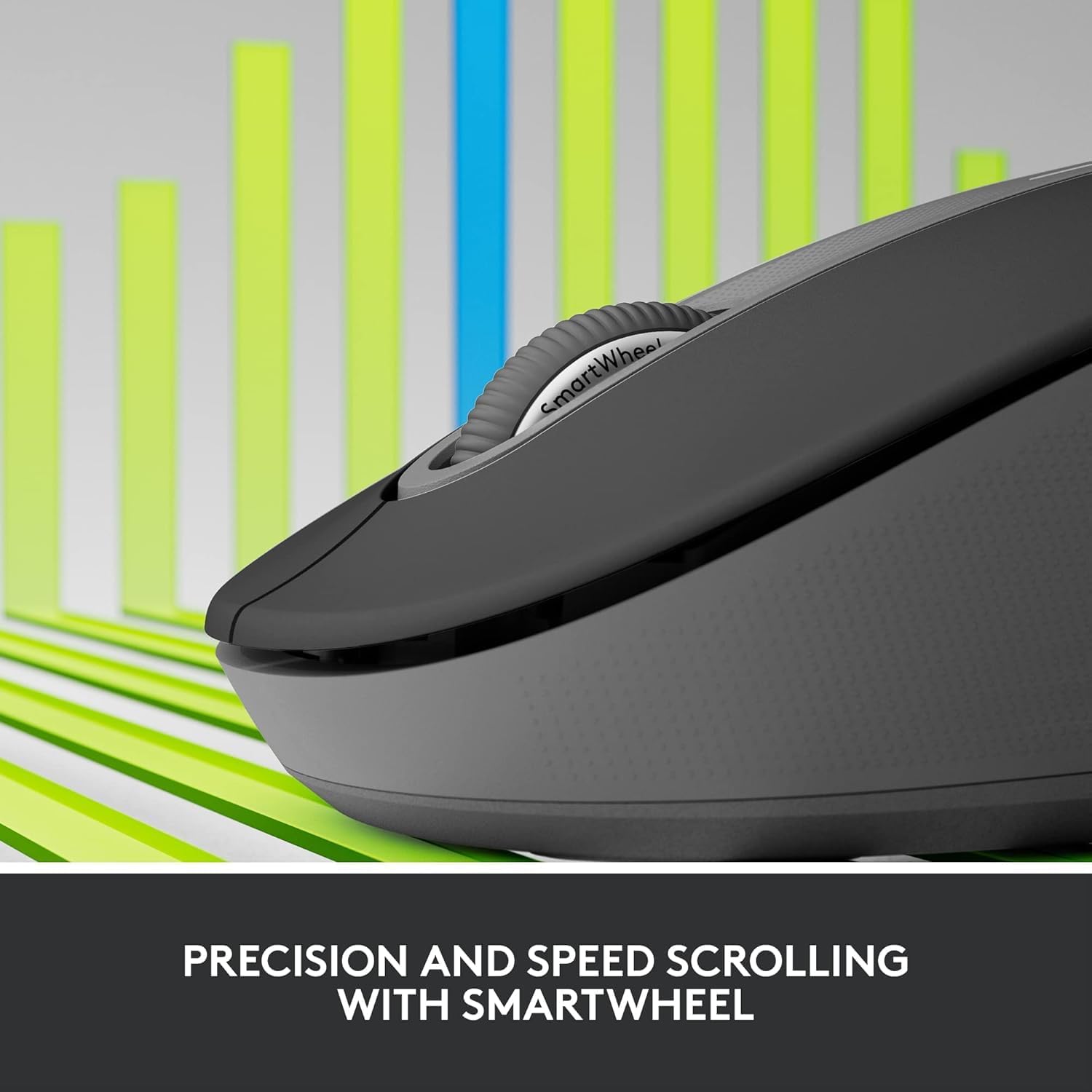
Image: A detailed close-up of the Logitech M650 mouse's SmartWheel, emphasizing its design for both precision and speed scrolling.
3.2. Customizable Side Buttons
The Signature M650 features two customizable side buttons. By default, these buttons may perform forward/back navigation in web browsers. To customize their functions, download and install the Logitech Options+ software from the official Logitech websíða.
3.3. SilentTouch tækni
Experience a quieter workspace with SilentTouch technology, which significantly reduces the sound of clicks without compromising the tactile feel.
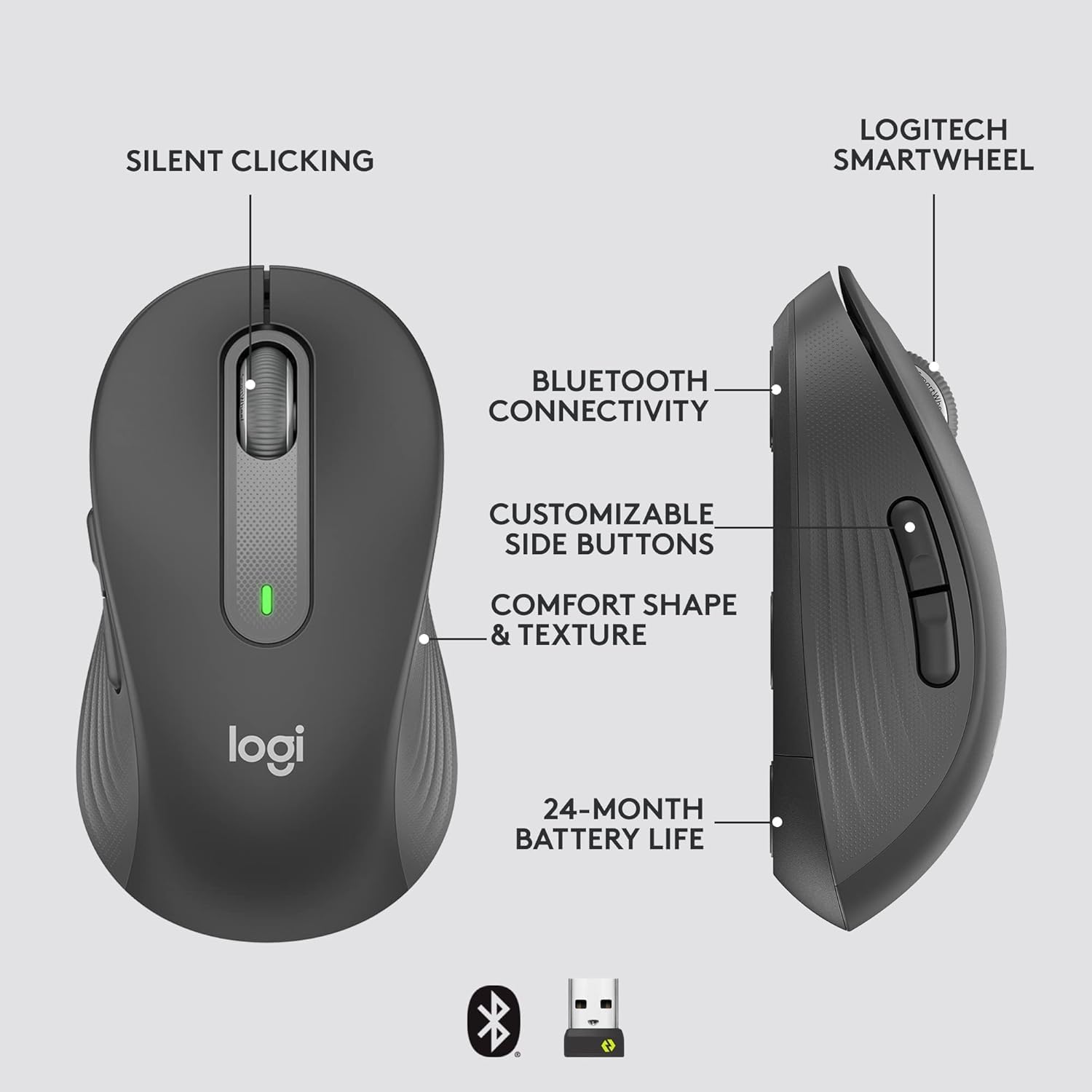
Image: An annotated diagram of the Logitech M650 mouse, highlighting key features such as Silent Clicking, Bluetooth Connectivity, Customizable Side Buttons, Comfort Shape & Texture, 24-Month Battery Life, and the Logitech SmartWheel.
4. Viðhald
4.1. Skipt um rafhlöðu
The mouse uses one AA battery. When the battery is low, the LED indicator on the mouse may flash. Replace the battery as described in Section 2.2.
4.2. Þrif
Til að þrífa músina skaltu nota mjúkan, lólausan klút. Fyrir þrjósk óhreinindi skaltu þurrka örlítið.ampÞvoið klútinn með vatni. Forðist að nota sterk efni eða slípiefni.
5. Bilanagreining
5.1. Músin svarar ekki
- Athugaðu rafhlöðu: Gakktu úr skugga um að rafhlaðan sé rétt sett í og nægilega hleðst. Skiptu um hana ef þörf krefur.
- Kveikt á: Verify the mouse is turned on using the power switch.
- Endurupptaka tengingu:
- Logi Bolt: Try plugging the receiver into a different USB port. Ensure no obstructions are between the mouse and receiver.
- Bluetooth: Go to your device's Bluetooth settings, remove the mouse, and re-pair it.
- Truflun: Move the mouse closer to the receiver or device. Avoid using the mouse near other wireless devices that might cause interference.
5.2. Óregluleg hreyfing bendils
- Hreinn skynjari: Gakktu úr skugga um að ljósneminn á neðri hluta músarinnar sé hreinn og laus við óhreinindi.
- Yfirborð: Notið músina á hreinu, endurskinslausu og jöfnu yfirborði. Músarmotta er ráðlögð.
6. Tæknilýsingar
| Eiginleiki | Forskrift |
|---|---|
| Gerðarnúmer | 910-006272 |
| Tengingar | Logi Bolt USB móttakari, Bluetooth lágorku |
| Skynjaratækni | Optískur |
| Tegund rafhlöðu | 1 x AA rafhlaða (fylgir) |
| Rafhlöðuending | Allt að 24 mánuðir |
| Dimensions (M650) | 4.22 x 2.43 x 1.49 tommur (10.7 x 6.17 x 3.78 cm) |
| Þyngd | 3.57 aura (101.2 g) |
| Litur | Grafít |
| Samhæfni stýrikerfis | Windows, macOS, Linux, Chrome OS, iPadOS, Android |

Image: A visual comparison of the Logitech M650 and M650 L mouse sizes, indicating their respective lengths of 10.5cm and 11.5cm.
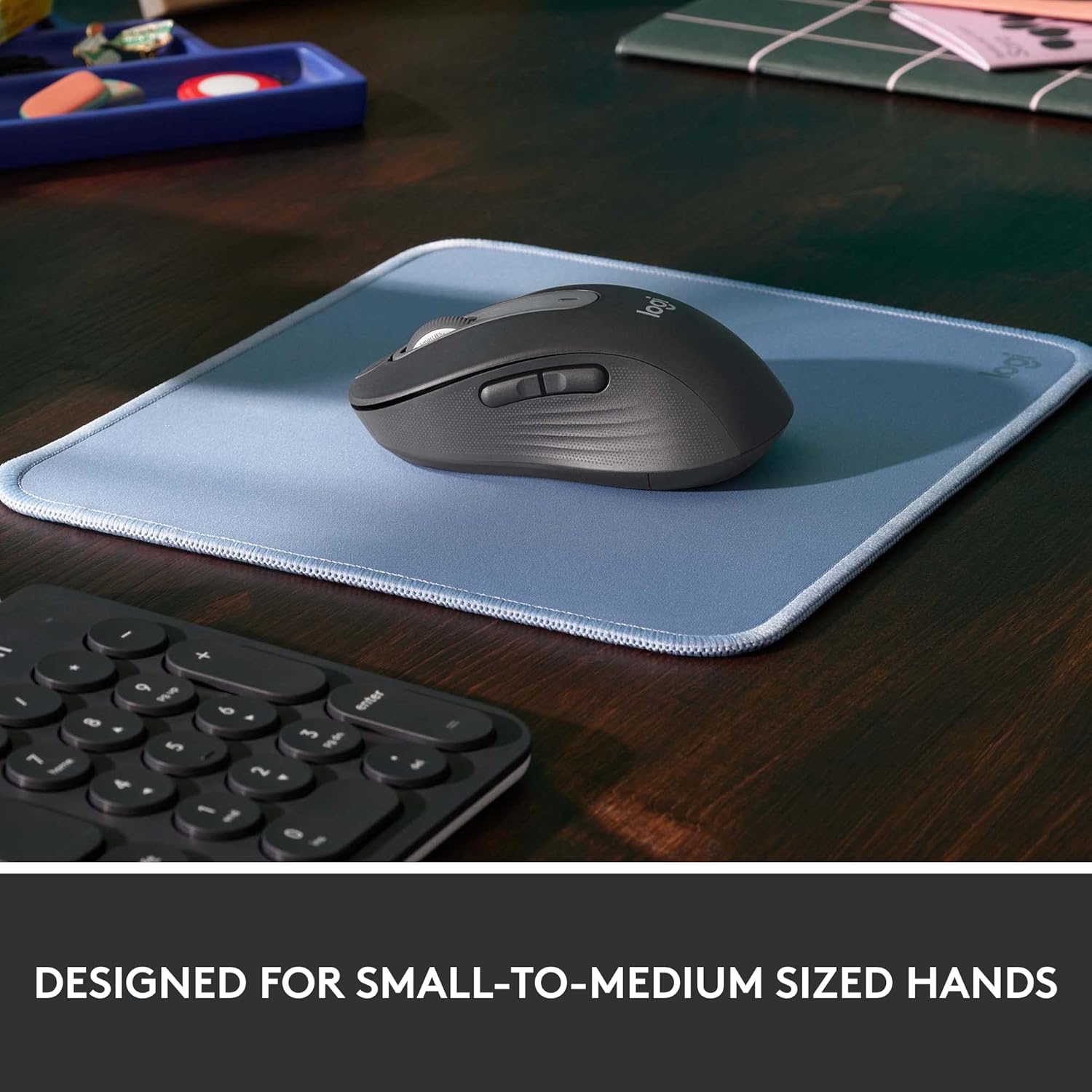
Image: The Logitech M650 mouse resting on a light blue mousepad, illustrating its ergonomic shape designed to fit comfortably in small to medium-sized hands.
7. Ábyrgð og stuðningur
Vörur frá Logitech eru framleiddar samkvæmt ströngustu gæðastöðlum. Nánari upplýsingar um ábyrgð er að finna á ábyrgðarkortinu sem fylgir vörunni eða á opinberri þjónustusíðu Logitech. websíða.
For technical assistance, troubleshooting, or to download the latest software and drivers, please visit the Logitech Support page:


