Inngangur
This manual provides detailed instructions for the setup, operation, and maintenance of your Pantum M6550NW/M6552NW Monochrome Multifunction Laser Printer. Please read this manual thoroughly before using the printer to ensure proper and safe operation.

Mynd: Framan view of the Pantum M6550NW/M6552NW Monochrome Multifunction Laser Printer.
Vara lokiðview
The Pantum M6550NW/M6552NW is a versatile monochrome laser printer designed for efficient printing, copying, and scanning. It features wireless and Ethernet networking capabilities, a compact design, and an intuitive LCD control panel.
Helstu eiginleikar
- Prentun, afritun, skönnunarvirkni
- USB, Network, and Wireless connectivity
- 20,000-page monthly duty cycle
- 150 sheets input tray capacity
- Up to 23 letter pages per minute print speed
- Sjálfvirkur skjalamatari (ADF)
- LCD Control Panel for easy operation
- One-step driver installation
- Stuðningur við farsímaprentun

Image: Diagram showing key components of the printer, including the All-in-One Toner Cartridge slot, Paper Input Tray, Auto Document Feeder, LCD Control Panel, and highlighting its small footprint and networking capabilities.
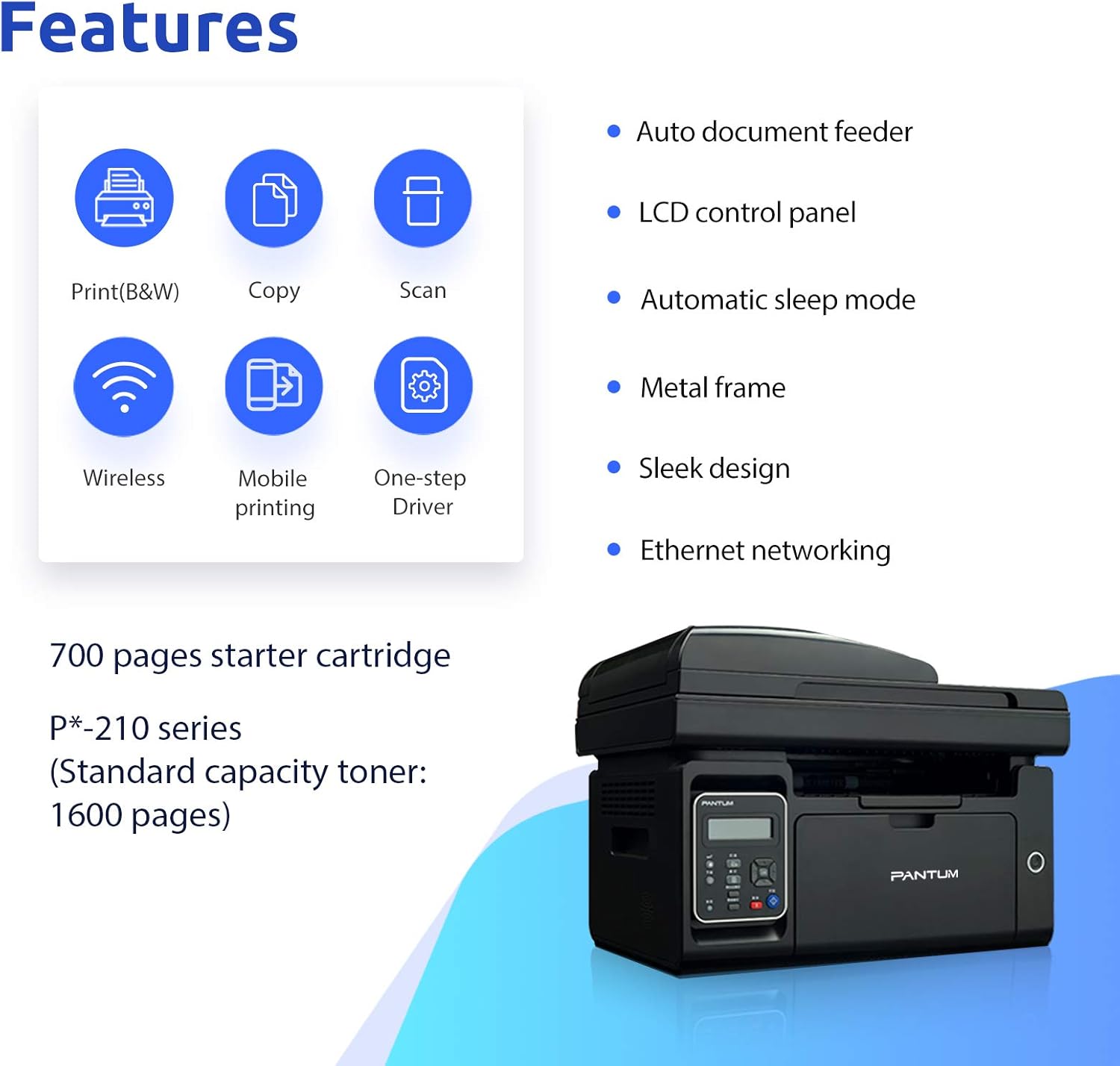
Image: Visual representation of the printer's core features: Print (B&W), Copy, Scan, Wireless, Mobile printing, and One-step Driver installation. Also notes the 700-page starter cartridge and P*-210 series standard capacity toner (1600 pages).
Uppsetning
Follow these steps for the initial setup of your printer.
1. Upptaka og athuga íhluti
Carefully remove the printer from its packaging. Verify that all included components are present:
- Pantum M6550NW/M6552NW Printer
- Rafmagnssnúra
- USB tengi snúru
- Starter toner cartridge
- Fljótleg uppsetningarleiðbeiningar
- CD-ROM (for drivers and software)

Image: Contents typically found in the printer box, including the printer, power cord, USB cable, starter cartridge, quick setup guide, and CD-ROM.
2. Uppsetning á dufthylki
Before first use, install the toner cartridge. Refer to the quick setup guide for specific instructions, but generally, this involves:
- Opnaðu framhlið prentarans.
- Carefully unpackage the toner cartridge.
- Remove any protective seals or tapes from the cartridge.
- Settu rörlykjuna í tilgreinda rauf þar til það smellur á sinn stað.
- Lokaðu framhliðinni.

Image: Step-by-step visual guide for installing the toner cartridge: 1) Take out the cartridge, 2) Remove the seal, 3) Install the cartridge.
3. Rafmagnstenging
Tengdu rafmagnssnúruna við prentarann og síðan við jarðtengda rafmagnsinnstungu.
4. Driver Installation and Connectivity
Install the printer drivers from the included CD-ROM or download the latest drivers from the official Pantum website. You can connect the printer via USB, Wi-Fi, or wired network.
- USB tenging: Tengdu prentarann við tölvuna þína með meðfylgjandi USB snúru.
- Wi-Fi tenging: Follow the on-screen instructions on the printer's LCD panel or use the setup wizard on your computer to connect to your wireless network. The printer supports Wi-Fi Hotspot direct connection.
- Þráðlaus nettenging: Tengdu Ethernet-snúru frá prentaranum við netleiðina þína eða rofa.

Image: Illustrations demonstrating the three easy driver installation and connection methods: USB, Wi-Fi, and wired network.
Notkunarleiðbeiningar
Notkun LCD-stjórnborðsins
The LCD control panel allows you to navigate printer functions, view status, and configure settings. Use the arrow keys and OK button to make selections.

Mynd: Nærmynd view of the printer's LCD control panel, showing buttons for navigation, status, copy functions, and start/cancel.
Prentun
Til að prenta skjal:
- Gakktu úr skugga um að prentarinn sé kveikt á og tengdur við tækið þitt.
- Settu pappír í inntaksbakkann.
- From your computer or mobile device, open the document you wish to print.
- Veldu prentvalkostinn (venjulega File > Prenta).
- Choose the Pantum M6550NW/M6552NW from the list of available printers.
- Stilltu prentstillingar (t.d. fjölda afrita, pappírsstærð, gæði) eftir þörfum.
- Smelltu á „Prenta“.
For mobile printing, download the Pantum app. It supports direct printing from your smartphone or tablet via Wi-Fi.

Image: Screenshot of the Pantum mobile application interface, demonstrating its capabilities for printing documents (Word, PDF, PPT, Excel, TXT) and scanning, highlighting easy wireless and mobile printing.
Afritun
Til að búa til afrit:
- Settu skjalið með framhliðina niður á skannaglerið eða með framhliðina upp í sjálfvirka skjalamatarann (ADF).
- Á stjórnborðinu skaltu velja aðgerðina „Afrita“.
- Adjust settings such as number of copies, copy quality, or enlargement/reduction if available.
- Ýttu á „Start“ hnappinn til að hefja afritun.
Skönnun
To scan a document:
- Settu skjalið með framhliðina niður á skannaglerið eða með framhliðina upp í sjálfvirka matarinn (ADF).
- From your computer, open the scanning software (usually installed with the printer drivers) or use the Pantum app on your mobile device.
- Select the "Scan" function.
- Veldu skannastillingar eins og upplausn, litastillingu og áfangamöppu.
- Click "Scan" to start the process.
Viðhald
Reglulegt viðhald tryggir bestu mögulegu afköst og lengir líftíma prentarans.
Þrif á prentaranum
- Þurrkaðu ytra byrði prentarans með mjúkum klút.amp, lófrír klút.
- Periodically clean the scanner glass with a glass cleaner applied to a cloth (not directly to the glass).
- Ekki nota slípiefni eða leysiefni.
Skipt um tónerhylki
When the toner is low or empty, the printer's LCD panel will display a message. Replace the cartridge as follows:
- Gakktu úr skugga um að kveikt sé á prentaranum.
- Opnaðu framhliðina.
- Fjarlægðu gamla dufthylkið varlega.
- Unpack the new Pantum P*-210 series toner cartridge and remove all protective materials.
- Insert the new cartridge firmly until it locks into place.
- Lokaðu framhliðinni.
Dispose of used toner cartridges according to local regulations.
Úrræðaleit
Þessi hluti fjallar um algeng vandamál sem þú gætir rekist á.
Prentari svarar ekki
- Athugaðu hvort prentarinn sé kveikt og hvort rafmagnssnúran sé vel tengd.
- Verify the USB cable is properly connected to both the printer and the computer, or that the Wi-Fi/Ethernet connection is active.
- Endurræstu bæði prentarann og tölvuna/tækið.
- Ensure the correct printer driver is installed and selected as the default printer.
Léleg prentgæði
- Check the toner level and replace the cartridge if it's low.
- Gakktu úr skugga um að þú notir viðeigandi pappír fyrir laserprentun.
- Clean the printer's internal components as per the maintenance section if streaks or smudges appear.
Connectivity Issues (Wi-Fi/Network)
- Gakktu úr skugga um að prentarinn sé innan seilingar þráðlausa leiðarins.
- Staðfestu að Wi-Fi lykilorðið sem slegið var inn sé rétt.
- Endurræstu leiðina og prentarann.
- Check your network settings on both the printer and your computer.
- If using a wired connection, ensure the Ethernet cable is securely plugged in.
Tæknilýsing
| Eiginleiki | Smáatriði |
|---|---|
| Fyrirmynd | M6550NW/M6552NW |
| Aðgerðir | Prenta, afrita, skanna |
| Prenttækni | Leysi (einlita) |
| Hámarksprentunarhraði (svartlitað) | 23 ppm (Letter) |
| Hámarks prentupplausn | 1200 x 1200 DPI |
| Tegund skanni | Blaðborð |
| Skannaupplausn | 1200 x 1200 DPI |
| Tengingar | USB 2.0, Wi-Fi, Ethernet |
| Stærð inntaksbakka | 150 blöð |
| Samhæf tæki | Snjallsímar (Android, iOS) |
| Vörumál | 16.42 x 12.01 x 11.85 cm |
| Þyngd hlutar | 9.02 kg |
| Innifalið íhlutir | USB cable, Starter Toner Cartridge |
Ábyrgð og stuðningur
For warranty information and technical support, please refer to the documentation included with your printer or visit the official PANTUM webGeymið kaupkvittunina sem sönnun fyrir kaup vegna ábyrgðarkröfu.


