1. Vöru lokiðview
The UOGIC Magic Keyboard Case transforms your iPad into a versatile workstation, offering a comfortable typing experience, a precision trackpad, and robust protection. Its floating magnetic design allows for easy attachment and adjustment, making it ideal for various tasks and environments.

Figure 1: UOGIC Magic Keyboard Case with iPad in typing position.

Figure 2: Versatile usage scenarios of the keyboard case.
2. Samhæfni
This keyboard case is designed for specific iPad models. Please confirm your iPad model before use.
- iPad Pro 11" (1st, 2nd, 3rd, 4th Generation): A1980, A2013, A1934, A1979, A2228, A2068, A2230, A2231, A2301, A2459, A2460, A2377, A2759, A2435, A2761, A2762
- iPad Air 10.9" (4th, 5th Generation): A2316, A2324, A2325, A2072, A2589, A2591, A2588
Note: This product is NOT compatible with iPad 10th Generation 10.9".

Figure 3: Visual guide for compatible iPad models.
3. Uppsetningarleiðbeiningar
3.1. Hleðsla lyklaborðsins
- Locate the USB-C charging port on the side of the keyboard case.
- Connect the provided USB-C cable to the charging port and plug the other end into a power source (e.g., wall adapter, computer USB port).
- Hleðsluljósið mun lýsast. Full hleðsla tekur venjulega um það bil 3 klukkustundir.
A fully charged keyboard provides up to 70 hours of continuous use or 90 days of standby time.
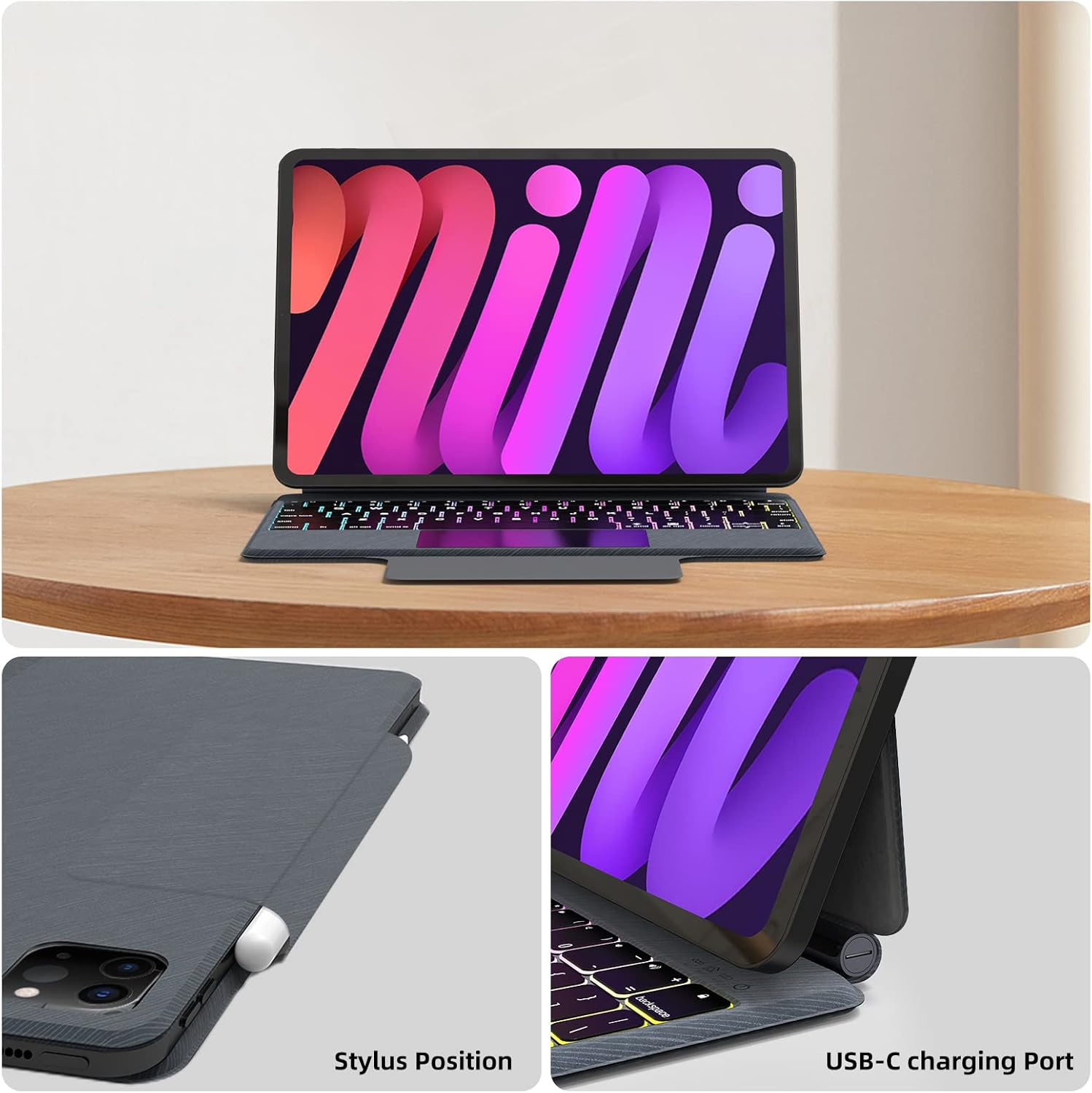
Figure 4: USB-C charging port location.
3.2. Tenging við iPad-inn þinn
- Opnaðu lyklaborðshólfið.
- Align your compatible iPad with the magnetic back panel of the case. The iPad will magnetically snap into place.
- Adjust the iPad to your desired viewing angle. The floating cantilever stand allows for flexible positioning.
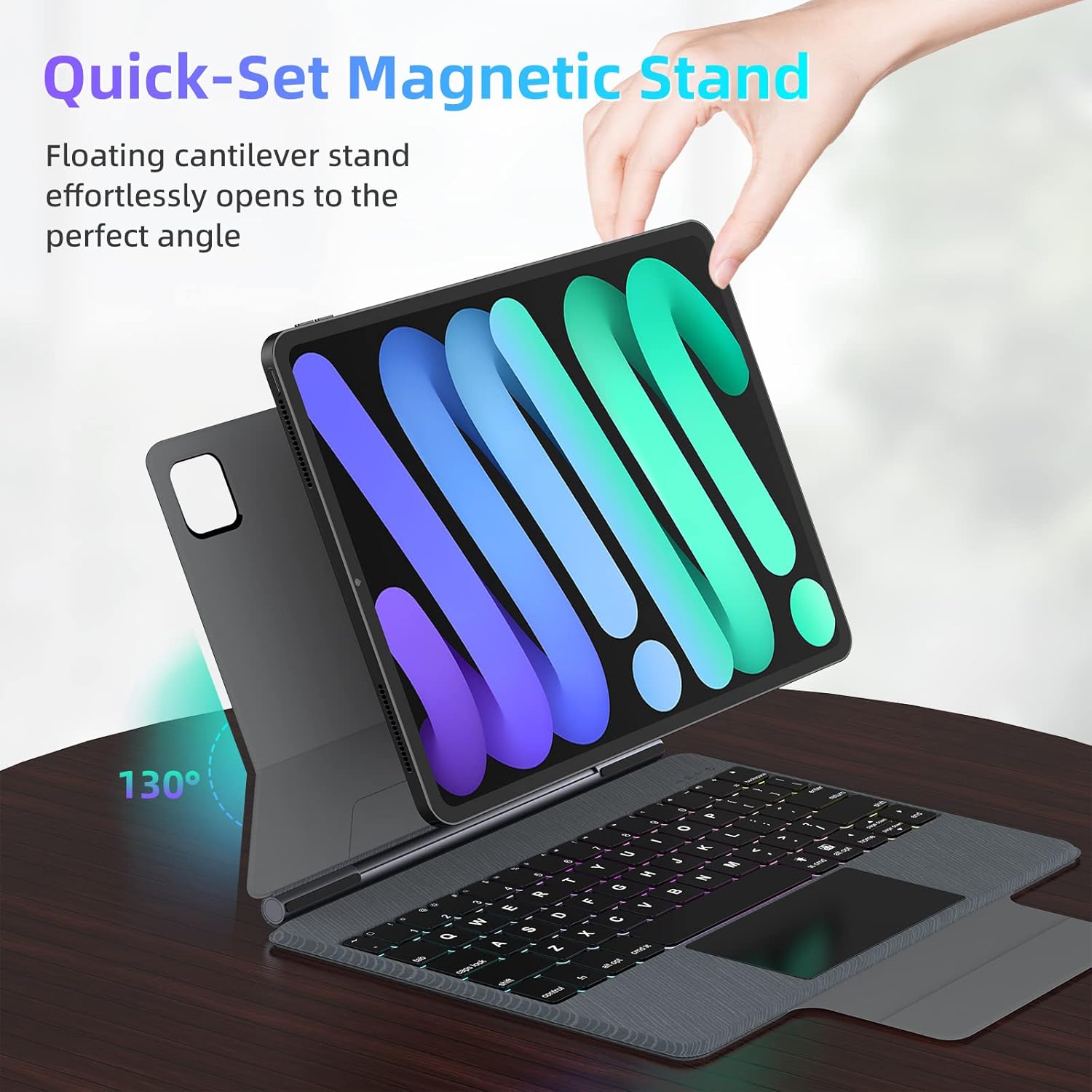
Figure 5: Floating magnetic design and adjustable stand.

Figure 6: Quick-set and folding stand mechanism.
3.3. Pörun Bluetooth
- Gakktu úr skugga um að lyklaborðið sé hlaðið og kveikt á.
- Á iPad-inu þínu, farðu á Stillingar > Bluetooth.
- Kveiktu á Bluetooth. iPadinn þinn mun leita að tækjum í nágrenninu.
- Select "UOGIC Keyboard" (or similar name) from the list of available devices.
- Fylgdu öllum leiðbeiningum á skjánum til að ljúka pörunarferlinu.
4. Notkunarleiðbeiningar
4.1. Lyklaborðsaðgerðir
- Baklýsing: The keyboard features 7 customizable backlight modes and 3 adjustable brightness levels. Use the dedicated backlight key (often Fn + Light icon) to cycle through modes and adjust brightness.
- Ergonomic Keys: The keys are designed for comfortable and efficient typing.
- Flýtileiðir: Utilize the top row of keys for quick access to iPadOS functions such as brightness, volume, and media controls.
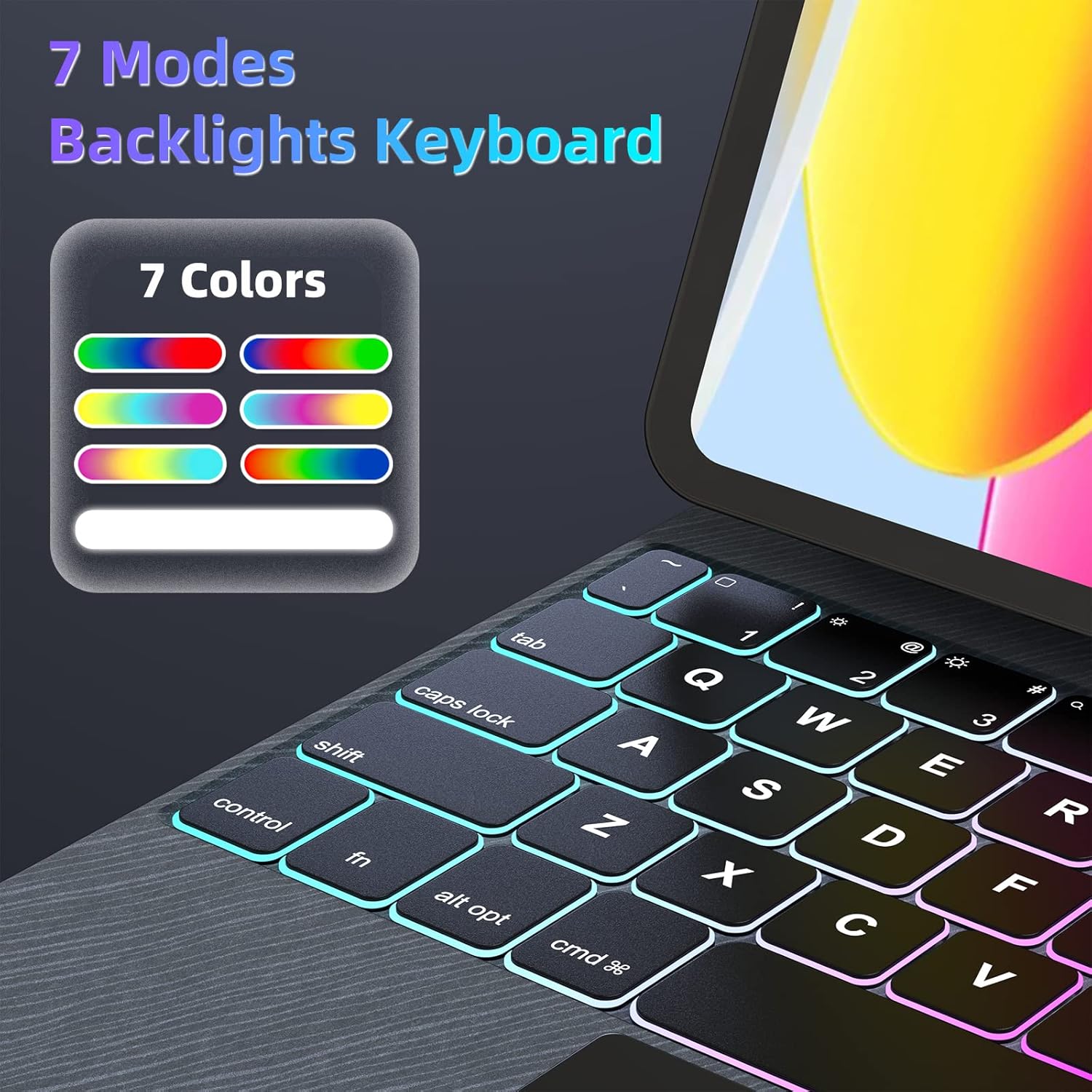
Figure 7: 7-Mode Backlight Keyboard.
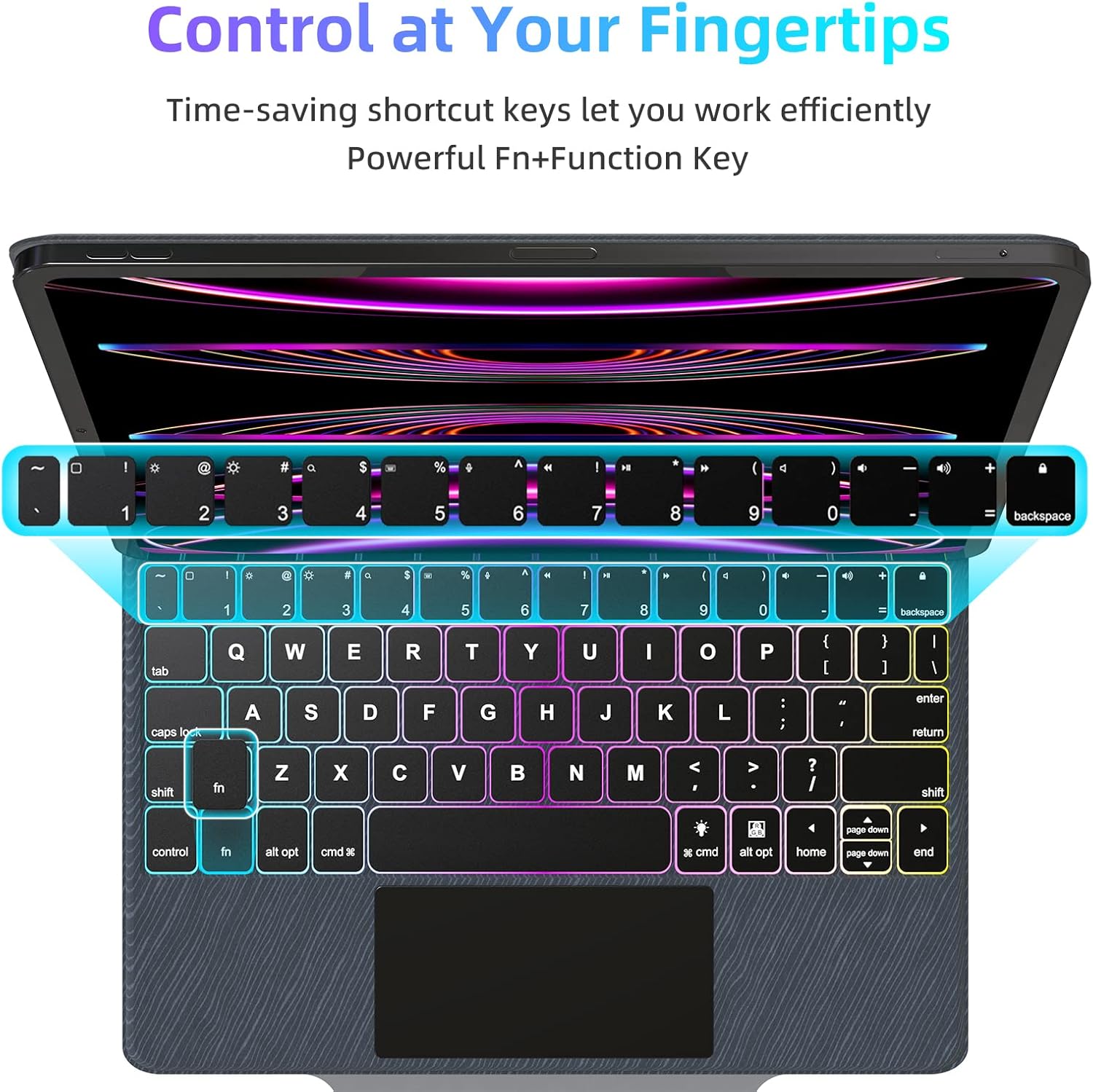
Figure 8: Keyboard shortcut keys for efficient control.

Figure 9: Scissor structure button key for tactile feedback.
4.2. Trackpad Functions
The precision trackpad supports full multi-touch gestures, enhancing navigation and productivity on your iPad.
- Bankaðu með einum fingri: Click/select.
- Tveggja fingra skrun: Skrunaðu upp/niður eða til vinstri/hægri.
- Klíptu til aðdráttar: Aðdráttur/fjarlæging á efni.
- Þriggja fingra strjúk upp: Farðu á heimaskjáinn.
- Þriggja fingra strjúka upp og halda inni: Opnaðu App Switcher.
- Þriggja fingra strjúk til vinstri/hægri: Skiptu á milli opinna forrita.
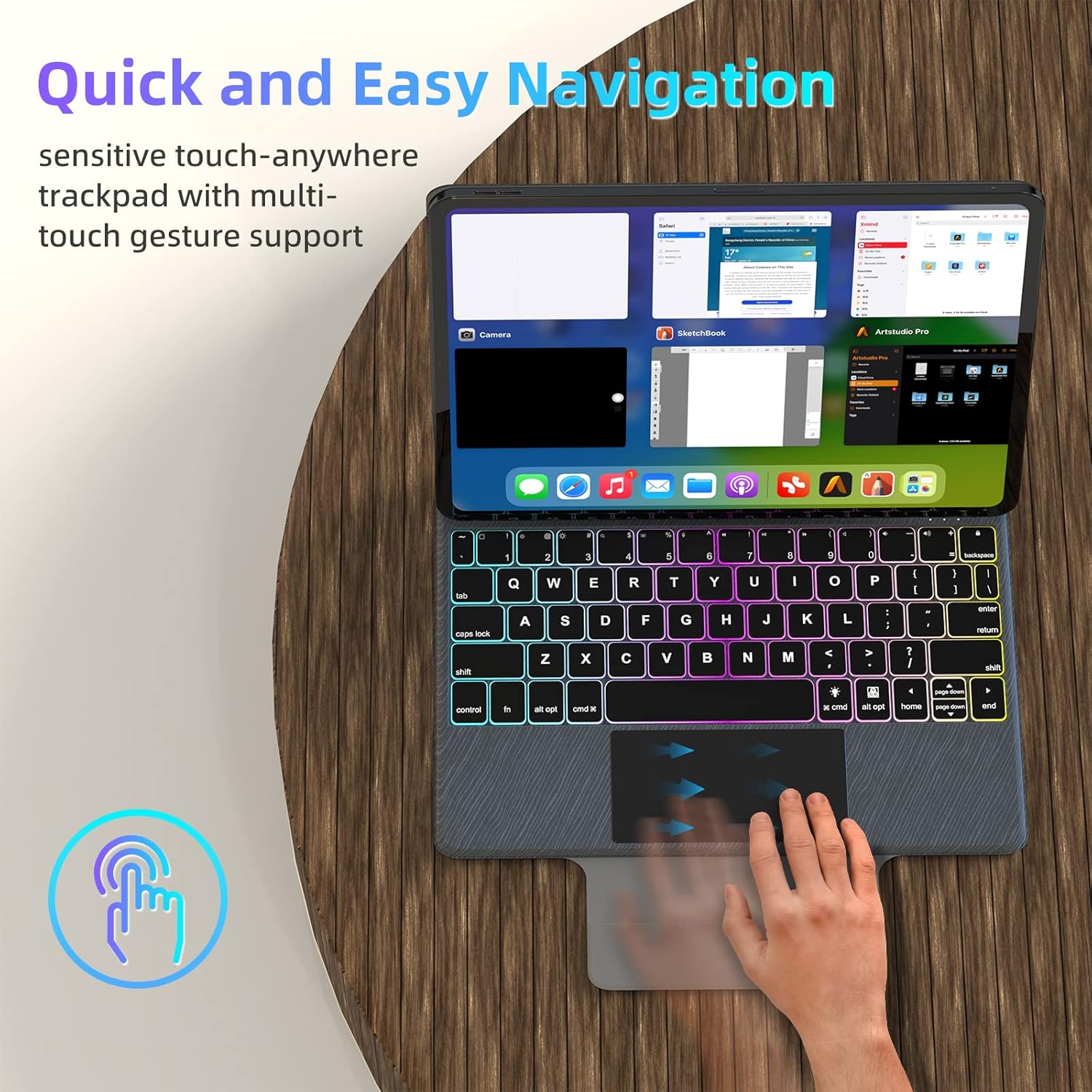
Figure 10: Multi-touch trackpad gestures.
4.3. Orkustjórnun
To conserve battery life, the keyboard case automatically enters sleep mode after 10 minutes of inactivity. It will wake up when a key is pressed or the trackpad is used.

Figure 11: Auto Sleep/Wake feature.
4.4. Stylus Position
The case includes a designated area for securely holding your stylus, ensuring it is always accessible and protected.

Figure 12: Stylus storage position.
5. Viðhald
5.1. Þrif
- Gently wipe the keyboard and trackpad surfaces with a soft, lint-free cloth.
- Fyrir þrjósk óhreinindi, örlítið dýftampÞurrkið klútinn með vatni eða mildu, ekki slípandi hreinsiefni. Forðist mikinn raka.
- Do not spray cleaners directly onto the keyboard or trackpad.
5.2. Geymsla
- When not in use, fold the case to protect both the iPad and the keyboard.
- Geymið kassann á köldum, þurrum stað fjarri beinu sólarljósi og miklum hita.
6. Bilanagreining
6.1. Lyklaborð tengist ekki
- Gakktu úr skugga um að lyklaborðið sé hlaðið og kveikt á.
- Check your iPad's Bluetooth settings to confirm Bluetooth is enabled and the keyboard is listed as 'Connected'. If not, try re-pairing.
- Endurræstu bæði iPadinn þinn og lyklaborðið.
6.2. Takkar svara ekki
- Staðfestu að lyklaborðið sé tengt í gegnum Bluetooth.
- Gakktu úr skugga um að rafhlaðan í lyklaborðinu sé nægilega hlaðin.
- Reyndu að aftengja Bluetooth-tenginguna og tengjast henni aftur.
6.3. Trackpad Issues
- Gakktu úr skugga um að yfirborð snertifletisins sé hreint og laust við óhreinindi.
- Check iPadOS settings for trackpad sensitivity and gesture configurations.
- If the trackpad is unresponsive, try restarting the keyboard and iPad.
6.4. Baklýsing virkar ekki
- Ensure the keyboard has sufficient battery charge, as backlighting consumes more power.
- Press the backlight key (often Fn + Light icon) to cycle through modes and brightness levels.
7. Tæknilýsing
| Eiginleiki | Smáatriði |
|---|---|
| Vörumerki | UOGIC |
| Samhæf tæki | iPad Pro 11" (1st/2nd/3rd/4th Gen), iPad Air 10.9" (4th/5th Gen) |
| Tengitækni | Bluetooth, USB-C for charging |
| Lýsing á lyklaborði | Multi Functional, Scissor Structure Button Key |
| Sérstakir eiginleikar | Backlit (7 modes, 3 brightness), Ergonomic, Rechargeable, Multi-Touch Trackpad, Floating Magnetic Design, Auto Sleep/Wake |
| Litur | Svartur |
| Efni | Akrýlónítríl bútadíen styren |
| Þyngd hlutar | 2.46 pund |
| Rafhlaða | 1 Lithium Ion rafhlaða (fylgir með) |
| Rafhlöðuending | Up to 70 hours continuous use, 90 days standby |
| Hleðslutími | Um það bil 3 klst |
8. Ábyrgð og stuðningur
UOGIC provides a 1-year warranty covering any quality-related issues with your Magic Keyboard Case.
For any questions or concerns, our 24/7 online customer support is available to assist you. Please refer to the product packaging or the official UOGIC webvefsíðu fyrir upplýsingar um tengiliði.


