1. Inngangur
This manual provides detailed instructions for the setup, operation, maintenance, and troubleshooting of your CUPEISI YQ10S MAX Android 15 Tablet. Please read this manual thoroughly before using your device to ensure proper functionality and to maximize your user experience. Keep this manual for future reference.

Image 1.1: CUPEISI YQ10S MAX Android 15 Tablet with included accessories (keyboard, mouse, stylus, and protective case).
2. Innihald pakka
Staðfestu að allir hlutir sem taldir eru upp hér að neðan séu til staðar í vöruumbúðunum þínum:
- CUPEISI YQ10S MAX Android 15 Tablet
- Þráðlaust lyklaborð
- Bluetooth mús
- Foldable Protective Cover
- Stíll
- Type-C kapall
- Hleðslutæki
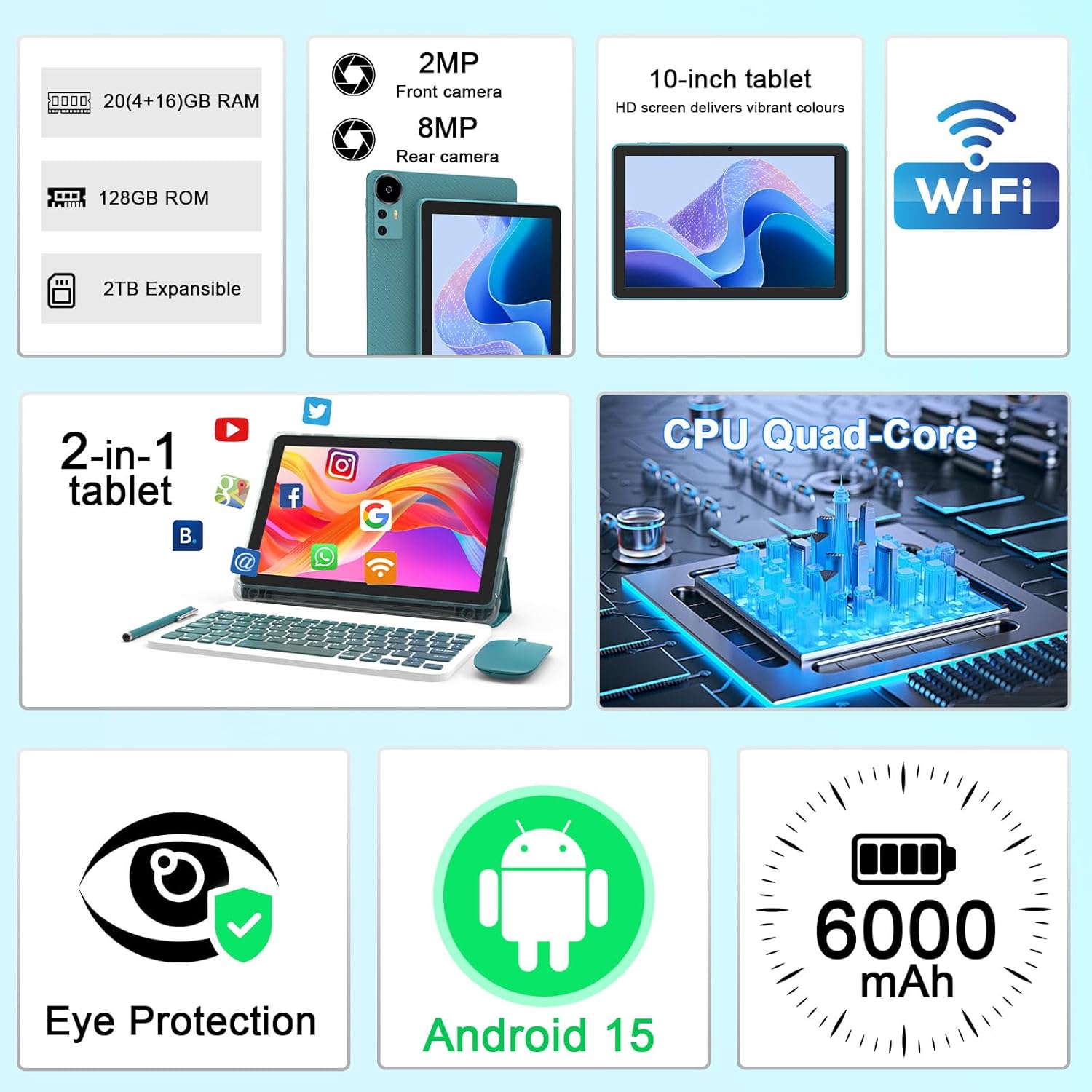
Mynd 2.1: Lokiðview of key features and included components.
3. Upphafsuppsetning
3.1 Kveikt/slökkt
- Til að kveikja á: Ýttu á og haltu inni rofanum sem er staðsettur á hlið spjaldtölvunnar þar til skjárinn lýsist upp.
- Til að slökkva á: Haltu inni rofanum og veldu síðan „Slökkva“ úr valkostunum sem birtast á skjánum.
- Til að endurræsa: Press and hold the power button, then select 'Restart' from the options.
3.2 Hleðsla spjaldtölvunnar
Hleðdu spjaldtölvuna að fullu fyrir fyrstu notkun. Notaðu meðfylgjandi Type-C snúru og hleðslutæki.
- Tengdu Type-C snúruna við hleðslutengi spjaldtölvunnar.
- Tengdu hinn enda snúrunnar við straumbreytinn.
- Stingdu straumbreytinum í innstungu.
- The battery icon on the screen will indicate charging status. A full charge typically takes several hours.

Image 3.1: Battery and charging information.
3.3 Connecting Accessories (Keyboard, Mouse, Stylus)
The tablet supports Bluetooth connectivity for the included keyboard and mouse.
- Virkja Bluetooth: Farðu til Stillingar > Tengd tæki > Bluetooth og kveiktu á því.
- Pair Keyboard/Mouse: Put the keyboard or mouse into pairing mode (refer to their individual instructions if needed). Select the device name from the list of available Bluetooth devices on your tablet to pair.
- Stíll: The included stylus is typically passive and does not require pairing. It can be used directly on the screen for navigation or drawing.
3.4 Wi-Fi tenging
Connect your tablet to a Wi-Fi network for internet access.
- Farðu til Stillingar > Net og internet > Wi-Fi.
- Turn on Wi-Fi. The tablet will scan for available networks.
- Veldu netið sem þú vilt af listanum.
- Ef beðið er um það, sláðu inn lykilorðið fyrir netið og pikkaðu á Tengdu.
4. Grunnaðgerð
4.1 Að vafra um Android 15
Your tablet runs on Android 15, offering an intuitive user interface. Swipe gestures, tap actions, and the navigation bar (Back, Home, Recents) are standard for interaction. The Google Mobile Services (GMS) certification ensures access to the Google Play Store and other Google applications.

Image 4.1: Android 15 operating system features.
4.2 Skjárstillingar
The 10.1-inch IPS display with 1280x800 resolution provides clear visuals. You can adjust display settings to suit your preferences:
- Birtustig: Stilltu birtustig skjásins úr flýtistillingarglugganum eða í Stillingar > Skjár.
- Lestrarhamur: Enable 'Reading Mode' in display settings to reduce blue light emission, which can enhance comfort during extended reading sessions.
- Leturstærð: Customize text size for better readability.

Image 4.2: Details of the 10.1-inch HD screen display.
4.3 Geymslustjórnun
The tablet features 128GB of internal storage and 20GB RAM (4GB physical + 16GB virtual expansion). Storage can be expanded up to 2TB using a microSD card (not included).
- Athugaðu geymslu: Farðu til Stillingar > Geymsla til view internal and external storage usage.
- Settu inn MicroSD kort: Locate the microSD card slot on the tablet, insert the card gently until it clicks into place.

Image 4.3: Storage and RAM configuration.
4.4 Notkun myndavélar
Spjaldtölvan er búin 8MP myndavél að aftan og 2MP myndavél að framan.
- Opna myndavélarforritið: Ýttu á myndavélartáknið á heimaskjánum þínum eða í appskúffunni.
- Skiptu um myndavél: Use the camera switch icon to toggle between front and rear cameras.
- Taka myndir/myndbönd: Ýttu á lokarahnappinn til að taka mynd eða hefja/stöðva myndbandsupptöku.

Image 4.4: Camera specifications and modes.
4.5 Margmiðlunarspilun
The tablet supports Widevine L1, enabling high-definition streaming from platforms like Netflix, Hulu, YouTube, and Prime Video.
- Tryggið stöðuga nettengingu til að hámarka gæði streymis.
- Download streaming apps from the Google Play Store.

Image 4.5: Widevine L1 support for multimedia streaming.
4.6 Fjölverkavinnsla
Android 15 enhances multitasking capabilities. Use the 'Recents' button to switch between open applications or utilize split-screen mode for running two apps simultaneously.
- Skipt skjár: From the 'Recents' view, tap the app icon at the top of an app's card and select 'Split screen'. Choose a second app to open alongside it.
- The included keyboard and mouse facilitate a laptop-like experience for productivity tasks.

Image 4.6: Tablet used in 2-in-1 mode with keyboard and mouse.
5. Umhirða og viðhald
5.1 Þrif
- Notið mjúkan, lólausan klút til að þrífa skjáinn og spjaldtölvuna.
- Forðist að nota sterk efni, slípiefni eða úðabrúsa.
- Ensure the tablet is powered off and unplugged before cleaning.
5.2 Umhirða rafhlöðu
- Forðist að láta spjaldtölvuna verða fyrir miklum hita (heitu eða köldu).
- Ekki láta spjaldtölvuna vera alveg tæma í langan tíma.
- Use only the provided charger and cable to prevent damage to the battery.
5.3 Hugbúnaðaruppfærslur
- Athugaðu reglulega hvort hugbúnaðaruppfærslur séu tiltækar og settu upp þær til að tryggja bestu mögulegu afköst, öryggi og aðgang að nýjum eiginleikum.
- Farðu til Stillingar > Kerfi > Kerfisuppfærsla til að athuga hvort uppfærslur séu tiltækar.
6. Bilanagreining
If you encounter issues with your tablet, refer to the following common problems and solutions:
6.1 Rafmagnsvandamál
- Spjaldtölvan kveikir ekki á sér: Gakktu úr skugga um að rafhlaðan sé hlaðin. Tengdu hleðslutækið og bíddu í nokkrar mínútur áður en þú reynir að kveikja aftur.
- Tablet freezes: Ýttu á rofann og haltu honum inni í um 10-15 sekúndur til að þvinga fram endurræsingu.
6.2 Tengingarvandamál
- Þráðlaust net tengist ekki: Check if Wi-Fi is enabled in settings. Restart your router and the tablet. Ensure you are entering the correct password.
- Bluetooth tæki parast ekki: Ensure the Bluetooth accessory is in pairing mode and within range. Restart Bluetooth on the tablet and try pairing again.
6.3 Afkastatöf
- Hæg frammistaða: Close unused applications running in the background. Clear cache data for frequently used apps. Consider adding a microSD card for additional storage if internal storage is nearly full.
- Forrit sem hrynja: Ensure apps are updated to their latest versions. Clear the app's cache and data (Stillingar > Forrit > [Nafn forrits] > Geymsla).
7. Vörulýsing
| Eiginleiki | Forskrift |
|---|---|
| Vörumerki | CUPEISI |
| Nafn líkans | CP31M (Item model number: YQ10S MAX) |
| Stýrikerfi | Android 15 |
| Skjástærð | 10.1 tommur |
| Skjáupplausn | 1280 x 800 pixlar (HD) |
| Örgjörvi | 2.0 GHz fjórkjarna |
| vinnsluminni | 20GB (4GB líkamlegt minni + 16GB útvíkkun) |
| Innri geymsla | 128 GB |
| Stækkanlegt geymsla | Up to 2TB with microSD card (not included) |
| Þráðlaus gerð | 802.11ax (Wi-Fi 6.0, 2.4G/5G) |
| Bluetooth | BT 5.0 |
| Myndavél að aftan | 8 MP |
| Myndavél að framan | 2 MP |
| Rafhlöðugeta | 6000 mAh |
| Meðal rafhlöðuending | 6-8 klukkustundir (háð notkun) |
| Mál (LxBxH) | 9.7 x 6.5 x 0.3 tommur |
| Þyngd hlutar | 0.176 aura |
| Litur | NavyBlue |
8. Ábyrgð og stuðningur
For warranty information, please refer to the warranty card included in your product packaging or contact CUPEISI customer support directly. If you require technical assistance or have questions not covered in this manual, please reach out to our support team through the contact information provided with your purchase.


