1. Inngangur og samhæfni
This manual provides detailed instructions for the installation, operation, and maintenance of your autoabc Wireless CarPlay/Android Auto 8.9-inch Linux Touchscreen Multimedia Radio Receiver. This device is designed to upgrade your vehicle's infotainment system while retaining original car functionalities.
1.1. Samhæfni ökutækja
This product is specifically designed for the following BMW models with a CCC-System:
- BMW 3 Series: E90, E91, E92, E93 (2005-2010)
- BMW 5 Series: E60, E63, E64 (2005-2010)
Mikilvægt: Please verify your vehicle's system is a CCC-System before purchase and installation. If you are unsure, consult a professional or contact autoabc customer support.

Image 1.1: Compatibility chart for BMW E-series models and CCC system.
2. Helstu eiginleikar
The autoabc Multimedia Radio Receiver offers a range of advanced features to enhance your driving experience:
- Wireless and Wired CarPlay/Android Auto: Seamlessly integrate your smartphone for navigation, music, calls, and more using intelligent voice assistants.
- High-Definition 8.9-inch Touchscreen: A 1920 x 720 resolution LED display provides a clear and vibrant visual experience.
- Original Feature Retention: Maintains all original car functions, including radio, amplifier, joystick control, rearview camera, and vehicle information display (speed, fuel, oil pressure, safety warnings).
- Margar eftirlitsaðferðir: Supports control via the original car knob, steering wheel buttons, and the new touchscreen interface.
- Skjáspeglun: Features Airplay and Autolink for mirroring your phone's screen, and supports USB media playback.
- Stuðningur við myndavél: Compatible with factory original reverse cameras, parking radar, and aftermarket front view DVR (AHD/CVBS).

Image 2.1: Control methods supported by the system, including original car knob, steering wheel buttons, and the new touchscreen. Also highlights camera support.

Image 2.2: Visual representation of screen mirroring capabilities (Airplay, Autolink) and USB media playback.
3. Uppsetning og uppsetning
3.1. Pre-Installation Notice: AUX Function Activation
Due to the age of some compatible car models, the AUX function may not be active by default. It is crucial to activate the AUX function in your car before using this product to ensure audio output. You can activate the AUX function using a dedicated activator tool or by seeking assistance from a car dealership or a qualified car repair shop.
3.2. Uppsetningu lokiðview
Installation involves replacing the original display screen and connecting the new unit with the provided cables. While the installation is designed to be straightforward, professional installation is recommended if you are not familiar with car electronics. An installation video may be available; please check the product page or contact customer support for guidance.
Innifalið íhlutir:
- Aðalskjáeining
- Rafmagnssnúra
- USB snúru
- AUX snúru
- Notendahandbók
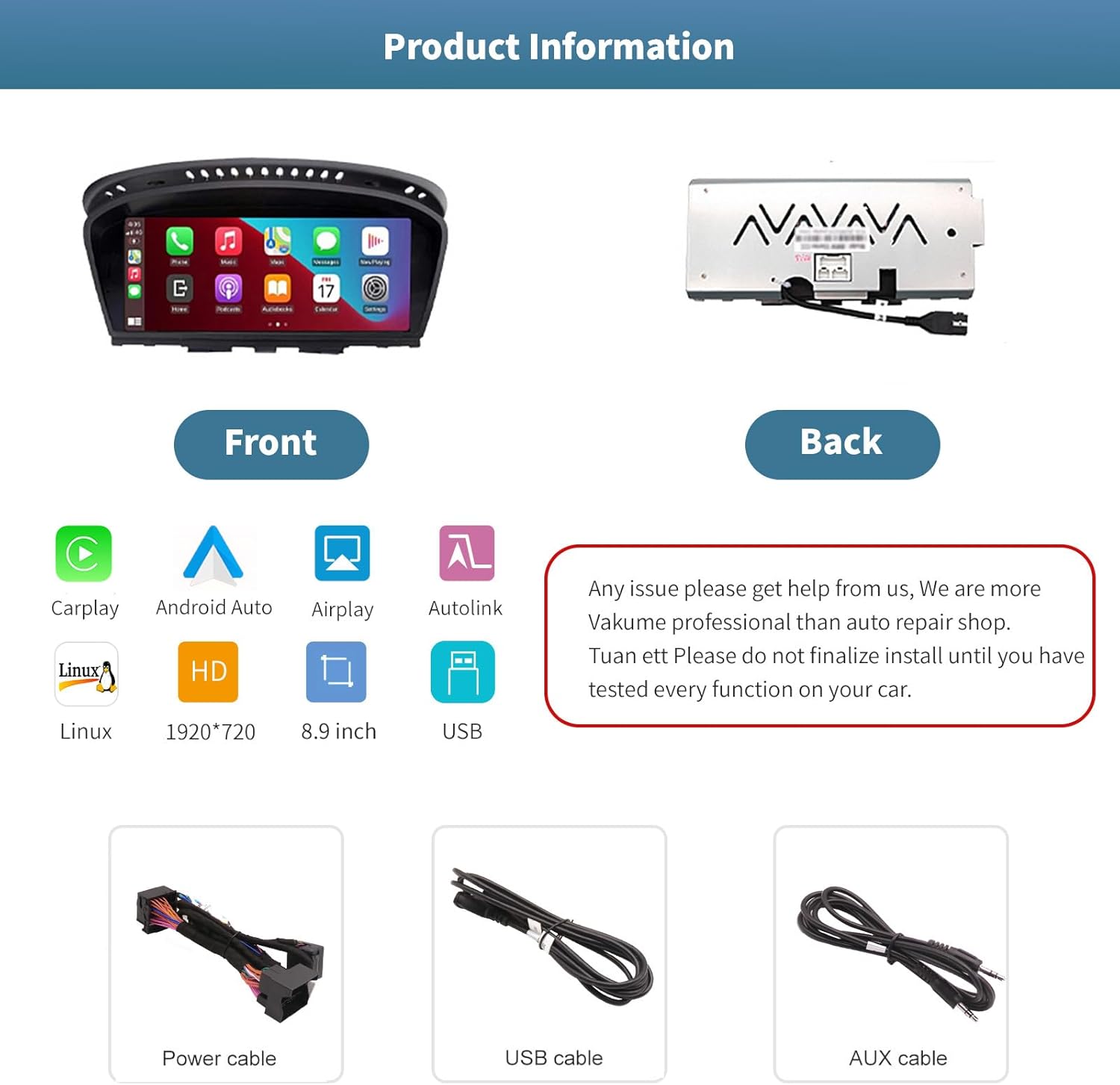
Mynd 3.1: Framan og aftan views of the autoabc multimedia receiver, along with the included power, USB, and AUX cables.
Athugið: Do not finalize the installation until you have tested every function on your car. For any installation issues, please contact autoabc support.
4. Rekstur
4.1. Switching Between Systems
The unit allows for one-button switching between your original BMW iDrive system and the new Linux-based multimedia system. This ensures you can access all original car functions while enjoying the new features.

Image 4.1: Interface showing the option to switch between the original car system and the new Linux system.
4.2. Using CarPlay and Android Auto
Once connected wirelessly or via USB, CarPlay or Android Auto will launch, providing access to your phone's navigation, communication, and entertainment apps directly on the 8.9-inch touchscreen. Use voice commands or the touchscreen for safe operation while driving.

Image 4.2: The autoabc multimedia receiver installed in a BMW, showcasing the CarPlay/Android Auto interface.
4.3. Screen Mirroring (Airplay/Autolink)
Utilize Airplay for iOS devices or Autolink for Android devices to mirror your smartphone's screen onto the unit's display. This allows you to view photos, videos, and other content directly from your phone.
4.4. Customizing the Startup Screen
You can personalize the startup logo of your unit. Follow these steps:
- Create a PNG image with a resolution of 1920 x 720 pixels.
- Rename the image file to 'updatelogo.png'.
- Place the 'updatelogo.png' file in the root directory of a USB drive.
- Insert the USB drive into the reserved USB port on the unit. A prompt will confirm the logo change is successful.
- Restart the car to apply the new startup logo.

Image 4.3: Step-by-step guide for customizing the unit's startup logo.
5. Viðhald
To ensure the longevity and optimal performance of your autoabc multimedia receiver, follow these general maintenance guidelines:
- Skjárhreinsun: Notið mjúkan, lólausan klút til að þurrka snertiskjáinn varlega. Fyrir þrjósk bletti, strjúkið örlítiðampÞurrkið klútinn með vatni eða skjáþolnu hreinsiefni. Forðist sterk efni eða slípiefni.
- Forðastu mikla hitastig: Ekki láta tækið verða fyrir miklum hita eða kulda í langan tíma, þar sem það getur haft áhrif á rafeindabúnað þess.
- Kapalstjórnun: Ensure all cables are securely connected and not pinched or strained, which could lead to damage or intermittent connectivity.
6. Bilanagreining
If you encounter issues with your autoabc multimedia receiver, refer to the following common problems and solutions:
- Ekkert hljóðúttak:
- Ensure the AUX function in your car's original system is activated. This is a common requirement for audio output.
- Check all audio cable connections, especially the AUX cable.
- Tengingarvandamál við CarPlay/Android Auto:
- Verify your phone's Bluetooth and Wi-Fi are enabled and correctly paired with the unit.
- Endurræstu bæði símann þinn og upplýsinga- og afþreyingarkerfi bílsins.
- Gakktu úr skugga um að stýrikerfi símans þíns sé uppfært.
- Microphone Echo or Poor Call Quality:
- Check for any obstructions near the microphone.
- Adjust the microphone sensitivity settings if available in the unit's menu.
- Ensure your phone's volume is not excessively high, which can cause feedback.
- Skjárinn svarar ekki snertingu:
- Endurræstu tækið.
- Gakktu úr skugga um að skjárinn sé hreinn og laus við óhreinindi.
- AirPlay/Autolink Connection Failure:
- Ensure both the unit and your phone are connected to the same Wi-Fi network (if applicable for the mirroring method).
- Follow the specific connection steps for AirPlay or Autolink as detailed in the unit's on-screen instructions or a supplementary guide.
If these steps do not resolve the issue, please contact autoabc customer support for further assistance.
7. Tæknilýsing
| Eiginleiki | Forskrift |
|---|---|
| Skjárstærð | 8.9 tommur |
| Skjáupplausn | 1920 x 720 |
| Stýrikerfi | Linux (supports Android Auto, CarPlay) |
| Tengitækni | Bluetooth, Wireless (for CarPlay/Android Auto) |
| Sérstakur eiginleiki | Snertiskjár |
| Eftirlitsaðferð | Touchscreen, Voice Command, Original Car Knob, Steering Wheel Buttons |
| Gerð uppsetningar | Pallborðsfesting |
| Þyngd hlutar | 3.12 pund (1.42 kíló) |
| Stærðir pakka | 11.81 x 7.24 x 6.73 tommur |
8. Ábyrgð og stuðningur
autoabc is committed to providing excellent customer service and support for your product.
8.1. Upplýsingar um ábyrgð
- One-Year Global Warranty: Your product is covered by a one-year global warranty from the date of purchase.
- 12 Months Replacement: Replacement is available within 12 months for eligible issues.
- 60 Days No Worry Return: Enjoy a 60-day return policy for your peace of mind.
8.2. Tæknileg aðstoð
- LIFETIME Technical Service Support: autoabc provides lifetime technical support for your product.
- 24 tíma fljótlegt svar: Expect a quick response to your inquiries within 24 hours.
- Hafðu samband: For any questions, issues, or technical assistance, please contact us via Amazon Email. Our team is ready to provide reliable online technical support.

Mynd 8.1: Lokiðview of autoabc's customer support and warranty commitments.


