Inngangur
This manual provides comprehensive instructions for the setup, operation, maintenance, and troubleshooting of your ASprink D520BT Bluetooth Thermal Label Printer. Designed for efficiency and ease of use, this printer is ideal for small businesses, supporting various platforms and label types. Please read this manual thoroughly to ensure optimal performance and longevity of your device.

Image: The ASprink D520BT printer in operation, demonstrating its compact design and label printing capability.
Innihald pakka
Þegar þú tekur úr kassanum skaltu ganga úr skugga um að allir eftirfarandi hlutir séu í pakkanum:
- 1 x ASprink D520BT Label Printer
- 1 x Power Adapter & Cable
- 1 x USB snúru
- 1 x Roll of 4"x6" Roll Labels (for initial testing)
- 1 x Notendahandbók (þetta skjal)

Image: An illustration showing all components included in the ASprink D520BT printer package.
Uppsetningarleiðbeiningar
1. Rafmagnstenging
- Tengdu rafmagnstengið við rafmagnstengið á prentaranum.
- Stingdu rafmagnssnúrunni í venjulega rafmagnsinnstungu.
- Turn on the printer using the power switch. The LED indicator should light up.
2. Hleðsla merkimiða
The D520BT printer supports both roll paper loaded internally and fanfold paper loaded from the rear.
For Roll Paper:
- Open the paper bin cover of the printer.
- Install the roll labels with the print face up.
- Adjust the paper guides to ensure the labels are straight and snug.
- Lokaðu prentaralokinu.
For Fanfold Paper:
- Insert the fanfold paper from the back of the printer.
- Ensure the paper is aligned correctly with the input slot.

Image: A visual guide demonstrating the four steps to properly install roll paper into the printer.

Image: An illustration showing how to load both folding (fanfold) paper and roll paper into the printer.
3. Initial Calibration (Automatic Label Identification)
After loading the labels, perform the automatic label identification to ensure proper alignment and detection.
- Kveiktu á prentaranum.
- Press and hold the feed button (usually located on top of the printer) for approximately 3 seconds.
- Release the button. The printer will automatically detect the label size and calibrate.
- Double-click the feed button to print a test page and confirm calibration.
Notkunarleiðbeiningar
Tengimöguleikar
The ASprink D520BT offers versatile connectivity for various devices.
- Bluetooth-tenging: Compatible with Android, iOS, Mac, and Windows devices. Requires the "Labelife" app for direct connection.
- USB tenging: Supports all computer systems, including Chrome OS, Mac, and Windows.

Image: The printer's compatibility with various operating systems and devices for both Bluetooth and USB connections.
Samhæfni pallur
The ASprink D520BT printer is designed to work with virtually all major shipping and e-commerce platforms. This includes, but is not limited to, USPS, UPS, eBay, Etsy, Shopify, Amazon, PayPal, Poshmark, Square, BigCommerce, Mercari, and Wix. For all platforms, you must first download the labels to be printed from the corresponding platform, then upload them to the "Labelife" editor app for printing.
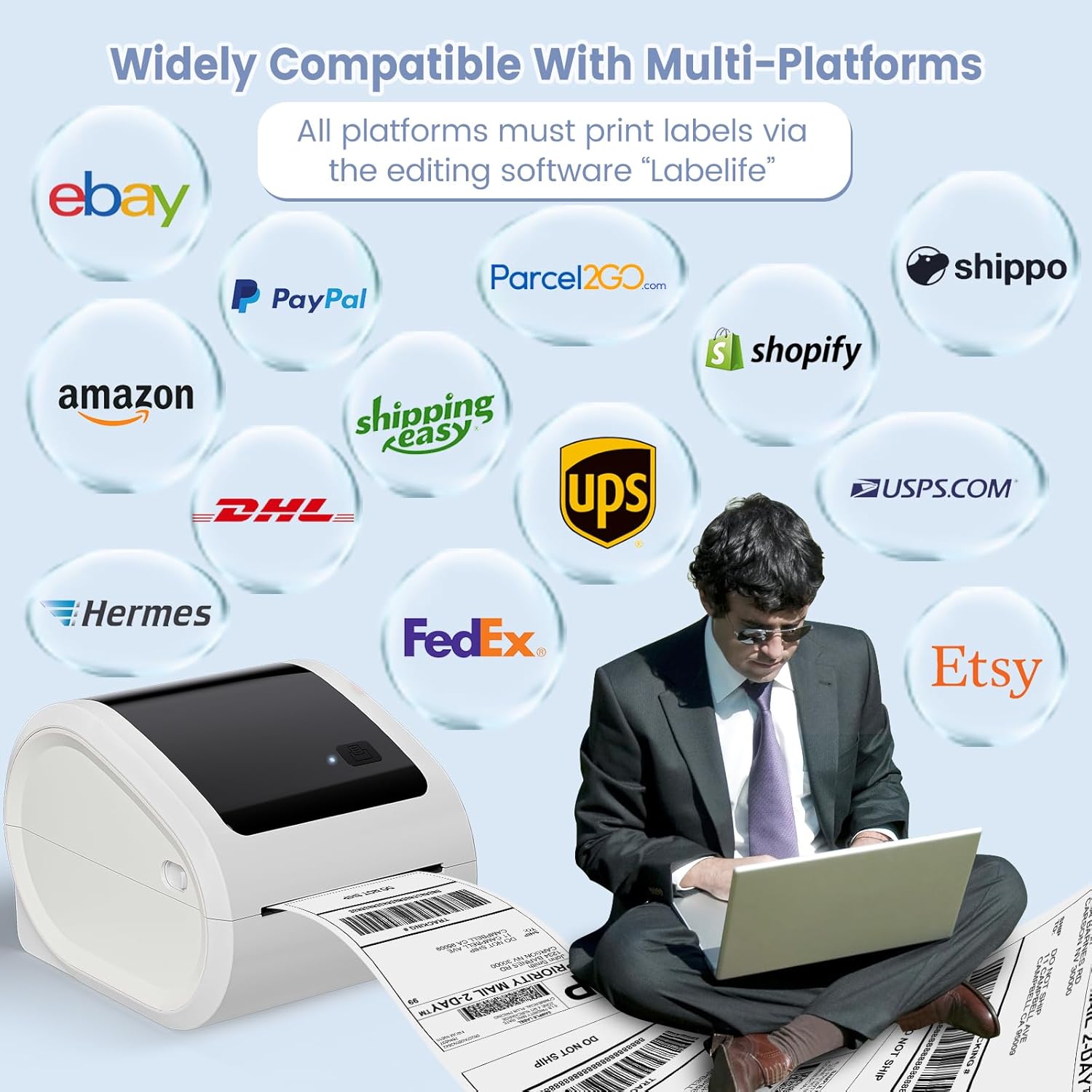
Image: An illustration demonstrating the wide compatibility of the ASprink D520BT printer with numerous e-commerce and shipping platforms.
Using the "Labelife" Application
The "Labelife" app is essential for Bluetooth connectivity and offers robust editing and printing features.
Printing with Phone via Bluetooth:
- Skref 1: Skannaðu QR kóðann eða farðu í heimsókn aimotech.com/labelife/analysis.html to download the "Labelife" app from Google Play or the App Store.
- Skref 2: Turn on your phone's Bluetooth and connect to your label printer within the "Labelife" app. Note: Devices cannot be directly connected to Bluetooth outside the app.
- Skref 3: Import your label file (e.g., PDF) into the app. You can also upload labels from other platforms (USPS, Shopify, Amazon, etc.) to the editor for printing. Choose the size and crop your label, then click to print.

Image: A step-by-step visual guide on how to print labels using a smartphone and the Labelife app via Bluetooth.
Printing with PC via Bluetooth:
- Skref 1: Plug in the power cord of the printer and turn it on.
- Skref 2: Download the "Labelife" application from the official websíðuna á tölvuna þína.
- Skref 3: Connect the printer's Bluetooth in the "Labelife" app instead of setting it up in the PC's Bluetooth settings.
- Skref 4: Edit your printed labels on the app and start printing.

Image: A visual guide detailing the process of printing labels from a PC using Bluetooth connectivity and the Labelife application.
Printing with PC via USB:
- Skref 1: Connect the printer and your PC simultaneously with the USB cable.
- Skref 2: Sækja bílstjóri fyrir prentarann frá opinbera websíðuna og settu hana upp á tölvunni þinni.
- Skref 3: Open the document you want to print directly and select "Print." You do not need to print in the app for USB connections.
- Skref 4: Set and edit the label settings in your print dialogue and start printing.

Image: A visual guide outlining the steps for printing labels from a PC using a USB connection.
Supported Label Types and Sizes
The ASprink D520BT printer is compatible with thermal labels ranging from 1 inch to 4.6 inches in width. This includes standard shipping labels (e.g., 4"x6"), as well as smaller labels for various applications.

Mynd: Myndskreytingasing the versatility of the D520BT printer, capable of printing various label sizes from 1" to 4.6" in width, including shipping labels, barcodes, and small product labels.

Image: The printer's internal mechanism with an adjustable baffle, highlighting its compatibility with a wide range of thermal labels from 1" to 4.6" in width, including circular and square labels.
The printer features a built-in large label bin, which can accommodate roll paper inside, eliminating the need for an external label holder and saving desk space. It also includes an adjustable guide rail and automatic location detection for precise label feeding.

Mynd: Ítarleg view of the printer's internal design, emphasizing the built-in label bin, automatic location detection, and adjustable guide rail for various label sizes.
Viðhald
Þrif á prentaranum
Regular cleaning ensures optimal print quality and extends the life of your thermal printer.
- Prenthaus: Use an alcohol swab or a specialized thermal printer cleaning pen to gently wipe the print head. Ensure the printer is off and cooled down before cleaning.
- Platenrúlla: Rotate the platen roller and wipe it with an alcohol swab to remove any adhesive residue or dust.
- Að utan: Þurrkaðu ytra byrði prentarans með mjúkum klút.amp klút. Forðist að nota sterk efni eða slípiefni.
Geymsla
Store the printer in a cool, dry place away from direct sunlight and extreme temperatures. When not in use for extended periods, disconnect it from the power source.
Úrræðaleit
LED Status Light Indicators
The LED light on your D520BT printer provides important status information:
- Fjólublátt: Prentun í gangi.
- Blár blikkandi: Printing is paused.
- Rauður fastur: Printer cover is not closed properly.
- Purple Flashing: Print head is overheating. Allow the printer to cool down.
- Gult blátt: The printer is in standby mode and ready for use.
- Rautt blikkandi: Indicates a label jam, paper shortage, or label detection error.

Image: A comprehensive guide to understanding the different LED light indicators on the D520BT printer and their corresponding statuses.
Algeng vandamál og lausnir
- Enginn kraftur:
Ensure the power cable is securely connected to both the printer and the power outlet. Check if the power switch is in the 'On' position.
- Prentari svarar ekki:
Check the LED status light for error indications. Ensure the correct connection method (Bluetooth or USB) is selected and properly configured in your device's settings or the "Labelife" app.
- Léleg prentgæði:
Clean the print head and platen roller as described in the Maintenance section. Ensure you are using high-quality thermal labels. Adjust print density settings in the "Labelife" app or printer driver if available.
- Labels Not Feeding Correctly / Jamming:
Ensure labels are loaded correctly and the paper guides are adjusted snugly against the label edges. Perform automatic label identification (hold feed button for 3 seconds). Check for any obstructions in the paper path.
- Vandamál með Bluetooth-tengingu:
Ensure Bluetooth is enabled on your device. Make sure you are connecting through the "Labelife" app, not directly through your device's Bluetooth settings. Restart both the printer and your device. Ensure you are within the 5-8m Bluetooth range.
Tæknilýsing
| Eiginleiki | Forskrift |
|---|---|
| Nafn líkans | D520BT LabelPrinter |
| Tegundarnúmer vöru | D520BT-WH |
| Prenttækni | Hitauppstreymi |
| Tengitækni | Bluetooth, USB |
| Hámarksstærð miðils | 4.6 tommur |
| Sheet Size (Paper Width) | 1" - 4.6" (25.4-117mm) |
| Hámarksprentunarhraði (svartlitað) | 72 ppm (pages per minute) / 150 mm/s |
| Prentaupplausn | 203 DPI |
| Hámarksfjöldi inntaksblaðs | 100 (for fanfold) |
| Vörumál | 7.1" D x 8.86" B x 6.65" H |
| Þyngd hlutar | 4.16 pund |
| Litur | Hvítur |
| Innifalið íhlutir | Prentari |

Image: Illustrates the printer's speed (150 MM/S) and resolution (203 DPI), emphasizing its capability for fast and clear shipping label printing.
Upplýsingar um ábyrgð
The ASprink D520BT Thermal Label Printer comes with a limited warranty. For specific details regarding the warranty period and coverage, please refer to the warranty card included in your product packaging or contact ASprink customer support.
Þjónustudeild
ASprink provides free and lifetime technical support to assist you with any issues or questions regarding your D520BT printer.
- Símtal: (9:00-17:00 Mon-Fri EST)
- Email/Live Chat: (19:30-4:30 Mon-Fri EST)
You can find additional information, drivers, detailed videos, and text instructions on the official ASprink websíða.

Image: Details on how to contact ASprink U.S. Tech Support via phone, email, live chat, and remote control assistance.


