1. Inngangur
This manual provides comprehensive instructions for the MEETION BTM001 Wireless Mouse. It covers setup, operation, maintenance, and troubleshooting to ensure optimal performance and user experience. Please read this manual thoroughly before using the device.
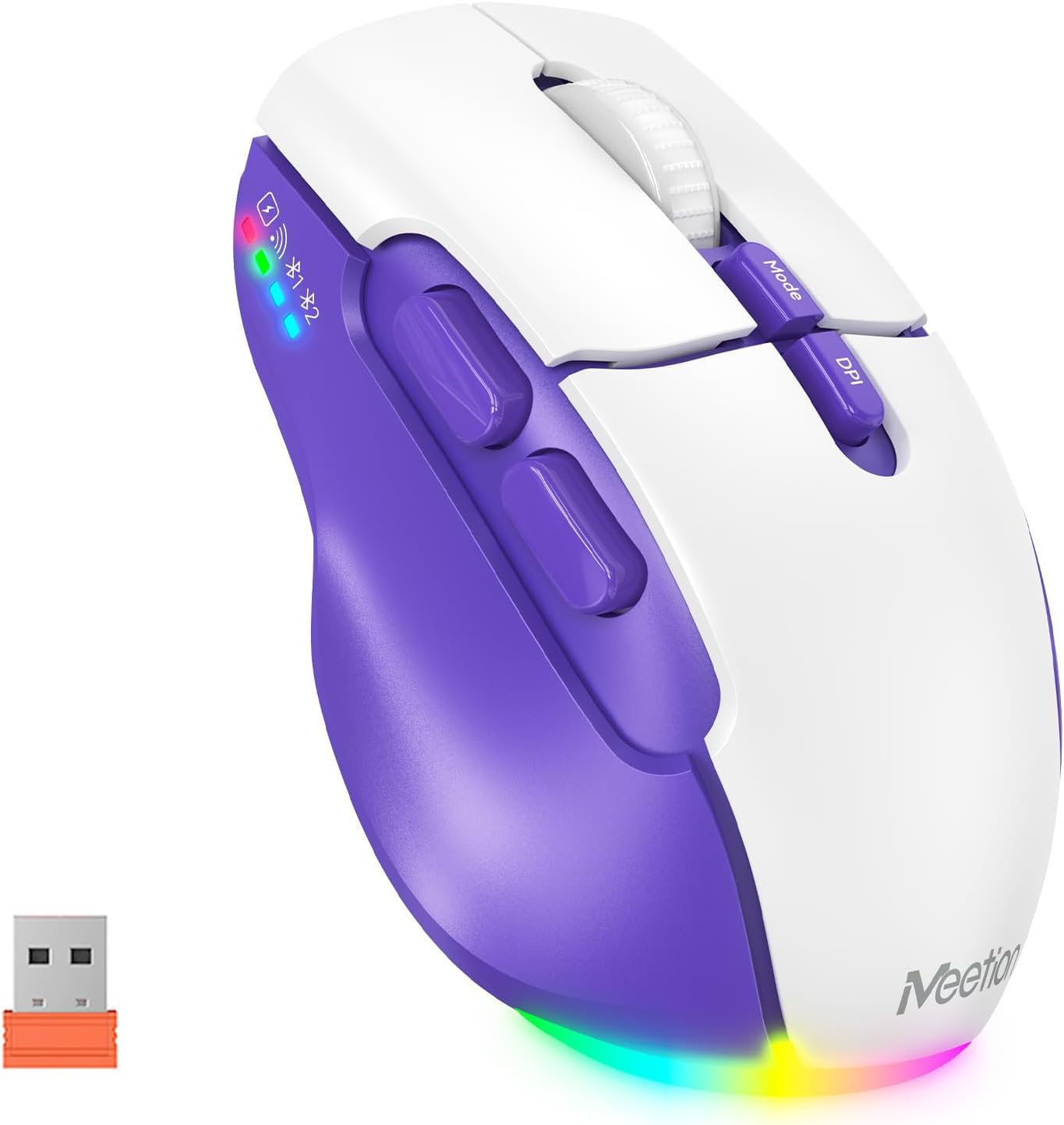
Image 1.1: The MEETION BTM001 Wireless Mouse, showcasing its purple and white design along with the included USB receiver.
2. Vöru lokiðview
The MEETION BTM001 is an ergonomic wireless mouse designed for versatile use across multiple devices. It features dual connectivity options (USB 2.4GHz and Bluetooth), adjustable DPI settings, and a rechargeable battery.
2.1 Helstu eiginleikar
- Tvöföld tenging: Supports 2.4GHz USB wireless and dual Bluetooth (BT1, BT2) for seamless switching between up to three devices.
- Stillanleg DPI: Four DPI settings (800, 1200, 1600, 2400) for precise cursor control.
- Endurhlaðanleg rafhlaða: Built-in lithium polymer battery, rechargeable via USB-C, with support for use while charging.
- Vistvæn hönnun: Contoured shape with supportive finger rests for comfortable extended use.
- Hljóðlaus smellur: Designed for quiet operation to minimize disturbance.
- RGB lýsing: Bottom lighting for aesthetic enhancement, with an option to toggle on/off.
2.2 Íhlutir

Image 2.1: Detailed diagram illustrating the various buttons and ports on the MEETION BTM001 Wireless Mouse, including the Left Button, Right Button, Scroll Wheel, Forward Button, Backward Button, Mode Switching Button, DPI Speed Switch Button, Type-C Charging Port, Power Switch (ON/OFF), Tail Light Switch, and USB Receiver compartment.
- Vinstri hnappur: Staðlað vinstri smelliaðgerð.
- Hægri hnappur: Staðlað hægrismellti.
- Skrunahjól: For vertical scrolling. Can be tilted right for auto-scroll mode.
- Áfram hnappur: Siglar áfram í web vafra eða file landkönnuðir.
- Afturábak hnappur: Siglar afturábak í web vafra eða file landkönnuðir.
- Hnappur til að skipta um stillingu: Cycles between 2.4GHz USB, Bluetooth 1, and Bluetooth 2 connections.
- DPI Speed Switch Button: Adjusts cursor sensitivity (800/1200/1600/2400 DPI).
- Tegund C hleðslutengi: For recharging the mouse battery.
- Aflrofi (ON/OFF): Turns the mouse power on or off.
- Tail Light Switch: Toggles the RGB bottom lighting on or off.
- USB móttakari: Stores the 2.4GHz USB dongle.
3. Uppsetning
The MEETION BTM001 mouse offers flexible connectivity options. Follow these steps to connect your mouse to your device.

Image 3.1: Visual guide for connecting the mouse via USB receiver or Bluetooth to various devices like laptops, desktops, tablets, and smartphones.
3.1 2.4GHz USB Wireless Connection
- Finndu USB-móttakarann sem er geymdur í hólfinu neðst á músinni.
- Plug the USB receiver into an available USB-A port on your computer or device. If your device only has USB-C ports, use a suitable adapter (not included).
- Turn on the mouse using the Power Switch on the bottom.
- Press the Mode Switching Button until the indicator light for 2.4GHz (often represented by a Wi-Fi-like icon) is active.
- Músin ætti að tengjast sjálfkrafa.
3.2 Bluetooth-tenging (BT1 / BT2)
The mouse supports two separate Bluetooth connections, allowing you to pair with two different Bluetooth-enabled devices.
- Turn on the mouse using the Power Switch on the bottom.
- Press the Mode Switching Button to select either Bluetooth 1 (BT1) or Bluetooth 2 (BT2). The corresponding indicator light will flash.
- On your device (laptop, tablet, smartphone), go to Bluetooth settings and enable Bluetooth.
- Leitaðu að new devices. The mouse should appear as "MEETION BTM001" or similar.
- Select the mouse to pair. The indicator light on the mouse will stop flashing and remain solid once connected.
- Repeat these steps for the second Bluetooth channel (BT2) if you wish to connect to another device.
3.3 Skipta á milli tækja
To switch between connected devices (USB, BT1, BT2), simply press the Mode Switching Button on the top of the mouse. The indicator lights will show which connection is currently active.

Image 3.2: The MEETION BTM001 mouse demonstrating its ability to connect and switch between a laptop, tablet, and desktop computer using both Bluetooth and 2.4GHz USB connections.
4. Notkunarleiðbeiningar
4.1 Adjusting DPI (Cursor Speed)
The mouse offers four adjustable DPI settings to control cursor sensitivity. Press the DPI hraðaskiptahnappur located on the top of the mouse to cycle through the settings:
- 800 DPI (Slowest)
- 1200 DPI (Standard)
- 1600 DPI (Faster)
- 2400 DPI (Fastest)

Image 4.1: Illustration of the four adjustable DPI settings (800, 1200, 1600, 2400) and the DPI button on the MEETION BTM001 mouse.
4.2 Hliðartakkar
The Forward and Backward buttons on the left side of the mouse provide quick navigation in web browsers, file explorers, and other applications that support these functions.
4.3 Scroll Wheel Functions
- Lóðrétt skrunun: Rotate the scroll wheel up or down.
- Auto-Scroll Mode: Push the scroll wheel to the right to activate auto-scroll. You can adjust the scrolling speed by moving the mouse slightly up or down while in this mode. Push the scroll wheel again or click any button to exit auto-scroll.
4.4 RGB lýsingarstýring
The mouse features a customizable RGB backlight at its base. To toggle the lighting on or off, use the Rofi afturljós located on the bottom of the mouse.
5. Hleðsla og rafhlaða
The MEETION BTM001 mouse is equipped with a rechargeable lithium polymer battery.
5.1 Hleðsla músarinnar
- Connect the included USB-C charging cable to the Type-C Charging Port on the front of the mouse.
- Stingdu hinum enda snúrunnar í USB-aflgjafa (t.d. USB-tengi tölvu, USB-millistykki).
- Hægt er að nota músina á meðan hún er í hleðslu.

Image 5.1: The MEETION BTM001 mouse connected to a power source via its USB-C charging cable, indicating its rechargeable capability.
5.2 Battery Saving Features
To conserve battery life, the mouse incorporates intelligent power-saving features:
- Biðstaða: After approximately 20 minutes of inactivity, the mouse will enter standby mode.
- Sjálfvirk svefnstilling: If left inactive for an extended period, the mouse will enter a deeper auto-sleep mode.
- To reactivate the mouse from standby or auto-sleep, simply move the mouse or click any button.

Image 5.2: Illustration depicting the mouse's power states: Working, Standby (after 20 minutes), Auto Sleep, and how to activate it by clicking.
6. Viðhald
To ensure the longevity and optimal performance of your MEETION BTM001 Wireless Mouse, follow these maintenance guidelines:
- Þrif: Notið mjúkan, þurran klút til að þurrka yfirborð músarinnar. Fyrir þrjósk óhreinindi, þurrkið örlítið.ampÞvoið klútinn með vatni eða mildri hreinsilausn. Forðist hörð efni eða slípiefni.
- Umhirða skynjara: Haldið ljósnemanum neðst á músinni hreinum og lausum við ryk eða rusl til að tryggja nákvæma mælingar.
- Geymsla: Þegar músinni er ekki í notkun í langan tíma skal slökkva á henni til að spara rafhlöðuendingu. Geymið hana á köldum, þurrum stað fjarri beinu sólarljósi og miklum hita.
- Forðastu dropa: Protect the mouse from drops and impacts, which can damage internal components.
7. Bilanagreining
If you encounter issues with your MEETION BTM001 Wireless Mouse, refer to the following troubleshooting steps:
| Vandamál | Möguleg orsök | Lausn |
|---|---|---|
| Mouse not responding/pointer not moving | Low battery; Mouse is off; Incorrect connection mode; USB receiver not connected; Bluetooth not paired. | Charge the mouse; Turn on the mouse; Press the Mode button to select the correct connection (USB, BT1, BT2); Ensure USB receiver is securely plugged in; Re-pair Bluetooth. |
| Töf eða slitrótt tenging | Truflanir; Fjarlægð frá móttakara/tæki; Lítil rafhlaða. | Move closer to the receiver/device; Ensure no large metal objects are between mouse and receiver; Charge the mouse; Try a different USB port. |
| DPI stillingin breytist ekki | DPI button not pressed correctly. | Ensure a firm press on the DPI Speed Switch Button. |
| RGB lýsing virkar ekki | Tail Light Switch is off. | Toggle the Tail Light Switch on the bottom of the mouse. |
| Músin hleðst ekki | Charging cable faulty; USB power source not active. | Try a different USB-C cable; Try a different USB port or wall adapter. |
8. Tæknilýsing
| Eiginleiki | Smáatriði |
|---|---|
| Gerðarnúmer | BTM001 |
| Tengitækni | 2.4GHz Wireless (USB), Bluetooth 5.2/3.0 |
| Hreyfingarskynjunartækni | Optískur |
| DPI stillingar | 800, 1200, 1600, 2400 |
| Tegund rafhlöðu | Lithium Polymer (innifalið) |
| Hleðsluport | USB Type-C |
| Sérstakir eiginleikar | Ergonomic Design, LED Lights, Lightweight, Portable, Rechargeable |
| Þyngd hlutar | 6.4 aura (u.þ.b. 181g) |
| Stærðir pakka | 5.24 x 3.74 x 2.05 tommur |
| Samhæfni | Windows, macOS, Android, iOS |
9. Ábyrgð og stuðningur
For warranty information and customer support, please refer to the documentation included with your purchase or visit the official MEETION webGeymið kaupkvittunina ef þið viljið gera kröfur um ábyrgð.


