1. Inngangur
This manual provides instructions for the proper setup, operation, and maintenance of your ciciglow 1080P Full HD Webcam. This device is designed for high-definition video communication and streaming on desktop PCs and laptops.
2. Vöru lokiðview
2.1 Innihald pakka
- 1 x ciciglow 1080P Full HD Webkambur
2.2 Helstu eiginleikar
- Full HD 1080P Resolution (30fps)
- 120 ° gleiðhornslinsa
- Built-in Digital Noise Canceling Microphone
- USB 2.0 Interface (Plug and Play)
- 360° Rotatable Head and 30° Up/Down Tilt
- Handvirkur fókusstilling
2.3 Auðkenning íhluta
Familiarize yourself with the main components of the webkambur:
- Myndavélarlinsa: Captures video. Features manual focus adjustment.
- Hljóðnemi: Integrated digital noise-canceling microphone for audio input.
- USB kapall: Til að tengjast tölvunni þinni.
- Mounting Clip/Base: Leyfir webcam to be placed on a monitor or flat surface, with 360° rotation and 30° tilt.

Mynd 1: Framan view of the ciciglow 1080P Full HD Webcam, showing the lens and integrated USB cable.

Mynd 2: Nærmynd view af webcam's lens, highlighting the manual focus ring.
3. Uppsetningarleiðbeiningar
3.1 Tenging við Webkambur
- Locate an available USB 2.0 port on your desktop PC or laptop.
- Insert the USB cable of the webmyndavélina í USB tengið.
- Wait for your operating system to automatically detect and install the necessary drivers. This process usually takes a few moments.
3.2 Bílstjóri uppsetning
The ciciglow webcam is designed for plug-and-play functionality on most modern operating systems, including Windows (10/11), macOS (10.6 or above with UVC), and Linux (above 2.6.24 with UVC). No manual driver installation is typically required.
Note for Windows 8/7/Vista users: If your system does not automatically display an image, you may need to download and install a third-party webcam application such as Amcap to utilize the webkambur.
3.3 Positioning the Webkambur
The webcam features a flexible mounting clip that allows it to be securely placed on top of a monitor, laptop screen, or positioned on a flat surface.
- Á skjá/fartölvu: Open the clip and place it over the top edge of your screen, ensuring the front of the webcam faces you and the clip is stable.
- Á sléttu yfirborði: Fold the clip to form a stable base and place the webcam on a desk or table.
The webcam head can rotate 360° horizontally and tilt 30° vertically to achieve the desired viewing horn.
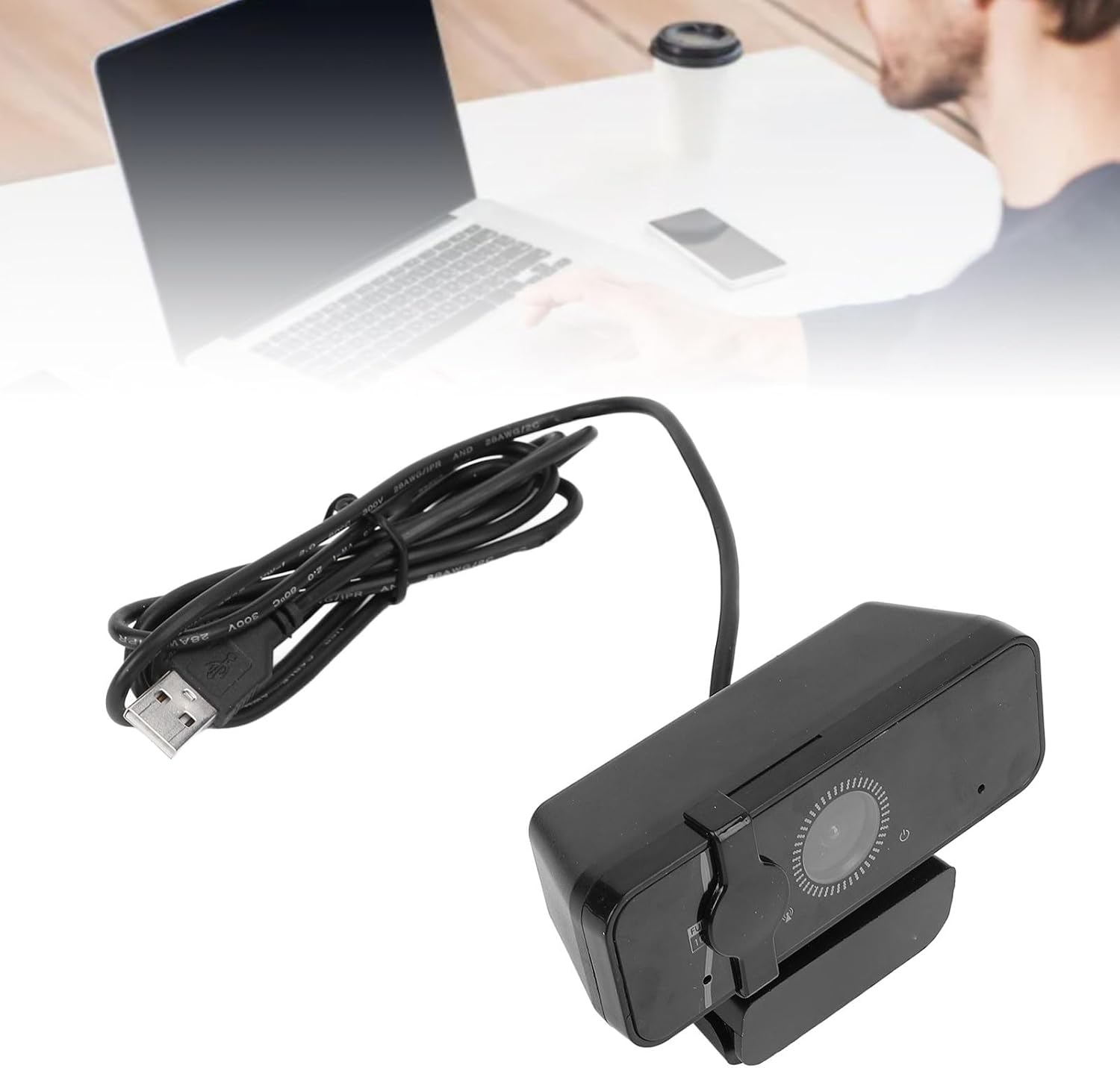
Mynd 3: Hlið view af webcam, illustrating its adjustable mounting clip for placement on a monitor.
4. Notkunarleiðbeiningar
4.1 Initiating Video Calls and Streaming
Once connected and recognized by your computer, the webcam can be used with various video conferencing and streaming applications (e.g., Zoom, Skype, Microsoft Teams, OBS Studio). Most applications will automatically detect the webcam and its microphone.
- Open your preferred video communication or streaming software.
- In the application's settings, select the "ciciglow 1080P Web„cam“ sem myndinntakstæki.
- Select the "ciciglow Webcam Microphone" (or similar) as your audio input device.
- Stilltu webcam's position and angle as needed using its rotatable head and tilt mechanism.
4.2 Stilla fókus
The webcam features a manual focus lens. To achieve a clear image, gently rotate the ring around the camera lens until the picture appears sharp.
4.3 Notkun hljóðnemans
The built-in digital noise-canceling microphone is designed to provide clear audio. Ensure the microphone is selected as the input device in your application settings and your computer's sound settings.

Mynd 4: Hinn webcam, emphasizing its built-in digital noise-canceling microphone and USB 2.0 interface.
5. Viðhald
5.1 Þrif
- To clean the camera lens, use a soft, lint-free cloth specifically designed for optical surfaces. Avoid abrasive materials or harsh chemicals.
- Fyrir webcam body, wipe with a dry or slightly damp soft cloth. Do not allow moisture to enter any openings.
5.2 Geymsla
Þegar það er ekki í notkun, geymið webGeymið myndavélina á hreinum, þurrum stað fjarri beinu sólarljósi og miklum hita.
6. Bilanagreining
| Vandamál | Lausn |
|---|---|
| No image displayed (Windows 8/7/Vista) | Download and install a third-party webcam application like Amcap. |
| No image displayed (Other OS) | Ensure the USB cable is securely connected. Try a different USB port. Restart your computer. Check privacy settings for camera access in your operating system. |
| Ekkert hljóð úr hljóðnema | Staðfestu webcam's microphone is selected as the input device in your application settings and your computer's sound settings. Ensure microphone volume is not muted. |
| Myndin er óskýr | Gently rotate the focus ring around the camera lens until the image becomes clear. Ensure the lens is clean. |
| Webmyndavél fannst ekki | Try connecting to a different USB port. Ensure your operating system is up to date. If using a USB hub, try connecting directly to the computer. |
7. Tæknilýsingar
| Eiginleiki | Smáatriði |
|---|---|
| Tegund vöru | Webkambur |
| Efni | ABS |
| Örgjörvi | JL5225+GC1054 |
| Fókusstilling | Handbók |
| Maximum Effective Pixels | 2MP |
| Næmi | 600mV/Lx sec |
| Supported Resolutions & Frame Rates (MJPEG) | 1920 x 1080P (30fps) |
| Úttaksmyndarsnið | MJPEG/YUV |
| Hlutfall merki til hávaða | 34dB |
| Dynamic Range | 72.5dB |
| Auto Exposure Control (AEC) | Stuðningur |
| Auto White Balance (AEB) | Stuðningur |
| Sjálfvirk stjórnun á ávinningi (AGC) | Stuðningur |
| Stillanlegar færibreytur | Hvítjöfnun |
| Stuðningskerfi | Windows (10/11), macOS (10.6+ with UVC), Linux (2.6.24+ with UVC) |
| Hljóðnemi | Innbyggður |
| Þyngd hlutar | 6.6 aura |
| Stærðir pakka | 7.09 x 4.72 x 2.76 tommur |
| Gerðarnúmer | ciciglow5kquofc2bg |
8. Ábyrgð og stuðningur
8.1 Upplýsingar um ábyrgð
This product is covered by a standard manufacturer's warranty. Please refer to the product packaging or your purchase documentation for specific warranty terms and duration.
8.2 Þjónustuver
For technical assistance, troubleshooting, or warranty claims, please contact ciciglow customer support through the retailer where the product was purchased or visit the official ciciglow websíða fyrir upplýsingar um tengiliði.