1. Inngangur
The Tera P150 is a robust Android 12 handheld barcode scanner PDA designed for efficient data collection in various environments such as logistics, warehouses, retail, and construction. It features a high-precision Zebra SE4710 scanning head, a powerful octa-core processor, and advanced wireless connectivity options to streamline operations.
2. Innihald pakka
Vinsamlegast staðfestu að allir hlutir sem eru taldir upp hér að neðan séu innifaldir í pakkanum þínum. Ef einhverjir hlutir vantar eða eru skemmdir skaltu hafa samband við þjónustuver.
- 1x Tera P150 Android 12 Handheld Barcode Scanner
- 1x USB snúru
- 1x skjávörn
- 1x SIM-bakkaútkast
- 1x Snúra
- 1x Notendahandbók (þetta skjal)
- 1x SDK (Software Development Kit)
- 1x Rugged Rubber Boot
- 1x handaról

Image: Tera P150 Android Barcode Scanner and its included accessories, such as the USB cable, screen protector, hand strap, and rugged rubber boot.
3. Vöru lokiðview
The Tera P150 is designed for ergonomic handling and durability. It features a 5.5-inch full touch screen, a rear-mounted barcode scanner, and various ports and buttons for operation.
Lykilhlutir:
- 5.5 tommu skjár: High-resolution touch screen, responsive even with gloves or wet hands.
- Strikamerki skanni: Integrated Zebra SE4710 for 1D, 2D, and QR code scanning.
- Aflhnappur: Located on the side for turning the device on/off and screen lock.
- Hljóðstyrkshnappar: Stilla hljóðstyrk.
- USB-C tengi: Fyrir hleðslu og gagnaflutning.
- SIM/SD kortarauf: For cellular connectivity and expandable storage.
- Hand Strap Attachment Points: For securing the included hand strap.
4. Uppsetning
4.1 Upphafshleðsla
Before first use, fully charge the Tera P150. Connect the provided USB cable to the device's USB-C port and a compatible power adapter. A full charge typically takes approximately 3 hours for the 5000mAh battery.

Image: The Tera P150 Barcode Scanner displaying its battery status, indicating it is designed for all-day use with a 5000mAh battery, offering over 300 hours standby and 12 hours working time.
4.2 Að setja inn SIM-/SD-kort
- Locate the SIM/SD card tray on the side of the device.
- Notaðu meðfylgjandi útkastarverkfæri fyrir SIM-kortsskúffuna til að opna skúffuna.
- Carefully place your Nano-SIM card(s) and/or microSD card into the designated slots.
- Þrýstu bakkanum varlega aftur inn í tækið þar til það smellur á sinn stað.
4.3 Kveikt/slökkt
- Til að kveikja á: Press and hold the Power button until the Tera logo appears on the screen.
- Til að slökkva á: Press and hold the Power button until the power options menu appears. Select "Power off".
- Til að endurræsa: Press and hold the Power button until the power options menu appears. Select "Restart".
4.4 Upphafleg uppsetning Android
Upon first power-on, follow the on-screen prompts to complete the Android 12 setup process. This includes selecting your language, connecting to a Wi-Fi network, and setting up your Google account (optional).
5. Notkunarleiðbeiningar
5.1 Strikamerkjaskönnun
The Tera P150 is equipped with a Zebra SE4710 scanning head for rapid and accurate barcode capture.
- Opnaðu skönnunarforritið í tækinu þínu.
- Point the scanner window at the barcode you wish to scan. Ensure the red aiming line or dot covers the entire barcode.
- Press the dedicated scan button (usually on the side or front of the device).
- Vel heppnuð skönnun er venjulega gefin til kynna með hljóðmerki og/eða sjónrænni staðfestingu á skjánum.

Image: A worker in a warehouse environment using the Tera P150 handheld device, demonstrating the use of its integrated Zebra SE4710 scanner to read barcodes on inventory.
5.2 Skjár og snertiskjár
The 5.5-inch full touch screen offers a clear display and responsive interaction. It supports operation even when wearing gloves or with wet hands, enhancing usability in various work conditions.
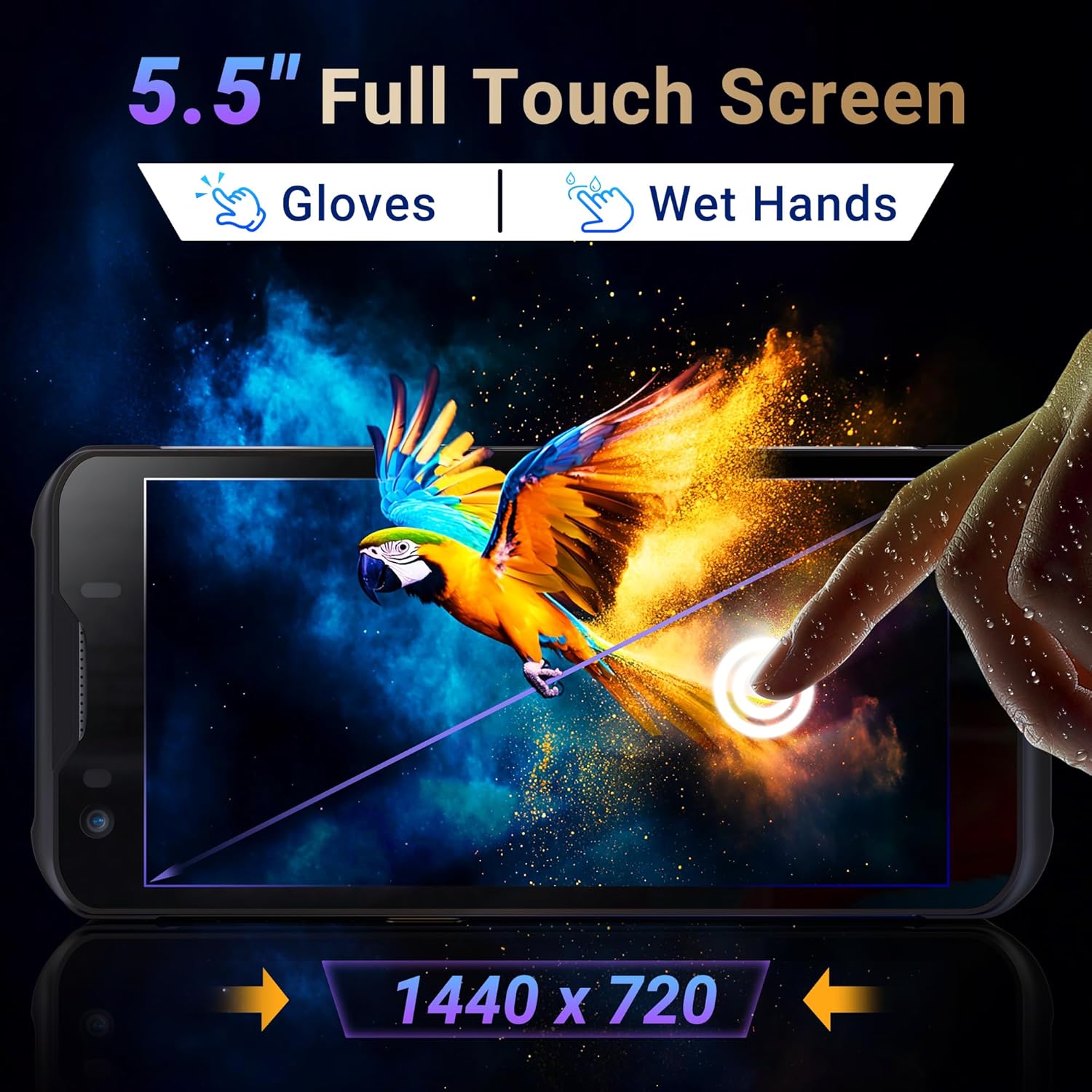
Image: The Tera P150's 5.5-inch full touch screen, highlighting its 1440x720 resolution and compatibility with both gloved and wet-hand operation.
5.3 Tengingar
The device supports multiple connectivity options for seamless data transmission.
- Wi-Fi: Go to Settings > Network & internet > Wi-Fi to connect to available wireless networks. Supports dual-band Wi-Fi for stable connections.
- Bluetooth 5.0: Go to Settings > Connected devices > Bluetooth to pair with Bluetooth-enabled accessories. Bluetooth 5.0 offers faster speeds and extended range.
- 4G/3G Cellular: Insert a SIM card (as described in Section 4.2) to enable cellular data and communication.
- GPS: The integrated GPS module allows for location tracking and navigation.
5.4 Afköst og fjölverkavinnsla
Powered by an MTK 2.0GHz octa-core processor with 4GB RAM and 64GB storage, the Tera P150 ensures smooth operation and efficient multitasking.

Image: The Tera P150 device highlighting its MTK 2.0GHz Octa-core processor and 4GB RAM + 64GB memory, indicating superior processing and performance compared to other devices.

Image: The Tera P150 device showcasing its Android 12 operating system and 4GB RAM + 64GB storage, illustrating its capability for seamless multitasking with multiple applications open.
6. Viðhald
6.1 Þrif á tækinu
To maintain optimal performance and appearance, clean the device regularly.
- Notaðu mjúkan, lólausan klút örlítið dampened with water or a mild screen cleaner.
- Avoid using harsh chemicals, abrasive cleaners, or solvents, as these can damage the screen and casing.
- Gakktu úr skugga um að tækið sé slökkt og aftengt frá öllum aflgjöfum áður en það er hreinsað.
6.2 Umhirða rafhlöðu
The Tera P150 features a 5000mAh battery designed for extended use. Proper battery care can prolong its lifespan.
- Forðist mikinn hita, bæði heitan og kaldan, þar sem hann getur dregið úr afköstum rafhlöðunnar.
- Do not fully discharge the battery frequently. Charge it before it drops to very low levels.
- Notið aðeins meðfylgjandi eða samþykkt hleðslutæki.
6.3 Eiginleikar endingar
The Tera P150 is built with industrial-grade materials, featuring IP67 waterproofing and a 1.5-meter drop rating, making it suitable for harsh working environments.
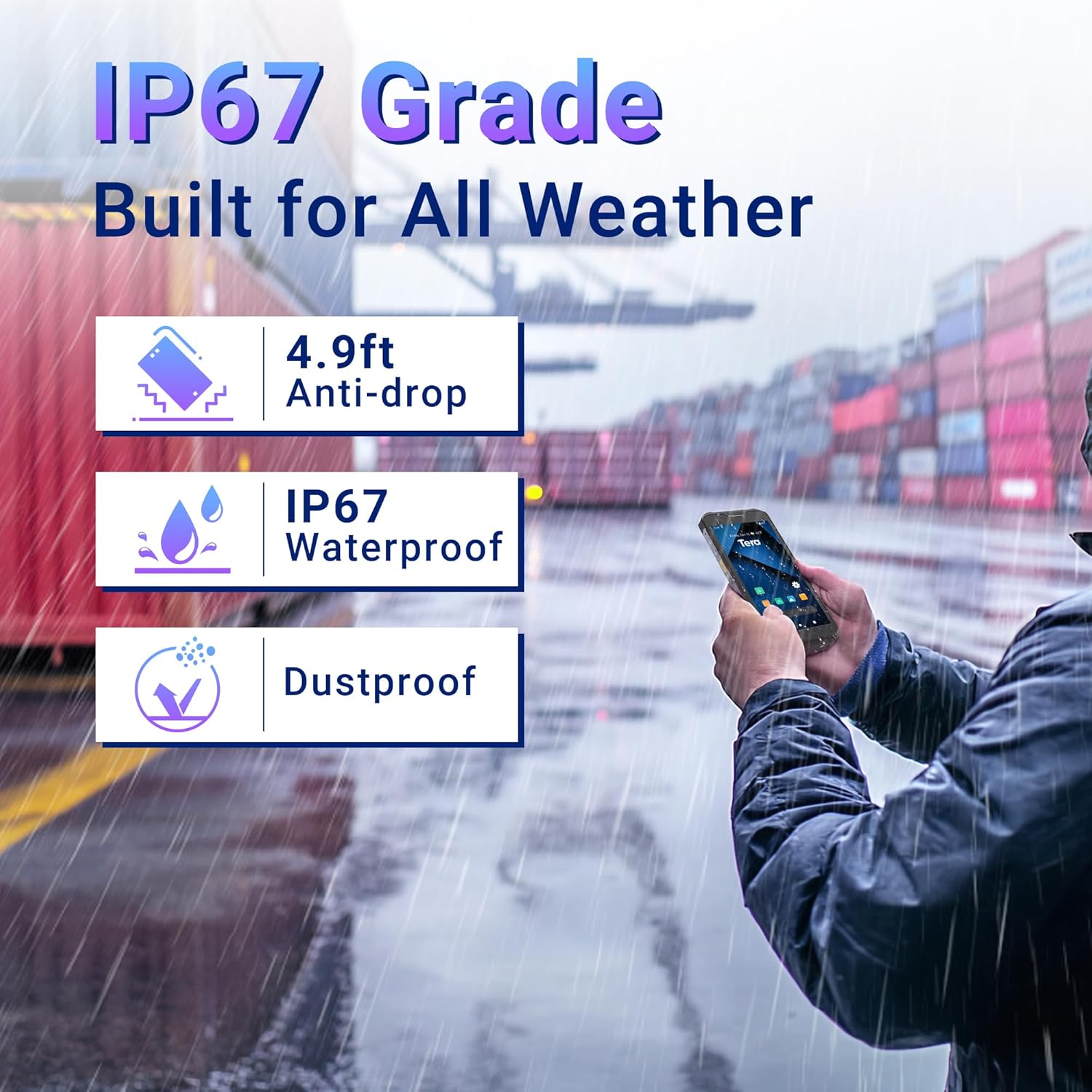
Image: The Tera P150 device highlighting its IP67 grade, 4.9ft anti-drop, IP67 waterproof, and dustproof capabilities, indicating its suitability for all-weather and rugged use.
7. Bilanagreining
This section addresses common issues you might encounter with your Tera P150.
| Vandamál | Möguleg orsök | Lausn |
|---|---|---|
| Ekki kveikir á tækinu | Lítil rafhlaða; Kerfisbilun | Charge the device for at least 30 minutes. If still unresponsive, perform a forced restart by holding the Power button for 10-15 seconds. |
| Strikamerkjaskanni virkar ekki | Scanning application not open; Barcode damaged/unreadable; Scanner module issue | Ensure the scanning application is active. Try scanning a different, known-good barcode. Clean the scanner window. Restart the device. |
| Get ekki tengst Wi-Fi | Incorrect password; Out of range; Router issue | Staðfestu Wi-Fi lykilorðið. Færðu þig nær Wi-Fi leiðinni. Endurræstu tækið og leiðina. |
| Snertiskjár svarar ekki | Tímabundin hugbúnaðarvilla; truflun á skjávörn | Restart the device. Ensure the screen protector is correctly applied and not interfering. |
8. Tæknilýsing
Detailed technical specifications for the Tera P150 Android Barcode Scanner PDA.
- Gerð: P150
- Stýrikerfi: Android 12
- Örgjörvi: MTK 2.0GHz Octa-core
- vinnsluminni: 4GB
- Geymsla: 64GB
- Skjár: 5.5-inch Full Touch Screen (1440 x 720 resolution)
- Strikamerki skanni: Zebra SE4710 (1D, 2D, QR)
- Rafhlaða: 5000mAh (Standby >300H, Working >12H, Charging >3H)
- Tengingar: 4G, 3G, Dual-band Wi-Fi, Bluetooth 5.0, GPS
- Ending: IP67 Waterproof, 1.5-meter Drop Rating, Industrial-grade materials
- Samhæf tæki: Android devices (smartphones, tablets), POS systems
- Stærðir pakka: 20 x 11 x 8 cm
- Þyngd: 540 g
9. Ábyrgð og stuðningur
Tera products are manufactured to high-quality standards. For warranty information, please refer to the warranty card included with your product or visit the official Tera websíða.
For technical support, troubleshooting assistance, or inquiries regarding your Tera P150, please contact Tera customer service:
- Tengiliðanúmer: +1 (626)438-1404
- Stuðningur á netinu: Refer to the official Tera webvefsíða fyrir algengar spurningar og stuðningsúrræði.


