1. Inngangur
This manual provides detailed instructions for the installation, operation, and maintenance of your WEILAILIFE Outdoor Wired Security Camera System. This system features an integrated 10.1-inch Full HD IPS display, four 5.0MP wired HD-Analog cameras, and a 500GB hard drive for local storage.
The system is designed for comprehensive surveillance, offering features such as PIR motion detection with red and blue flashing LEDs, 122° ultra wide-angle coverage, 90ft night vision, and remote viewing via the "HonestView" app without monthly fees.
2. Hvað er í kassanum
Gakktu úr skugga um að allir íhlutir séu til staðar í pakkanum:
- Monitor 8-Channel 5.0MP DVR with Pre-installed 500GB Hard Drive (x1)
- 5.0MP Wired HD-Analog Camera (x4)
- 2-in-1 Cable 60ft for Camera (x4)
- DC12V2A Power Supply for DVR (x1)
- Fjarstýring (x1)
- 1m LAN Cable (x1)
- HDMI snúru (x1)
- USB mús (x1)
- Separation Power Cord 1-to-4 (x1)
- Screw Kits (x4)
- Notendahandbók (x1)
- Security Sticker (x1)

Mynd 2.1: Innihald pakka
3. Uppsetning og uppsetning
3.1 Uppsetning myndavélar
Follow these steps to install the cameras:
- Merking borhola: Position the camera in the desired location. Use a marker to indicate the positions for drilling the mounting holes.
- Borun: Boraðu göt á merktum stöðum.
- Inserting Wall Anchors: Insert the provided wall anchors into the drilled holes to ensure a secure fit for the screws.
- Securing the Camera: Align the camera base with the wall anchors and secure it using the provided screws.
Video 3.1: Camera Installation Guide. This video demonstrates the physical installation process of the WEILAILIFE security camera, including marking, drilling, and securing the camera to a wall.
3.2 Tenging við upptökutæki
Connect the DVR (Digital Video Recorder) to power, network, and display:
- Rafmagnstenging: Connect the DC12V2A power supply to the DVR's power input and plug it into an electrical outlet.
- Nettenging: Connect one end of the LAN cable to the DVR's Ethernet port and the other end to your router.
- Skjártenging: Connect the HDMI cable from the DVR's HDMI output to an HDMI input on your monitor or TV. Alternatively, use a VGA cable for VGA displays.
- USB mús: Connect the USB mouse to one of the DVR's USB ports for navigation.
- Tenging myndavélar: Connect each camera to the DVR using the provided 2-in-1 cables. Ensure secure connections for both video (BNC) and power (DC connector). Use the separation power cord if multiple cameras share a single power adapter.
Video 3.2: DVR Connection Setting. This video illustrates the correct wiring and connection procedures for the DVR unit, including power, network, display, and camera inputs.
3.3 Upphafleg uppsetning og stilling forrits
After connecting all hardware, power on the DVR. The system will boot up and display on the connected monitor. For remote viewing and advanced settings, download and configure the "HonestView" app:
- Sækja forrit: Download the free "HonestView" app from the App Store (iOS) or Google Play Store (Android).
- Bæta við tæki: Open the app, tap the "+" icon to add a new device.
- Skannaðu QR kóða: Scan the QR code displayed on the DVR monitor or located on the DVR unit itself.
- Uppsetning netkerfis: Follow the on-screen prompts to complete the network setup.
- Lifandi View: Once connected, tap the play button to start live viewing from your cameras.
Video 3.3: CCTV Camera System App Setup. This video guides users through the process of setting up the security camera system with the mobile application, including device pairing and live view virkjun.
4. Að stjórna kerfinu
4.1 Eftirlit í beinni
The integrated 10.1-inch Full HD IPS display provides a clear view of all camera feeds. You can also monitor live footage remotely via the "HonestView" app on your smartphone, PC, or tablet.
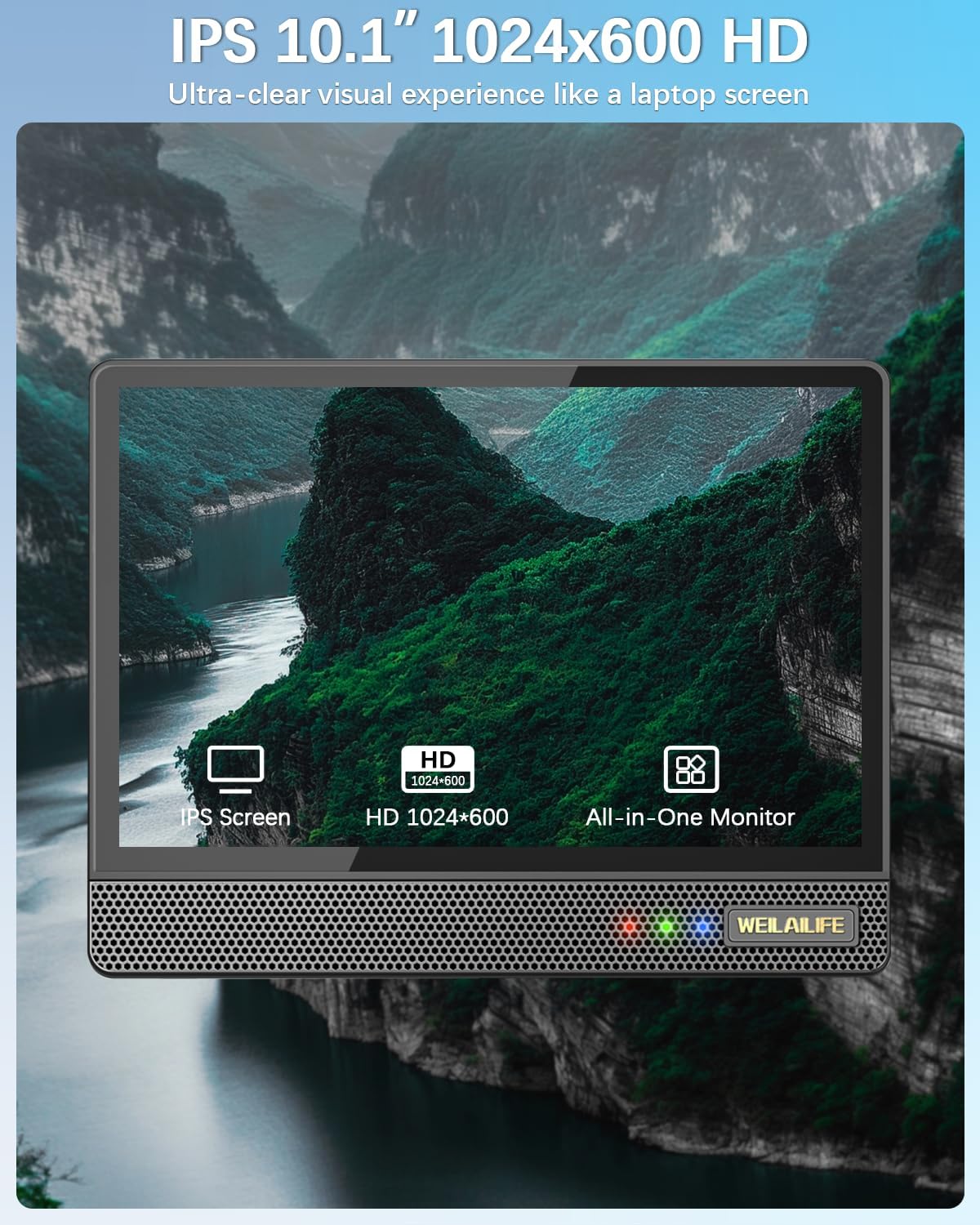
Figure 4.1: 10.1-inch Full HD IPS Monitor Display
4.2 Hreyfiskynjun og viðvaranir
The system features PIR motion detection. When motion is detected, the cameras activate red and blue flashing LEDs for 15 seconds to deter potential intruders. The system can also send email alerts and app notifications, and trigger recording.
- Sérsnið: You can customize the motion detection area, sensitivity, and time within the DVR settings or the "HonestView" app.
- AI WDR Function: The AI WDR (Wide Dynamic Range) function enhances image clarity by balancing bright and dark areas in surveillance footage, ensuring details are visible in challenging lighting conditions.

Figure 4.2: Red & Blue Flashing LEDs in Action

Figure 4.3: PIR Motion Detection Zones

Figure 4.4: AI WDR Function
4.3 Upptökustillingar
The system supports multiple recording modes to suit your surveillance needs:
- Upptaka hreyfiskynjunar: Tekur aðeins upp þegar hreyfing greinist, sem sparar geymslurými.
- Dagskrá upptöku: Records continuously during specified time periods.
- Handvirk upptaka: Allows you to start and stop recording manually.

Figure 4.5: Multiple Recording Modes
4.4 Nætursjón
The cameras are equipped with 90ft Super Night Vision, utilizing enhanced 2 Array Infrared Light and an Auto IR-Cut Filter for clear black-and-white video even in complete darkness.
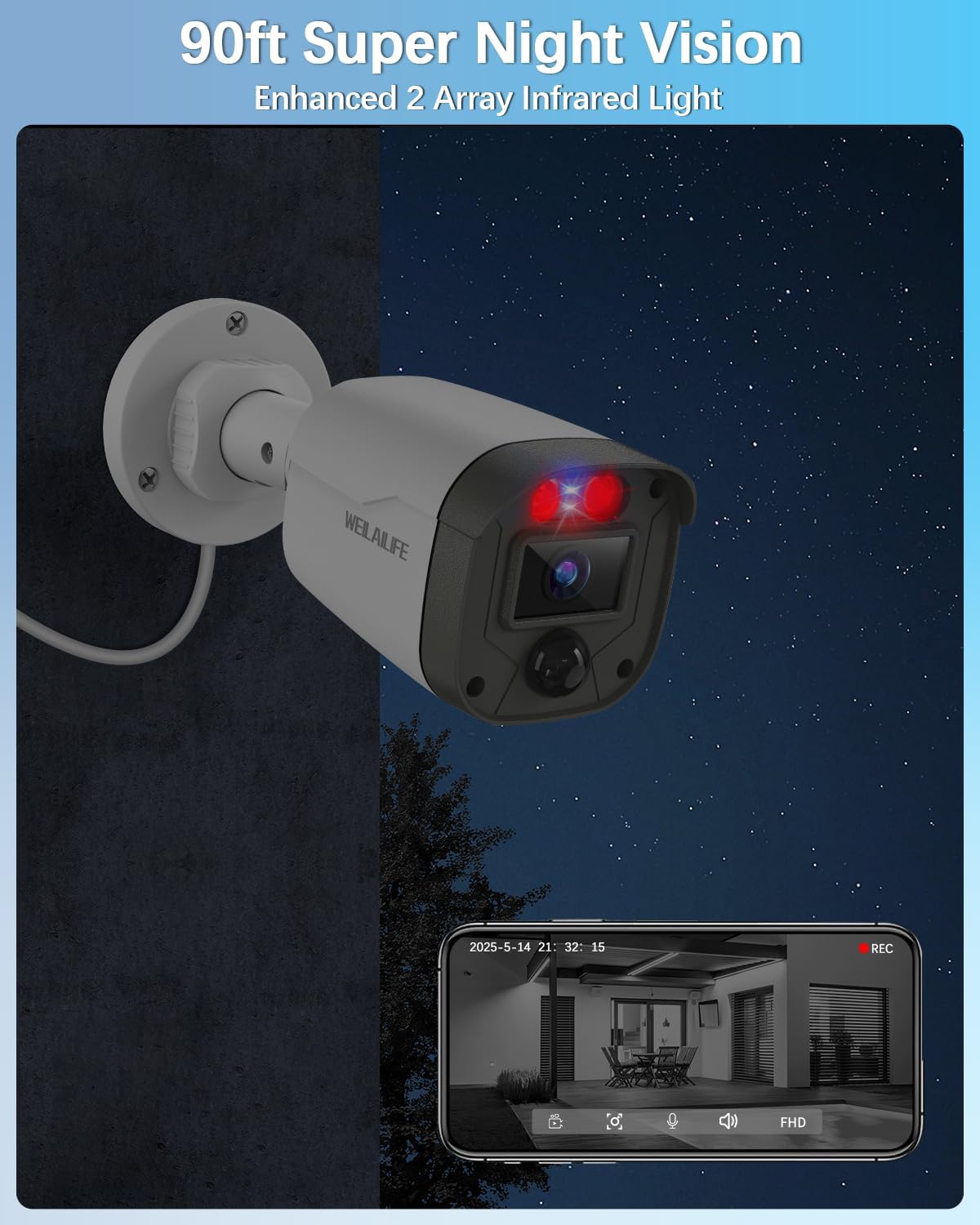
Figure 4.6: 90ft Super Night Vision
4.5 Tvíhliða hljóð
While the product description mentions two-way audio in a customer review, specific details on its operation are not provided in the product features. If available, this feature typically allows you to speak through the camera's speaker and hear audio from the camera's microphone via the mobile app.
5. Viðhald
5.1 Veðurþol
The outdoor cameras are IP67 waterproof, ensuring reliable operation in various weather conditions including rain, snow, and extreme temperatures ranging from -20°C (-5°F) to 60°C (140°F).

Figure 5.1: IP67 Waterproof Camera
5.2 Almenn umönnun
- Hreinsið myndavélarlinsur reglulega með mjúkum, þurrum klút.amp klút til að tryggja skýra myndgæði.
- Ensure all cable connections remain secure and free from damage.
- Keep the DVR unit in a well-ventilated area to prevent overheating.
6. Bilanagreining
Þessi hluti býður upp á lausnir á algengum vandamálum sem þú gætir lent í:
- Ekkert myndbandsmerki: Check all cable connections (power, video, HDMI/VGA) to ensure they are secure. Verify that the cameras are powered on.
- Léleg myndgæði: Clean camera lenses. Ensure there are no obstructions in the camera's field of view. Adjust camera position if necessary.
- Hreyfiskynjun virkar ekki: Verify motion detection settings in the DVR or app. Adjust sensitivity and detection areas. Ensure the PIR sensor is not obstructed.
- Fjarstýring Viewing mál: Check your internet connection and router settings. Ensure the DVR is connected to the network and the "HonestView" app is properly configured and updated.
- DVR tekur ekki upp: Check hard drive status in DVR settings. Ensure sufficient storage space is available. Verify recording schedules and motion detection settings.
7. Tæknilýsing
| Eiginleiki | Smáatriði |
|---|---|
| Vörumerki | WEILAILIFE |
| Gerðarnúmer | WE-44500 |
| Tengitækni | HD-Analog, Wired |
| Myndbandsupplausn | 2536 x 1944p, 5.0 Megapixel |
| Sérstakir eiginleikar | 10" Full HD IPS Screen, 90ft Night Vision, AI WDR Function, Human Detection, Red & Blue Flashing LEDs |
| Fjöldi rása | 8 (System includes 4 cameras) |
| Geymslugeta minni | 500 GB (Pre-installed) |
| Litur | Hvítur |
| Aflgjafi | Rafmagn með snúru |
| Stærðir hlutar (L x B x H) | 13 x 11 x 7 tommur |
| Stýrikerfi | Linux |
| Mælt er með notkun | Inni, úti |
| Samhæf tæki | Cameras, Personal Computers, Smartphones, TV, Tablets |
| Aðrir eiginleikar myndavélarinnar | 122° Wide-Angle, 90ft Super Night Vision, Motion Detection |
| Lágljós tækni | 90ft Night Vision with Auto IR-Cut Filter and Infrared LEDs |
| Nætursjónarsvið | 90 fet |
| Rammahlutfall | 15fps |
| Upptökuhamur | Event, Schedule |
| Samtals USB tengi | 2 |
| Vélbúnaðarviðmót | HDMI, USB 2.0 |
| Tegund linsu | Breiðhorn |
| Vídeóinntak | HD-Analog Cameras, RJ45 |
| Viewí horn | 122 gráður |
| Framleiðandi | WEILAILIFE |
| Samhæfni við snjallheimili | Smart Home Compatible |
| Þyngd hlutar | 11.05 pund |
8. Ábyrgð og stuðningur
Specific warranty details are not provided in the product information. Please refer to the warranty card included in your package or contact WEILAILIFE customer support for information regarding warranty coverage and technical assistance.
For customer support, please visit the official WEILAILIFE website or use the contact information provided in your product documentation.