1. Inngangur og yfirview
The iFLYTEK AINOTE Air 2 is a versatile digital notebook designed to enhance productivity through advanced AI features. It offers a paper-like e-ink display for comfortable reading and writing, minimizing eye strain. Key functionalities include real-time voice-to-text transcription, multi-language translation, meeting summaries, and efficient schedule management. This device is ideal for professionals, students, and anyone who frequently takes notes or manages complex schedules.
The tablet supports fast and accurate transcriptions in 8 languages (EN/ES/CN/FR/DE/JP/KR/HU) and converts handwritten notes to text in 83 languages, making it a powerful tool for global users. Its intuitive interface and responsive stylus provide a natural writing experience.

Image: The iFLYTEK AINOTE Air 2 in use, demonstrating its AI recording and transcription capabilities.
2. Hvað er innifalið
Your iFLYTEK AINOTE Air 2 package includes the following items:
- iFLYTEK AINOTE Air 2 Note Taking Tablet
- AINOTE Air 2 Stylus Pen
- Protective Case (Black&Blue)
- 5 Pcs Pen Refills
- Pen Tip Removal Tool
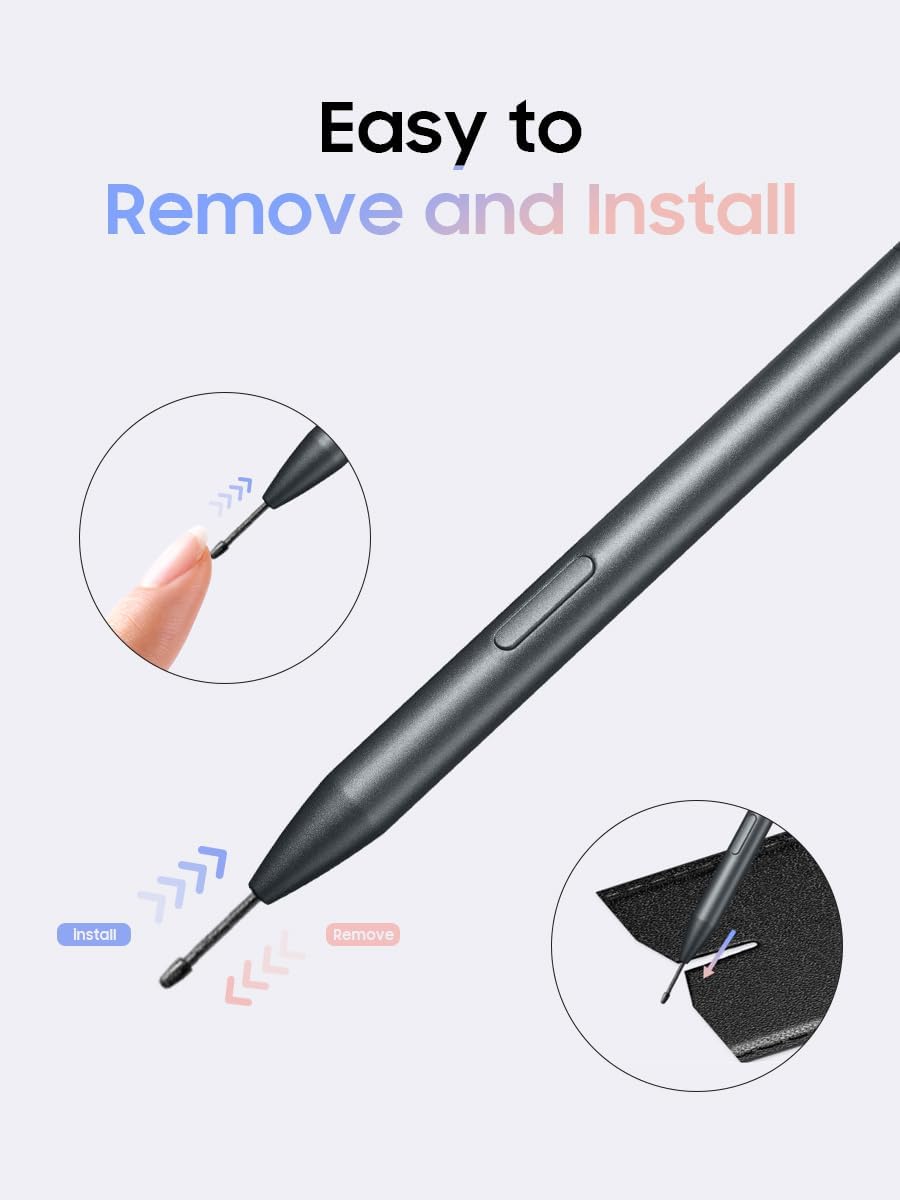
Image: Stylus pen refills and the pen tip removal tool.

Image: Black and blue protective case for the AINOTE Air 2.

Image: AINOTE Air 2 Stylus Pen.
3. Uppsetning
3.1 Kveikt/slökkt
To power on the iFLYTEK AINOTE Air 2, locate the power button on the top edge of the device. Press and hold the power button for approximately 3 seconds until the screen illuminates and the iFLYTEK logo appears. To power off, repeat the process and confirm the shutdown prompt.
3.2 Stylus Pen Attachment
The AINOTE Air 2 Stylus Pen features a magnetic design, allowing it to securely attach to the side of the tablet for convenient storage and easy access. Simply align the flat side of the stylus with the magnetic strip on the tablet's edge.
Video: Demonstrates the magnetic attachment of the stylus pen to the iFLYTEK AINOTE Air 2 tablet.
3.3 Skipti á pennaoddi
To replace a worn pen tip, use the provided pen clip tool. Gently grasp the old tip with the tool and pull it straight out. Insert a new tip firmly until it clicks into place. Ensure the tip is securely seated before use.
Image: Visual guide for effortless pen tip replacement using the included tool.
4. Notkun AINOTE Air 2
4.1 Notes Functionality
The Notes section is your primary workspace for digital handwriting. Tap the 'Write' button to create a new note. You can select various pen types (ballpoint, marker, brush) and adjust stroke thickness. The e-ink display provides a tactile writing experience similar to pen on paper. Use the eraser tool to correct mistakes, with options for line-by-line or area-based erasing. The tablet also offers various templates for different note-taking styles, including schedules, daily plans, and monthly layouts.
Video: Demonstrates how to write and convert handwriting to text on the iFLYTEK AINOTE Air 2.
4.2 Recording and Transcription
Activate the 'Record' function to capture audio during meetings or lectures. The AINOTE Air 2's AI will transcribe the spoken content in real-time, converting it into text directly on your note page. This feature supports multiple languages and is invaluable for creating accurate meeting minutes or lecture notes without manual transcription.
4.3 Lesa skjöl
The 'Reading' section allows you to view and annotate various document formats, including PDFs and e-books. You can import documents to your bookshelf and read them with the comfortable e-ink display. The stylus can be used to highlight text, make notes, or look up definitions using AI search.
4.4 Schedule Management
Utilize the 'Schedule' feature to organize your tasks and appointments. You can create daily, weekly, or monthly plans, set reminders, and track your progress. The intelligent scheduling system helps you stay organized and productive.
Video: Demonstrates how to plan your day and manage schedules using the stylus pen on the AINOTE Air 2.
4.5 Umsóknir
The AINOTE Air 2 supports various applications, allowing you to expand its functionality. You can access photos, WPS Office, and potentially download more apps through the device's application manager. This transforms the tablet into a versatile smart device for different tasks.
5. Notkun stíllpenna
The iFLYTEK Stylus Pen is designed for effortless, always-ready performance. It requires no charging or Bluetooth pairing, ensuring it's available whenever inspiration strikes. The pen features a responsive fiber tip for precise writing and a built-in eraser for quick corrections, mimicking the feel of traditional writing tools.
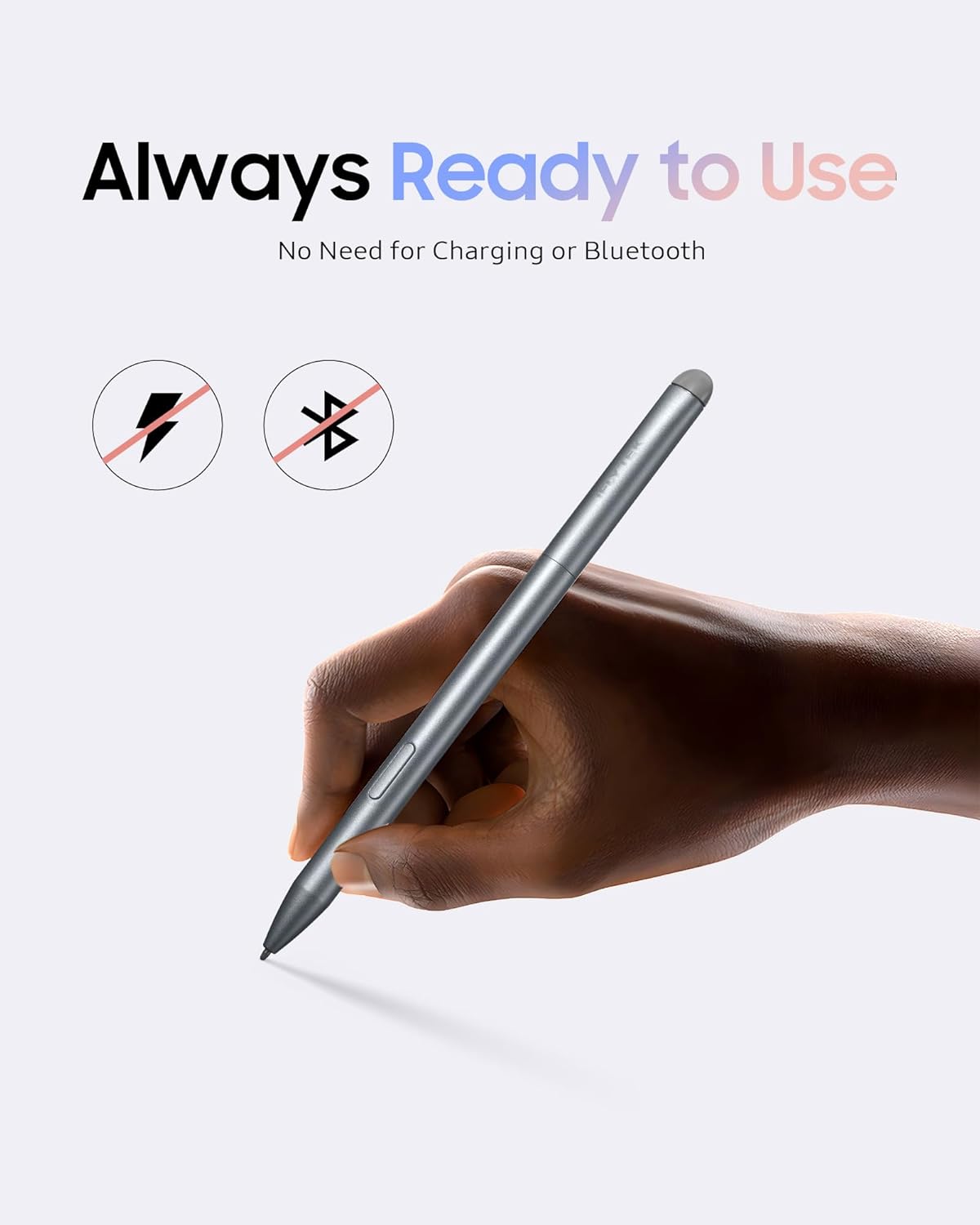
Image: The 2-in-1 iFLYTEK Stylus Pen, highlighting its responsive fiber tip and built-in eraser.

Image: The iFLYTEK Stylus Pen is always ready to use, requiring no charging or Bluetooth.
6. Document Scanning
The AINOTE Air 2 is equipped with a document scanner feature, allowing you to digitize physical documents directly using the built-in camera. This enables you to convert paper documents into digital files, which can then be stored, edited, or shared from your tablet.
Myndband: Yfirview of the iFLYTEK Note Taking Tablet, including document scanning capabilities.
7. Viðhald
7.1 hlífðarhylki
The included protective case is crafted from durable PU leather with a soft velvet interior, offering lasting protection against fingerprints, shocks, scratches, and dust. Always use the case to safeguard your device during transport and storage.

Image: The iFLYTEK AINOTE Air 2 securely placed within its protective case.
Video: Demonstrates the magnetic stand case and pen holder for the AINOTE Air 2.
7.2 Almenn umönnun
Keep the device clean by wiping it with a soft, dry cloth. Avoid exposing the tablet to extreme temperatures, direct sunlight for prolonged periods, or moisture. Do not use harsh chemicals or abrasive materials for cleaning.
8. Bilanagreining
8.1 E-ink Display Refresh
The e-ink display technology prioritizes eye comfort and battery life. You might notice a slight delay or a momentary screen refresh (flash) when turning pages or navigating menus. This is normal behavior for e-ink displays and not a performance lag or defect. It ensures crisp text and maximum eye protection.
Video: Real Refresh Speed Demo, explaining what to expect from E-ink displays.
8.2 Skjáviðbrögð
While the stylus offers highly responsive writing, direct touch input on the screen may occasionally feel slightly slower compared to traditional LCD screens. This is inherent to e-ink technology and is optimized for a paper-like experience rather than high-speed animation.
9. Tæknilýsing
- ASIN: B0DTHMWFF4
- Tegund vörunúmer: Loft 2
- Vörumerki: iflytek
- Tengingartækni: USB
- Þrýstingsnæmi: 2048 stig
- Stýrikerfi: Windows
- Sérstakur eiginleiki: Færanlegt
10. Ábyrgð og stuðningur
The iFLYTEK AINOTE Air 2 comes with a 1-year warranty. For any issues or inquiries, 24/7 online support is available. Regular version updates are provided within 1-2 months to ensure optimal performance. Additionally, a 30-day return/exchange policy is in place for your peace of mind.

Image: iFLYTEK after-sales service details, including warranty and support.
Fyrir frekari aðstoð, vinsamlegast farðu á iFLYTEK Store on Amazon.


