1. Inngangur
Welcome to the CyberpowerPC Gamer Xtreme GXi3200BSTV10 Gaming Desktop PC. This manual provides essential information for setting up, operating, maintaining, and troubleshooting your new gaming system. Designed for high-performance gaming and demanding applications, this PC features an Intel Core i5-14400F processor, NVIDIA GeForce RTX 5060 graphics, 16GB DDR5 RAM, and a 1TB PCIe SSD, all running on Windows 11 Home.
For optimal performance and longevity, please read this manual thoroughly before using your computer.
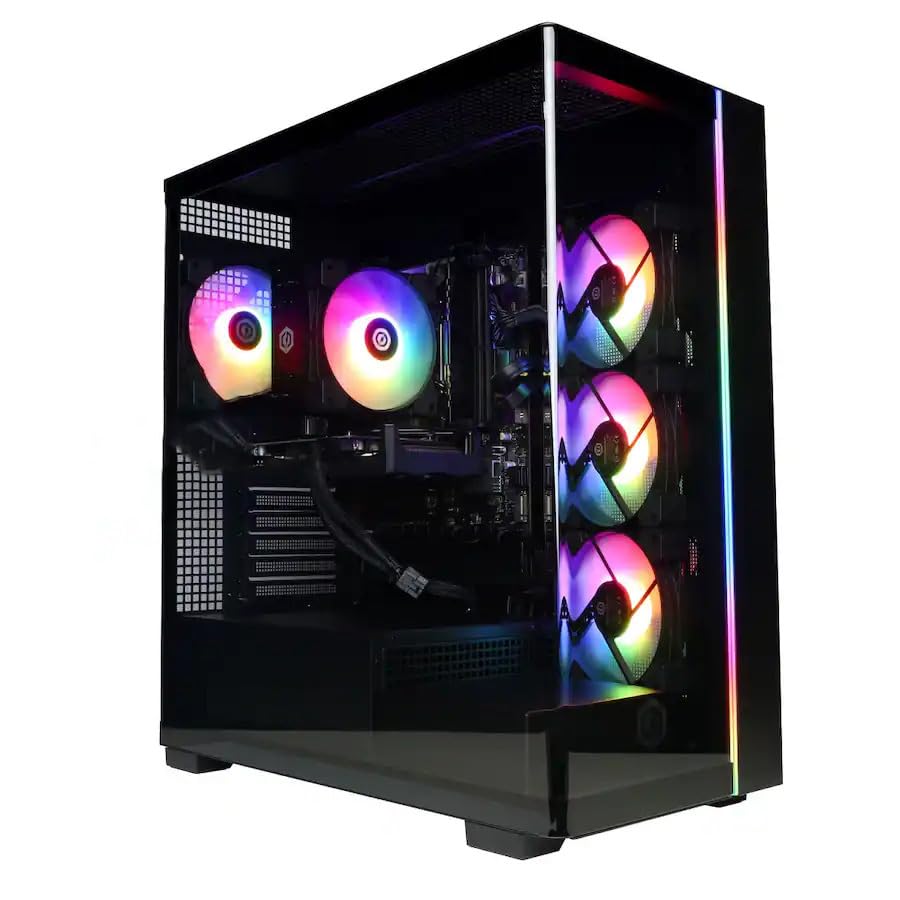
Mynd: Framan view of the CyberpowerPC Gamer Xtreme GXi3200BSTV10 Gaming Desktop PC, showcasing its sleek design and RGB lighting elements.
2. Hvað er í kassanum
Upon unpacking your CyberpowerPC Gamer Xtreme GXi3200BSTV10, please ensure all the following items are present:
- CyberpowerPC Gamer Xtreme GXi3200BSTV10 Desktop PC
- Rafmagnssnúra
- RGB Gaming lyklaborð
- RGB leikjamús
- Skjölun (þar á meðal þessi handbók)

Image: The included CyberpowerPC NOHI 2 Black Wired RGB 104-Key Keyboard and CyberPowerPC Elite M2 Black Wired RGB 4-Button Mouse.
3. Uppsetningarleiðbeiningar
Follow these steps to set up your new CyberpowerPC Gamer Xtreme desktop:
3.1 Upptaka og staðsetning
- Carefully remove the PC and all accessories from the packaging. Retain the packaging for future transport or warranty claims.
- Place the PC on a stable, flat surface with adequate ventilation. Ensure there is clear space around the air intake and exhaust vents.
- Remove any protective films or internal packing materials from the PC case.
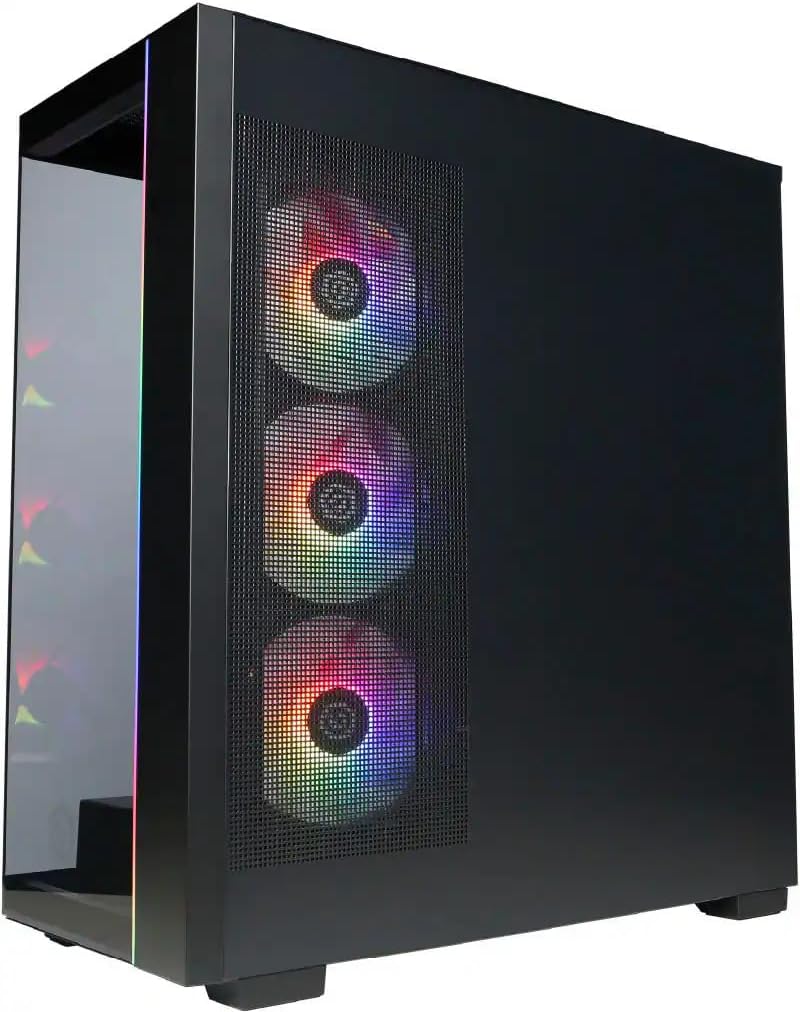
Mynd: Hlið view of the PC case, highlighting the mesh panel for airflow and the RGB fans visible through it.
3.2 Tengja jaðartæki
Connect your monitor, keyboard, mouse, and other devices to the appropriate ports on the back of the PC.
- Skjár: Connect your monitor to one of the graphics card's display outputs (DisplayPort or HDMI). Ensure it's connected to the dedicated graphics card (NVIDIA GeForce RTX 5060), not the motherboard's integrated graphics ports.
- Lyklaborð og mús: Connect the included RGB keyboard and mouse to any available USB ports.
- Net: For wired internet, connect an Ethernet cable to the RJ-45 port. For wireless internet, ensure the Wi-Fi antennas (if provided) are attached.
- Hljóð: Tengdu hátalara eða heyrnartól við hljóðútganginn.
3.3 Rafmagnstenging og upphafleg ræsing
- Tengdu rafmagnssnúruna við aflgjafa tölvunnar (PSU) og síðan við jarðtengda rafmagnsinnstungu.
- Press the power button located on the front or top of the PC.
- Follow the on-screen instructions to complete the Windows 11 Home setup process. This may include setting up your user account, network connection, and privacy settings.
4. Notkun tölvunnar
This section covers basic operation of your CyberpowerPC Gamer Xtreme.
4.1 Kveikja/slökkva og endurræsa
- Kveikt á: Ýttu einu sinni á rofann.
- Lokaðu: Smelltu á Start hnappinn í Windows og veldu síðan Power > Shutdown.
- Endurræsa: Smelltu á Start hnappinn í Windows og veldu síðan Power > Restart.
- Þvingaða lokun: If the system is unresponsive, press and hold the power button for 5-10 seconds until the PC turns off. Use this only as a last resort.
4.2 Nettenging
- Tengt við snúru (Ethernet): Once the Ethernet cable is connected, Windows 11 should automatically detect and connect to the network.
- Þráðlaust net (Wi-Fi): Smelltu á Wi-Fi táknið á verkefnastikunni, veldu netið sem þú vilt nota, sláðu inn lykilorðið og smelltu á Tengjast.
4.3 RGB lýsingarstýring
Your system features customizable RGB lighting for fans, case, and CPU cooler. Control software for RGB lighting may be pre-installed or available for download from the CyberpowerPC website. Refer to the specific software's instructions for detailed customization options.

Mynd: Ítarleg view of the RGB fans, illustrating the vibrant lighting effects within the PC case.

Image: Close-up of the CPU cooler, showing its design and integrated RGB lighting.
5. Viðhald
Reglulegt viðhald hjálpar til við að tryggja endingu og hámarksafköst tölvunnar.
5.1 Þrif
- Að utan: Notaðu mjúkan, damp cloth to clean the exterior of the case. Avoid harsh chemicals.
- Ryk: Periodically clean dust from the internal components, especially fans and heatsinks, using compressed air. Ensure the PC is powered off and unplugged before opening the case.
- Loftsíur: If your case has removable air filters, clean them regularly to maintain optimal airflow.
5.2 Hugbúnaðaruppfærslur
- Windows uppfærslur: Athugaðu reglulega hvort Windows uppfærslur séu tiltækar og settu upp þær til að tryggja öryggi og afköst. Farðu í Stillingar > Windows uppfærslur.
- Bílstjóri uppfærslur: Keep your graphics card drivers (NVIDIA GeForce) and other component drivers updated for best performance and compatibility. Visit the respective manufacturer's websíður fyrir nýjustu bílstjórana.
5.3 Gagnaafritun
Regularly back up your important data to an external drive or cloud storage to prevent data loss in case of hardware failure or other issues.
6. Bilanagreining
Þessi hluti býður upp á lausnir á algengum vandamálum sem þú gætir lent í.
6.1 Enginn kraftur
- Gakktu úr skugga um að rafmagnssnúran sé vel tengd bæði við tölvuna og innstunguna.
- Check if the power switch on the PSU (located at the back of the PC) is in the 'ON' position.
- Prófaðu innstunguna með öðru tæki til að staðfesta að hún hafi rafmagn.
6.2 Engin birting á skjánum
- Verify that the monitor is powered on and its video cable is securely connected to the graphics card (NVIDIA GeForce RTX 5060) on the PC.
- Ensure the monitor's input source is set correctly (e.g., HDMI 1, DisplayPort).
- Try connecting the monitor to a different display output port on the graphics card.
6.3 System Running Slowly
- Athugaðu Verkefnastjórann (Ctrl+Shift+Esc) til að sjá hvort forrit nota of mikið af örgjörva, vinnsluminni eða harða diskaauðlindum.
- Gakktu úr skugga um að Windows og reklar séu uppfærðir.
- Keyrðu fulla kerfisskönnun fyrir spilliforrit eða vírusa.
- Verify that the PC has adequate ventilation and is not overheating.
7. Tæknilýsing
Detailed technical specifications for your CyberpowerPC Gamer Xtreme GXi3200BSTV10:

Image: Infographic summarizing key specifications including Intel Core i5-14400F, NVIDIA GeForce RTX 5060, 16GB DDR5 RAM, and 1TB PCIe NVMe M.2 SSD.
| Hluti | Forskrift |
|---|---|
| Örgjörvi | Intel Core i5-14400F (10-Core, 2.5 GHz base, up to 4.7 GHz Turbo Boost) |
| Skjákort | NVIDIA GeForce RTX 5060 8GB GDDR7 |
| vinnsluminni | 16GB DDR5 6000 MHz |
| Geymsla | 1TB PCIe NVMe M.2 SSD diskur |
| Stýrikerfi | Windows 11 Home |
| Þráðlaus tenging | Wi-Fi (802.11ax), Bluetooth |
| Hljóð | 7.1-rása háskerpu hljóð |
| Sýna úttak | 3x DisplayPort, 1x HDMI |
| USB tengi | 1x USB-C 3.2, 3x USB-A 3.2, 4x USB-A 2.0 |
| Mál (LxBxH) | 18.1 x 9.2 x 20 tommur |
| Þyngd hlutar | 40 pund |
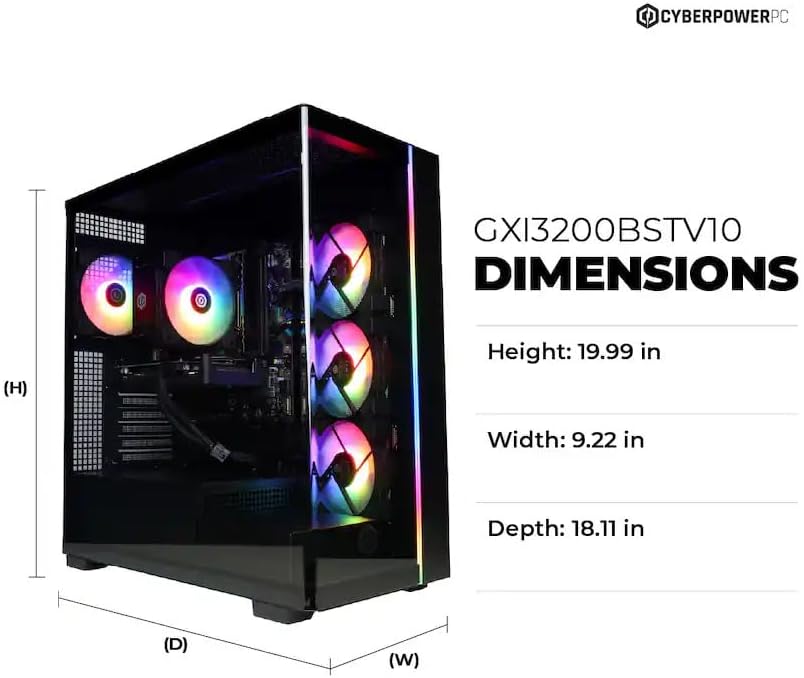
Image: Diagram illustrating the dimensions of the CyberpowerPC Gamer Xtreme GXi3200BSTV10: Height 19.99 in, Width 9.22 in, Depth 18.11 in.
8. Ábyrgð og stuðningur
8.1 Framleiðendaábyrgð
Your CyberpowerPC Gamer Xtreme GXi3200BSTV10 comes with a 1 árs framleiðandaábyrgðÞessi ábyrgð nær til galla í efni og framleiðslu við eðlilega notkun. Vinsamlegast geymið kaupkvittunina vegna ábyrgðarkröfu.
For specific terms and conditions of the warranty, please refer to the documentation included with your PC or visit the official CyberpowerPC websíða.
8.2 Tæknileg aðstoð
If you encounter issues that cannot be resolved using the troubleshooting steps in this manual, please contact CyberpowerPC technical support. Have your model number (GXi3200BSTV10) and serial number ready when contacting support.
You can typically find support contact information on the CyberpowerPC website or in the documentation provided with your system.