1. Inngangur
The Fanvil V66-Pro is a professional IP phone designed for modern business communication. It features a 7-inch adjustable touch screen, supports 20 SIP lines, and includes built-in 2.4G/5G Wi-Fi (Wi-Fi 6) and a wireless Bluetooth handset. This manual provides detailed instructions for the proper installation, configuration, and operation of your Fanvil V66-Pro IP Phone.
2. Innihald pakka
Gakktu úr skugga um að allir hlutir séu í pakkanum þínum. Ef einhver hlutur vantar eða er skemmdur skaltu hafa samband við söluaðila tafarlaust.
- Fanvil V66-Pro IP Phone Unit
- Þráðlaust Bluetooth símtól
- Símtalsleiðsla
- Ethernet snúru
- Rafmagns millistykki
- Skrifborðsstandur
- Fljótleg uppsetningarleiðbeiningar
3. Líkamlegt yfirview
Familiarize yourself with the components of your Fanvil V66-Pro IP Phone.
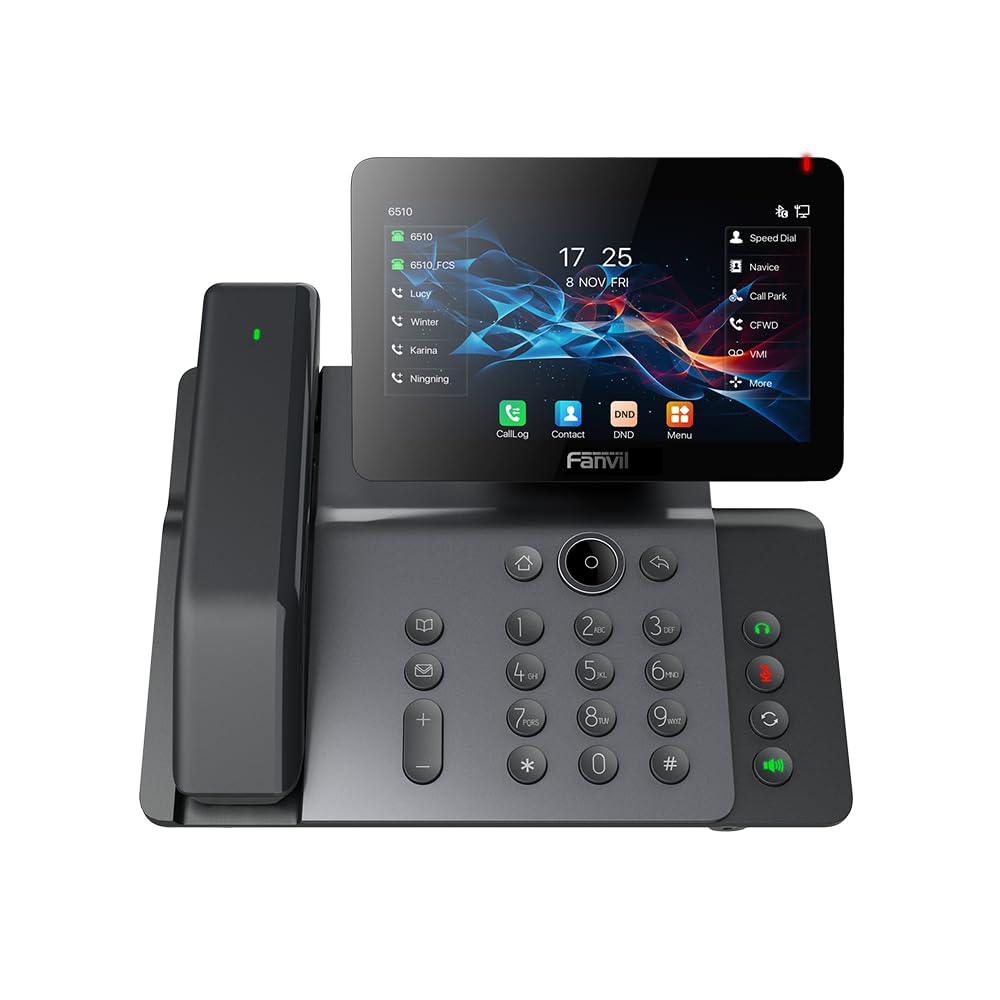
Figure 3.1: Fanvil V66-Pro IP Phone with its wireless Bluetooth handset shown separately.
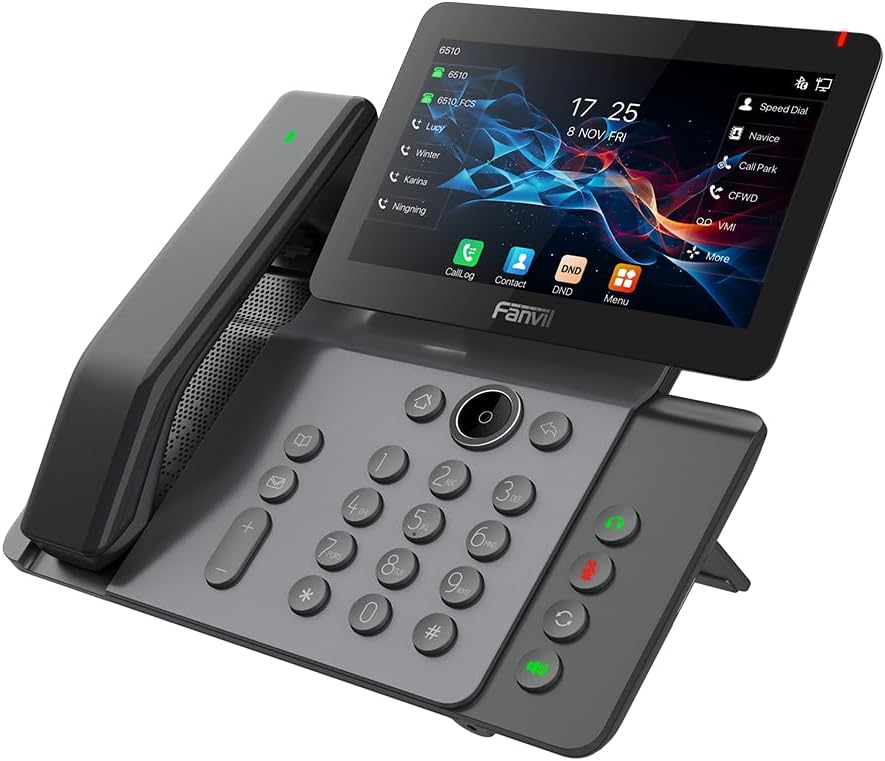
Mynd 3.2: Framan view of the Fanvil V66-Pro IP Phone with the handset attached to the main unit.
3.1 lykilhlutir
- Adjustable Touch Screen: 7-inch color display for navigation and information.
- Takkaborð: Standard numeric and function keys for dialing and control.
- Wireless Bluetooth Handset: For cordless communication.
- Hátalari: Integrated speaker and microphone for hands-free calls.
- Aðgerðarlyklar: Dedicated buttons for common features like message, hold, transfer, and conference.
- Hafnir: Ethernet ports (LAN/PC), Power port, USB port, Headset port.
4. Uppsetning
4.1 Samsetning símans
- Attach the desk stand to the main phone unit.
- Connect the coiled handset cord to the main unit and the wired handset (if using a wired handset). For the wireless Bluetooth handset, ensure it is placed on the charging cradle.
4.2 Tenging við net og rafmagn
- Nettenging: Connect one end of the Ethernet cable to the LAN port on the back of the phone and the other end to your network switch or router. If connecting a PC, use the PC port on the phone.
- Rafmagnstenging: Connect the power adapter to the power port on the phone and then plug it into an electrical outlet. The phone will automatically power on.
4.3 Initial Boot-Up and Configuration
Upon first power-up, the phone will display a boot-up sequence. Once complete, it will attempt to obtain network settings via DHCP. If your network requires static IP configuration or specific SIP server details, these can be configured via the phone's menu or a web interface. Consult your network administrator for specific settings.
5. Notkunarleiðbeiningar
5.1 Hringt og móttekið símtöl
- Til að hringja: Pick up the handset, press the speakerphone button, or press a line key. Dial the number and press the Dial soft key or #.
- Til að svara símtali: Taktu upp tólið, ýttu á hátalarahnappinn eða ýttu á svara-hnappinn.
- Til að slíta símtali: Hang up the handset, press the speakerphone button again, or press the End Call soft key.
5.2 Notkun snertiskjás
The 7-inch touch screen allows for intuitive navigation. Tap icons to access features like Call Log, Contacts, DND (Do Not Disturb), and Menu. Swipe gestures may be supported for additional screens or options.
5.3 Grunneiginleikar símtala
- Haltu: Meðan á símtali stendur er stutt á Haltu mjúka takkann. Ýttu aftur á hann til að halda áfram símtalinu.
- Flutningur: Meðan á símtali stendur er stutt á Flytja soft key. Dial the number to transfer to, then press the Flytja soft key again (blind transfer) or wait for the party to answer and then press Flytja (flutningur með viðkomu).
- Ráðstefna: Meðan á símtali stendur er stutt á Ráðstefna soft key. Dial the second party's number and wait for them to answer. Press the Ráðstefna ýttu aftur á mjúka takkann til að sameina alla aðila.
5.4 Wi-Fi and Bluetooth Setup
- Wi-Fi: Navigate to the phone's menu, select 'Settings' > 'Wi-Fi'. Enable Wi-Fi, scan for available networks, select your network, and enter the password if required.
- Bluetooth: Navigate to the phone's menu, select 'Settings' > 'Bluetooth'. Enable Bluetooth. For the wireless handset, ensure it is charged and in pairing mode. Select the handset from the discovered devices list to pair.
6. Viðhald
6.1 Þrif á tækinu
Use a soft, dry cloth to clean the phone's surface and screen. Avoid using liquid cleaners or abrasive materials, as they may damage the device. For stubborn marks, a slightly damp cloth with water may be used, ensuring no moisture enters openings.
6.2 Hugbúnaðaruppfærslur
Periodically check for firmware updates to ensure optimal performance and access to new features. Updates can typically be performed via the phone's web interface or through your service provider's provisioning system. Consult your network administrator or service provider for guidance on updates.
7. Bilanagreining
7.1 Enginn hringitónn
- Check all cable connections (Ethernet, power, handset).
- Ensure the phone is powered on and the screen is active.
- Staðfestu nettengingu.
- Contact your service provider to confirm SIP registration status.
7.2 Get ekki tengst neti
- Ensure the Ethernet cable is securely connected to the LAN port and your network.
- Check if your network switch or router is functioning correctly.
- If using Wi-Fi, verify the correct network is selected and the password is entered accurately.
- Restart the phone and your network equipment.
7.3 Sýnamál
- If the screen is blank, ensure the phone is powered on.
- Adjust screen brightness settings in the phone's menu.
- Endurræstu símann.
8. Tæknilýsing
| Eiginleiki | Smáatriði |
|---|---|
| Vörumál | 9 x 7 x 5.6 tommur |
| Þyngd hlutar | 3.3 pund |
| ASIN | B0DYKWF779 |
| Framleiðandi | Fanvil |
| Litur | svartur |
| Tegund síma | Snúrur |
| Efni | Málmur, plast |
| Aflgjafi | Rafmagn með snúru |
| Tegund svarkerfis | Stafræn |
| Samhæf tæki | VoIP Services, Traditional Phone Networks |
| Símafundarmöguleikar | Basic |
| Fjöllínuaðgerð | Fjöllínuaðgerð |
9. Upplýsingar um ábyrgð
Fanvil products are typically covered by a limited manufacturer's warranty. The specific terms and duration of the warranty may vary by region and retailer. Please refer to the warranty card included with your product or visit the official Fanvil website for detailed warranty information. Keep your purchase receipt as proof of purchase for warranty claims.
10. Stuðningur
For technical assistance, product inquiries, or further support, please contact your vendor or visit the official Fanvil support websíða:
Fanvil Official Websíða: www.fanvil.com
You may find FAQs, firmware downloads, and additional documentation on their support pages.


