1. Inngangur
Welcome to the user manual for your new XIAOMI Redmi 15C smartphone. This guide provides essential information to help you get started, operate, maintain, and troubleshoot your device. Please read this manual carefully to ensure optimal performance and longevity of your smartphone.
Helstu eiginleikar:
- Massive 6000mAh (typ) battery with 33W fast charging support.
- Immersive 6.9-inch display with up to 120Hz refresh rate.
- Powerful octa-core processor for smooth performance.
- 50MP AI dual camera system for high-quality photos.
- Sleek and refined design.
2. Uppsetningarleiðbeiningar
2.1 Hvað er í kassanum
Upon unboxing your Redmi 15C, verify that the following items are included:
- XIAOMI Redmi 15C snjallsími
- USB snúru
- SIM-kortsútkastarverkfæri (getur verið mismunandi eftir svæðum)
- Flýtileiðarvísir (þetta skjal)
Note: A charger is not included with this device and must be purchased separately. For optimal charging, use a 33W compatible charger.
2.2 Að setja SIM-kortið í
- Finndu SIM-kortaskúffuna á hlið tækisins.
- Settu SIM-kortsútkastarann í litla gatið við hliðina á bakkanum og þrýstu fast þar til bakkinn smellir út.
- Place your Nano-SIM card(s) and/or microSD card into the tray with the gold contacts facing down. Ensure they are correctly aligned.
- Ýttu bakkanum varlega aftur inn í raufina þar til hann er í sléttu við tækið.
2.3 Fyrsta ræsing og uppsetning
- Ýttu á og haltu inni aflrofann þar til XIAOMI merkið birtist.
- Fylgdu leiðbeiningunum á skjánum til að velja tungumál, svæði, tengjast Wi-Fi og setja upp Google reikninginn þinn.
- You will be guided through setting up security features like a PIN, pattern, fingerprint, or face unlock.
2.4 Hleðsla tækisins
Fyrir fyrstu notkun er mælt með því að hlaða tækið að fullu.
- Tengdu USB snúruna við hleðslutengið á símanum þínum.
- Connect the other end of the USB cable to a compatible 33W power adapter (sold separately) and plug it into a power outlet.
- Hleðsluvísirinn mun birtast á skjánum.
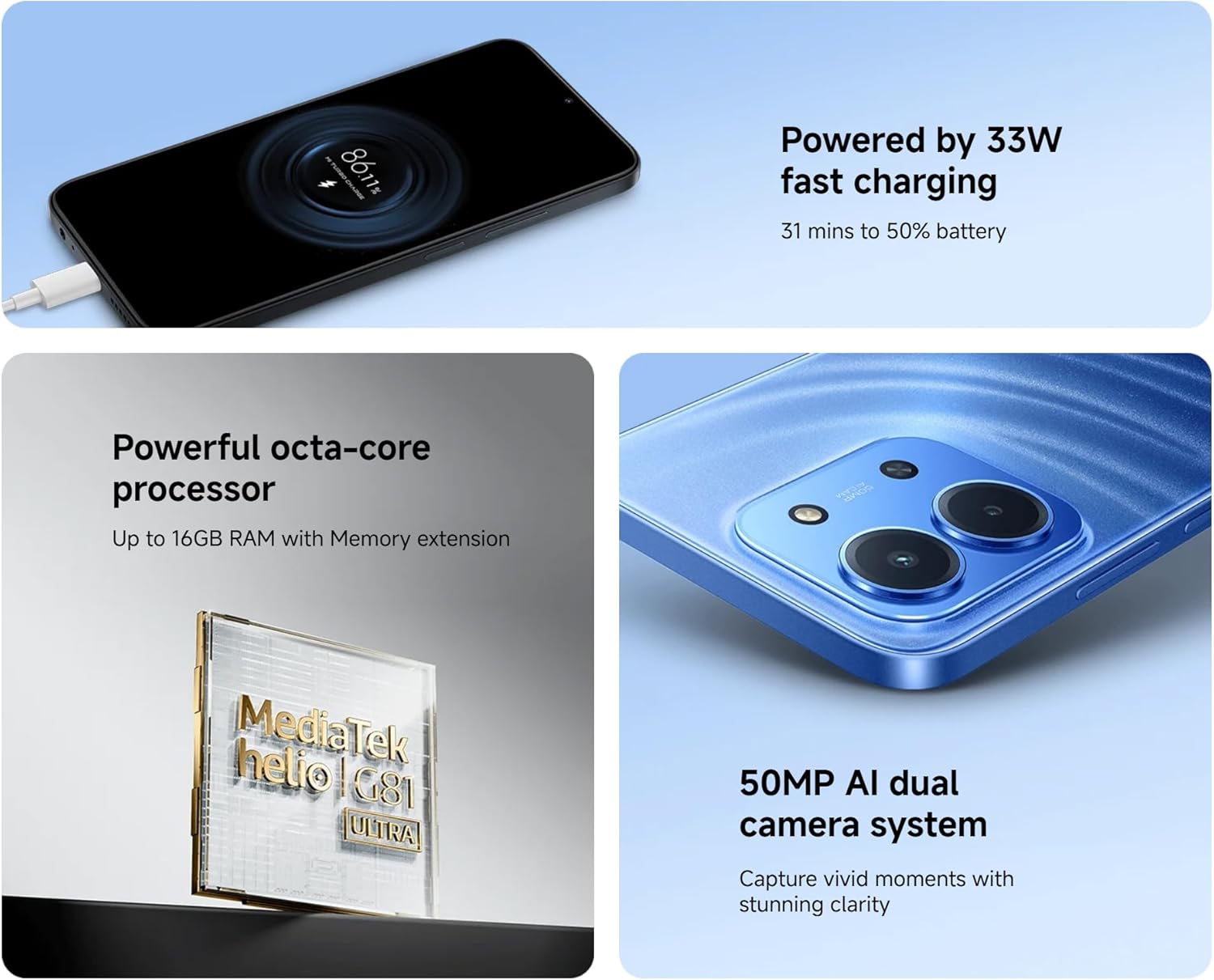
Image: The Redmi 15C connected to a charger, displaying a charging animation indicating 33W fast charging capability.
3. Notkun tækisins
3.1 Grunnleiðsögn
- Snertiskjárbendingar: Swipe, tap, pinch-to-zoom are standard.
- Aflhnappur: Ýttu á til að vekja/svæfa skjáinn. Ýttu og haltu inni til að slökkva á honum eða endurræsa hann.
- Hljóðstyrkshnappar: Stilla hljóðstyrk margmiðlunar, símtals eða hringitóna.
3.2 Að hringja og senda skilaboð
- Open the 'Phone' app to dial numbers or select contacts.
- Open the 'Messages' app to compose and send SMS/MMS messages.
3.3 Notkun myndavélar
Your Redmi 15C features a 50MP AI dual camera system.
- Opnaðu „Myndavél“ appið.
- Veldu stillingu sem þú vilt (ljósmynd, andlitsmynd, myndband o.s.frv.).
- Ýttu á lokarahnappinn til að taka myndir eða hefja/stöðva myndbandsupptöku.

Mynd: Nærmynd view of the XIAOMI Redmi 15C's dual camera module, highlighting its 50MP AI capabilities.
3.4 Skjáreiginleikar
The 6.9-inch immersive display offers a smooth visual experience with up to a 120Hz refresh rate.
- Adjust display settings (brightness, color scheme, refresh rate) in 'Settings > Display'.
- AdaptiveSync technology automatically adjusts the refresh rate for optimal viewing and battery efficiency.

Image: The XIAOMI Redmi 15C's large 6.9-inch display, showcasing its immersive viewupplifun.
3.5 Rafhlöðustjórnun
6000mAh rafhlaðan býður upp á langvarandi notkun. Til að hámarka endingu rafhlöðunnar:
- Use 'Battery Saver' mode when needed.
- Minnkaðu birtustig skjásins og minnkaðu tímamörk skjásins.
- Lokaðu ónotuðum forritum sem keyra í bakgrunni.
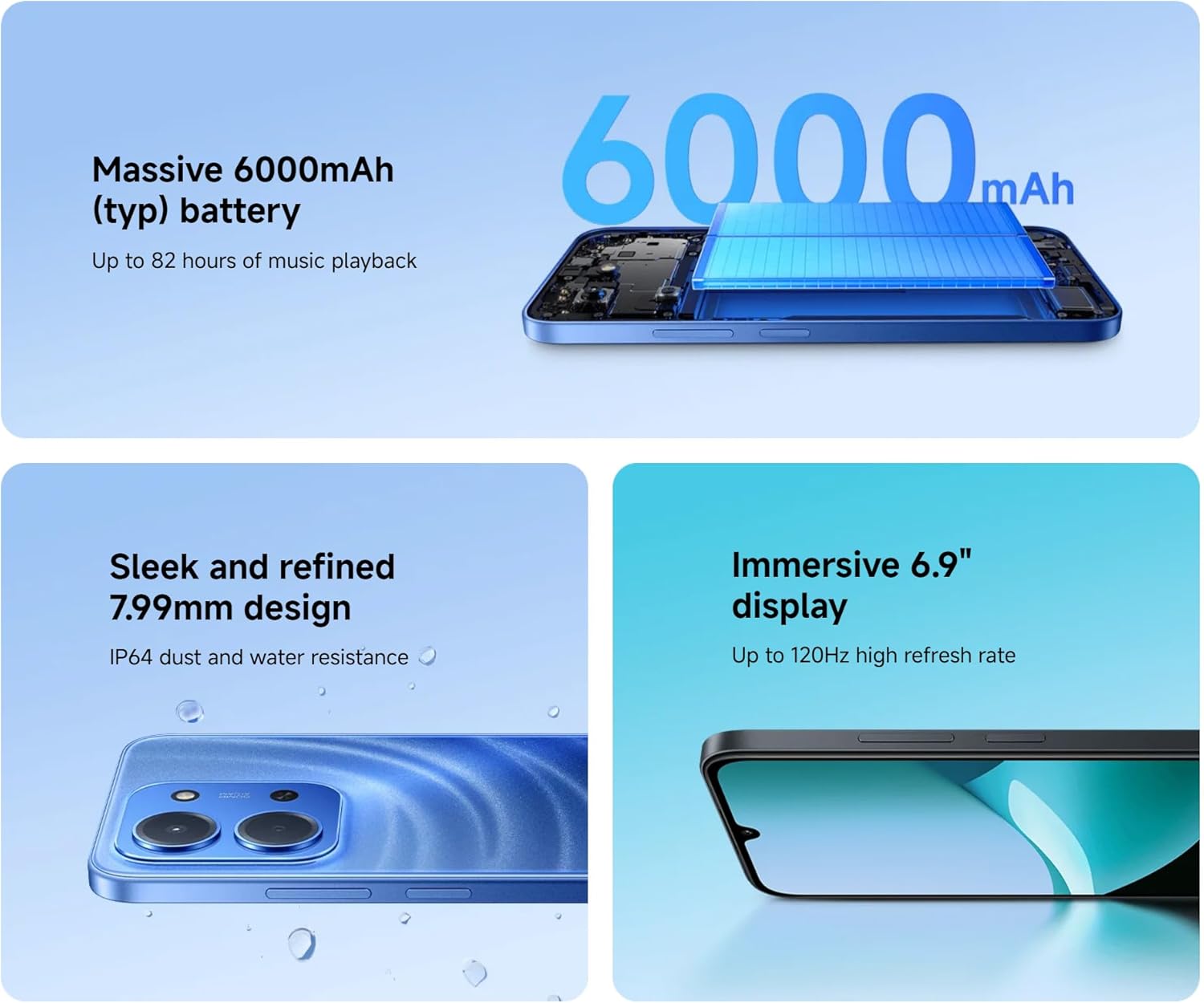
Image: An illustration of the XIAOMI Redmi 15C's internal structure, highlighting its massive 6000mAh battery.
3.6 Processor Performance
The powerful octa-core processor ensures smooth multitasking and efficient app performance.

Image: A visual representation of the MediaTek Helio G81-Ultra octa-core processor, emphasizing its power and efficiency.
3.7 Google Gemini Integration
The Redmi 15C integrates with Google Gemini, your AI assistant from Google, to enhance productivity and creativity. Use Gemini for writing, brainstorming, learning, and more.
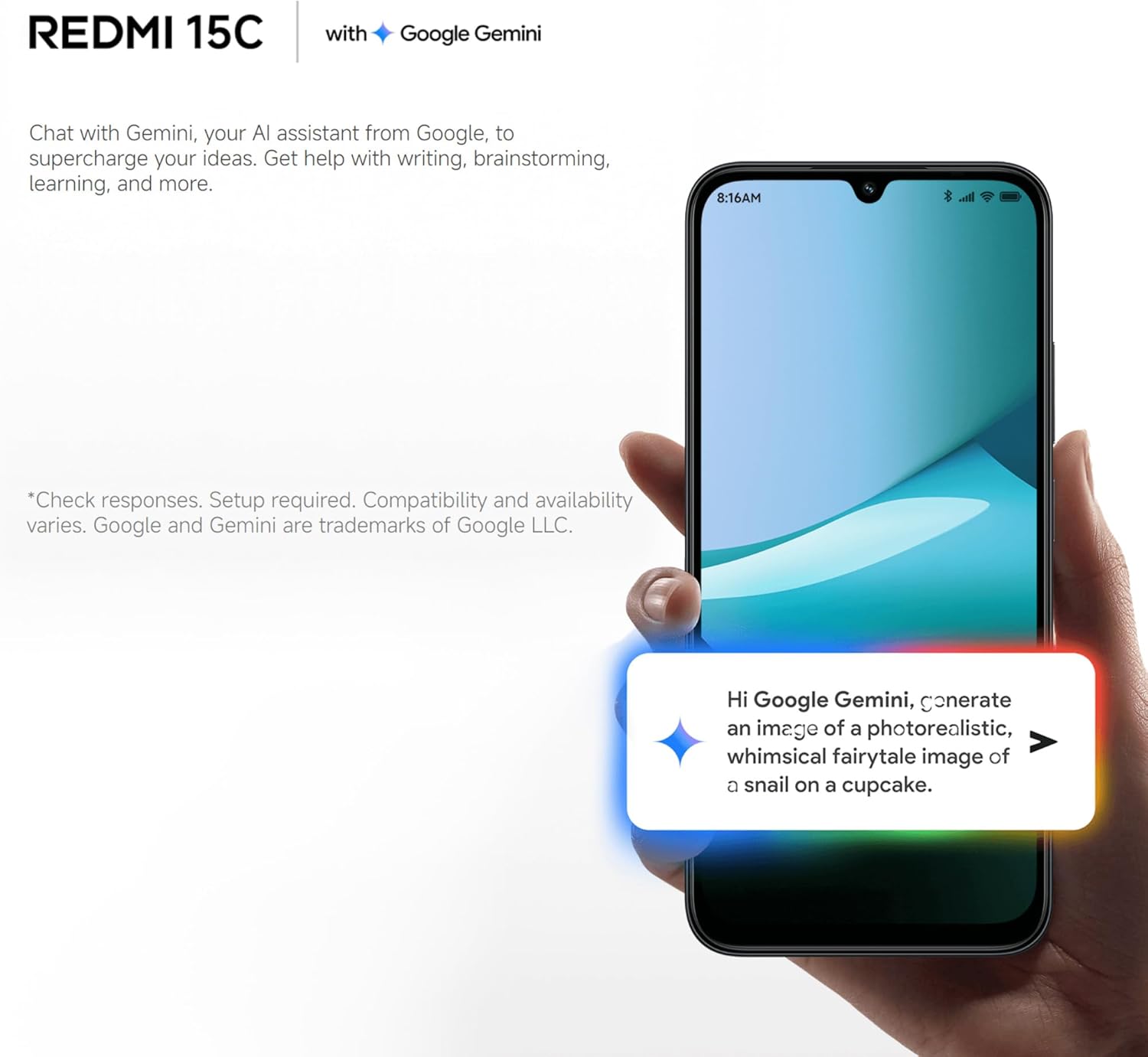
Image: A Redmi 15C displaying a chat interface with Google Gemini, demonstrating its AI capabilities.
4. Viðhald
4.1 Þrif á tækinu
- Notið mjúkan, lólausan klút til að þurrka skjáinn og hlífina.
- Forðist að nota sterk efni, slípiefni eða þrýstiloft.
- Haldið höfnum lausum við ryk og rusl.
4.2 Hugbúnaðaruppfærslur
Regularly check for and install system updates to ensure your device has the latest features, security patches, and performance improvements. Go to 'Settings > About phone > MIUI version' to check for updates.
4.3 Umhirða rafhlöðu
- Forðist mikinn hita því hann getur dregið úr endingu rafhlöðunnar.
- Ekki láta símann vera í hleðslu í langan tíma eftir að hann er fullhlaðinn.
- Use only original or certified compatible chargers and cables.
4.4 Geymslustjórnun
To maintain optimal performance, regularly manage your device's storage:
- Eyða óþarfa files, myndir og myndbönd.
- Fjarlægðu ónotuð forrit.
- Hreinsa skyndiminni fyrir forrit.
5. Bilanagreining
This section addresses common issues you might encounter with your Redmi 15C.
| Útgáfa | Möguleg lausn |
|---|---|
| Ekki kveikir á tækinu | Ensure the battery is charged. Connect to a charger for at least 30 minutes. If it still doesn't turn on, try a forced restart by holding the Power button for 10-15 seconds. |
| Slow performance / Apps freezing | Close background apps. Clear app caches. Restart the device. Check for system updates. If issues persist, consider a factory reset (back up data first). |
| Rafhlaða tæmist fljótt | Reduce screen brightness. Disable unused features like GPS, Bluetooth, Wi-Fi when not needed. Check battery usage in settings to identify power-hungry apps. |
| Cannot connect to Wi-Fi / Mobile Data | Toggle Wi-Fi/Mobile Data off and on. Restart the device. Forget the Wi-Fi network and reconnect. Ensure SIM card is properly inserted and activated. |
| Myndavél virkar ekki | Restart the device. Clear the Camera app's cache and data in 'Settings > Apps'. Ensure no other app is using the camera. |
5.1 Endurstilling verksmiðjustillinga (síðasta úrræði)
Ef þú lendir í viðvarandi hugbúnaðarvandamálum getur endurstilling á verksmiðjustillingum leyst þau. Warning: This will erase all data on your device. Back up all important information before proceeding.
- Go to 'Settings > About phone > Factory reset'.
- Fylgdu leiðbeiningunum á skjánum til að staðfesta endurstillinguna.
6. Tæknilýsing
Below are the detailed technical specifications for the XIAOMI Redmi 15C:
| Eiginleiki | Forskrift |
|---|---|
| Nafn líkans | Redmi 15C |
| Stýrikerfi | Hyper OS 2 |
| Örgjörvi | MediaTek Helio Octa-core (20 GHz CPU speed) |
| vinnsluminni | 4 GB |
| Geymslugeta | 256 GB |
| Skjárstærð | 6.9 tommur |
| Skjáupplausn | 720 x 1560 |
| Endurnýjunartíðni | 120 Hz |
| Rafhlöðugeta | 6000 mAh |
| Hleðsla | 33W Fast Charging compatible |
| Myndavél að aftan | 50 MP tvöföld myndavél með gervigreind |
| Tengingar | 4G LTE, Wi-Fi, Bluetooth, GPS |
| Mál | 0.82 x 8.1 x 17.3 cm |
| Þyngd | 200 g |
| Sérstakir eiginleikar | Dual SIM, International Functionality, Wi-Fi Hotspot, Integrated GPS |
7. Ábyrgð og stuðningur
For detailed warranty information, please refer to the warranty card included with your product or visit the official XIAOMI website. XIAOMI provides customer support for product inquiries, technical assistance, and service requests.
You can find support resources, FAQs, and contact information on the official XIAOMI support page. Please have your device's model number and purchase details ready when contacting support.
No official product videos were found in the provided data.


