Inngangur
The Insignia USB Dual Hard Drive Docking Station provides a convenient and efficient solution for connecting 2.5-inch and 3.5-inch SATA hard drives (HDDs) and solid-state drives (SSDs) to your computer. This docking station supports high-speed data transfer and offers plug-and-play functionality, making it ideal for data recovery, backups, and expanding storage capacity.
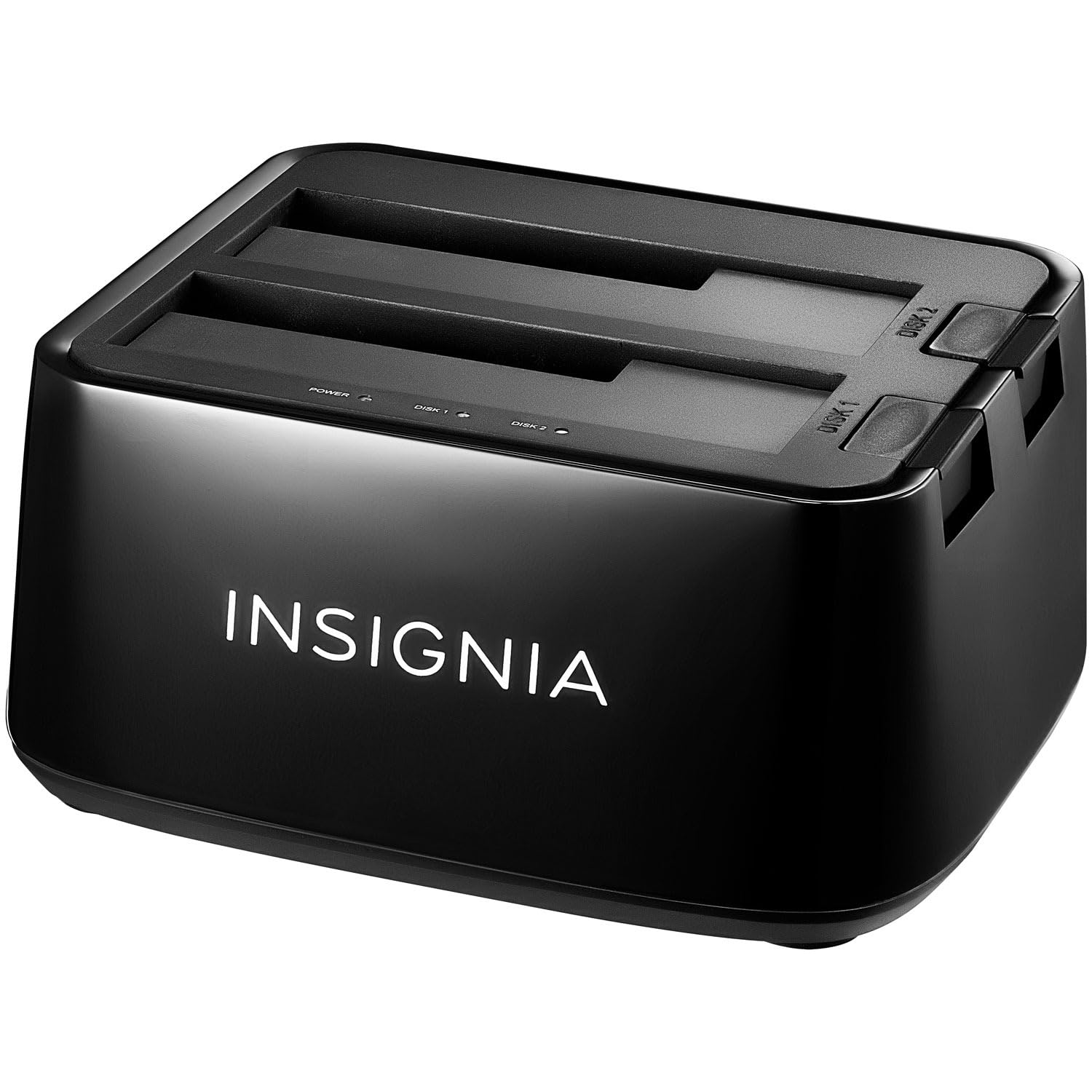
Mynd: Framan view of the Insignia USB Dual Hard Drive Docking Station packaging, showing the product and its compatibility with 2.5" and 3.5" SATA drives.
Innihald pakka
Vinsamlegast staðfestu að allir hlutir séu í pakkanum þínum:
- Insignia USB Dual Hard Drive Docking Station
- Rafmagnsbreytir (12V/3A)
- USB 3.0 snúra
- Quick Setup Guide
Eiginleikar vöru
- Fjölhæfur eindrægni: Supports both 2.5-inch and 3.5-inch SATA I/II/III HDDs and SSDs. Compatible with Windows 11, 10, macOS, ChromeOS, iPadOS, and Android systems.
- Háhraða árangur: Utilizes USB 3.0 technology for data transfer speeds up to 5 Gbps.
- Tvöföld flóahönnun: Allows simultaneous access to two hard drives.
- Plug & Play Simplicity: Engir reklar þarf fyrir uppsetningu.
- Hot-swappable: Drives can be inserted and removed without restarting the computer.
- LED Vísar: Provides visual feedback for power and data activity.
- Varanlegur smíði: Crafted with robust plastic materials for long-lasting use.
Uppsetning
Follow these steps to set up your Insignia USB Dual Hard Drive Docking Station:
- Tengdu rafmagn: Plug the included 12V/3A power adapter into the DC IN port on the back of the docking station, then plug the adapter into a power outlet.
- Settu inn harða diska: Gently slide your 2.5-inch or 3.5-inch SATA HDD/SSD into an available drive bay (Disk 1 or Disk 2) until it is firmly seated. Ensure the SATA connector on the drive aligns with the connector in the bay.
- Tengjast tölvu: Connect one end of the USB 3.0 cable to the USB 3.0 IN port on the docking station and the other end to an available USB port on your computer.
- Kveikt á: Flip the power switch on the back of the docking station to the ON position. The power LED indicator will illuminate.
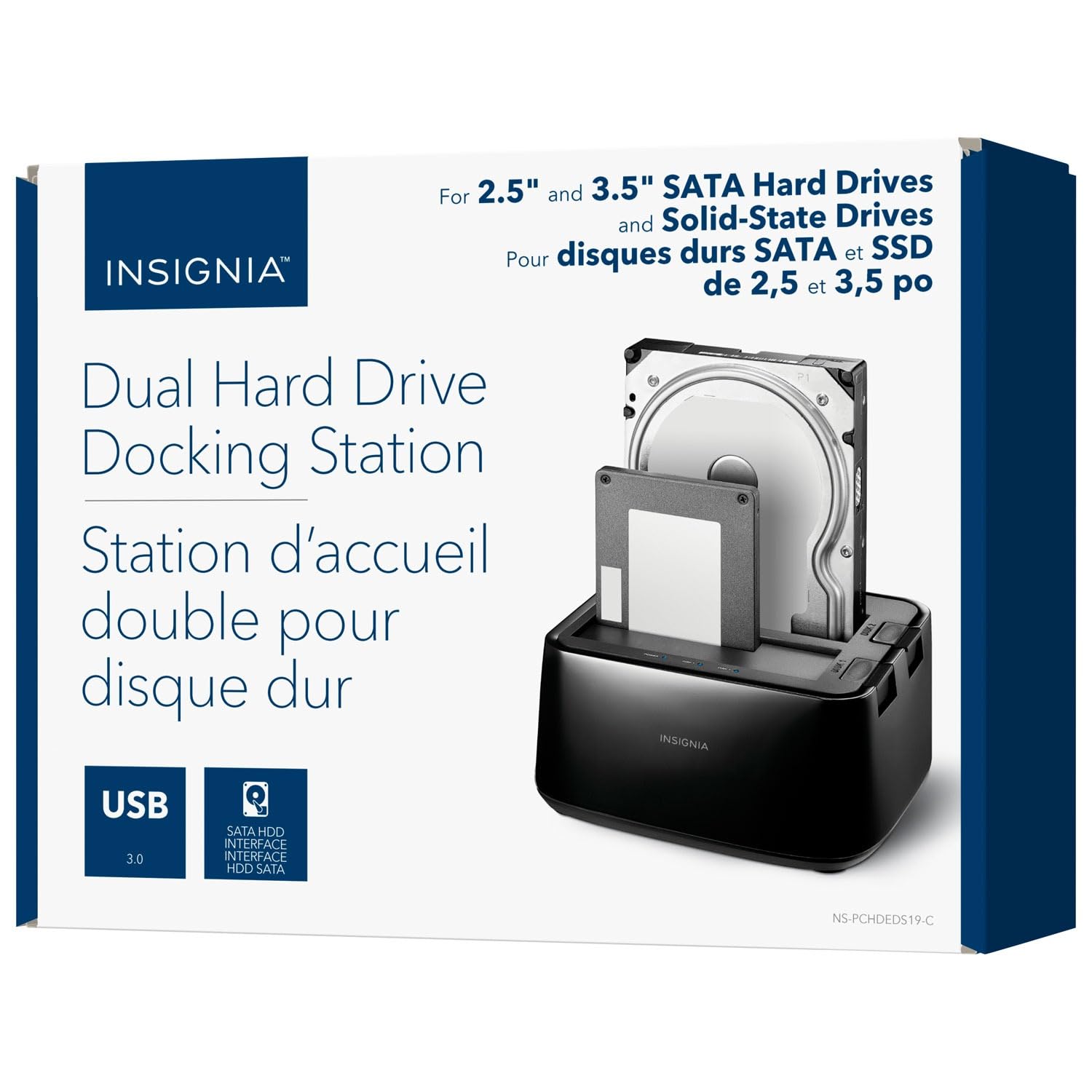
Mynd: Aftan view of the docking station, highlighting the USB 3.0 IN/OUT ports, DC IN power port, and power switch.
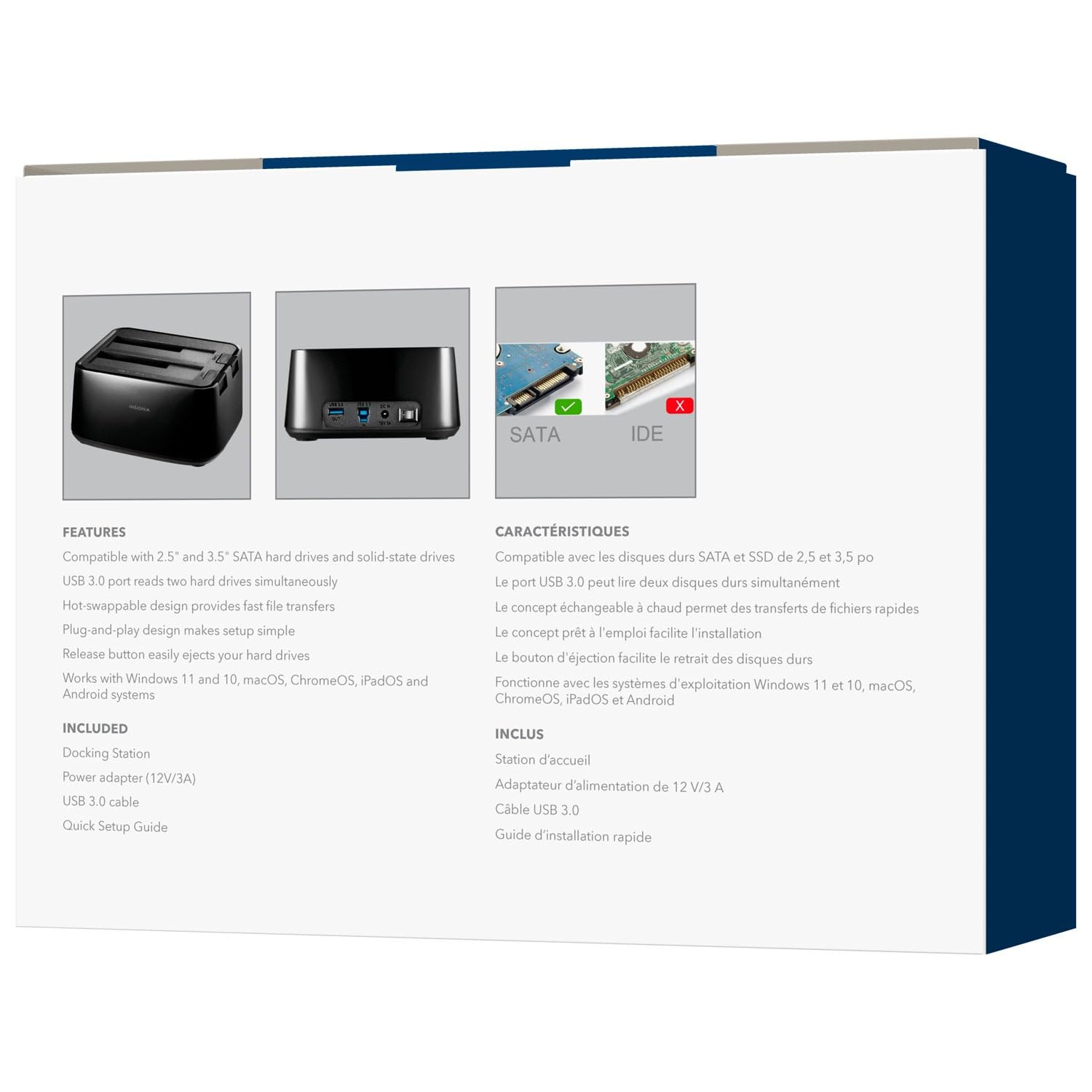
Mynd: Efst að framan view of the docking station with a 2.5-inch SSD and a 3.5-inch HDD correctly inserted into their respective bays.
Notkunarleiðbeiningar
Inserting and Removing Drives
- Til að setja inn: Align the SATA connector of your HDD/SSD with the slot in the docking station bay and gently push down until the drive is securely seated.
- Til að fjarlægja: Ensure no data transfer is active. Safely eject the drive from your operating system (e.g., "Safely Remove Hardware" on Windows, "Eject" on macOS). Then, press the release button next to the drive bay and carefully pull the drive upwards to remove it.
Gagnaflutningur
Once connected and powered on, your operating system should automatically detect the inserted drives. They will appear as removable storage devices. You can then drag and drop files, copy, paste, or use backup software as you would with any other external storage device.
LED Vísar
- Power LED: Illuminates when the docking station is powered on.
- Activity LEDs (Disk 1, Disk 2): Blink when data is being accessed or transferred to/from the corresponding drive.
Viðhald
- Þrif: Notið mjúkan, þurran klút til að þrífa ytra byrði tengikvíarinnar. Notið ekki fljótandi hreinsiefni eða leysiefni.
- Geymsla: Þegar tengikvíin er ekki í notkun skal geyma hana á köldum, þurrum stað fjarri beinu sólarljósi og miklum hita.
- Meðhöndlun: Forðist að láta tækið detta eða verða fyrir hörðum höggum, þar sem það getur skemmt innri íhluti.
Úrræðaleit
Drif ekki greint
- Gakktu úr skugga um að rafmagnsbreytirinn sé vel tengdur og að tengikvíin sé kveikt á.
- Gakktu úr skugga um að USB-snúran sé vel tengd bæði við tengikvíina og tölvuna þína.
- Prófaðu að tengja USB snúruna við annað USB tengi á tölvunni þinni.
- Ensure the hard drive is properly seated in the docking station bay.
- Athugaðu Diskastjórnun (Windows) eða Diskahjálp (macOS) til að sjá hvort drifið sé þekkt en óformaterað eða óúthlutað.
- Test with a different known-good hard drive to rule out a drive issue.
Hægur gagnaflutningshraði
- Ensure you are connected to a USB 3.0 port on your computer for optimal speeds. Connecting to a USB 2.0 port will result in slower transfer rates.
- Verify the hard drive itself is capable of high speeds. Older HDDs may have slower performance.
- Forðastu að flytja mörg lítil files simultaneously, as this can reduce overall transfer speed.
Docking Station Not Powering On
- Check that the power adapter is correctly plugged into both the docking station and a working power outlet.
- Ensure the power switch on the back of the docking station is in the ON position.
- Prófaðu aðra rafmagnsinnstungu.
Tæknilýsing
| Vörumerki | INSIGNIA |
| Fyrirmynd | B0FWFVTZ9W |
| Vélbúnaðarviðmót | USB 3.0 |
| Samhæfar drifgerðir | 2.5" and 3.5" SATA I/II/III HDD/SSD |
| Gagnaflutningshraði | Allt að 5 Gbps (USB 3.0) |
| Vélbúnaðarvettvangur | Alhliða |
| Efni | Plast |
| Rafmagns millistykki | 12V/3A |
Ábyrgð og stuðningur
For warranty information and technical support, please refer to the documentation included with your product or visit the official INSIGNIA website. You may also contact INSIGNIA customer service directly for assistance.


